
In this category Integrations
Google Analytics
On this page
Note: Google shut down the previous version of Google Analytics (Universal Analytics) in 2023. Sections 1–4 and 6 below describe the old version and are only of historical interest. You'll find how to set up Google Analytics 4 in your online shop in the guide to Google Analytics 4.
Introduction to Google Analytics
Google Analytics gives you the best statistical overview of your site – and it is completely free.
Some advantages:
- Relatively easy to use
- Lots of features
- It is available in Danish
- Quick integration
- An e-commerce module that gives a good overview if you run an online shop
Disadvantages:
- In some cases requires knowledge of code
- It can be hard to grasp all the features
1: Create a Google Analytics account
Go to Google Analytics (opens in a new tab) and sign up. If you already have a Google account, it is a good idea to use it.
2. Create your website
-
Click the cog at the bottom left to get to the Admin tab
-
Choose Create Account
-
Enter an account name and click Next
-
Fill in the name and choose the time zone and currency for the site
-
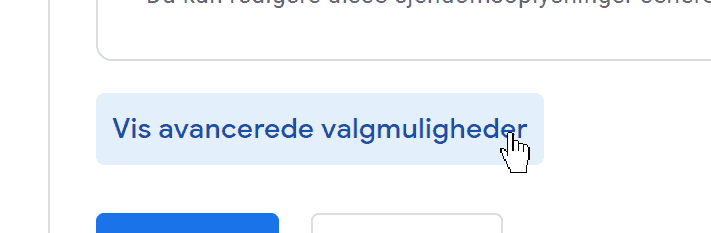
Click Show advanced options
-
Activate Universal Analytics and fill in the domain name
-
Answer the questions about the size of your business etc.
-
Accept the terms of service
3. Integrate your online shop with Google Analytics
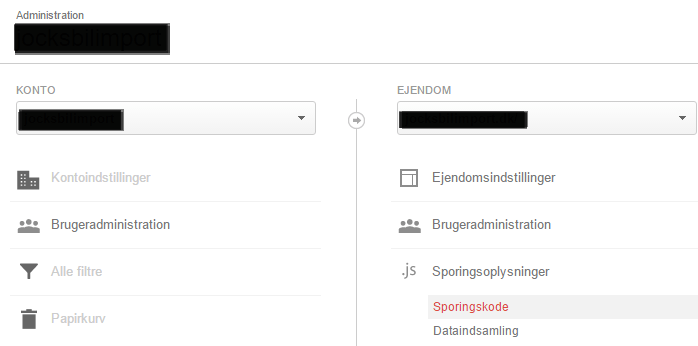
You need your tracking code to integrate your online shop with Google Analytics and start collecting data.
- Choose the Admin tab
- Choose an account in the drop-down menu in the ACCOUNT column
- Choose a property in the drop-down menu in the PROPERTY column
- Click Tracking Info > Tracking Code under PROPERTY
- The code (Tracking ID) is then at the top left
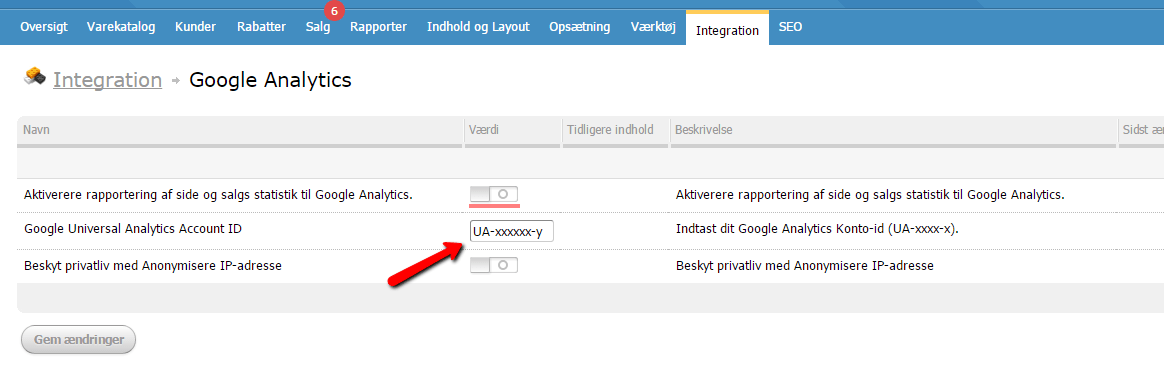
Once you have the code, it needs to be inserted in your online shop.
- Go to your admin and choose Integration > Google Analytics
- Paste the code and activate it
- Click Save changes
Now you are ready to get to know your visitors – e.g. which browser they use, what they visit from (mobile, tablet or PC) and how they found your shop.
4. E-commerce tracking
As an online shop owner, it is essential to have e-commerce tracking in your shop. If you track your sales with the e-commerce code, you get, among other things, precise knowledge of your revenue and of which products your customers bought.
We have made it easy for you: once you have inserted your Google Analytics tracking code, the e-commerce code is already implemented. All you need to do is make sure it is switched on in your Google Analytics account. You do it like this:
- Log in to your Google Analytics account
- Choose the Admin tab
- Navigate to the account, property and view you want
- Choose Ecommerce Settings in the VIEW column
- Switch on Enable Ecommerce + Enable Enhanced Ecommerce Reporting
- Optional: switch on Enable Related Products
- Click Next step
- Click Done
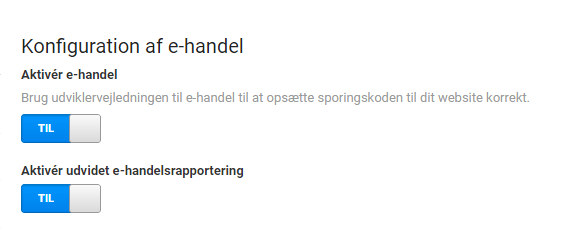
Now you are ready to track your customers' actions in your online shop. It can take up to 24 hours before data starts coming in, though.
5: Searches in your online shop (Site Search)
It can be very valuable to see what visitors search for in your online shop – as inspiration for what to market, new products to consider or words to optimise so they are easier to find.
In Google Analytics 4, searches in the online shop are measured automatically via Enhanced measurement, and the shop's search parameter q is one of the standard parameters. You just need to check that it is switched on:
- Log in to your Google Analytics account
- Go to Admin and click Data streams under Data collection and modification
- Click your web data stream
- Check that Enhanced measurement is switched on – click the cog to see that Site search is included
The searches are recorded as the event view_search_results, with the search term as a parameter.
6: Measure newsletter sign-ups
How many newsletter sign-ups do you get from your ads on Google Ads?
Perhaps you have campaigns that don't create many sales here and now, but do bring in newsletter sign-ups – and so the chance of a sale that way later.
You can measure this by setting up newsletter sign-ups as a goal in your Google Analytics.
Click
at the bottom left when you are logged in to Google Analytics.
Choose the relevant website and click Goals under the View section. Then click the New Goal button:
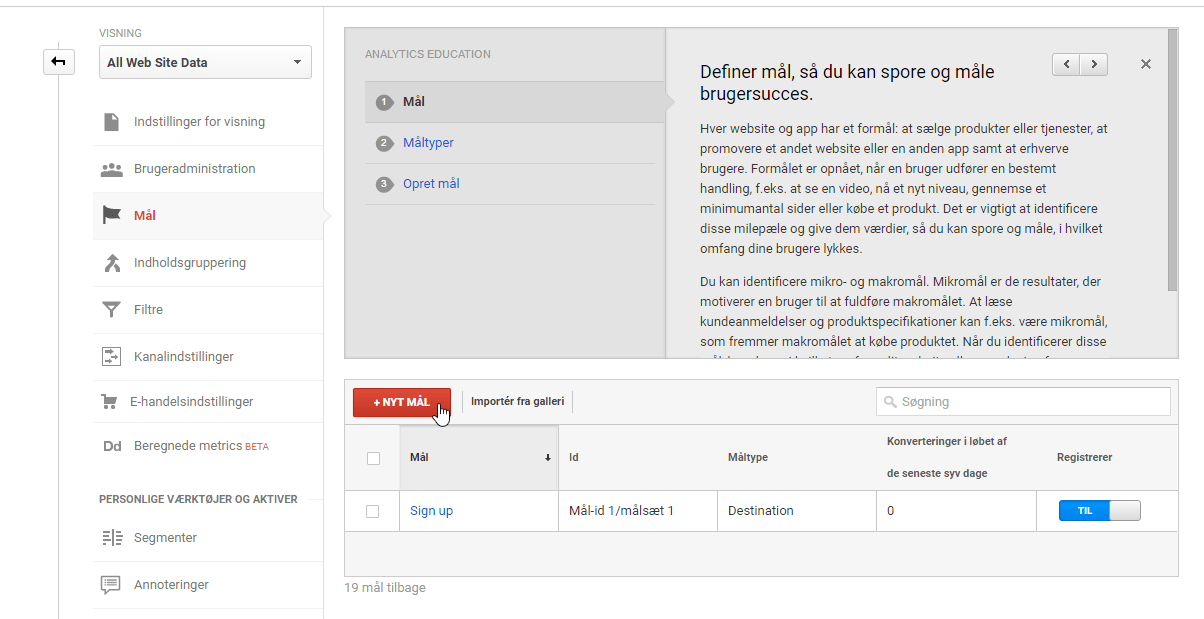
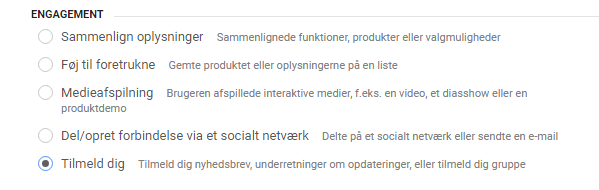
Choose Sign up under Engagement:
Give the goal a name (for example “Newsletter sign-up”) and choose Destination under Type:
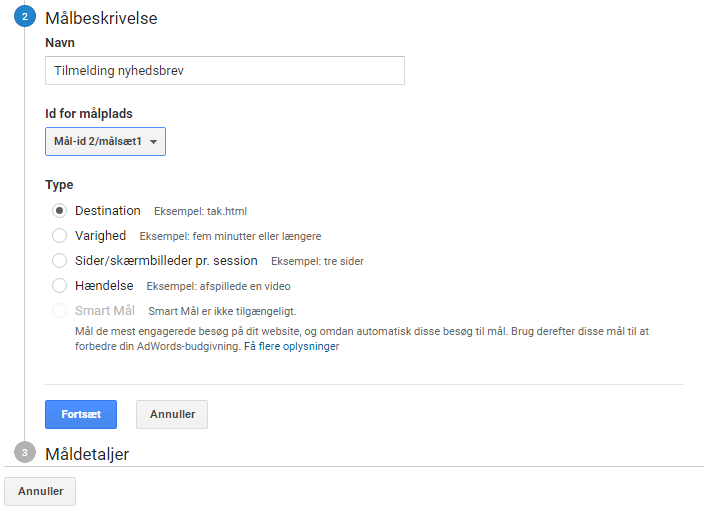
Click the continue button and fill in /newsletter/subscribe-success in the destination field:
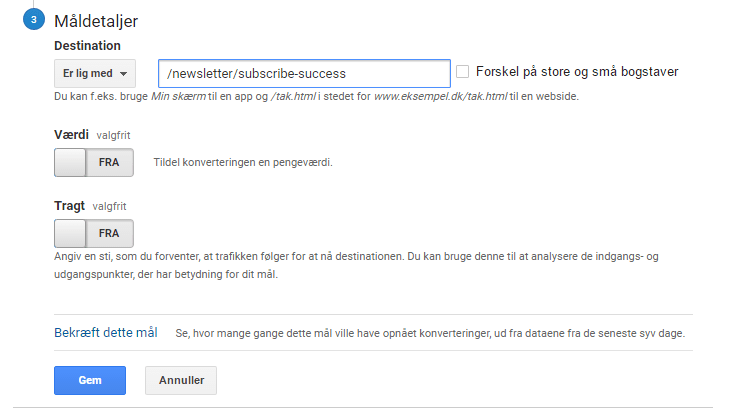
Now click the Save button, and your goal has been created.
When data starts coming in after about a day, you can begin to see analyses of newsletter sign-ups – for example Goals under Conversions.
PROBLEM: QuickPay/MobilePay is recorded as the source of all or some of the transactions
If QuickPay/MobilePay etc. is given as the source of many of your transactions, you need to do something about it. It prevents you from seeing the original traffic source that was responsible for the transaction. The payment gateway as the referrer tells you nothing and is, in that sense, something to avoid.
Google Analytics starts a new session when a user comes to the website from a different traffic source than the previous one (and it is not a direct visit), even if the previous session has not expired. You send customers to the payment gateway one way or another, and they are then sent back after a successful transaction. When the user arrives at the site from the gateway, the HTTP headers contain referral information saying that the visitor comes from, e.g., QuickPay.
How do you exclude payment gateway referrals?
You need the List unwanted referrals feature. In Google Analytics 4, you'll find it under Admin > Data streams, then your web data stream, then Configure tag settings > Show all > List unwanted referrals. You need to add the host name – either the domain name or a specific subdomain – to the list. This makes sure that a visit with a web address under that host name does not start a new session if there is already an active session.
This is what our list of unwanted referrals looks like:
viabill.dk
danskebank.dk
quickpay.net
More help with Google Analytics
There are quite a few guides and help pages from Google itself, so if you are stuck, take a look here: Google Analytics Help (opens in a new tab) or here: Set up Analytics for a website (opens in a new tab).
Consent mode
You can add consent mode to Google Analytics – see this guide to consent mode.
Link to Google Ads
You can use data from your Google Analytics in your Google Ads by linking the two. This is shown in this guide