
In this category Integrations
Setting up Google Shopping: start here
Setting up Google Shopping for your Golden Planet online shop
On this page
Google Shopping has become a key part of the battle to get visitors from Google when potential customers search for products that way.
With Google Shopping, your products can be shown at the top of Google with an image, title and price.
You can read more about Google Shopping in general here.
Introduction – what needs to happen, in short
- Create a Google Ads account with Google (if you don't already have one)
- Verify your website
- Create a Merchant Center account with Google
- Claim your website
- Link Google Ads and Merchant Center
- Set up Google Shopping in your online shop
- Create a campaign in Google Ads
Create a Google Ads account
If you already have a Google Ads account, you can skip this and go on to the next step, “Create and verify your website in Search Console”
A Google Ads account is free to create with Google. You need one to advertise on Google's services, including Google Shopping.
If you already have a Google account that you use for Gmail, Drive or something else, you can use it as the login for your Google Ads account. If it is an account you (mainly) use privately, we recommend creating a new Google account that you only use for your company/business.
The easiest way is to create a Gmail account first at https://mail.google.com (opens in a new tab) and then use it for your Google Ads account and other Google services.
You create your Google Ads account by going to https://ads.google.com (opens in a new tab) and following the guide.
As your first ad, you can create a so-called brand ad, which appears when people search for the name of your company and/or online shop.
Learn more about Google Ads here:
- Google's onboarding guide for Shopping ads (opens in a new tab)
- Google's getting started guide (opens in a new tab)
- Google Ads Help (opens in a new tab)
- Book in Danish about Google Ads (AdWords) for online shops (opens in a new tab) – optional reading; the book uses the old name AdWords
- Online course (in English) at Udemy.com (opens in a new tab)
Create and verify your website in Search Console
To use Google Shopping, your ownership of the domain name/website must be verified.
The best way to do this is through Google Search Console (formerly Webmaster Tools). Then you also have it in place for other purposes.
You can also use Google Analytics to get your domain name verified.
You can see how in this guide to Google Search Console.
Create a Merchant Center account
- Go to https://www.google.com/retail/merchant-center/ (opens in a new tab)
- Click the Sign Up button
- Log in with your Google account (typically the same one you use for Google Ads)
- Fill in the form
- Verify your website
Claim your website in Merchant Center
While you create your Merchant Center account, you can claim your website, as Google calls it. This is part of Google making sure that you are working with a website you own.
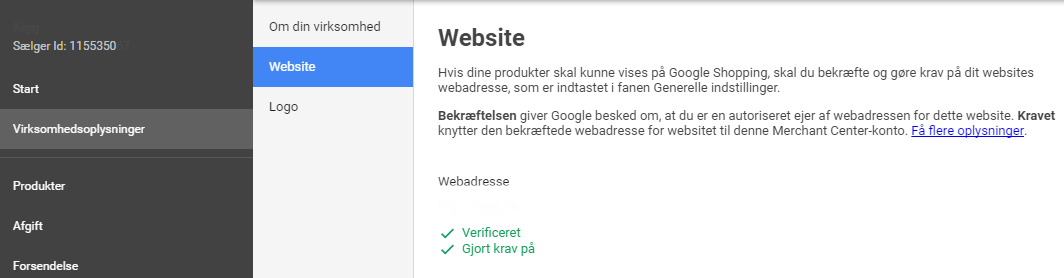
You can also always check and complete the claim on your website by logging in to Google Merchant Center. There, go to Business information and then Website. Click claim, and for everything to be in place you should see this result:
Link Google Ads to Merchant Center
Now that Merchant Center is in place, it is time to link it to your Google Ads account.
If you use the same Google account for Merchant Center and Google Ads, you can do it the easy way:
-
Log in to Merchant Center
-
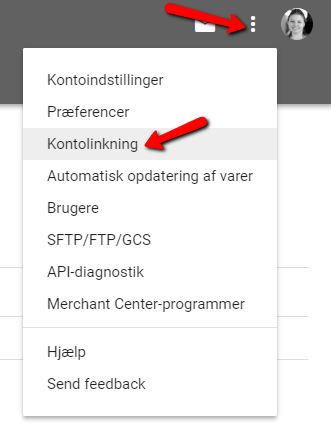
Click the 3 dots in the top right-hand corner
-
Choose Account linking
-
Click the Link button next to your Google Ads customer ID:
If you do NOT use the same Google account for Merchant Center and Google Ads, do the following:
-
Log in to Google Ads (in another browser window)
-
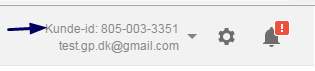
Find your customer ID at the top right
-
Select and copy the number
-
Log in to Merchant Center
-
Choose the 3 dots in the top right-hand corner
-
Choose Account linking
-
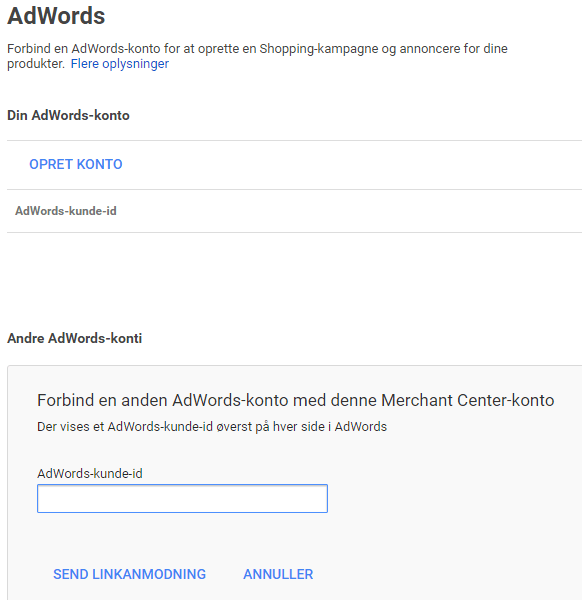
Click the Link account button
-
Paste your Google Ads customer ID and click the Send link request button
-
Go back to Google Ads
-
Click the cog icon for settings at the top right
-
Go to Account settings
-
Choose Merchant Center
-
Approve your request
Prepare variants in your online shop
In your product feed, you need to say which variants are colours or sizes and which should be ignored.
You do this in the setup of variants and attributes:
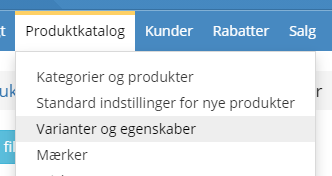
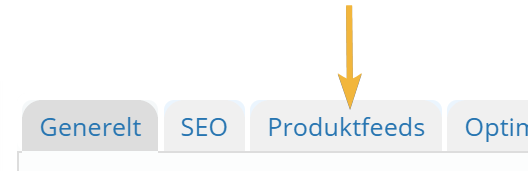
There, edit each variant. Then click the Product feeds tab at the top. Here you choose the relevant setting:
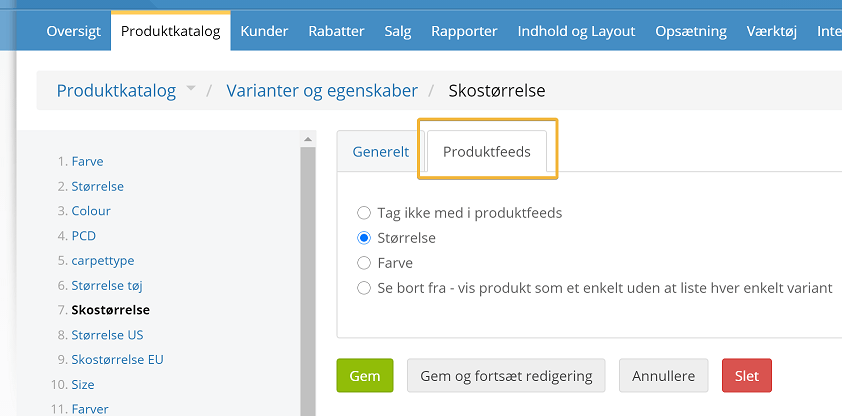
Remember to save, of course, before you move on to the next one.
Once variants are set up as size or colour, they also get a link in the product feed that goes straight to the choice of that specific variant (with #vid: and the variant's ID at the end of the web address).
Barcodes (GTIN/EAN) should be added to your products
For most channels – including Google Shopping – you are (officially) required to provide at least one of the following:
- Barcode (GTIN/EAN)
- Manufacturer/brand name and its product number (MPN)
- That the product has no GTIN or MPN
You add this to your products on the Data tab, in the barcode field (if you have variants, you do it on each variant)
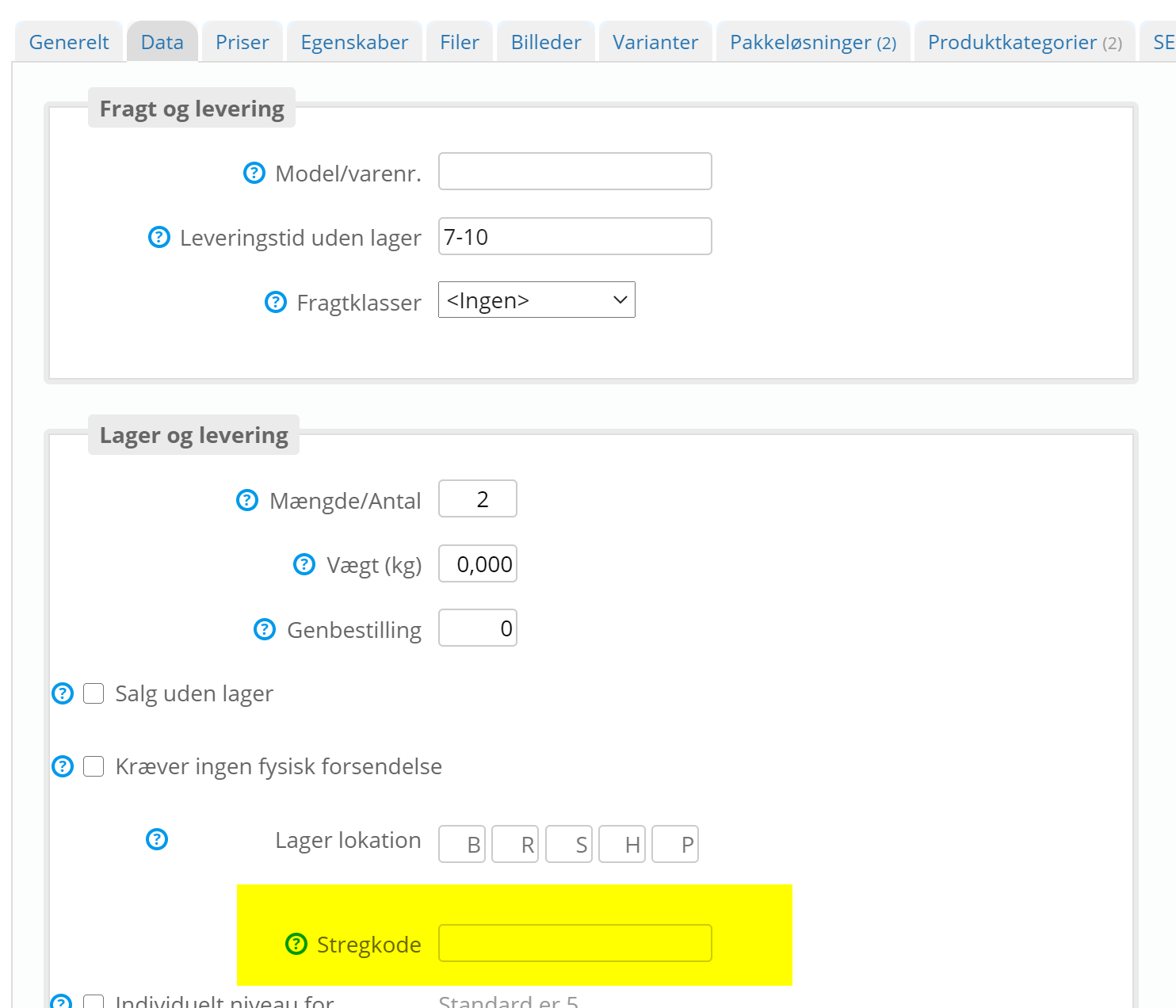
You can make adding barcodes much easier by connecting a USB barcode scanner to your computer. You can buy one from only €45 – just search Google for a USB barcode scanner. Once the scanner is connected, simply place the cursor in the barcode field while editing the product and scan the barcode.
If you have a lot of existing products that need barcodes, you can also consider exporting the products, opening them in a spreadsheet, adding the barcodes and then importing them again. More about import/export here.
You can find more information about barcodes from Google here (opens in a new tab)
Exclude products you don't want included
You can exclude products when you set up your campaigns in, e.g., Google Shopping.
Another option is to exclude them so they are not included in your feed at all – e.g. if you know they cause errors or you know they will never be part of Google Shopping anyway.
You can exclude individual products on the Product feeds tab
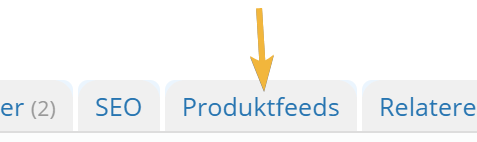
Or all products in a category – also by editing the category, on the Product feeds tab
Create an XML feed or connect via the API – choose a method
If you have fewer than 25,000 products and a daily update of the product data for Google Shopping is enough, you can consider using this method with a product feed that Google fetches.
The more advanced method is an integration via the API. It is a little harder to get started with. On the other hand, it sends updates to Google shortly after they happen and does not have the same limit on the number of products.
- Google Merchant Center fetches products from the feed
- Simpler setup
- Recommended for fewer than 25,000 products and daily updates
Continue with the product feed
- Integration via the API directly with Google Merchant Center
- More advanced setup
- Recommended for many products or when products need to be updated quickly
Guides
2 articles- Google Shopping via the API Integration via the API directly with Google Merchant Center. More advanced setup. Recommended for many products or when products need to be updated quickly
- Updating the integration with Google Merchant Center Switch the integration with Google Merchant Center over to Google's new Merchant API.