
In this category Shipping & delivery
Collection from shop/warehouse
On this page
If your online shop has a physical shop, or offers collection from your warehouse, for example, it can be a good idea to let customers collect their orders directly from you. It saves shipping costs for both the shop and the customer.
To set up collection as a delivery method, you first create the pick-up points and then set up the delivery method itself as an option at checkout.
Create pick-up points
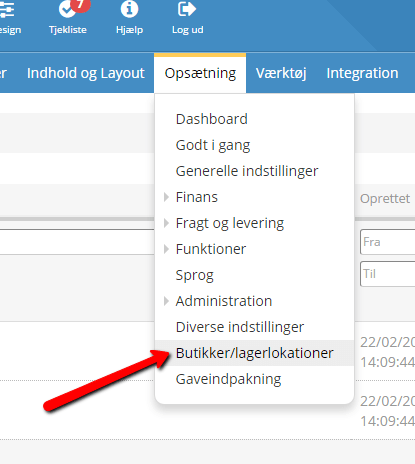
You enter the physical location of your shops under Settings > Shops/stock locations – and there you choose Add new location.
Title
Customers see this title at checkout. Make it descriptive, so they know exactly what it refers to. For example “The shop in Kolding” or “The shop on Østergade, Kolding”.
Country
Choose the country the shop is in.
City
Enter the name of the town or city.
Phone
If the shop has a phone number you want to show, enter it here.
Mobile
If the shop has a mobile number you want to show, enter it here.
Address
Enter the shop’s address, so the customer knows where to collect the order. Remember to check for spelling mistakes and typos. This address is also shown on the customer’s order confirmation and invoice.
Postcode
Enter the postcode of the shop’s location.
Remember to save
When you’ve made all your changes, remember to click Save to keep them.
Add it as a delivery option
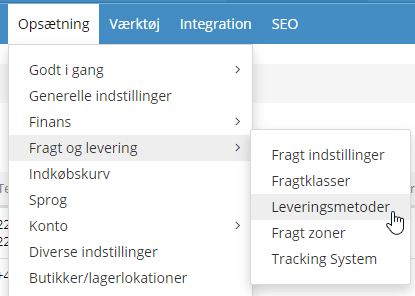
You’ll find the module for collection from the shop under Settings > Shipping and delivery > Delivery methods – and there you choose Add new.
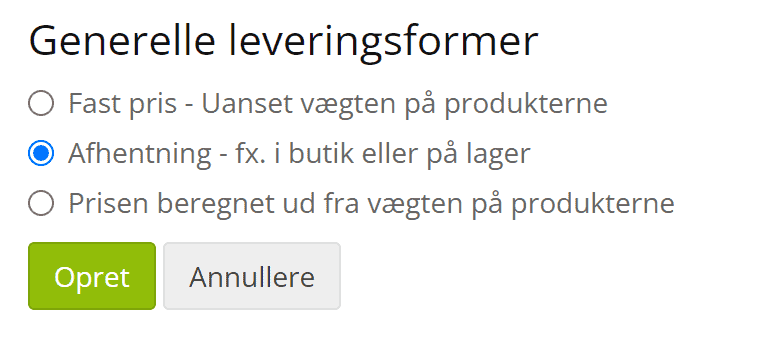
Then choose Collection – offer places where customers can collect their orders themselves and click Create.
Enable module
The module has to be enabled before it works.
Estimate
If you want this method to be used as the shipping estimate in the customer’s basket, tick this box.
Title
Give it a descriptive title, so the customer knows what this method involves. For example “Collection from the shop”.
Description
This text is shown below the title. It’s a good idea to give the shop’s opening hours here, so customers know when they can collect their order if they choose this method.
VAT class
If a VAT class should apply, choose it here.
Logo
If you want a logo shown with this delivery method, you can upload an image file here. Click the folder icon on the right and choose the file you want.
Handling cost
Should collecting the order from the shop cost a fixed amount? Enter the price in your shop’s default currency.
Default order weight, kg
If the total weight of an order is 0 kg, the weight you enter here is used.
Locations
Choose between the pick-up points you have created. See above for how to create them. You can also set a fee per pick-up point.
Maximum weight (kg)
The delivery method is only offered for orders where the total weight of the products does not exceed the limit you enter here. If the staff in the shop can’t handle parcels over 30 kg, for example, enter 30 here, and this delivery option won’t be shown if the order weighs more than that.
Minimum weight (kg)
The delivery method is only offered for orders where the total weight of the products is above the limit you enter here.
Allow only for shipping zones
Here you can limit the zones that collection from the shop applies to.
Allow only for customer groups
If this delivery method should only apply to certain customer discount groups, tick them here.
Allow only customer types
If this method should only apply to certain customer types, for example private customers or businesses, you can set that here.
Remember to save
Remember to click Save when you’ve finished your changes.