
In this category Shipping & delivery
Shipping & deliveryPostNord collection
PostNord and the nShift integration (formerly Pacsoft)
On this page
Pacsoft is now nShift
Note: This guide was written when the service was called Pacsoft. PostNord has closed Pacsoft Online, and nShift now runs this service – see Switch from Pacsoft to nShift. Where it says Pacsoft below, it is now nShift.
Transfer details to nShift via the integration and print the label
When a customer has placed an order in your shop, you can create a shipment with the customer’s delivery address directly on the order page (Sales > Orders) by clicking Create new shipping label. Once the shipment has been created in nShift, an extra button called Print Label appears right next to it. It lets you print the shipping label.
You can also see a special tracking page, and log in directly to nShift to correct shipments before they are printed, or print several shipments at once.
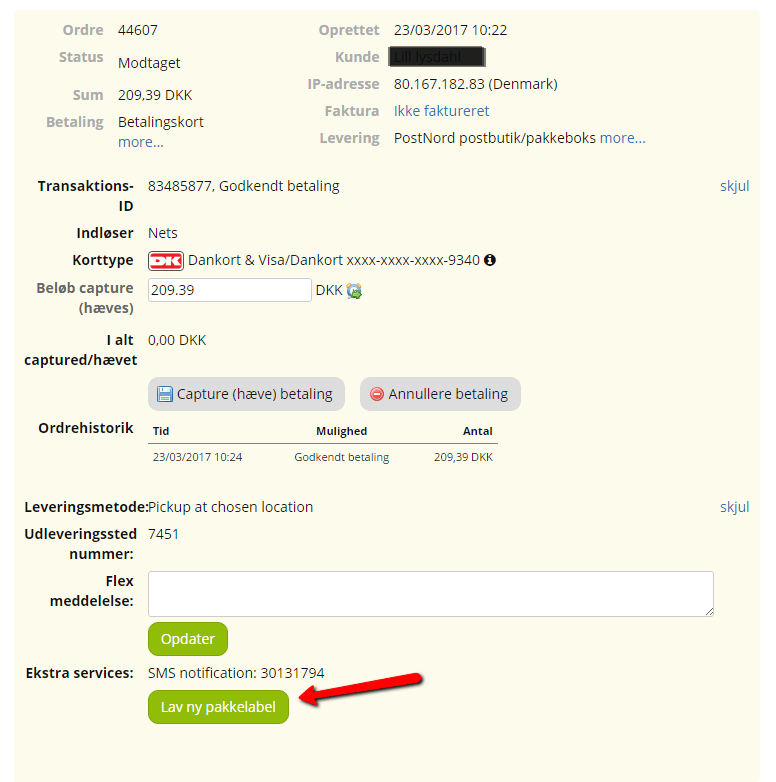
There is one important setting you must remember to make before you can use the integration for shipping labels, unless you have created a Pacsoft sender Quick ID (which we recommend).
It’s under Settings > Shipping and delivery > Shipping settings. Here you need to fill in your country, your address and your postcode, so they appear on the shipping label.
Transfer several orders at once from the order list
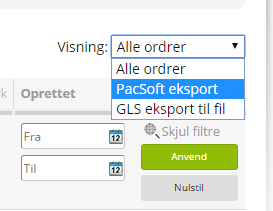
You can also transfer several orders to Pacsoft at once. In the order list, you can choose a view (top right) called PacSoft export; it shows all the PostNord orders, and you can now select them in the list and run an export at the bottom. A file is then created (you can even download it to your computer if you like) and sent to Pacsoft. You can then click the link to go straight into Pacsoft and print all the shipping labels at once.
Tracking number with the integration: copy and paste manually
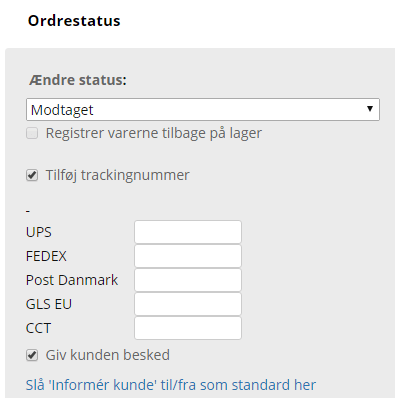
Once you have created and printed a shipping label, a tracking number has been created in Pacsoft. You need to add it to the order as a tracking number. You can copy it and paste it on the same page under Add tracking number. Afterwards, you can send it to the customer by choosing the info template Tracking number changed.
Tracking number with the integration: automatically per order or for many orders
You can set up your online shop to fetch the tracking number from Pacsoft and send it to the customer by email automatically.
General settings
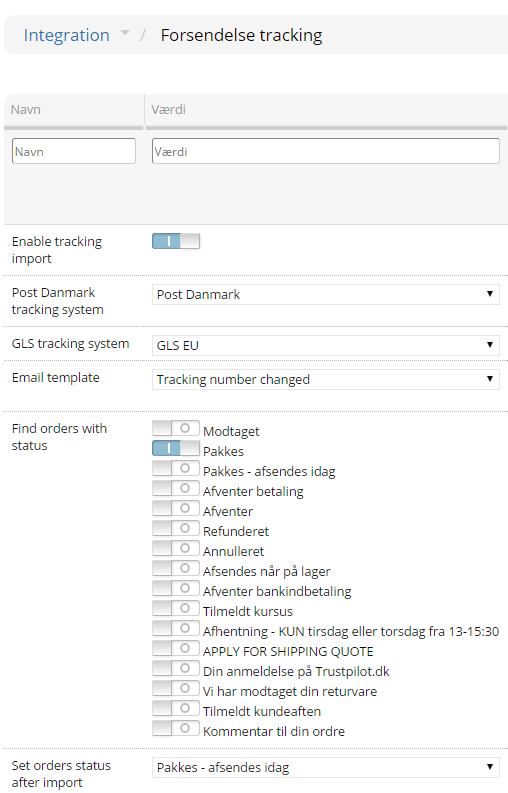
To get started, you first need to put a few general settings in place. You’ll find them under Integration > Shipment tracking.
Here it’s important to choose the tracking system for PostNord.
Choose an email template to use when the tracking numbers are sent to the customer.
The import also changes the order status once it has run; you choose that status in Set order status after import.
Find orders with status is a filter for the file import: it only processes an order in the file if the order has one of the selected statuses.
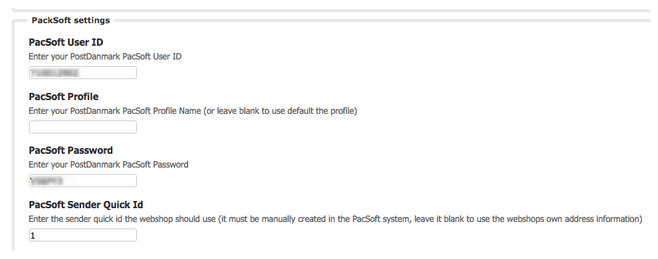
PacSoft settings
To fetch tracking numbers, you need to have entered your Pacsoft user details on one of the PostNord delivery methods.
Handling a single order
On orders placed with a PostNord module, you’ll see the [Generate New Label] button.
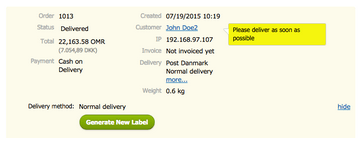
When you click this button, the order is exported to Pacsoft, and you’ll then see 4 new buttons.
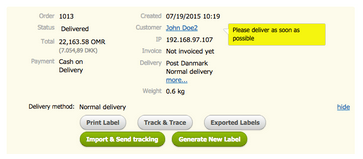
These 4 buttons are for features in the Pacsoft system:
[Print Label] opens a window and starts printing a shipping label. This is also needed for a parcel number / tracking number to be created.
[Track & Trace] opens a window with Pacsoft tracking, where you can see the delivery details.
[Exported Labels] opens Pacsoft in a new window, where you can see the labels you have exported before.
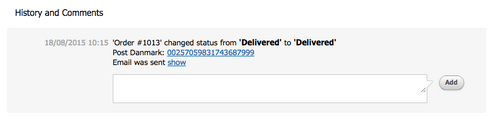
The [Import & Send tracking] button fetches the tracking codes that have been printed for this order, changes the order’s status, sends the customer an email and saves the tracking number in the order history at the bottom:
Bulk import of tracking numbers
If you have handled a lot of orders during the day, it’s a good idea to handle them all at once by exporting the numbers from Pacsoft and then importing them into the shop.
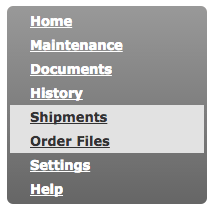
You make the export from Pacsoft by logging in and going to History > Shipments in the menu.
Then search for today’s shipments by choosing Date in the search values and then clicking Today. Now click search and check that it finds today’s order shipments.
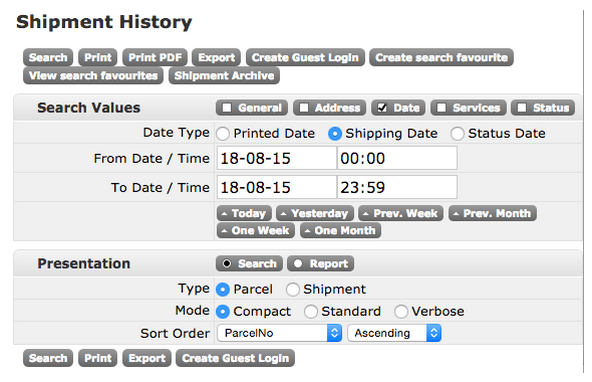
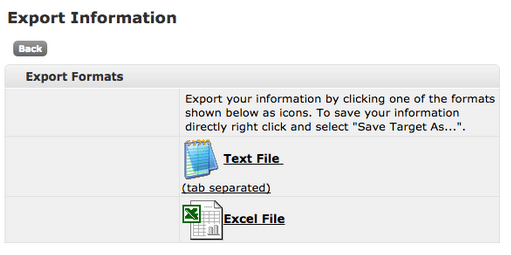
Once you have your shipments listed, click [Export] in the top row of buttons. You can now get the search result in 2 formats.
Choose Text File.
Right-click it and choose to save the linked document.
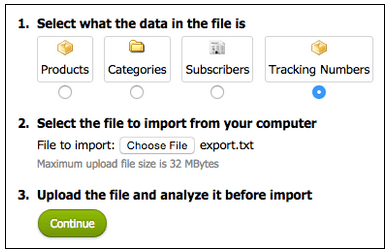
When you have saved the file on your computer, go to the online shop and to Tools > Import from file.
Here, choose Tracking Numbers in step 1 and find the file exported from Pacsoft in step 2.
Then click [Continue].
You’ll now see a preview of the data in the file.
The system should have recognised the file and preselected the format in The files preset under step 1.
You can check that Line 1, which holds the column headings from the file, matches the data the import can use in the Tracking Numbers Data column.
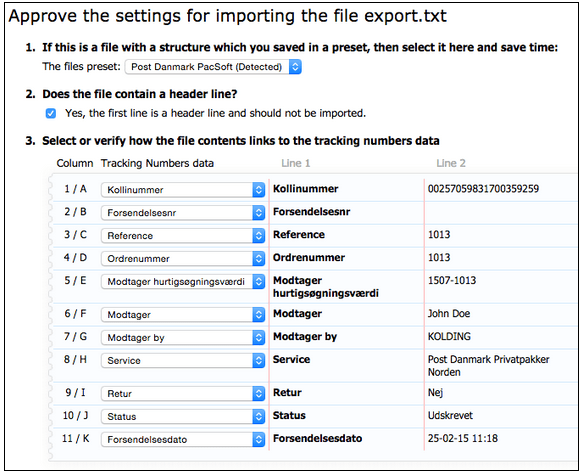
When you then run the import, the system checks whether each order in the file has the right status. If the status is right, the import will:
Change the order’s status
Save the tracking number
Send the tracking email to the customer
This way you can handle a lot of orders very quickly.
Extra services by editing in Pacsoft Online
On the order page, you can log in directly to Pacsoft (via the link Saved printouts) and change a shipment before you print it. That way you can correct any mistakes and add missing services such as insurance, fragile etc.
If you have questions about PostNord’s services, prices and systems, contact PostNord directly.
If you have questions about setting up the module in the shop that you don’t feel are answered here, you’re always welcome to contact our support.