
In this category Shipping & delivery
Shipping & deliveryPostNord collection
PostNord and the Pacsoft integration
On this page
Note: PostNord has closed Pacsoft Online. Shipping labels and tracking via an integration are now done with nShift – see Switch from Pacsoft to nShift. The sections about Pacsoft below only apply to existing setups; the setup of the PostNord module itself (delivery methods, parcel shops, parcel lockers, API key) still applies.
The PostNord module in your Golden Planet online shop makes shipping with PostNord very easy. Among other things, it lets you use different prices for private and business addresses, flex delivery, parcel boxes and more. The integration with Pacsoft lets you print shipping labels and follow the parcel’s journey with tracking. Your customers can also choose whether they want delivery status updates for their order by text message (status updates by email are always sent), so they know when the parcel will be delivered.
You’ll find the PostNord module in your shop’s admin under Settings > Shipping and delivery > Delivery methods. There, choose Add new and then PostNord PacSoft – Delivery to parcel shop, PostNord PacSoft – Delivery abroad or PostNord PacSoft – Delivery to private address.
How to sign up with PostNord for Pacsoft
You used to apply for a Pacsoft agreement here. Pacsoft Online has closed – new agreements for shipping labels via an integration are now made with nShift (see Switch from Pacsoft to nShift).
Requirement for using the module: product weights
To use the module, all your products must have a weight. You set it via Product catalogue > Product list > Edit > Data (tab).
If not all your products have a weight, you can set a default weight in the module.
Requires registration for Unifaun ERPConnect – XMLPosting
Log in to Pacsoft Online > Buy accessories > choose For Unifaun’s webshop > show More features > show Unifaun ERPConnect – XMLPosting
Fill in your details – fill in the bottom part like this:
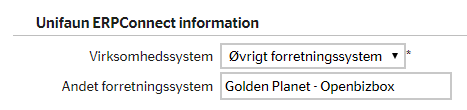
Remember to tick Approve before you click Send application.
General setup of the PostNord modules
Here is the standard setup for the PostNord modules; further down you’ll find the special settings for each delivery method.
General:
Give the module a title, so customers are completely sure what they are choosing – for example “PostNord private delivery”, “Delivery to a private address in Germany” or “PostNord parcel box delivery”.
Remember that VAT applies to shipping.
Set a maximum weight – be aware that there may be a weight limit of max. 20 kg for parcel shops.
You can also add weight for the packaging.
If your products don’t have a weight and you don’t have time in your diary to add it, there may be one weight that suits most of your orders. That’s why you can enter a default weight for a single parcel in Default order weight, kg. It is then used when not all the products have a weight.
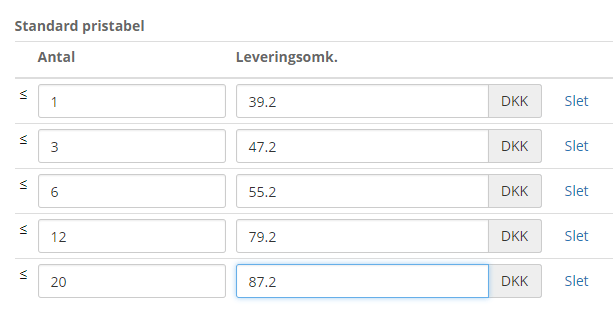
In the price table, you enter the delivery costs per weight.
See this table, for example. Note that these prices are entered without VAT, as VAT is added afterwards.
Who can use this option?
If there should be restrictions on who may use this delivery method, you can set them here.
API (PacSoft settings)
Enter your PostNord Pacsoft details here. You can find them when you log in to Pacsoft’s online administration. You’ll find your user ID under Administration > My account. You’ll find the Quick ID under Administration > Senders.
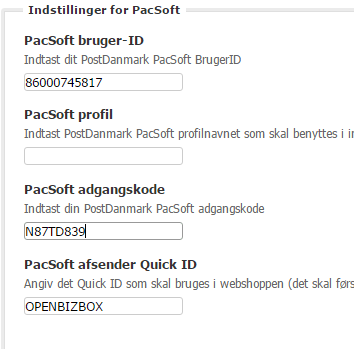
If you don’t use Pacsoft, you can leave the fields empty. You then have to create the labels for your orders manually.
Other settings
Here you set which fields customers must fill in.
PostNord delivery to a private address (or business address)
Special settings for PostNord delivery to a business/private address.
General:
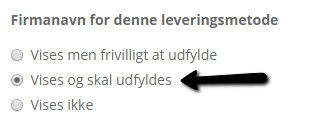
Be aware that if this method is to be used for business delivery, the company name MUST be required.
Other settings:
Set the VAT calculation method, any handling costs, and whether morning delivery should be offered and at what price.
Parcels abroad
Special settings for PostNord delivery abroad.
Who can use this option?
Set which delivery zone or zones to use.
Other settings:
Set which shipping product to use.
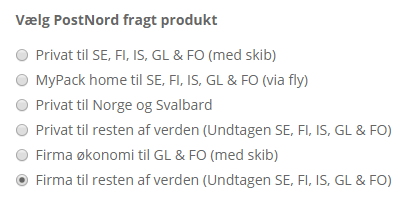
You can limit which countries are included in the shipping product’s group of countries by setting up shipping zones (under shipping and delivery). In other words, you can set up delivery to Sweden only, even though Sweden is grouped with other countries in the shipping product.
Parcel shop and parcel locker collection
Special settings for the PostNord parcel shop delivery module.
Who can use this option?
PostNord collection from parcel shops can also be used for Norway, Sweden and Finland. The module is set up separately for each country you want to use it in – and then appears automatically depending on the country the customer chooses at checkout.
Other settings
Here you set how many parcel shops the customer can choose between; 10 is the recommended maximum.
Parcel lockers – search by address
PostNord has parcel lockers (in Danish “nærbokse”) all over Denmark – an easy and cheap delivery option for your customers.
With that many lockers, searching for pick-up points across a whole postcode often doesn’t work. Here in Kolding, for example, a search looks like this:
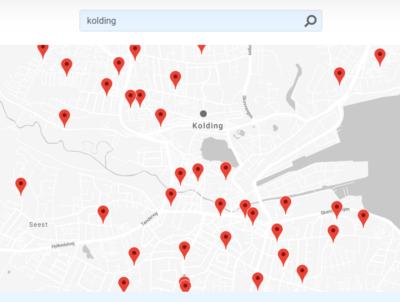
You can read more about parcel lockers here: PostNord Nærboks (opens in a new tab) (in Danish)
To enable search by address, you need to create a so-called API key with PostNord and insert it in the delivery module in your online shop. Here’s how:
-
Go to the PostNord Developer Portal https://developer.postnord.com/ (opens in a new tab)
-
Log in at the top right if you already have an account – otherwise click Create account
-
Once your account is created and you’re logged in, click the Create new application button
-
Write whatever you think suits in the fields Application Name and Description
-
You’re now shown an API key:
-
Select it and copy it (left-click the key, then right-click and choose Copy)
-
Go to your online shop’s admin
-
Use the menu at the top to go to Settings > Shipping and delivery > Delivery methods
-
In the list of delivery methods, click Edit next to your PostNord collection method
-
Click the PostNord settings tab
-
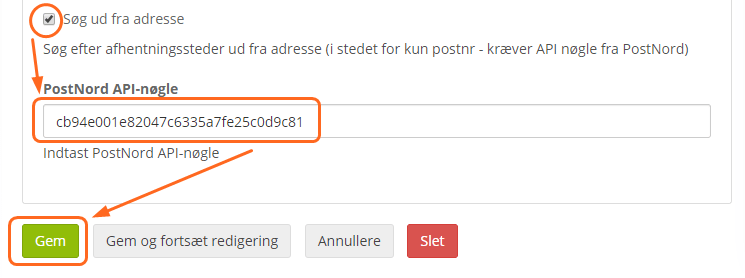
Enable Search by address, insert the API key from PostNord and click Save:

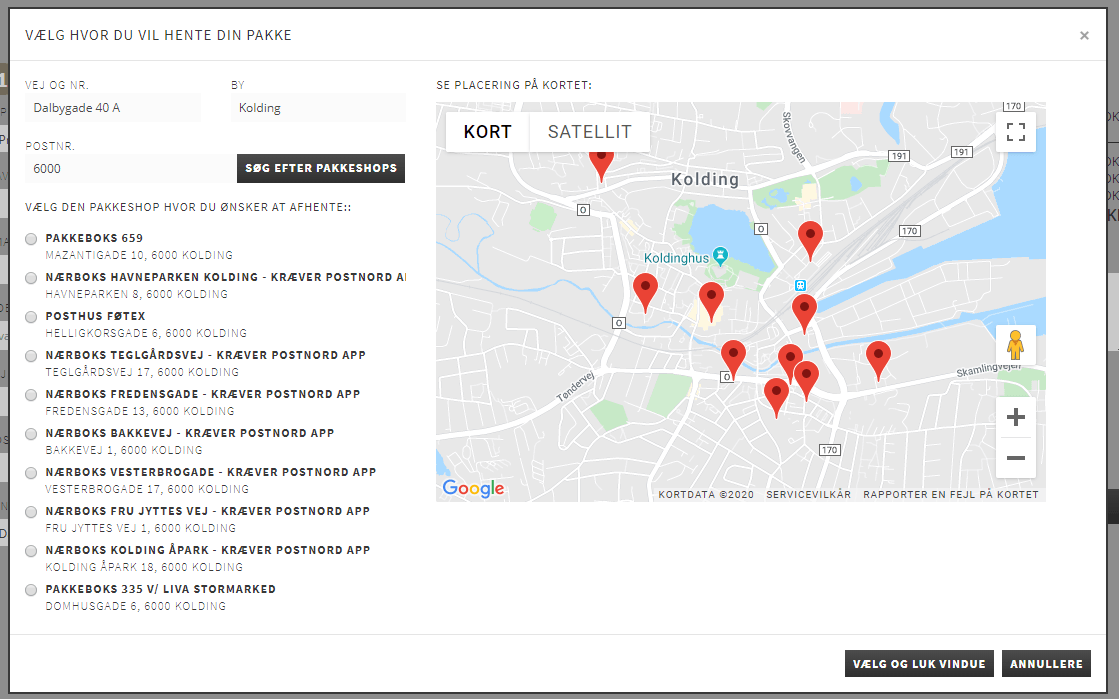
Once you’ve finished the setup, searching for PostNord pick-up points when ordering looks like this example:
You can make a number of searches for free via the PostNord API – see the current terms on this page (opens in a new tab) or contact PostNord.
Day-to-day use
When you’re ready to start using the integration, you can read more here about day-to-day use with PostNord and Pacsoft.