
In this category Shipping & delivery
Setting up GLS private/business delivery
On this page
You create GLS shipping labels directly from the order in your online shop with our direct integration with GLS – the GLS Print Label app, which requires a YourGLS agreement.
You can read more about GLS’s business solutions here (opens in a new tab), so you can see what suits you and your shop best.
If you use shipmondo.com or send your parcels manually, you can also use this delivery method.
Note: GLS delivers to most EU countries – see more about international delivery with GLS (opens in a new tab) (in Danish).
You can set up GLS delivery to private or business addresses at a flat rate or based on the total weight or price of the order.
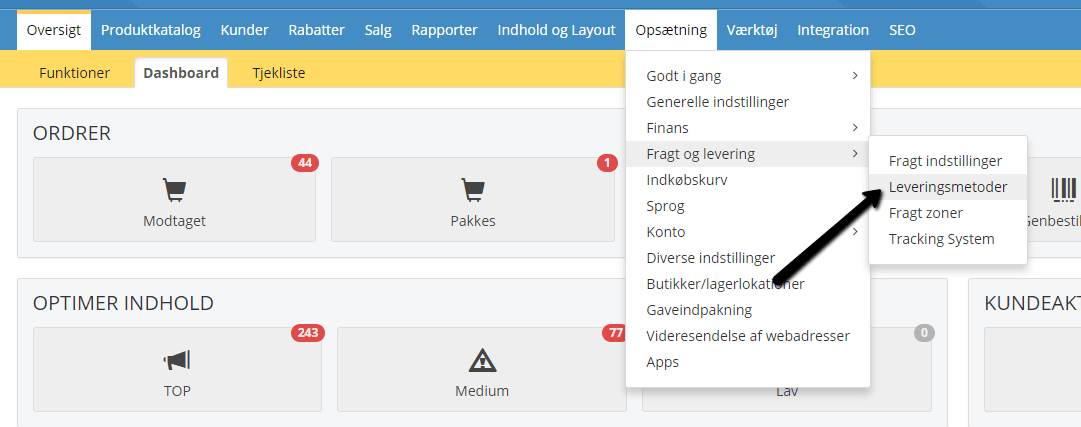
You’ll find the delivery methods under Settings > Shipping and delivery > Delivery methods – there you choose Add new and then the method you want to use.
You can create as many delivery methods as you need.
For example, you could create a “GLS delivery to a private address in Norway”, set up only for Norway as the shipping zone, and a “GLS delivery to business addresses in Denmark”, where the company name is required – or simply “Delivery to a private address”, which then applies to the shipping zones chosen on that delivery method.
Delivery by order weight or price
If the price should vary with how much the customer has spent or how much the order weighs in total, choose the module called Price calculated from the weight of the products.
General:
Give the module a descriptive title, so customers know exactly what it involves – for example “GLS delivery to a private address” or “GLS business delivery”.
Remember to set the VAT class, as VAT applies to shipping.
Set any criteria that must be met for this delivery method to be shown to customers.
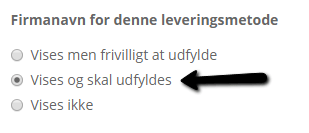
Be aware that if this method is to be used for business delivery, the company name MUST be required.
Note: Allow flex delivery must ALWAYS be set to No, as GLS doesn’t use this feature.
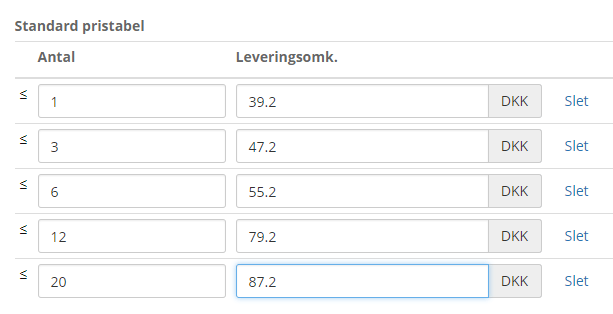
Choose whether the price should be calculated from the order’s weight or total amount, and enter the prices in the price table.
See this table, for example. Note that these prices are entered without VAT, as VAT is added afterwards.
Who can use this option?
If there should be restrictions on who may use this delivery method, you can set them here.
This is also where you set which country or countries you ship to. You can see the shipping zones you have created.
Flat-rate delivery
If you have a flat rate for your GLS delivery, choose the module Flat rate – regardless of the weight of the products.
General:
Give the module a title, so customers know what it involves – for example “GLS delivery to a private address” or “GLS business delivery”.
Remember to set the VAT class.
Enter the flat price under Handling cost.
Be aware that if this method is to be used for business delivery, the company name MUST be required.
Note: Allow flex delivery must ALWAYS be set to No, as GLS doesn’t use this feature.
Who can use this option?
If there should be restrictions on who may use this delivery method, you can set them here.
This is also where you set which country or countries you ship to. You can see the shipping zones you have created.
Day-to-day use
For day-to-day use, you use GLS Print Label. It’s available to buy as an app and lets you print a label directly from the order – see day-to-day use with YourGLS.