
In this category Shipping & delivery
Shipping & deliveryPostNord collection
Switch from Pacsoft to nShift
PostNord has closed Pacsoft Online. As an alternative you can use nShift, which is very similar. The difference, though, is that you pay per label.
You switch to nShift by first following the instructions you received from Pacsoft. If you don’t have an agreement with nShift, contact nShift (opens in a new tab).
Then you need to set up your Golden Planet platform to run on nShift. You do this by going to the delivery methods:
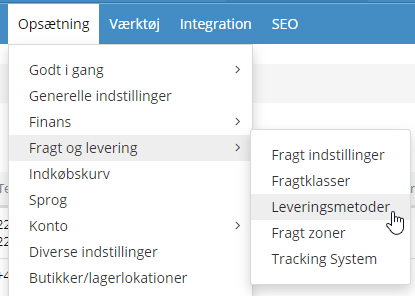
Click Edit next to one of the delivery methods you have set up with the PostNord module:

Click the PostNord settings tab

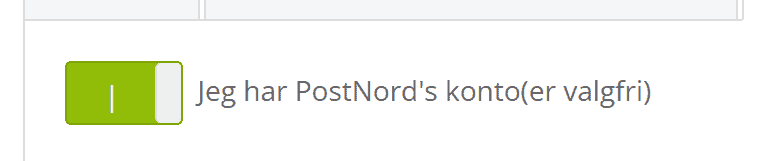
You can only see the following settings if I have a PostNord account (optional) is enabled – if you use Pacsoft, it’s probably enabled already
About halfway down the page, enable these two, as shown here:
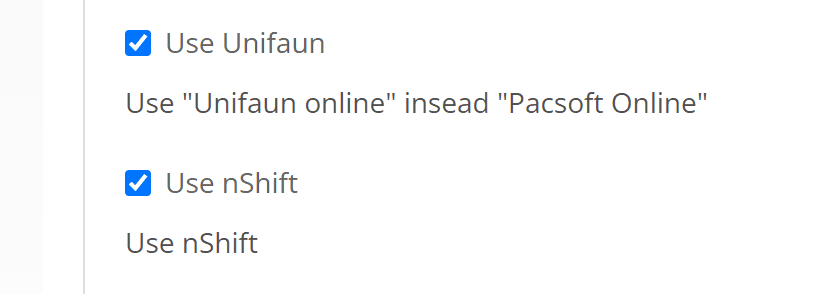
Click Save at the bottom, and you can now create labels and get tracking via nShift.
API key for labels and tracking
By adding an API key from nShift to your online shop, you can create labels and get tracking directly in your order processing.
To create the API key, log in to your nShift account.
Go to API keys
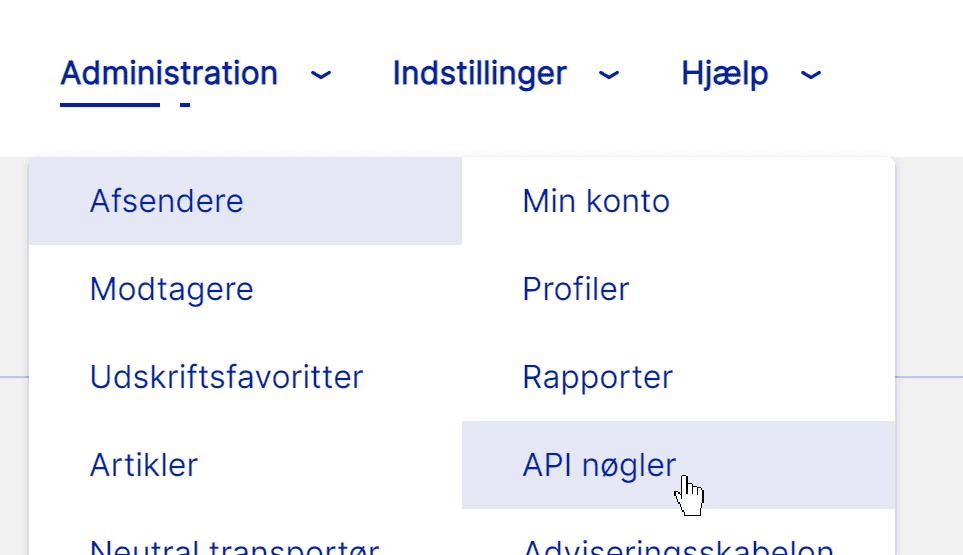
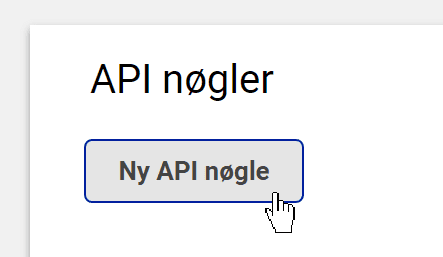
Click new API key
Fill it in as shown here, including the developer ID 710012902
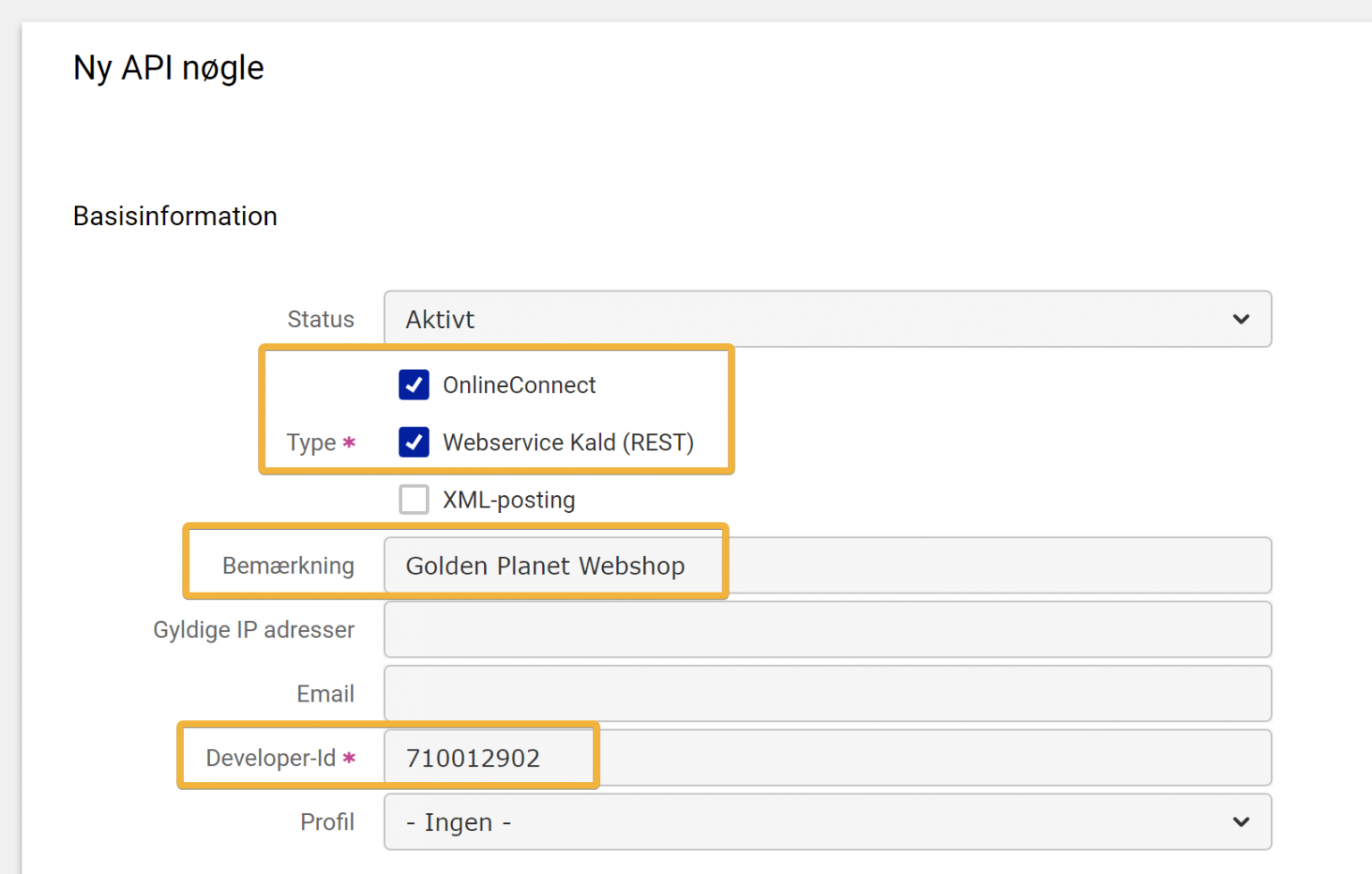
Then click Save to create the API key.
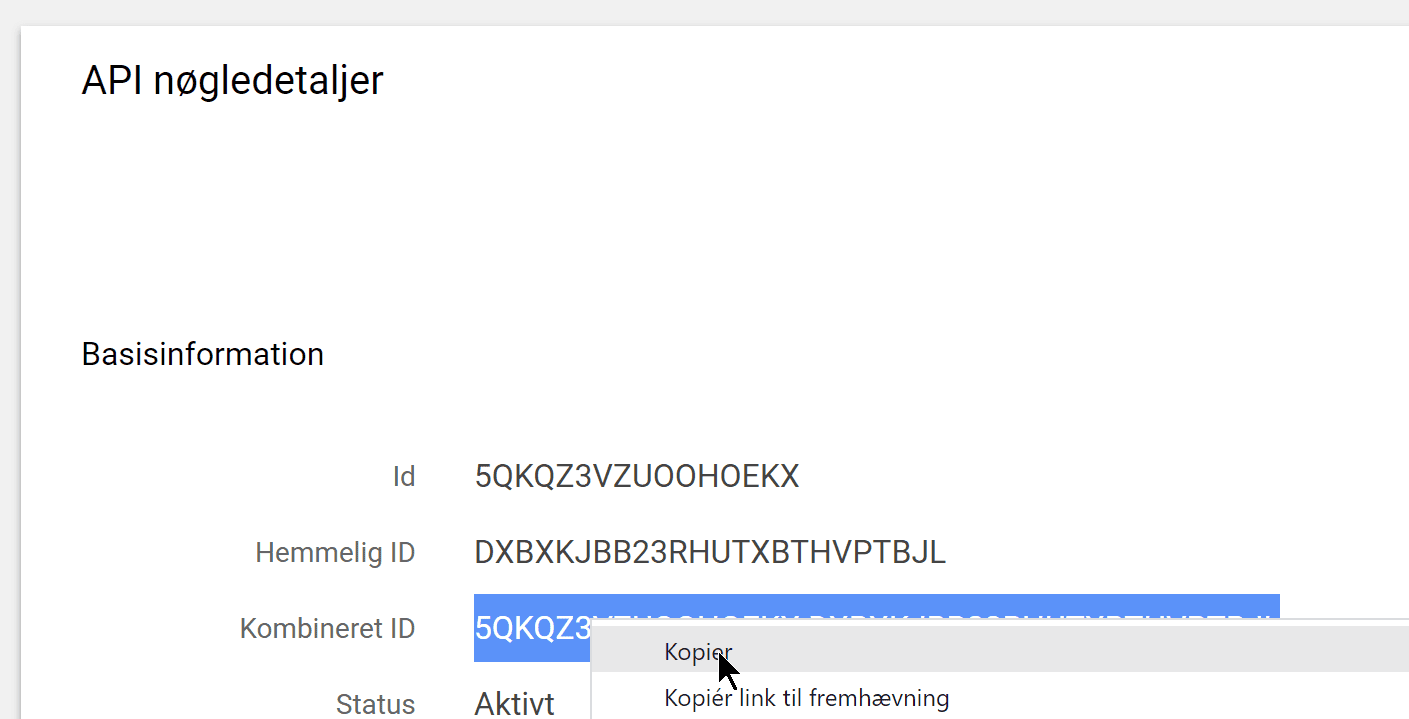
From the API key details, select and copy the Combined ID
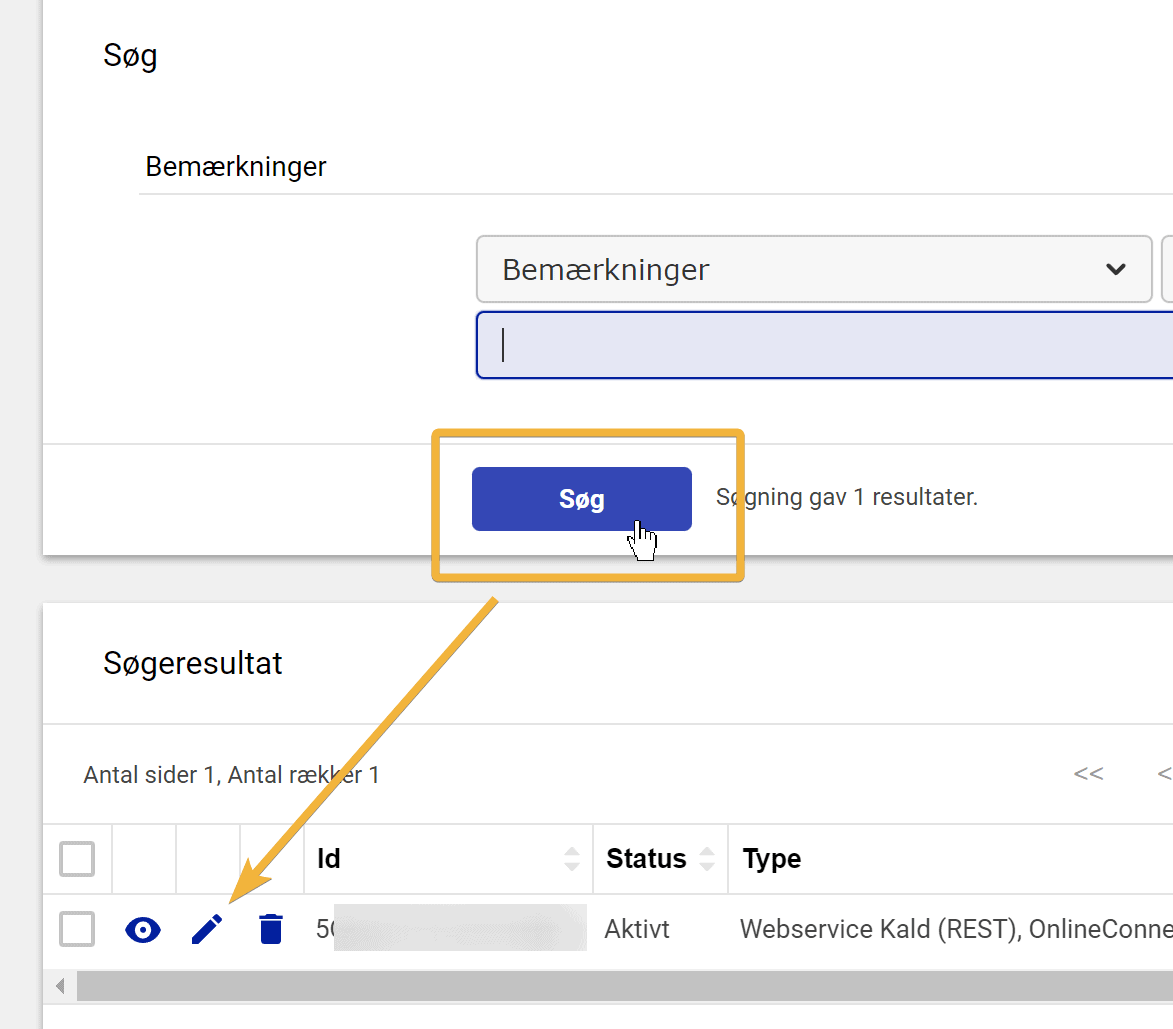
If you have navigated away from the API key details, you can click search and go to edit
Now insert the API key in your online shop. Go to the delivery methods in the admin
Edit a PostNord delivery method – for example collection

Go to the PostNord settings tab
Insert the API key from nShift/Unifaun here:
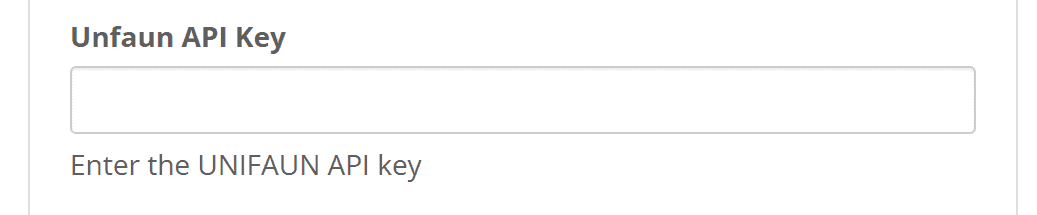
and click the Save button at the bottom.
You can now go to the details page of an order, and one click on this button:
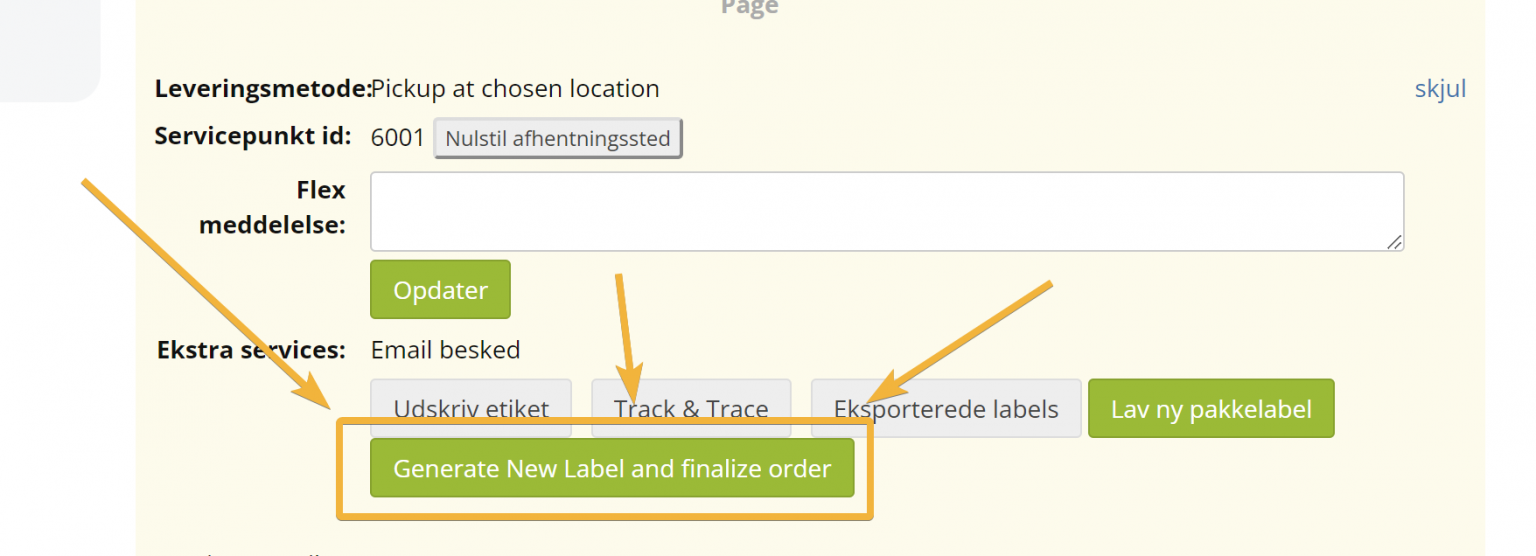
does all of this:
- Creates the shipment in nShift
- Imports the tracking number to the online shop and adds it to the order
- Sends the customer an email that the order has been dispatched, with the tracking number
- Changes the order status to Dispatched/completed