
In this category Shipping & delivery
Print GLS labels – with YourGLS
On this page
When you install the GLS Print Label app, you can print a GLS label directly from the shop.
It requires a YourGLS agreement with GLS.
Install the app
You’ll find GLS Print Label under Settings > Apps
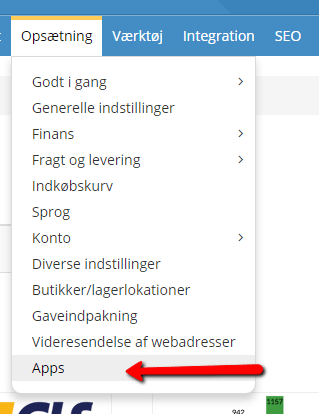
Next, choose which module to install. Choose the one called GLS Print Label.
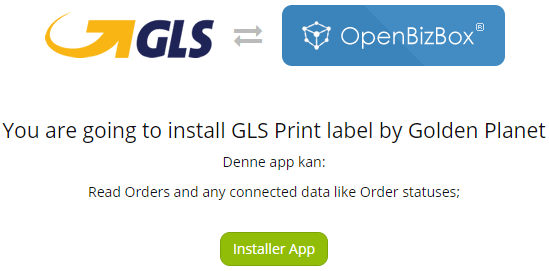
Once it’s installed, it’s listed under Activated apps.
Then click the name GLS Print Label itself to enter your GLS details.

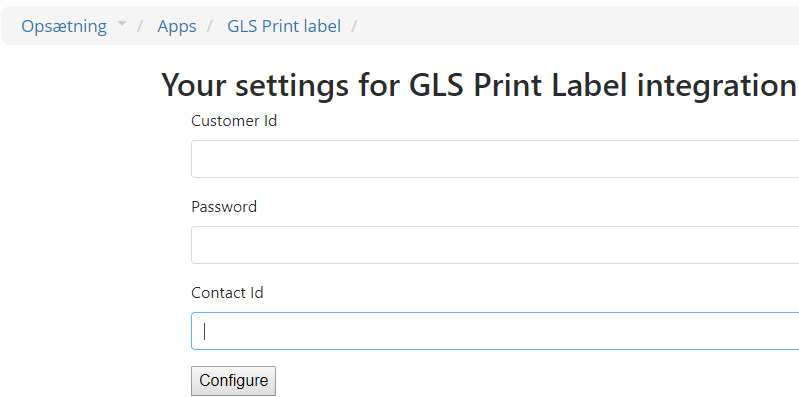
When you’ve entered your details, click Configure and you’re ready to print GLS labels.
How to find your details in YourGLS
This is how to find the details you need to enter:
- Log in to YourGLS via YourGLS at the top of gls-group.com (opens in a new tab)
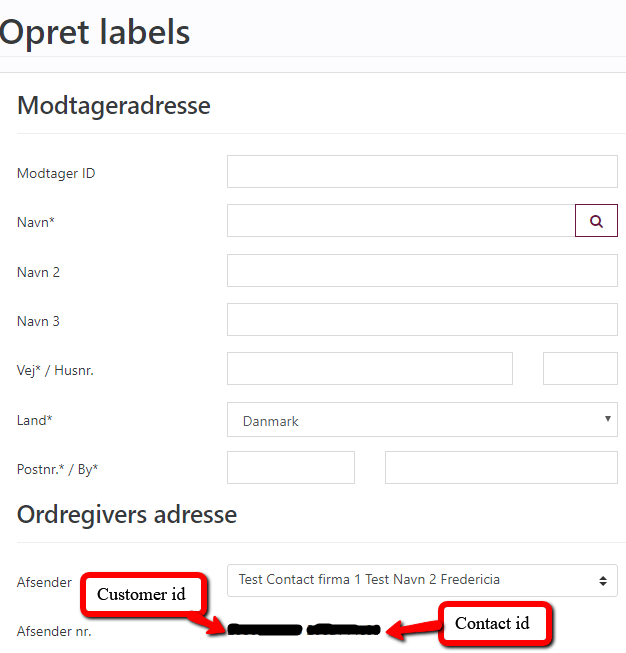
- Choose the menu item Create labels
- Check that the right Sender is selected
- Sender no.: the first part is your Customer Id, the second part is your ContactID.
You also need to enter the password you use when you log in to YourGLS.
Set up GLS delivery methods
Now you need to create the delivery methods. You create delivery methods under Settings > Shipping and delivery > Delivery methods.
Note: Should only be used for orders placed with GLS – delivery to parcel shop, Flat rate and Price calculated from the weight of the products.
When you use Flat rate, flex delivery should not be switched on, as it won’t be shown on the label.
Go to day-to-day use with YourGLS to see how to use the GLS Print Label app.