In this category Shipping & delivery
YourGLS day-to-day use
Once you have access to YourGLS and have set up your GLS Print Label app, you’re ready to create labels for your orders.
Create and print a label
When an order has been placed that is to be sent with GLS, printing a label for it is now very easy.
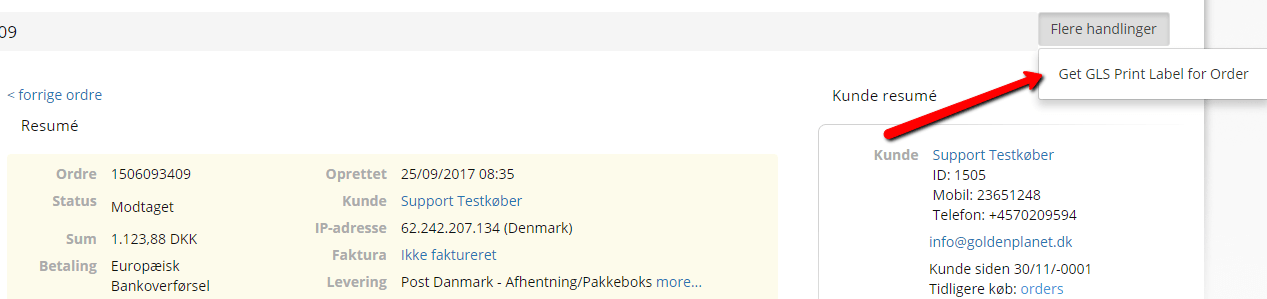
Go to the order list and edit the order in question. In the order, in the top right-hand corner, choose More actions and then Get GLS Print Label for Order. A .pdf file with a GLS label is then generated, which you can print.