
In this category Product catalogue
Updating many prices
On this page
The Update many prices function lets you permanently change the standard price of a large number of products in one go. It is ideal for general price increases or for adjusting the prices of specific brands and categories. Unlike a price campaign, these changes are permanent.
You will find the function under the menu item: Product catalogue > Update many prices.
1. Enter the new price
First you define how the prices should change.
-
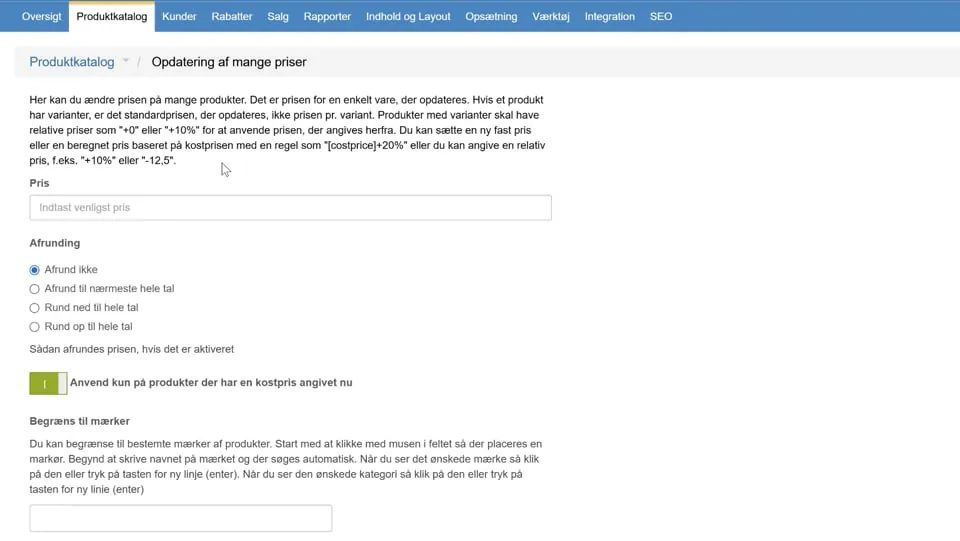
Price: In the Price field, enter the change you want. You have several options:
- Percentage change: Type
+10%to raise the price by 10% or-15%to lower it. - Fixed amount: Type
+5to add €5 to the current price. - New fixed price: Type a number (e.g.
199.95) to give all the selected products this new price. IMPORTANT: Enter the price excluding VAT. Note the full stop that separates the cents. - Based on cost price: Use a rule such as
[costprice]+20%to set the price to the cost price plus 20%.
- Percentage change: Type
-
Rounding: Choose how the calculated price should be rounded, to avoid odd amounts (e.g. €123.47). You can, for example, choose “Round up to whole numbers”.
2. Narrow down which products to update
Next, you select exactly which products should have their price changed. You can use one or more limits at the same time.
-
Cost price condition: Turn on the field “Only apply to products that currently have a cost price”. This is important if you use rules based on cost price, as it stops products without a recorded cost price from getting the price €0.
-
Limit to brands: If the change only applies to particular brands, you can search for and select them here. In the video, for example, “Apple” and “Nokia” are selected.
-
Limit to product categories: Here you can choose:
- Apply to all categories: Updates all products (that match the other filters).
- Apply to specific categories: Choose one or more categories the change should apply to (e.g. “Phones”).
- Exclude specific categories: Updates all products except those in the selected categories.
-
Limit to specific products: Lets you fine-tune your selection by manually adding or removing individual products from the update.
3. Apply the changes
When you have set the price change and selected the relevant products, click the green Apply changes now button to carry out the update. The system will then adjust the prices of all the selected products.
 Play video: Updating many prices (opens Vimeo)