
In this category Product catalogue
Suppliers and reordering
Setting up suppliers for easier reordering of products in your online shop. Here is the guide.
On this page
If you buy many products from the same supplier, it can be useful to set up reordering of products.
You do this by creating your suppliers and then linking them to your products. You can then filter by supplier, and so see more quickly which products need reordering from them.
Setting up suppliers
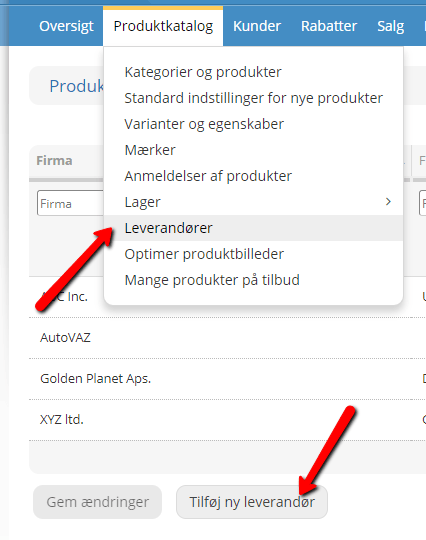
You will find the suppliers under Product catalogue > Suppliers – and in there you choose Add new supplier.
Title
Give it a descriptive title, so you know which supplier it is. The supplier's name, for example.
Contact person
If there is a particular person at the supplier who handles your purchases, you can enter their name here.
Country
The country the supplier is based in.
State
You can enter a state here if you wish.
City
The town or city the supplier is in.
Postcode
Enter the postcode here.
Address 1/2
Enter the street name and number here. If the supplier has several addresses, you can enter them here.
Phone
The supplier's phone number.
Fax
If the supplier uses fax, you can enter the fax number here.
Email general
The “main” email address of the supplier.
Email sales
Email address of the sales department.
Email orders
Email address for placing orders.
URL (web address)
The supplier's website.
Notes
Here you can note, for example, that orders must be over €70 for free delivery, or that you can only buy in packs.
Remember to save
When you have entered everything, remember to save your supplier.
Linking suppliers to products
Once your suppliers have been created, they need to be linked to the products you buy from them.
You set your suppliers by going to Product catalogue > Categories and products, choosing Edit on a product and then the Data tab – here you place your cursor in the field, and you will see the suppliers already created.
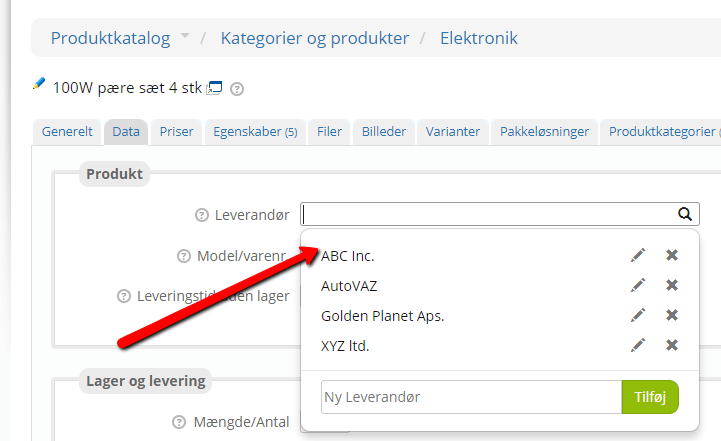
If you are creating a product and suddenly realise you haven't created a supplier yet, you can do it directly on the Data tab while creating the product. Type the supplier's name and click Add.
You can also edit a supplier via the Data tab on the product. Click the pencil, and the supplier page opens in a new tab in your browser, where you can fill in all the information about the supplier.
You can also delete a supplier completely via the Data tab on the product. Click the bin, and you will be asked whether you are sure. The supplier is then deleted from your list.
Reordering
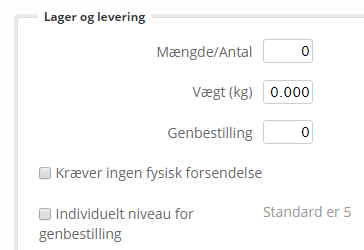
When you have put suppliers on your products, it is a good idea to set the reorder level at the same time. You do this on the same tab.
That is, in Product catalogue > Categories and products, Edit a product, then the Data tab – and then at the bottom left.
“Reorder” is the quantity to reorder from the supplier
“Individual reorder level” – if this setting is turned on, it overrides the default setting. Use it if the product has a higher or lower reorder quantity than the default.
Default setting for reordering
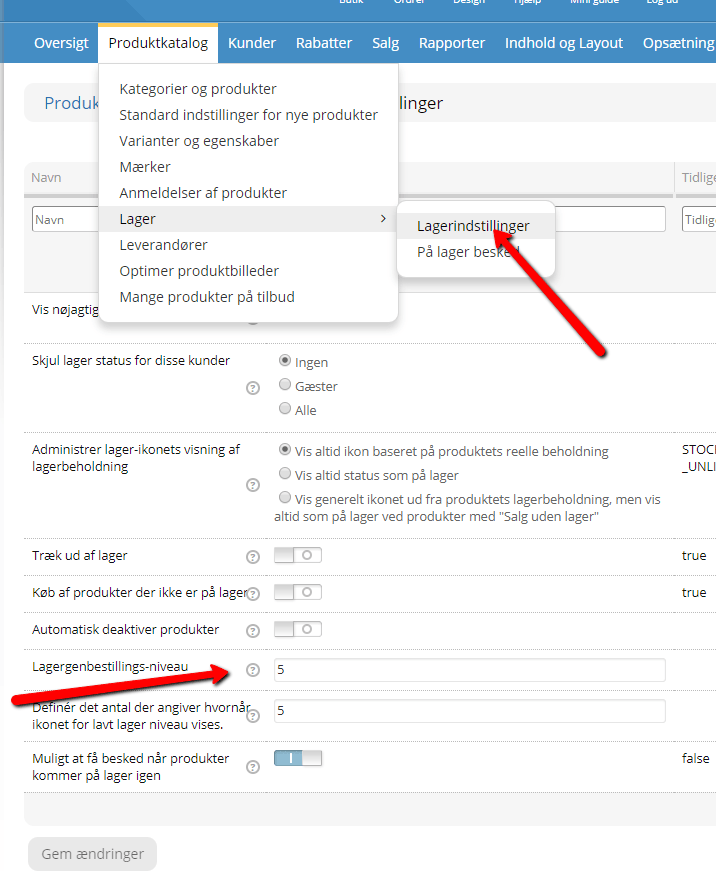
You can set a default reorder setting for all products, so that they are always shown as ready for reordering when, for example, there are 5 left in stock.
You will find the setting via Product catalogue > Stock > Stock settings > Stock reorder level
Here you enter how few products there should be in stock before the product is shown as ready for reordering. This default setting applies to all products in the shop. If some products have a different reorder quantity, it must be set individually on the product.
List of products to reorder
When you have put suppliers on your products and also set a reorder limit, you are ready to bring up your list of the products that need reordering.
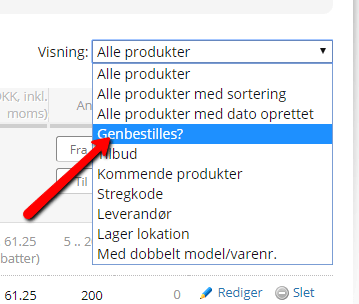
You do this by going to your product overview – Product catalogue > Categories and products – and choosing View: To be reordered? in the right-hand corner.
You will then see a list of all the products that need reordering. By choosing a supplier in the drop-down list, you can filter by the supplier whose products you want to see.
This way you can quickly see which products need reordering from a particular supplier.