
In this category Product catalogue
Product catalogueProducts
Product bundles
On this page
In your online shop you can create both product bundles and product sets.
They look confusingly alike – so here, in brief, is the difference between a product bundle and a product set:
- Product bundle: There is one product which, as a starting point, can be bought together with other products if the customer wants. The primary product can easily be bought on its own. There can be several combinations of bundles based on the primary product.
- Product set: Here the customer buys only a combination of several products. It can be a finished set that cannot be changed, or merely a suggestion that can be changed. You can read more about product sets here
Setting up a product bundle
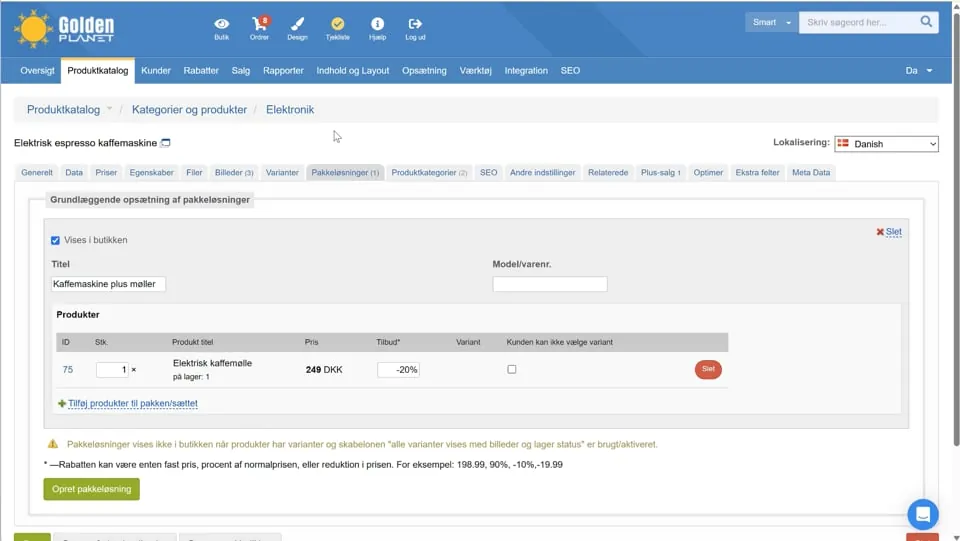
Go to Product catalogue > Categories and products and Edit the product that should have a bundle added.
Then choose the Product bundles tab.
In there, choose the product or products that should be part of the bundle.
Click the Create product bundle button, enter the Title and Model/product no., and click Add products to the bundle/set.
Then enter the discounted price of the bundle. Remember to save when you are ready.
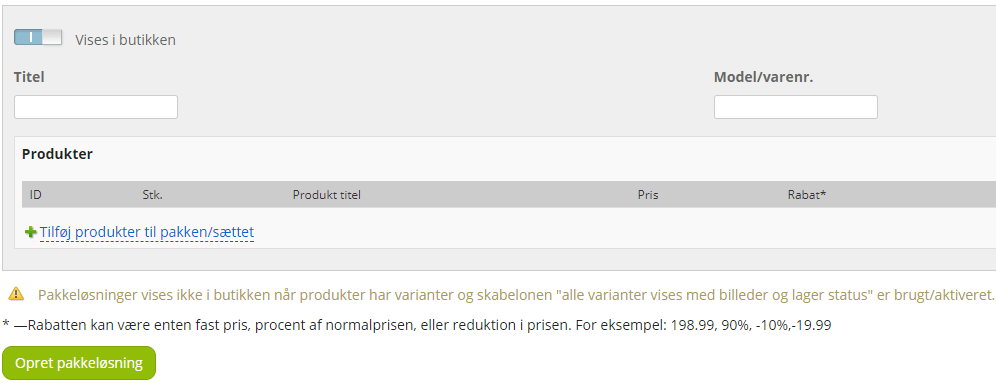
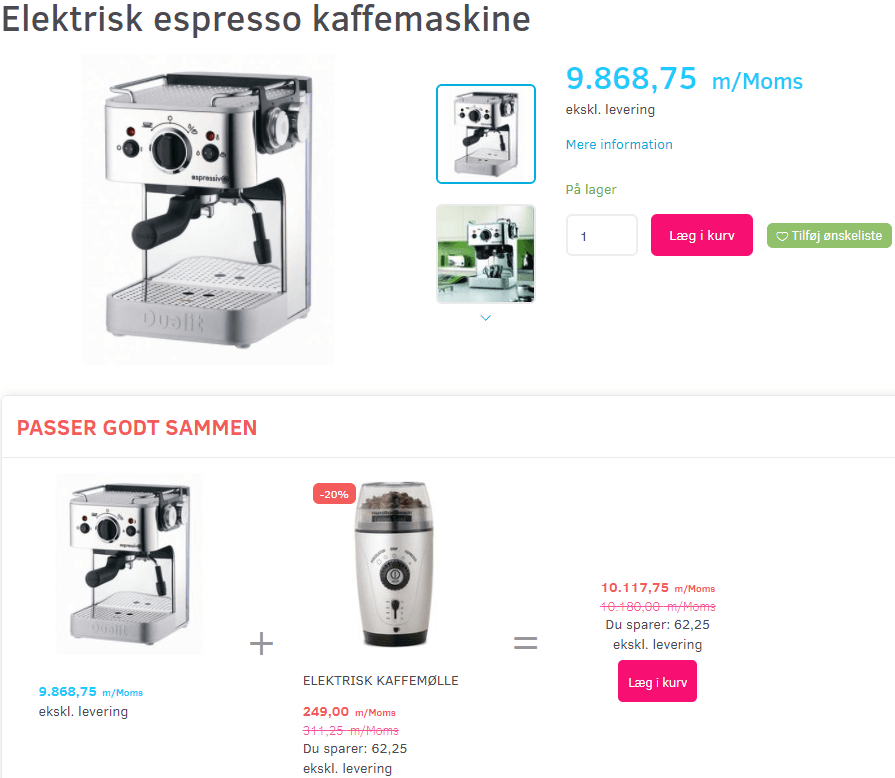
The bundle is presented below the main product.
This is how it will look in the shop:
Placement in the layout/design
Guide: Why isn't my product bundle showing?
Have you created a product bundle (e.g. “Goes well together”) on a product, but can't see it on the product page itself? There are usually two reasons for this. This guide helps you solve the problem.
Solution 1: Check the visibility on the product
First, make sure that the bundle itself is set to be shown in the shop.
- Find the product in your Product catalogue where the bundle was created.
- Go to the Product bundles tab.
- Make sure the Shown in the shop box is ticked.
If this box is already ticked and you still can't see the bundle, go on to solution 2.
Solution 2: Add the element to your layout
The most likely reason is that the element for product bundles has not yet been placed in your page template (layout). In other words, the system doesn't know where on the page to show it.
- Go to Content and layout in the admin's top menu.
- Click Layout tool.
- In the menu on the left (under Home page), click Product pages to edit the template for all product pages.
- You now see a visual layout of your product page in the middle section.
- In the menu on the left, scroll down to the Elements section.
- Find the Product bundles element (you can use the search field at the top of the left-hand menu to find it quickly).
- Click and hold the “Product bundles” element, and drag it to where you want it in your product page template in the middle (e.g. below the product description or above related products).
- Release the mouse button when you see a green Place here box.
- Click the green Save button at the top right to save your changes to the layout.
Finishing off
Once you have saved, go to your online shop and reload (refresh) the product page. Your “Goes well together” box (the product bundle) will now be shown where you placed it.
 Play video: Product bundles (opens Vimeo)