
In this category Product catalogue
Price marketing rules – setting up your online shop
On this page
Since 28 May 2022, new Danish rules on price marketing have applied.
You can read the long version on the website of the Danish Consumer Ombudsman (Forbrugerombudsmanden) here (opens in a new tab) and the 46 pages of guidelines here (opens in a new tab) (both in Danish). Below we give our summary (without liability) and show how you can adjust the prices in your online shop here.
We are of course not a supervisory authority, and we do not get involved in whether anyone complies with the new rules. But we would like to help make it as easy as possible to switch to the new rules, if you want to.
The most important points of the rules, as we see them:
- In practice it is difficult to compare with a “Recommended retail price”
- If you compare with a regular/previous price, it must be the lowest price you yourself have had in the preceding 30 days
- If you state a discount as a percentage or an amount saved, it must be calculated from the lowest price you have charged in the previous 30 days
- If a campaign lasts more than 10 days, state its duration from the start (or market it as an extension)
- Non-personal discount codes count towards the lowest price within 30 days
- Requirement to document price changes
- High fines for breaches
Regular/previous price under the new rules
Today many people use the recommended retail price or similar as their standard/regular price.
On top of that, you have your offer/current price, which is the one you are selling at right now – with or without an end date.
That becomes quite difficult under the new rules.
If, for example, you want to show regular price €70 – now €50, the €70 must be the lowest price you yourself have sold the product at within the last 30 days when the €50 price starts. If you have sold the product at both €70 and €60, then it is €60 you must compare with. If you have sold it for less than €50, comparison with the €50 is ruled out.
If, in the same period, you have had a discount coupon out, for example in a Facebook post, it must be included in the lowest price within 30 days. So if you have had a coupon out for 10% off and a price in the shop of €70, you must compare with €70 minus €7, i.e. €63.
If you use the term “Recommended retail price”, “Market price” or similar, it must be the price at a so-called representative selection of competitors. It may no longer be a price suggested by, for example, the supplier or manufacturer.
Suggestions for what it can mean in practice
If you have the same prices more or less all year round and no offers (comparison with another price), the new rules probably won't make much difference.
If you compare with recommended retail prices or similar, in practice you must remove this comparison to comply with the new rules.
If you want to run a campaign – for Black Friday, for example – it also means you need to start your planning at least 30 days in advance, because those are the prices you will have to compare with.
Documenting price changes
You must be able to document the previous prices and offer prices you use in your marketing. We therefore log all price changes you make in your online shop here (since May 2022), and you can export the price log from the admin.
New price field for storing recommended retail prices
Because many people now need to have their “current price” in the standard price field – which used to be used for the recommended retail price – we have created a new price field that can be used to store the recommended retail price. It can be useful to have when you create offers or use a price robot like the one we offer through NetRadar.io
You will find the field when you edit products, on the Prices tab:
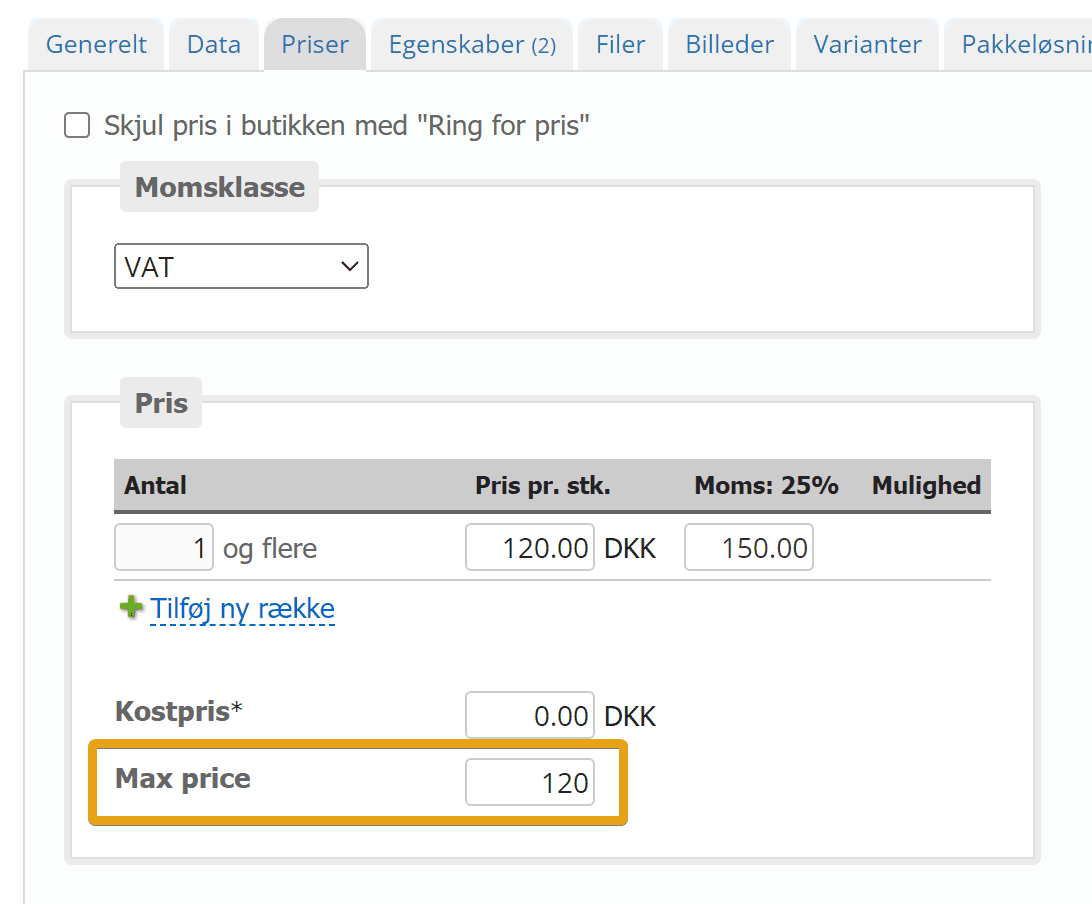
It is also available via CSV import/export and the API.
How to move sale prices into the standard price
The easiest way to comply with the new rules is not to compare with any previous price. In other words, not to have anything on so-called offer.
We recommend that you first store your standard/recommended retail prices in the new max price field.
You can change your prices either via CSV import/export or with the Price campaigns tool, where we have added a new option.
1: Export all current prices
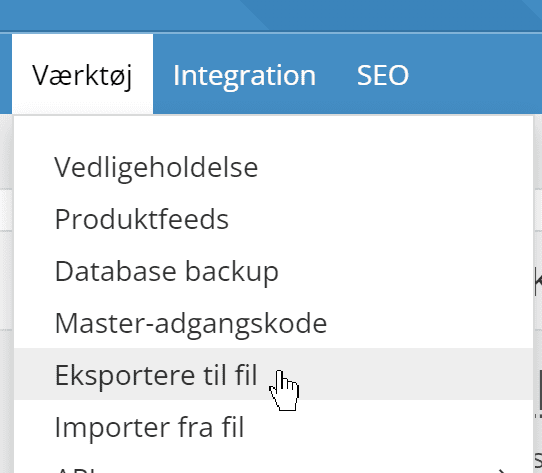
Go to the export to file function
Choose products and Price update
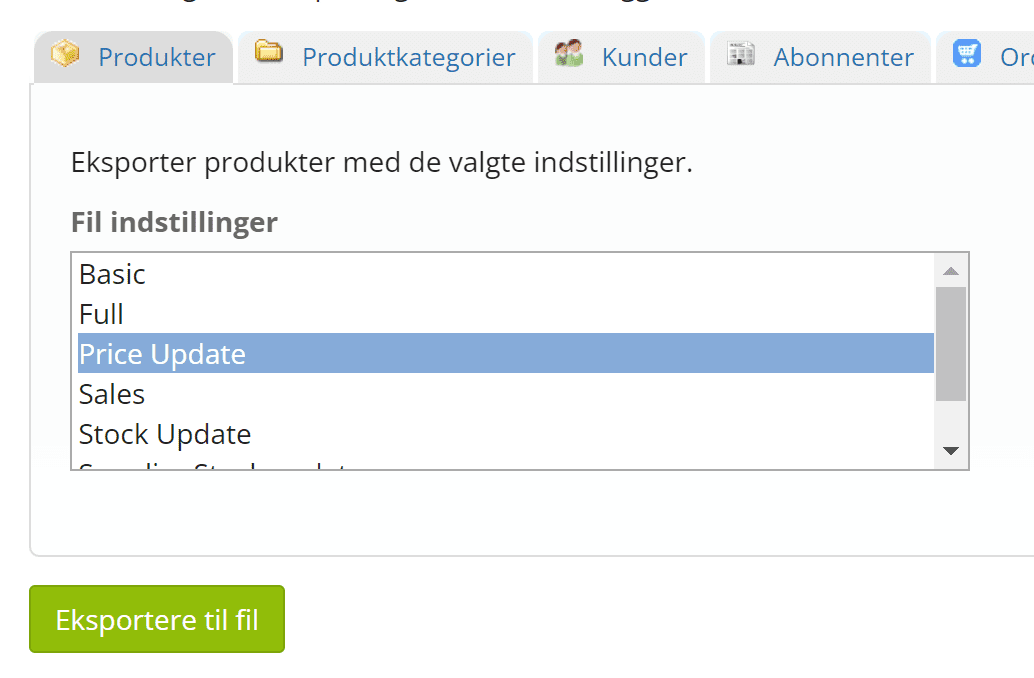
Download the file when it is ready
2: Stop or adjust the price robot/price monitoring (optional)
If you use the Price monitoring module, you should stop any automatic pricing that changes the price as an offer.
3: Import the standard price into max price (optional)
If you want to keep your standard/recommended retail prices and, for example, be able to set prices based on them later, you can store them in the new “Max price” field.
You can do this with the export from step 1. Note, though, that the price in the export is excluding VAT. If you want the max price to include VAT, you need to add it before you import.
Your import should have these fields
- ID as ID
- Price as Max price
A CSV file should only contain the columns you need for your import – so it is a good idea to delete other columns before importing. If you have more than 10,000 products, it may be worth splitting the import into several rounds.
The file is imported as shown here under import. Match the columns and save as a new set of settings.
You can also hire us to do the import. It costs €115 for up to 25,000 products and €210 for more than 25,000 products. Just contact us via chat in the admin or at support@goldenplanet.com
4: Move the sale price to the standard price
Important: Check that you don't have any active price campaigns. They should be ended first, or kept out of the first round of sale prices that are moved to standard.
You can move sale prices with the price campaigns tool:
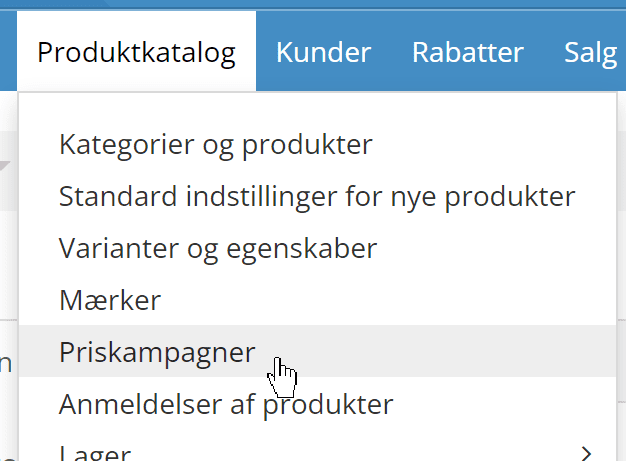
Instead of putting products on sale by creating a campaign, you choose the other option

Here you can limit it to selected brands etc. if you like, or do it for all products instead.
To move sale prices to standard prices, choose the option at the bottom
Note for variants: with both CSV import and price campaigns, variant prices are set only on the individual variants (the ones you see on the Variants tab when editing a product). Any price on the “main product” (the Prices tab) is not changed. The prices change for customers, but the price of the “main product” stays as it was. If you have prices relative to the “main product” – for example +10% – they will be calculated as an amount and the relative value overwritten.
Product updates are put into a system that processes them at an even load. So it can take a while if it has to be done on many products.
Use other titles for prices – e.g. “Great price”
Now that you may no longer call something an “Offer”, many shops have started using other titles, such as “Great price”.
You can customise how titles are automatically put on your prices via this menu item
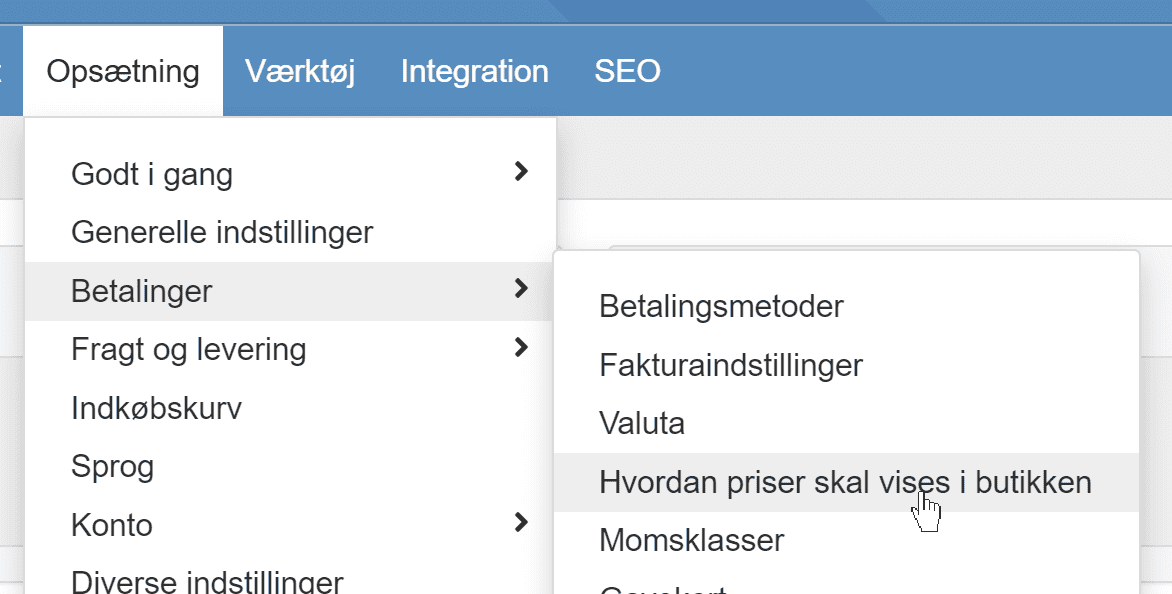
The title of the prices can change depending on whether it is the max/recommended retail price, the regular price or the sale price.
Max/recommended retail prices are not shown in the shop by default – so there you can write whatever suits your internal management and display of price titles best.
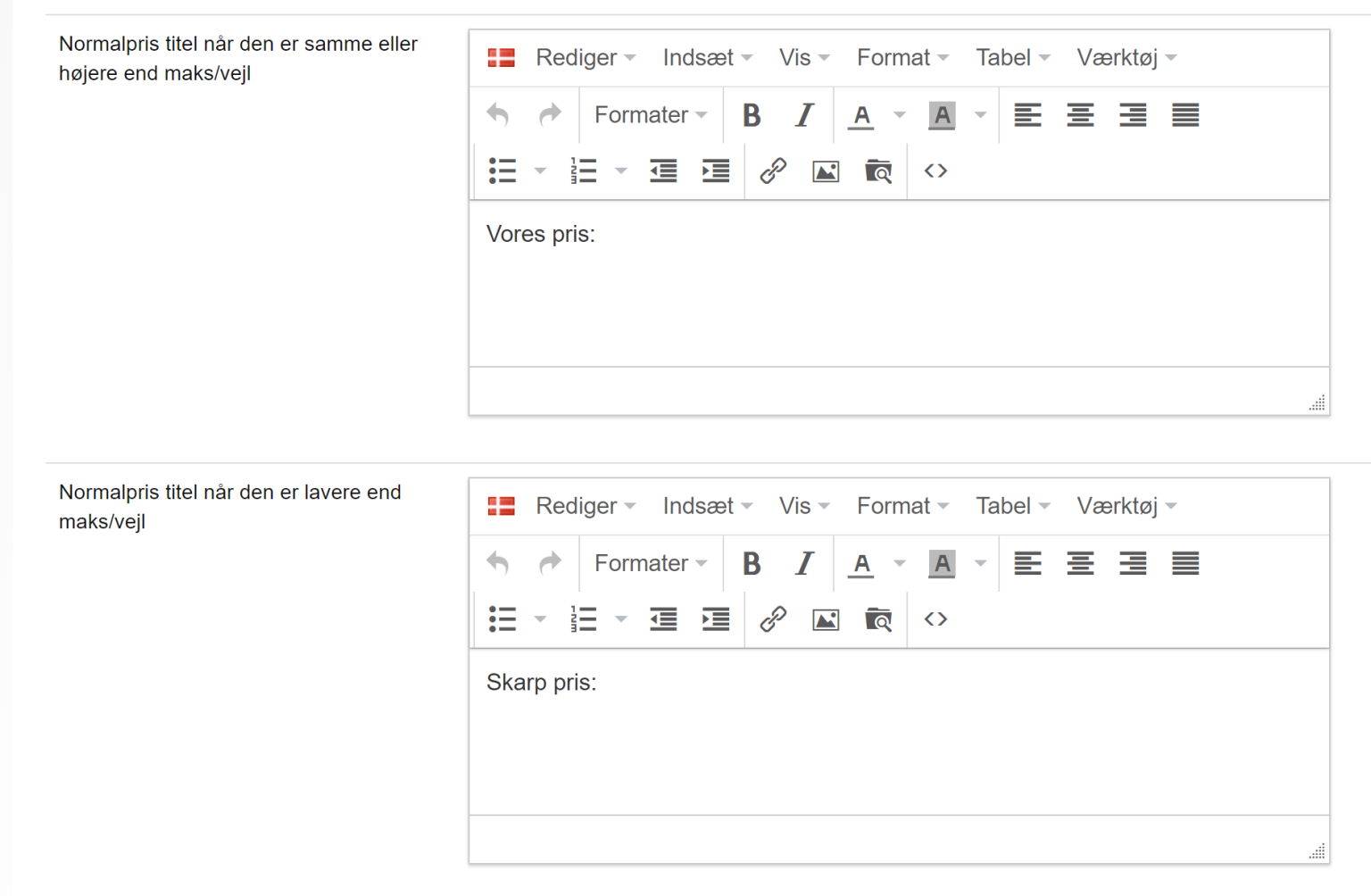
If, for example, you want to show “Our price” when a product is sold at the recommended retail price and “Great price” when it is set below that, you can enter it like this:
Try out different titles and check them in the shop on products with different pricing.
Questions?
How and what you can do under the new rules is probably a question for a lawyer who specialises in the field. Unfortunately, it is not something we can help with.
As mentioned at the start of this page, you can also read more on the website of the Danish Consumer Ombudsman here (opens in a new tab) and the 46 pages of guidelines here (opens in a new tab).