
In this category Product catalogue
Product catalogueProducts
Menu structure – mega menu
On this page
The menu bar is one of the things customers see first and use most. It is important that this navigation menu is visual and very easy to navigate.
Mega menu
If you have a menu where one – or more – categories have a lot of subcategories, it can be hard to make it look good. There may even be so many subcategories that the menu runs off the screen. The customer then has to scroll down to see all the options, which is not very practical.
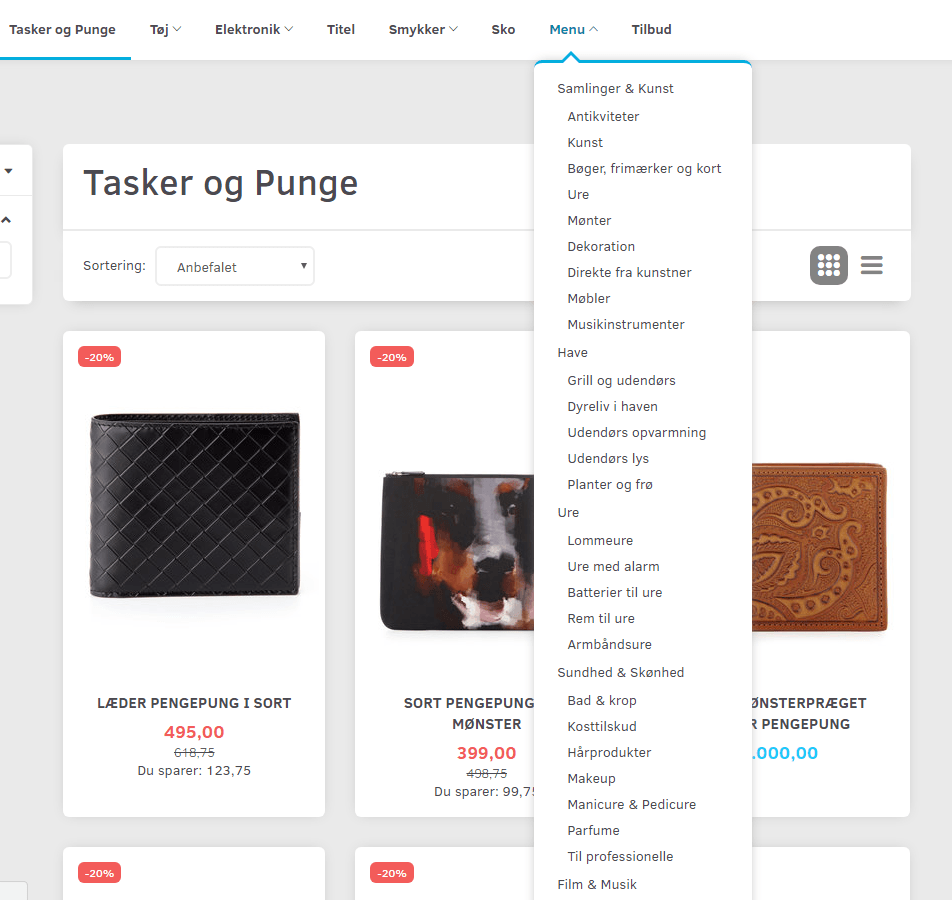
There is the option of making it a mega menu. This means that the subcategories are laid out in a defined way, next to each other instead of below each other, so it is easier for the customer to get an overview.
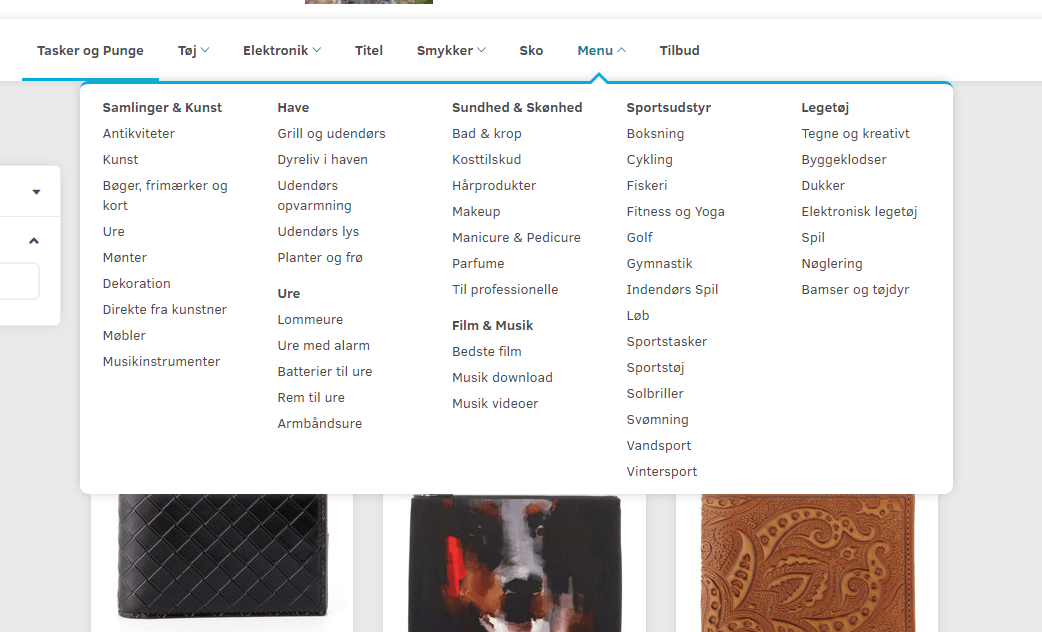
Creating a mega menu
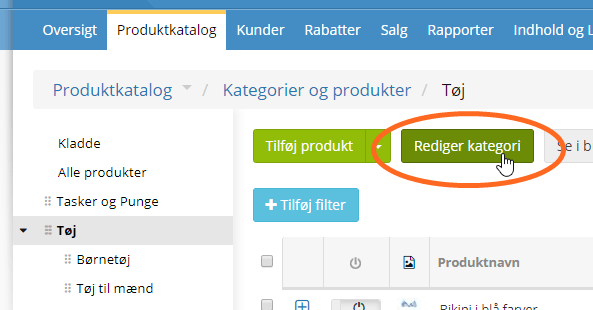
To create a mega menu, first go to Product catalogue > Categories and products. Here you choose the top category that holds the many subcategories. Then click Edit category. You will find it at the top.
Once you are in, choose the tab called Menu. Here you write how the menu should be set up.
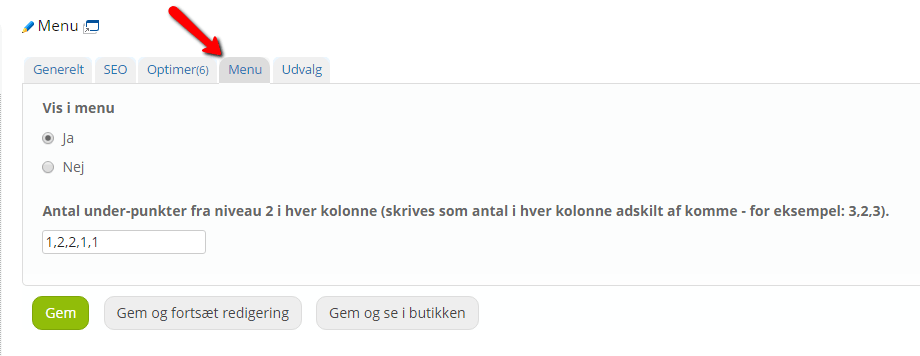
1,2,2,1,1 = there will be 5 columns. The first, fourth and fifth columns have only 1 subcategory. The second and third columns have 2 subcategories.
If you have a really, really large number of subcategories, count them and divide the number by 5.
25,25,25,25,25 = 5 columns with 25 subcategories in each. And if there are not quite 25 in the last column, but only 18, then only 18 are shown.
Remember to save your changes.