
In this category Product catalogue
Product catalogueProducts
Create a variant/attribute/text field
Sometimes you need to add some extra information to a product – it could be a variant or an attribute, such as a dress that is red and in size L, or a French wine from Alsace – or a writable field where the customer can enter their own text.
First you need to create the type itself. You do this by going to Product catalogue > Variants and attributes.
In here you can see the variants and attributes that have already been created, and create new ones.
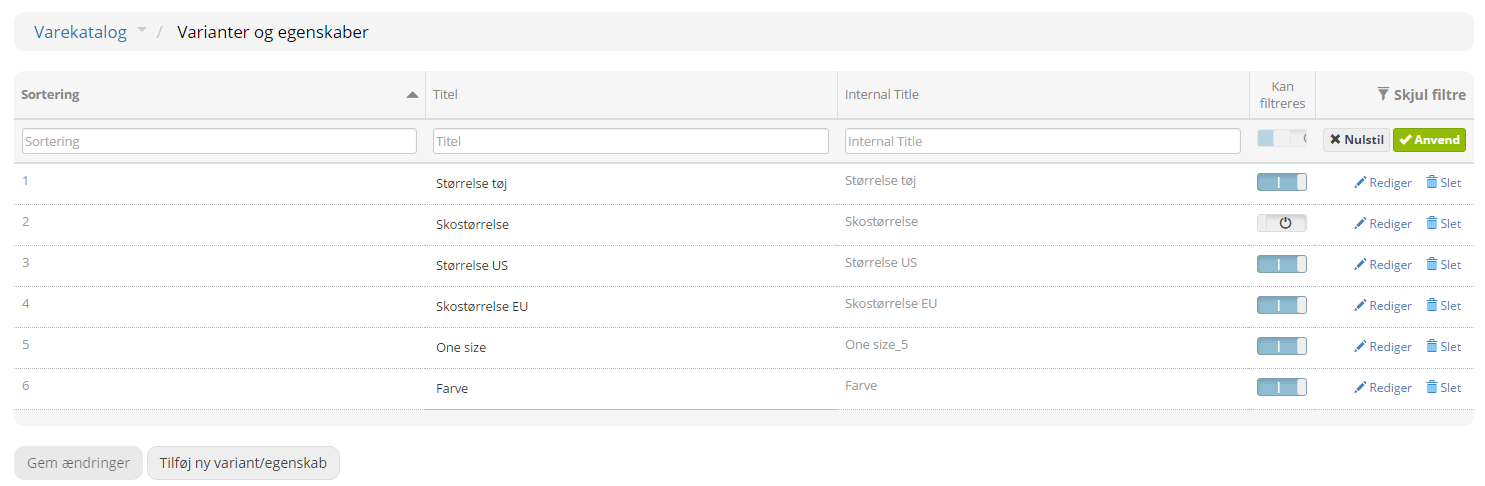
In the list you can see their sort order, their titles and whether filtering is turned on or off. You can also edit them by clicking Edit on the right, or delete them by clicking the bin.
Add new
Click Add new variant/attribute.
On the left you will see all the ones already created, and in the middle you can create a new one.
Sort order
This automatically gets the next number in sequence. You can always change the sort order afterwards.
Title
Give it a good, descriptive title so customers know what it is about, e.g. Size, Colour or Fit.
Internal title
This title is used in the admin and cannot be seen by customers.
Image
You can attach an image to the variant
Filterable
If this is ticked, customers can filter/search by this variant/attribute
Attribute type
Here you choose whether it is a fixed variant type or a writable field that is either required or optional to fill in.
Values
If you have chosen a fixed variant type, you need to add some values so customers have some options to choose from. You do this by clicking Add, and you will get some new options.
Sort order
Here again you have the option to sort
Title
Give it a descriptive title – if the variant type is called, e.g., Colour, this is where you write Red, if the variant comes in that colour.
Image
You can attach an image to the variant value. This image is only used if the variant presentation on the product itself is button for each variant.
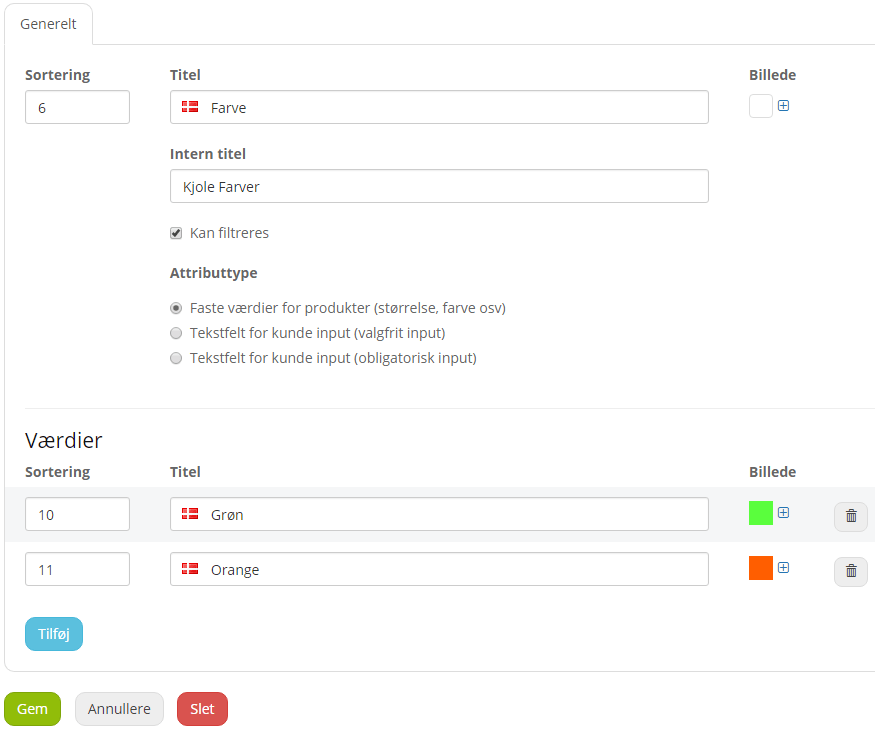
For each new variant value, click Add and fill in a title. If, for example, you have a dress in 3 different colours, you need to create 3 variant values – red, blue and black.
If you have chosen a writable field as the attribute type, there will be no values to fill in.
Remember to click Save at the end so your changes are saved.
If you want variants on your products – you can read more about how to do it here.
Here you can read more about how to put attributes on your products.
If you want a field where customers can write their own text, you can read how to do it here.