
In this category Product catalogue
Product catalogueProduct categories
Product images in product categories
On this page
Without any programming, you can control these two settings for the product images in your product categories:
- One or more images of each product
- The size of the images
One or more images of each product
By default, only the primary image of each product is shown in categories.
You can turn on the option to show up to 3 images, so your customers can flick through them directly from the product category.
It could look like this:
You find the setting for the number of images to show via Content and layout > Products and categories > General settings:
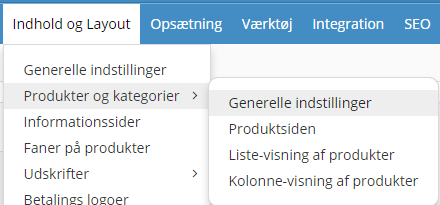
The setting you need is the one called Number of images of each product. You can choose to show from 1 to 3 images per product.

The primary image is always shown first. Then the extra images (in sort order, if one has been set).
The size of the images
By default, the images automatically adjust their size to the number of products shown and the screen size.
So you only need to change the size of the images if you want them smaller than the default.
You can do that in the admin via Content and layout > Products and categories > General settings
There you will find the settings for the height and width of the primary image:

The size is given in pixels.