In this category Product catalogue
Product catalogueProducts
Upsell/related products
On this page
Show products together with the main product – they can be shown in a slider, as a single image or in a tab. There are lots of options.
Choose products
Go to Product catalogue > Categories and products and Edit the product that should have upsell/related products added.
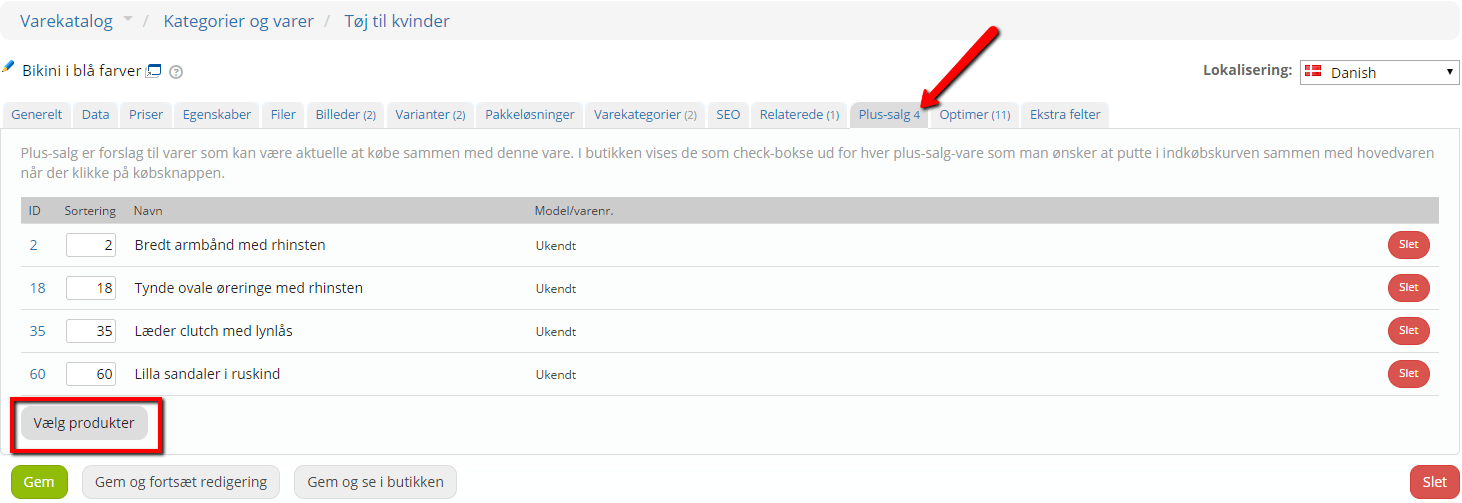
Then choose the Upsell tab or the Related tab. If you already have products linked in there, the number is shown on the tab.
In here, click Select products – a pop-up appears where you can tick the products to use.
Click “Save” when you are happy with it.
Show the products
To show the products, you first need to decide how they should be shown. This is set up in the layout.
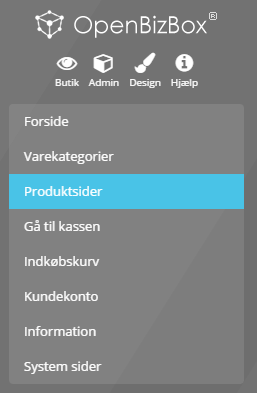
Content and layout > Layout tool – then choose Product pages
Now the right element must be dragged in or activated, to make sure the products are actually shown.
There are several options here.
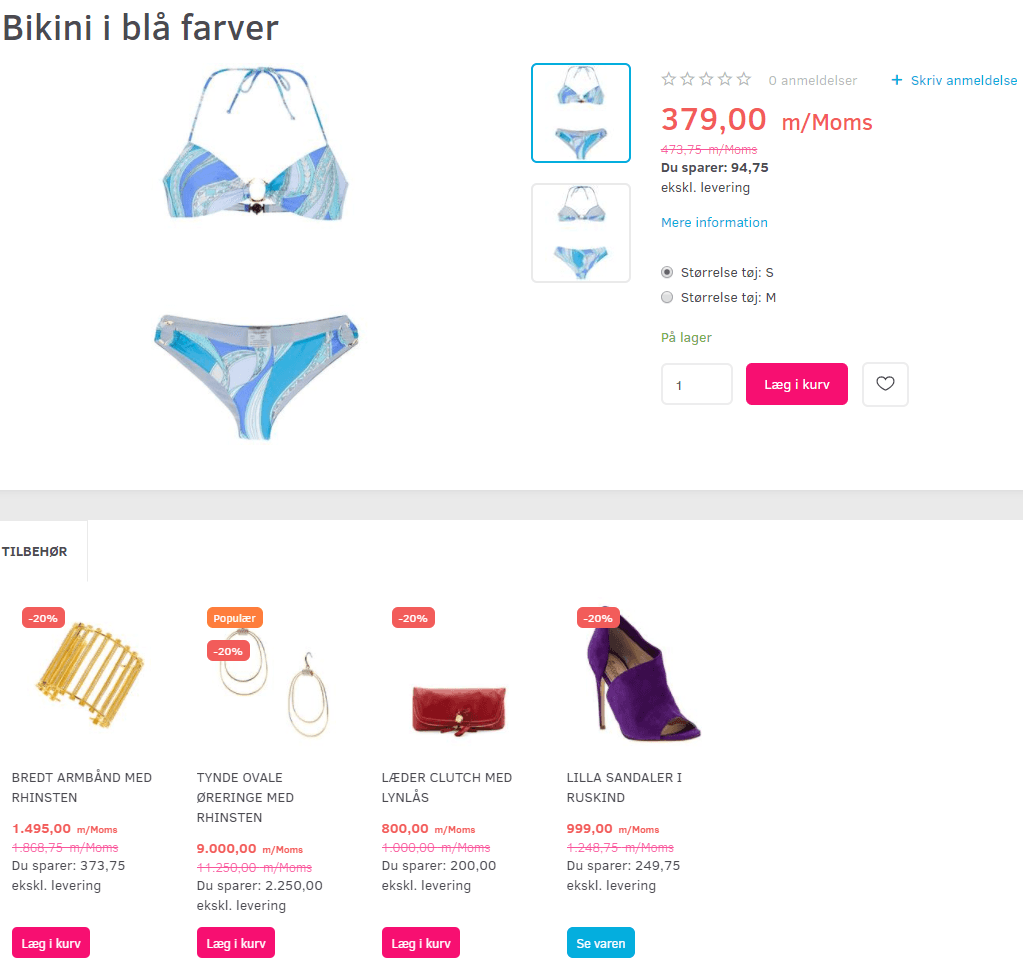
Option 1: Show in a tab as “Accessories”
Have the products shown in a tab below the main product. There can be several tabs with different content.
In the Layout tool, under product pages, drag the Standard tabs element to where it should be shown.

Then edit the element by clicking the cog icon, or by double-clicking the element itself.
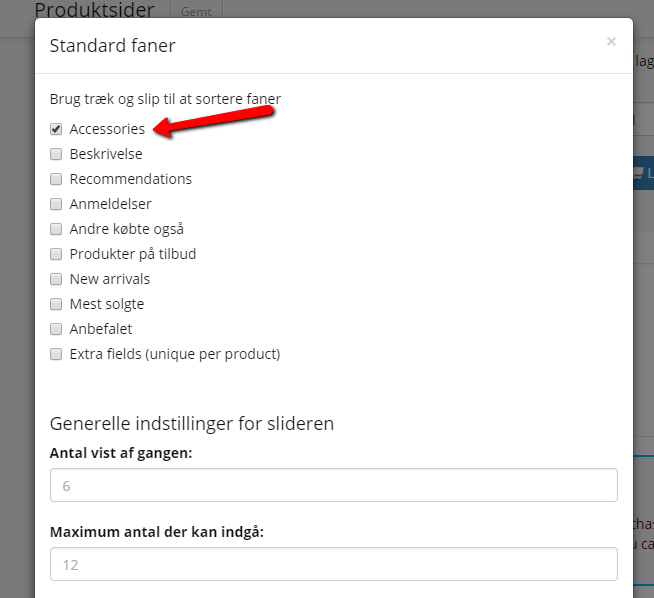
When editing the element, you can choose which tabs to show. Upsell is called Accessories, related products are called Recommandations, and when you tick it, the products set up for that product are shown. You can choose other tabs too, and then drag and drop them into the right order.
Under the general settings for the slider, you can choose how many products to show at a time.
When everything is set up and saved, it will look like this:
The tab will be called “Accessories” (upsell) or “We recommend” (related products).
Option 2: Show as a product slider
The products can be shown in a slider.
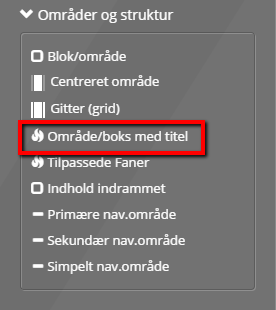
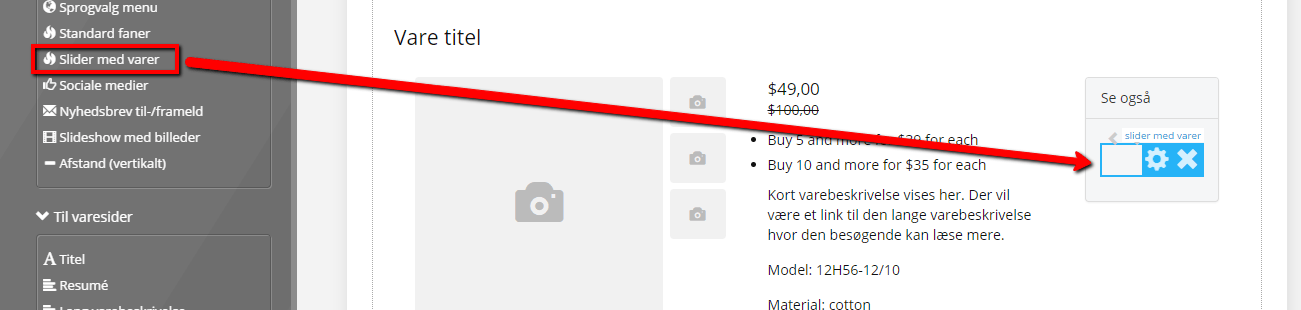
In the Layout tool, under product pages, drag the Product slider element to where it should be shown.
It is a good idea to put the slider inside an Area/box with title, where the title is easy to change.
Drag that element in first, and then place the Product slider element inside it.
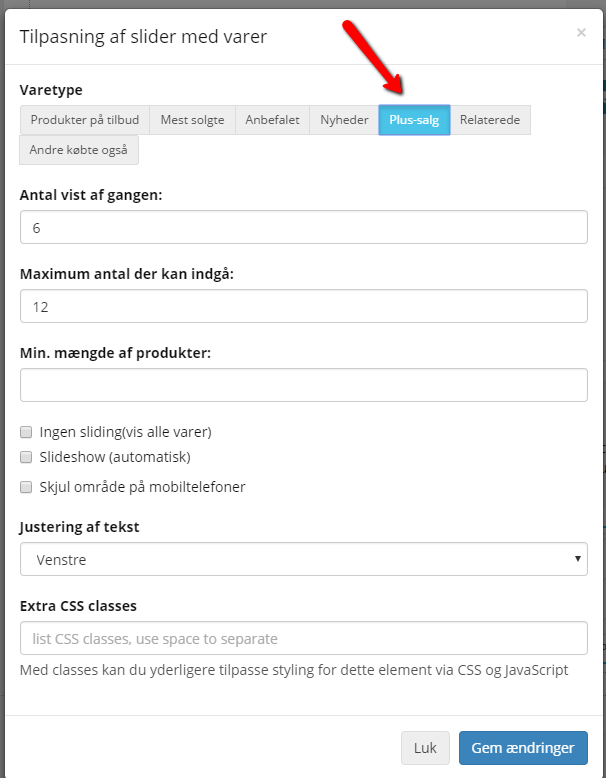
Then edit the element by clicking the cog icon, or by double-clicking the element itself.
When editing the element, you can choose what to show.
You can choose how many products to show at a time.
When everything is set up and saved, it will look like this:
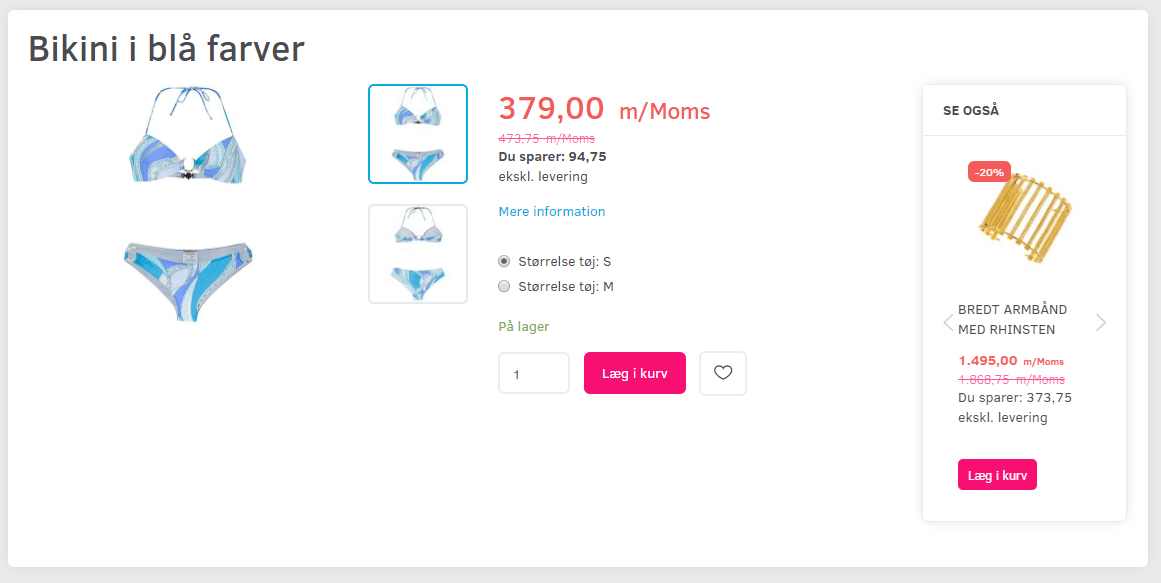
Option 3: Show in a tab, with a heading of your choice
If you want it inside a tab, first drag in the element called Custom tabs.
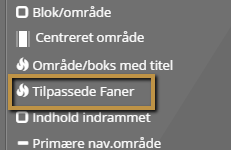
In Custom tabs, first choose the tab you want it in.
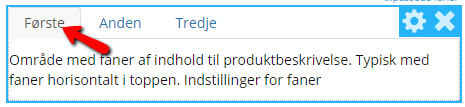
By default, the first tab has a text block; delete it (by clicking the cross).
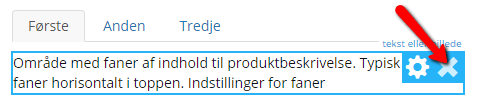
Then drag the Product slider element into the place of the text block.
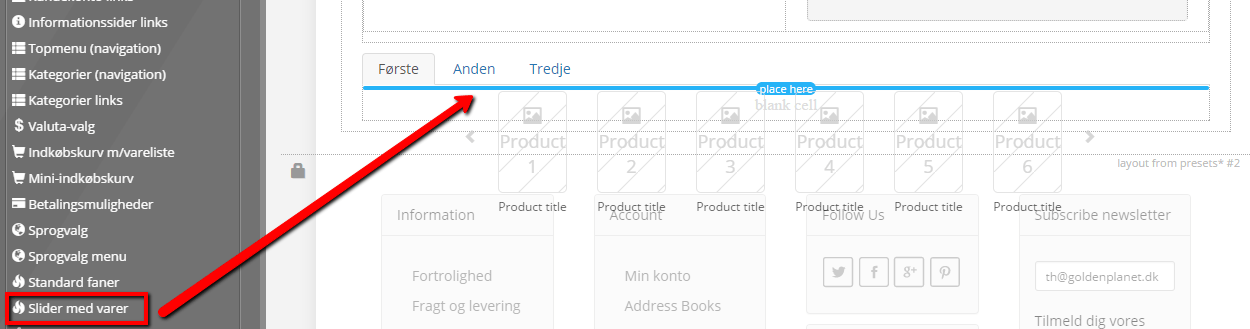
With this method it is important to note that this has to be done FOR EACH TAB.
You can edit the name of the tab and the number of tabs. You do this by first clicking the cog icon on the Custom tabs element and then changing the names and number of tabs.
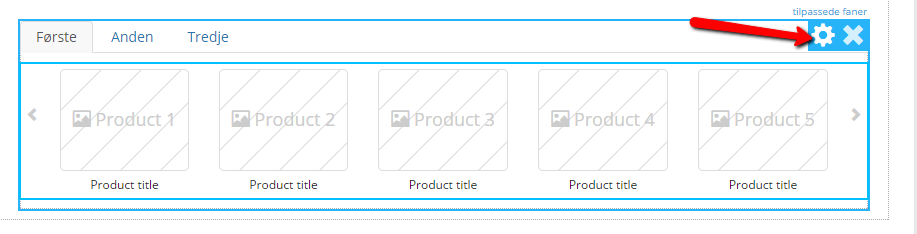
Once the Product slider element is in place, click the cog icon so you can edit the element. Here you choose the content you want to show and click Save changes.