
In this category Product catalogue
The product list in the admin
On this page
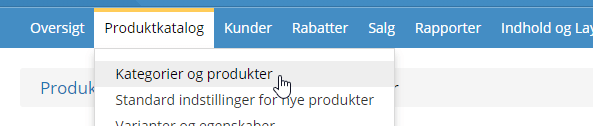
You will find the list of products in the admin, in the top menu under Product catalogue and then Categories and products
Switching columns: see product number, more prices, barcode etc.
You can switch columns by choosing another view on the far right:
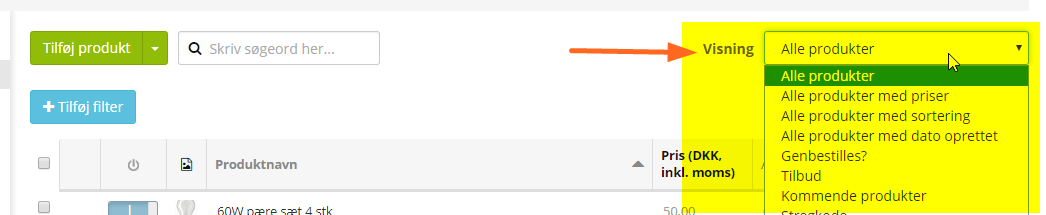
If you choose, for example, the view All products with prices, you get columns including model/product number and prices both with and without VAT.

Filtering
With filtering you can narrow down the list of products to show only selected ones.
You can add several filters, so that, for example, you get all products with something particular in the title that were created after a certain date.
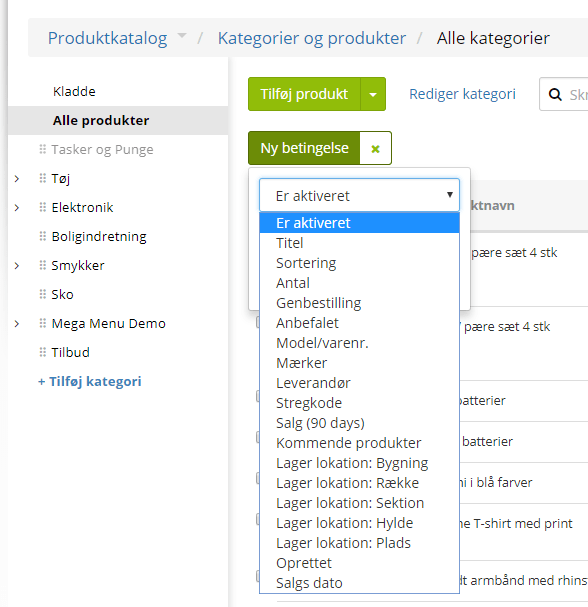
Click the Add filter button at the top

You can then choose between the active columns in a drop-down list.
When you choose a column, you get the option to set up a filter.
Depending on which column you choose, the filter adapts to it.
If you choose Created, for example, you can enter a date and choose whether it should be greater/less than, equal to or empty.
If you choose Supplier, there will be a drop-down list of the suppliers you have created to choose from.
Once the filter is chosen, the list shows the items that meet the conditions set.
You can set several filters/conditions, but note that all the conditions must be met for the items that are shown.
Sales per product
You can also see sales per product for a chosen period – that option has its own guide here.
Move, copy etc. one or more products directly from the product list
From the product list you can quickly carry out an action on one or more products – it can save you lots of time.
Just tick the products in question in the list:
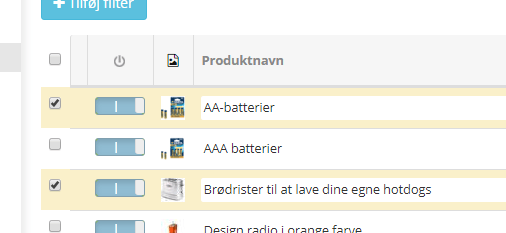
and then choose, at the bottom below the list, what you want done
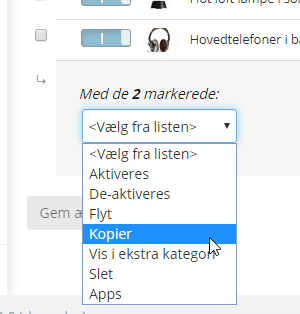
The copy option is handy for creating products that are similar to each other. You can also just keep a “template product” that is not active in the shop but is only used with a setup of elements you also use – and of course you can always delete whatever you don't need.