
In this category Product catalogue
Price campaigns
On this page
Products on sale – now or plan a campaign
Reducing the price of a single product is normally a fairly easy task: just log in to the admin, find the product and create a discounted price. But reducing the prices of many products can quickly become a huge job.
That's why we have made a tool that makes it much easier.
With it you can put many products on sale. Straight away or for a particular period – for example a sale, Black Friday etc.
The prices can be set on all products in the shop, or limited to particular categories and/or brands.
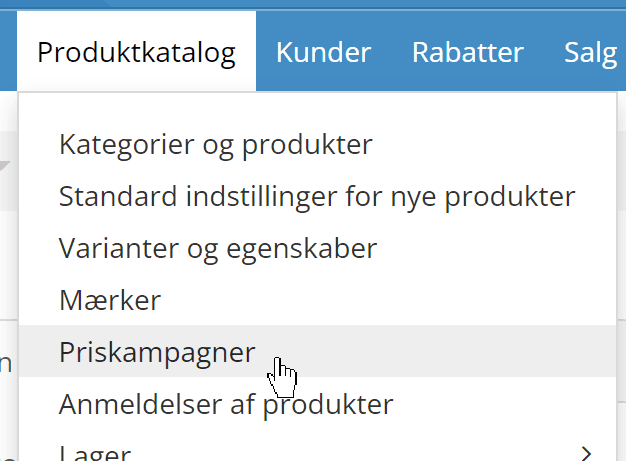
You will find the tool here in the menu:
In the tool you can
- Choose the products that should get a new sale price
- Limit it to a period if you like
- Enter the sale price
- Choose whether the sale prices should be activated straight away or planned for a future period
For campaigns in a future period, you can choose what should happen to the prices when the period ends – go back to the regular price or to the “everyday” (previous) sale price.
1: Choose the products that should get a new sale price
If you don't want to put new sale prices on all products in the whole shop, you can limit it to
- One or more categories
- One or more brands
If you specify both categories and brands, it applies to products that meet BOTH criteria. That is, they are in the selected categories AND are one of the specified brands.
For categories you can also choose to exclude the selected ones (instead of including them).
2: Limit it to a period if you like
If you don't enter anything here, the sale prices apply until you change them directly on the product or create a new sale campaign:

If you enter dates, the prices apply from midnight on the start date to midnight on the end date (that day included). Here, for example, from midnight on 27 November 2020, ending at midnight when 28 November 2020 is over:

In other words, if an offer should only apply for one day, enter that date as both the start and the end date.
Activating offers involves a delay
The function that puts many products on sale is a process that runs continuously and activates/deactivates prices. An online shop naturally needs to run around the clock, and so as not to overload the servers for anyone, this process runs in a queue until everything has been updated. So a price change set for a particular date will not happen at exactly 00:00 for all products. How quickly it happens depends on how many online shops on the same server have ordered price changes, so to speak.
So for Black Friday, for example, you might consider activating your offers manually or via importing a file well before 00:00.
If you choose to do it by importing a file, and before a campaign starts you have some products on sale that should go back to those prices after the campaign, the easiest solution is to export the products before the campaign starts and import the file again when the campaign is over. More about this at the end of this guide.
3: Enter the sale price
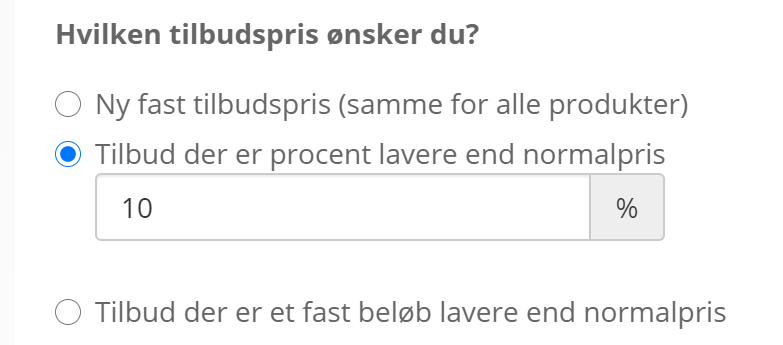
You can choose to set all products to a new fixed price as an offer, or reduce them by a percentage or an amount. In most cases a percentage reduction, as here, is probably the most relevant:
4: Put it on now or plan a campaign?
Here your Golden Planet online shop is once again a notch smarter than average.
As well as getting the new sale prices on the products straight away, you can also choose to plan several future campaigns. For example an “Advent calendar campaign” with some sale prices every day, combined with a newsletter campaign etc.
You can also run a campaign for a period – for example a “birthday offer” – and afterwards the products that already had a sale price before the campaign can go back to their old sale price.
If you choose to have the prices go back to the previous sale price, that is relative to the latest campaign. If you have run several campaigns on the same product, it does not go back to the point when you created the campaign. If a price should be set back to what it was on the day you plan the campaign, you need to use export/import of CSV files. If in doubt, you can export the products “just in case”.
When you have planned campaigns, you get an overview of them when you click into price campaigns.
5: Option to go back to the sale prices from before the campaign
If you have sale prices before a campaign starts, you can choose, with a planned campaign, to have those sale prices restored when the campaign ends.
You do this at the bottom of the campaign setup by giving it a title and choosing “Return to the then current/previous sale price”
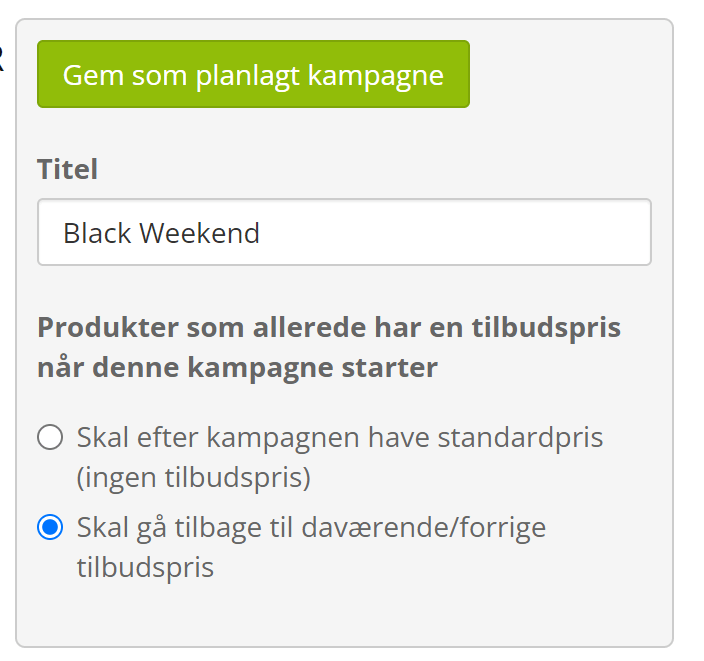
A planned campaign must have a start and an end date – the start date can be today's date, in which case the campaign starts as soon as you click “Save as planned campaign”.
Can you stop an active campaign?
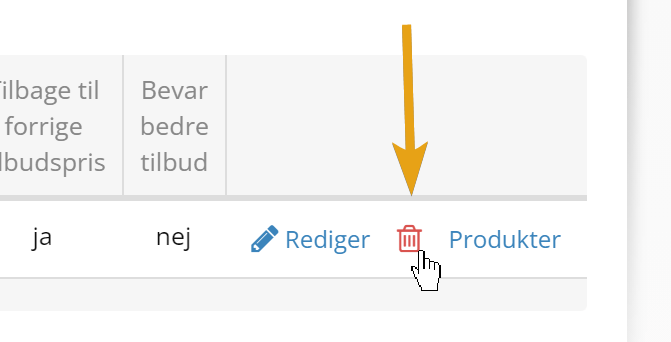
Yes, you can. If you change your mind about a campaign, click delete next to it in the list. This has the same effect that the campaign was set to have when it expired – for example going back to the previous prices.
Can you change the prices of products in a running campaign?
No, you can't. While a campaign is active, it alone controls the prices. You can change the prices of products that have a price campaign planned for the future.
Remove sale prices from products
Sale prices that are planned to end on a date, or are part of a campaign, automatically go back to the price you have decided (the regular price or the previous sale price).
You can also remove sale prices using the same criteria you can add them by – that is, brands and/or categories.
You do this from the price campaigns page by clicking the Remove sale prices via guide button

You can then specify which products should have their sale price removed. You can choose that it should not affect the campaigns you have already planned.
If you want to back up your prices
You can export a file with all your current prices before you create a price campaign. You do this with the Export to file function under the Tools menu item.
Export the products with the setting Price update
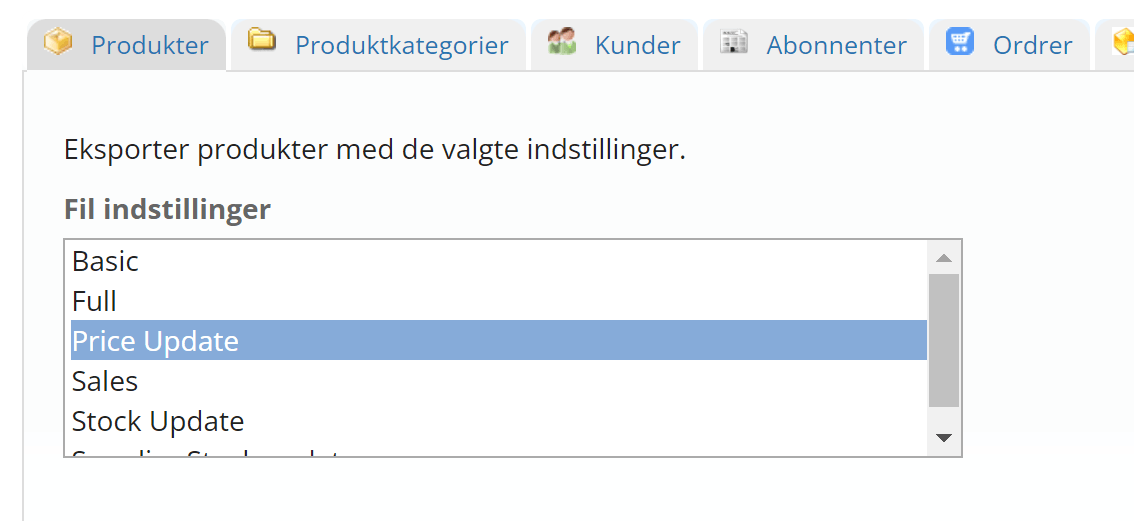
When the export is finished, download and save the file.
To go back to the prices in your export, open the Import from file function under the Tools menu item.
Important: So as not to overwrite stock figures and anything else that may also have changed in the meantime, it is important that your import only uses the fields ID and prices (price, special price, special start, special end).