
In this category Product catalogue
Product catalogueProducts
Products: images
On this page
How to add images to your products
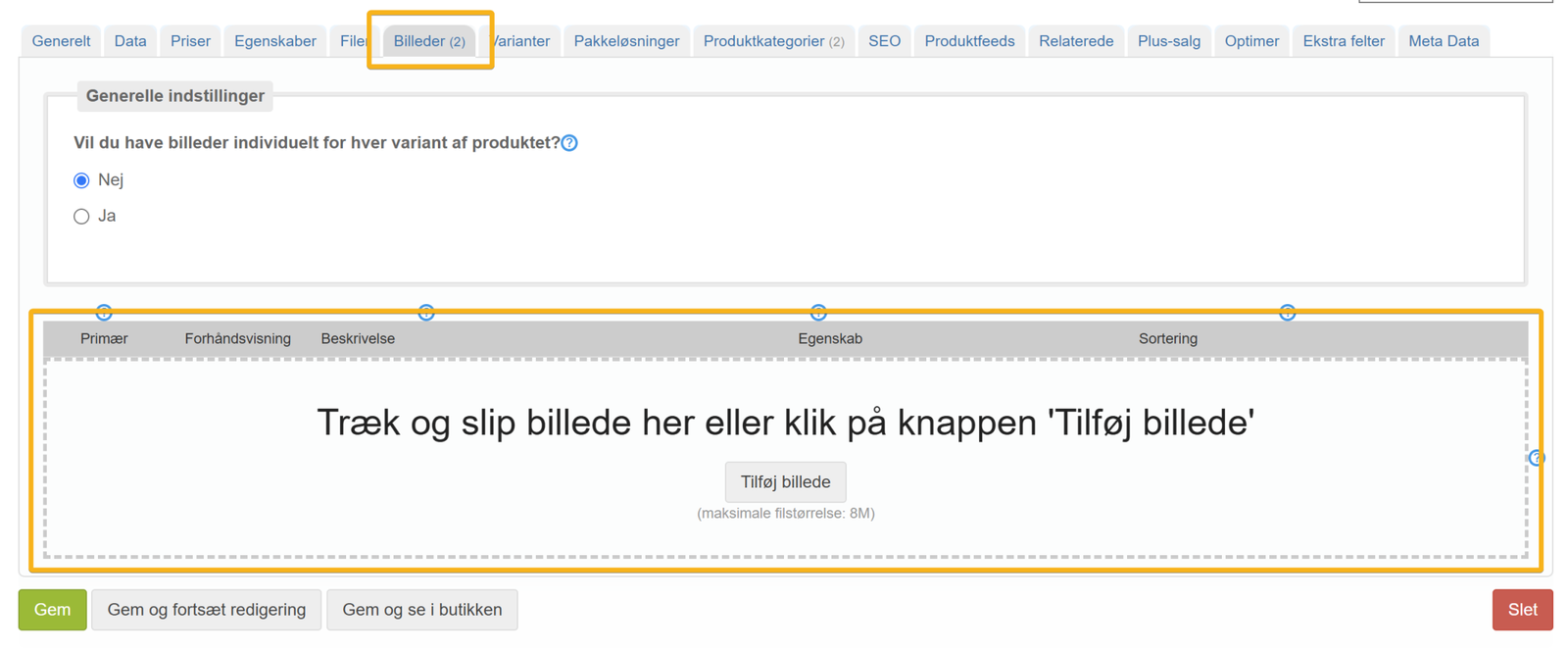
Click the Images tab and drag the images in from the list of files on your computer – or click the Add image button in the middle of the field and you can select the images:
Editing images in your browser
You can edit product images directly in your browser by clicking the Edit button next to the image on the Images tab:

If you need more advanced options, you can use Photopea here (opens in a new tab), for example. It works directly in your browser and has a free version. It looks remarkably like the well-known program Photoshop.
Switch image automatically when a variant is chosen (e.g. a colour)
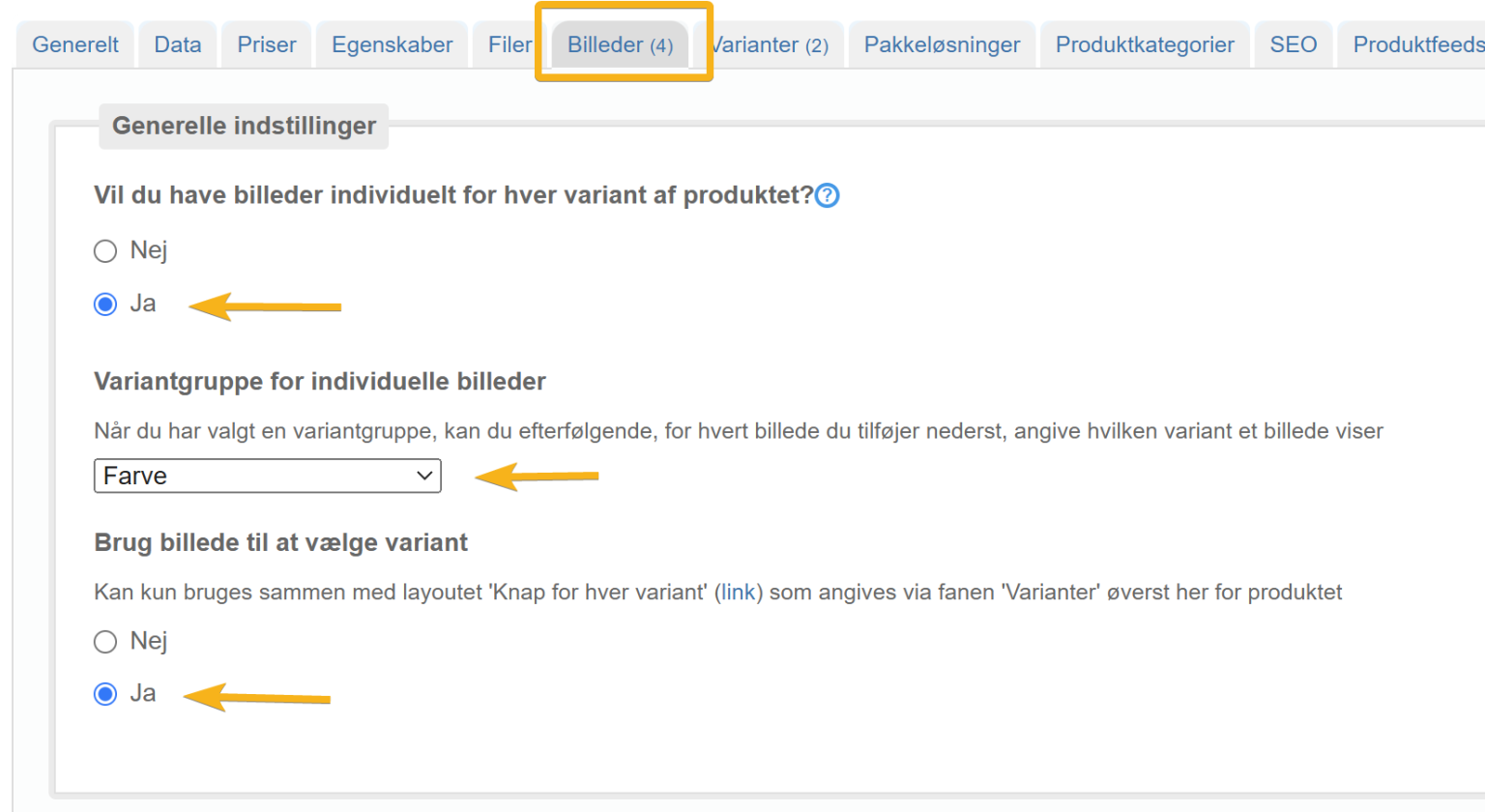
If you specify which variant (e.g. colour) an image belongs to, that image is shown automatically when your customer chooses that variant in the shop.
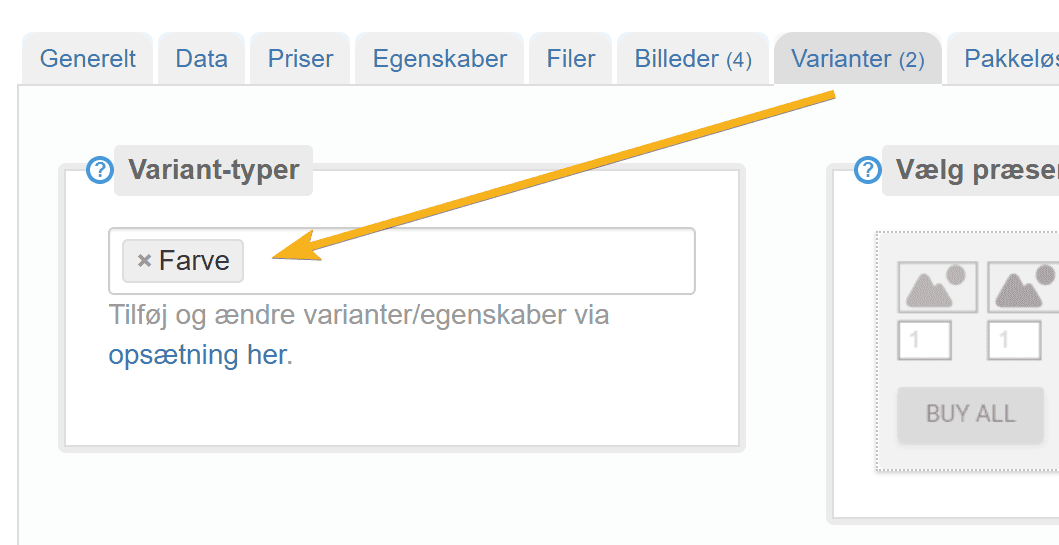
First you need the name of the variant group used for the choice – you can see it, as here “Colour”, on the Variants tab
Go to the Images tab and specify the variant group and that the image should switch:
Go down to each image and search for the variant by typing in the fields next to each one
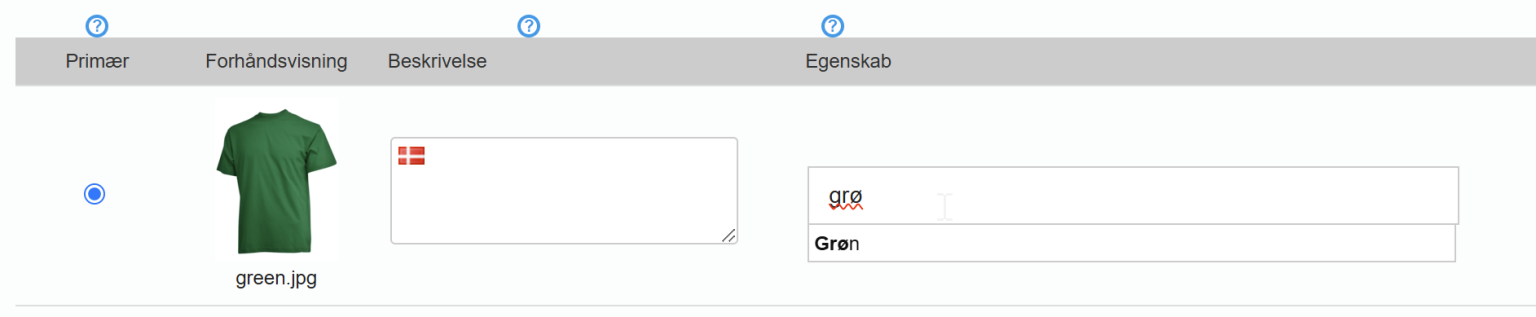
so that they look like this next to each image
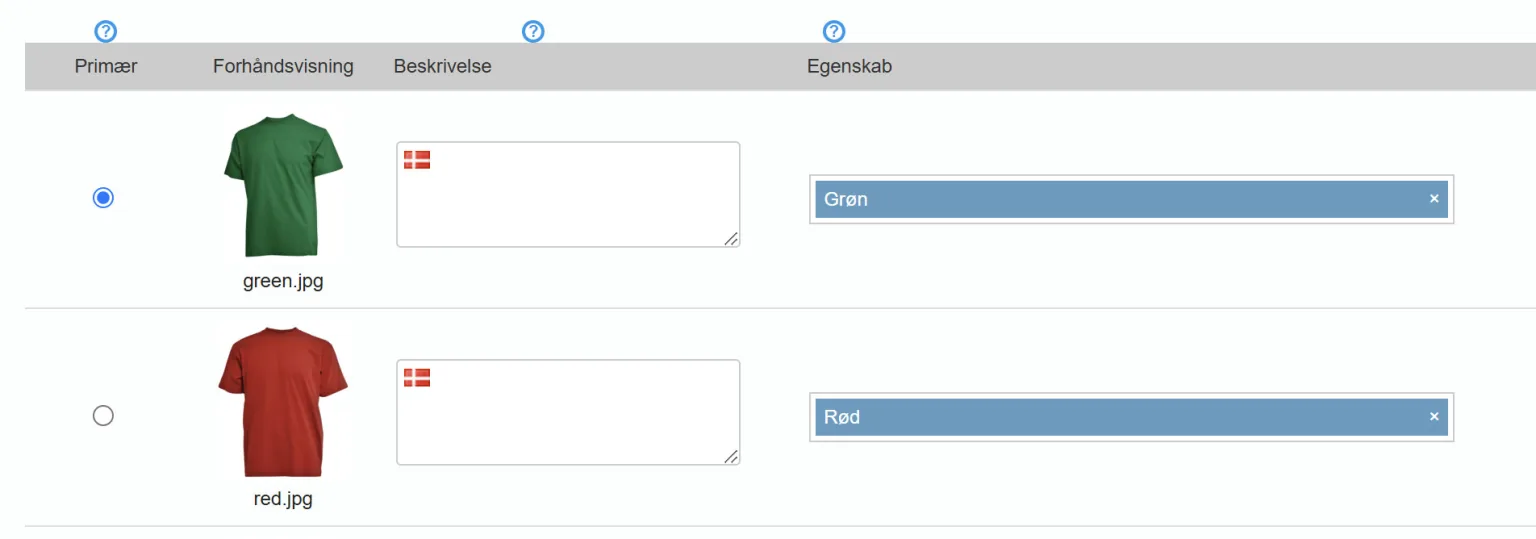
Then, as always, remember to save your changes.
Easily take your own product photos with your mobile and this app
There is a mobile app called Photoroom that is very impressive for photographing products.
It cuts out the background of images, even if the photo was taken on a perfectly ordinary table, for example.
We have nothing to do with this app – we just thought we would share a tip about it.
Find it in the App Store/Google Play for both iPhone and Android.
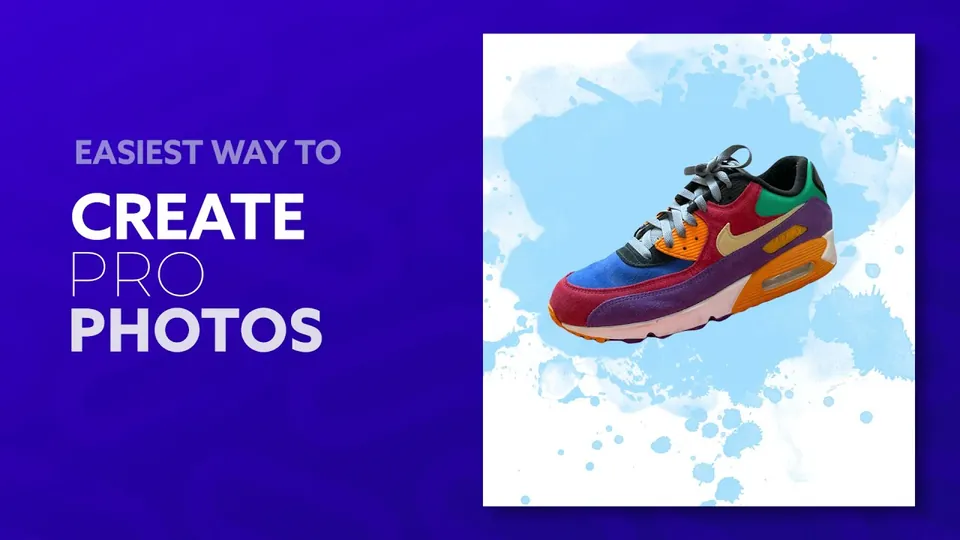 Play video: PhotoRoom - Background Remover & Photo Editor - Video (opens YouTube)