In this category Product catalogue
Product catalogueProduct sets
How to create a product set
First, here is a video that shows how to create a product set. Below the video you can see the basics explained in text and images.
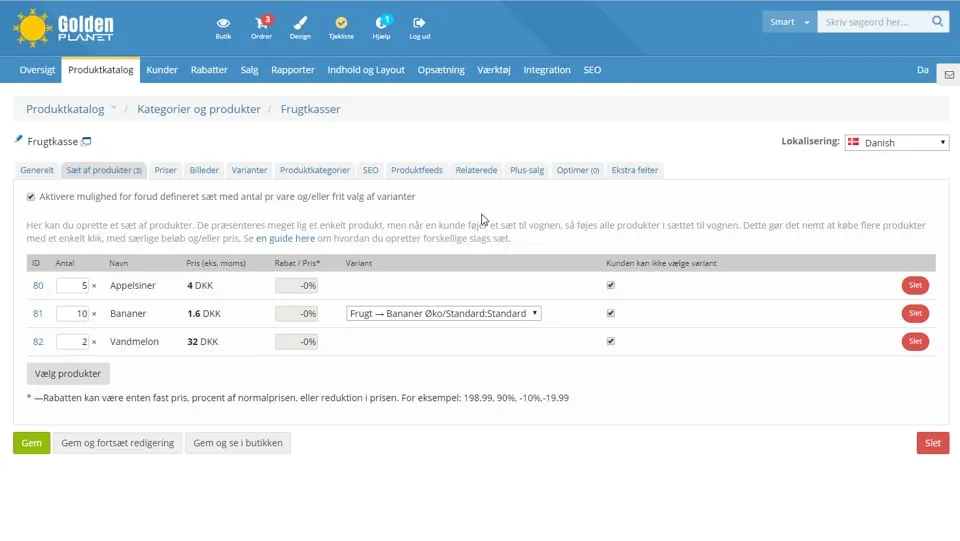 Play video: Product sets: how to do it (opens Vimeo)
Before you can create a product set, you must first have created the individual products that are to be part of it in the shop.
You then add a product set like this:
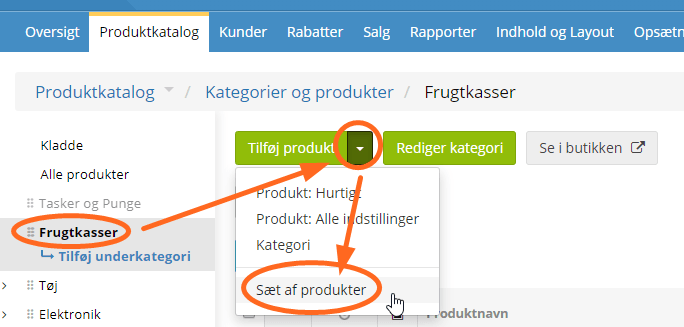
- Go to Categories and products under Product catalogue
- Click the category where you want a product set
- Click the arrow next to Add product and then choose Product set
A product set is set up in almost the same way as an ordinary single product.
The main differences are:
- Data such as stock, model/product number, brand etc. is set on each individual product in a set
- A product set cannot be combined with product bundles
- On the Prices tab you only enter the VAT class for the product. You cannot mix products with and without VAT in the same product set
- The total price of the product is given by setting a price (fixed or relative) for each individual product in the set
Start – as with all other products – by entering a title and description on the General tab.
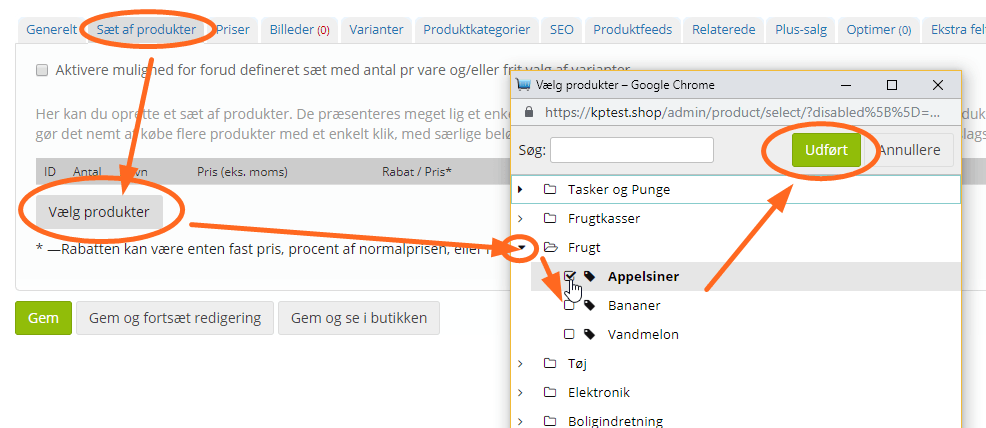
Then go to the Product set tab.
Click the Select products button, find and select the products – finish by clicking the Done button:
Enter the quantity of each product to be included in the set. In the price field you can enter a price for each product. If you want to give a discount, you can enter, for example, -10%. If it should be the same price, you can leave the field empty. If some products in the set have variants, you must choose which of them to use in the set:
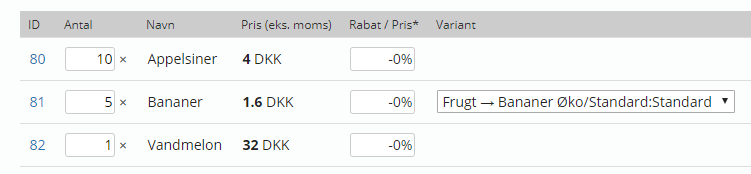
On the Prices tab you only need to enter the VAT class. It must be the same VAT class as the one used for the products in the set.
On the Images tab you add images, just as you would for a standard product. In the shop, the price is automatically calculated as one total price based on the quantities and any discount you have set for the set.
As always, finish by clicking the Save button – your product set is now ready.
If you want to hide the prices of the individual products in the set
You can show the total price only – and not what each product in the set is priced at – for all your product sets where the customer cannot choose the quantity of each product in the set. For example, if it is a set of clothes with a jacket and trousers where the customer can only choose the size of each item.
You can do this by going to How prices are shown in the shop
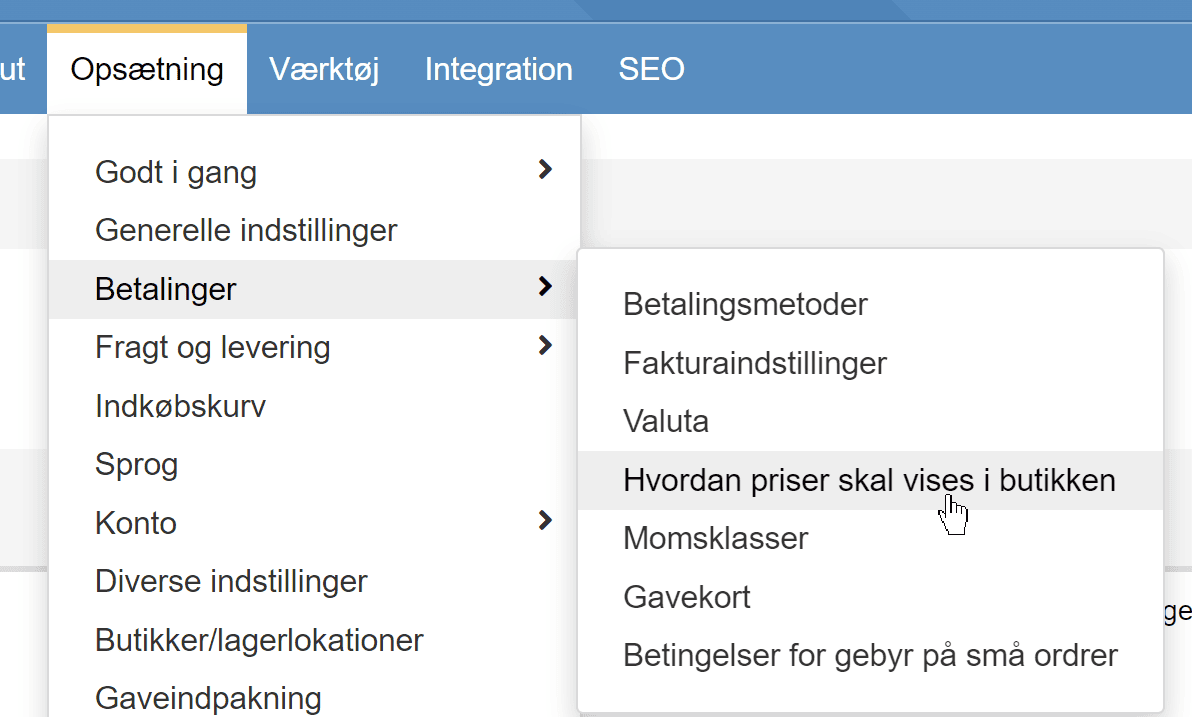
where you turn on this setting