
In this category Product catalogue
Product categories
On this page
You can use categories to build the structure of your online shop. It is also what your customers will see as the navigation menu.
Explained in text, images and video, here you can learn more about how to:
- Create
- Delete
- Move / sort
- Customise
- Search engine optimisation (the SEO tab)
- Category as an information page (without products)
- Show the same product in several categories
Create
You create a top-level category like this:
- Go to Categories and products (under Product catalogue in the top menu)
- Click + Add category to add a top-level category
- Type the name of the category
- Press Enter on your keyboard
You create a category under another one like this:
- Go to Categories and products (under Product catalogue in the top menu)
- Click the category where you want to add a subcategory
- Click Add subcategory
- Type the name of the category
- Press Enter on your keyboard
Watch a video here that also shows and explains how (opens in a new tab)
Delete

You delete a category like this:
- Point your mouse at the category
- Click the cog icon on the far right of the name
- Click Delete
- Choose whether any products in the category should be deleted too
- Click the red Delete button
Move / sort
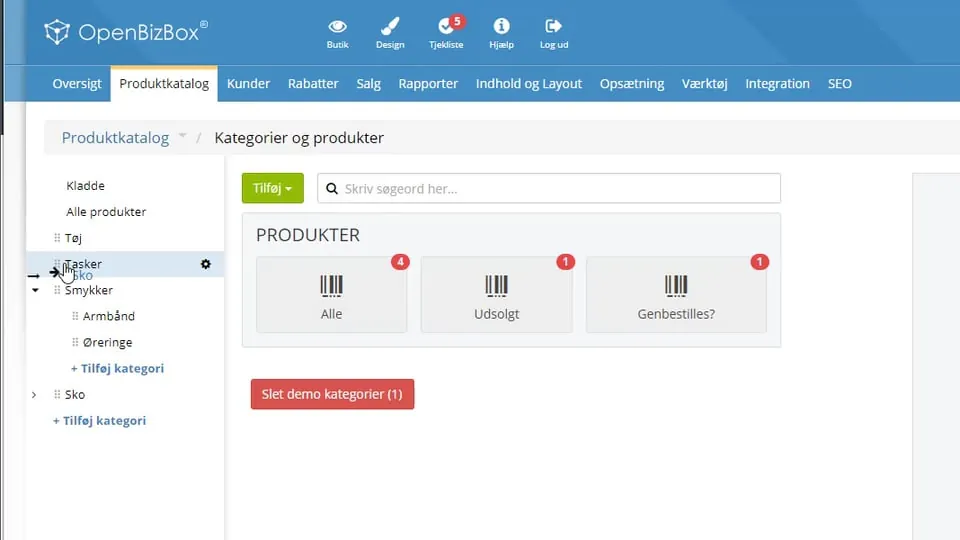 Play video: Moving and sorting categories (opens Vimeo)
You change the position/order of categories within the same level like this:
-
Point your mouse at the category, next to the icon

to the left of the title
-
Hold down the left mouse button
-
Drag up or down until the arrow points to where the category should be
-
Release the left mouse button
You can move a category to another level by editing the category. See how in the video that goes with this section of the guide.
Search engine optimisation (the SEO tab)
It all starts with a good structure. You can read more about that in our SEO school here:
SEO school: A good structure for your online shop
Once the structure is in place, you are ready to optimise. In this video you can learn how to get off to a good start, quite easily and quickly, with optimising your category pages for good rankings in search engines such as Google:
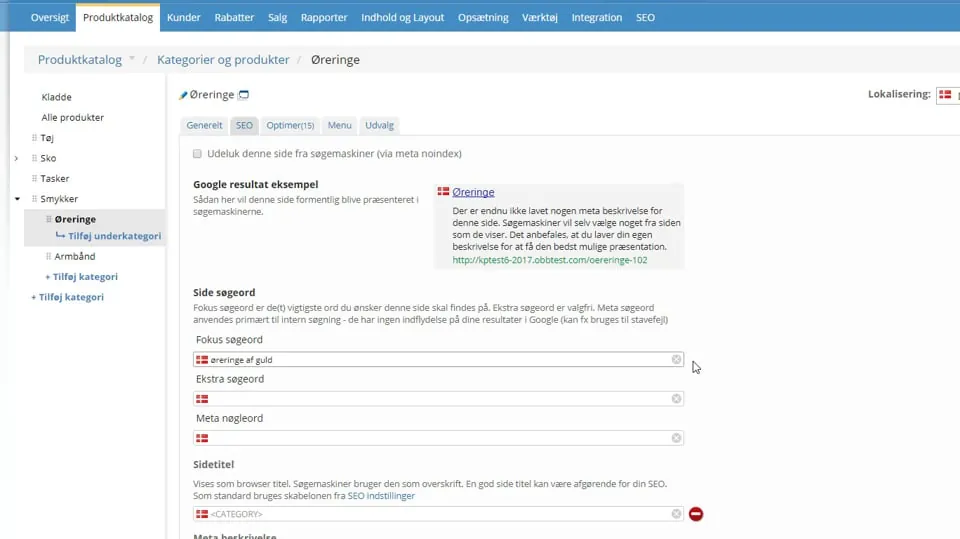 Play video: SEO for categories: introduction (opens Vimeo)
Category as an information page (without products)
You can create information pages in your online shop as shown in the guide you can see by clicking here.
But you can actually also use your category pages for information alone – that is, without any products in them.
The advantages of using category pages for information:
- They are part of the site's main menu
- You can have a structure with subpages
In short, you create the page and then add your content as the Description on the General tab when you customise the page:
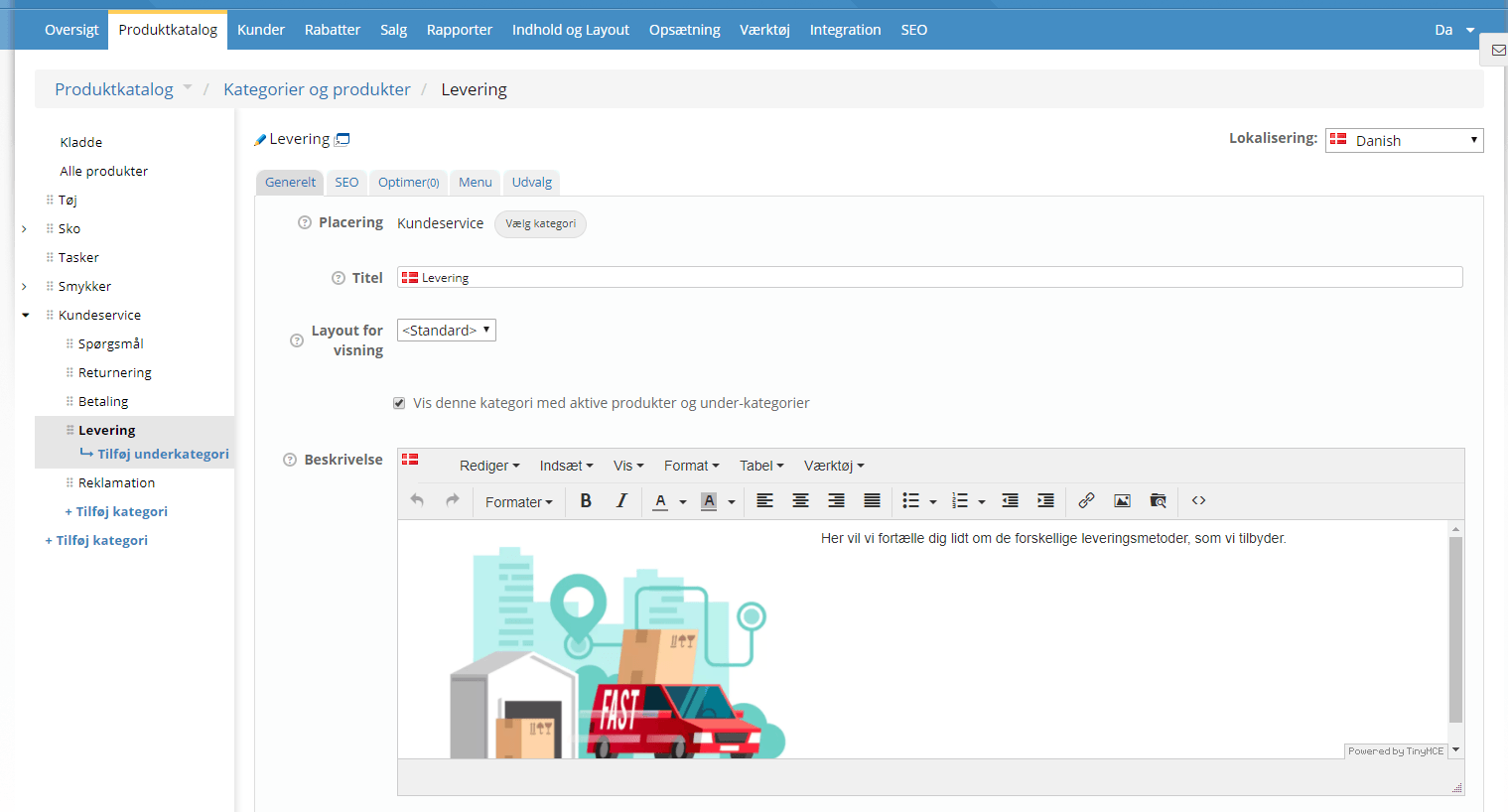
In this video you can see an example of how:
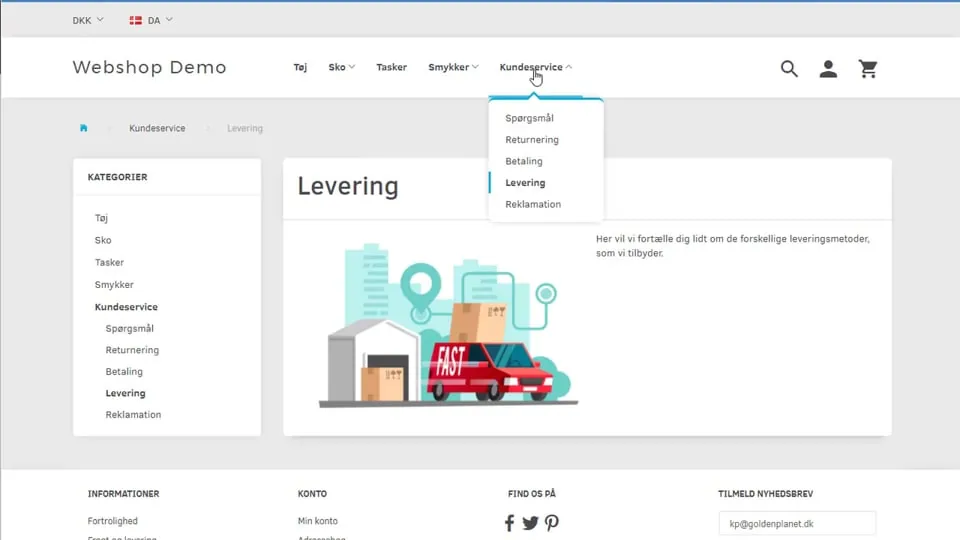 Play video: Categories as information pages (opens Vimeo)
Show the same product in several categories
You can of course show the same product in several categories.
You set this up on the product. How is shown in the guide on this page.