
In this category Product catalogue
Product sets
Guide to setting up several products that are sold together. Presented together and easy for the customer to buy with one click.
On this page
In your online shop you can create both product bundles and product sets.
They look confusingly alike – so here, in brief, is the difference between a product bundle and a product set:
- Product bundle: There is one product which, as a starting point, can be bought together with other products if the customer wants. The primary product can easily be bought on its own. There can be several combinations of bundles based on the primary product. You can read more about product bundles here
- Product set: Here the customer buys only a combination of several products. It can be a finished set that cannot be changed, or merely a suggestion that can be changed.
With a product set you make it easy for the customer to buy a ready-made set of products. You can present and market them as this ready-made set, with one total price.
There are 3 types of product set:
- Type 1: A fixed set. The customer cannot change the combination.
- Type 2: A set that can be changed freely
- Type 3: A set that can be changed freely + there are suggestions for different quantities of the products
Here you can see an example of each of the 3 types:
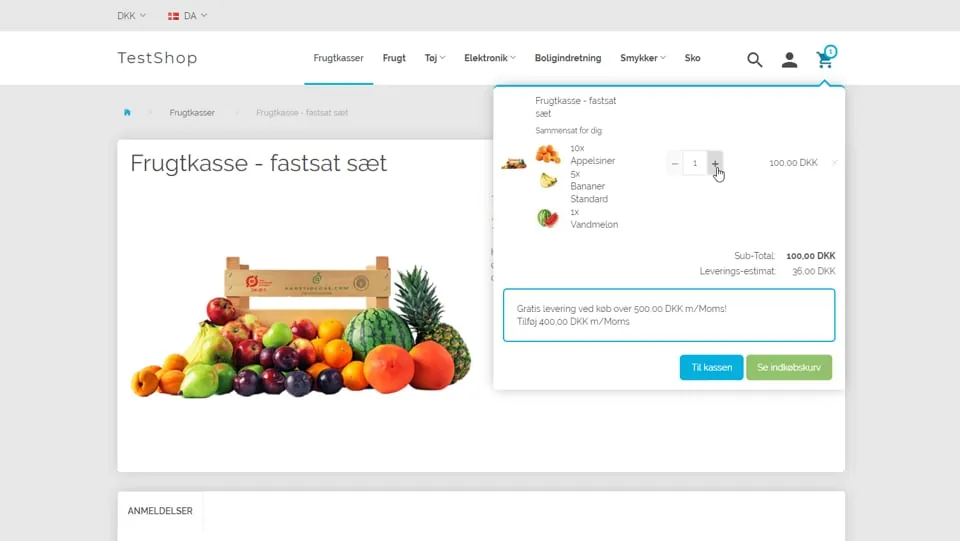
Example of type 1: Fixed set
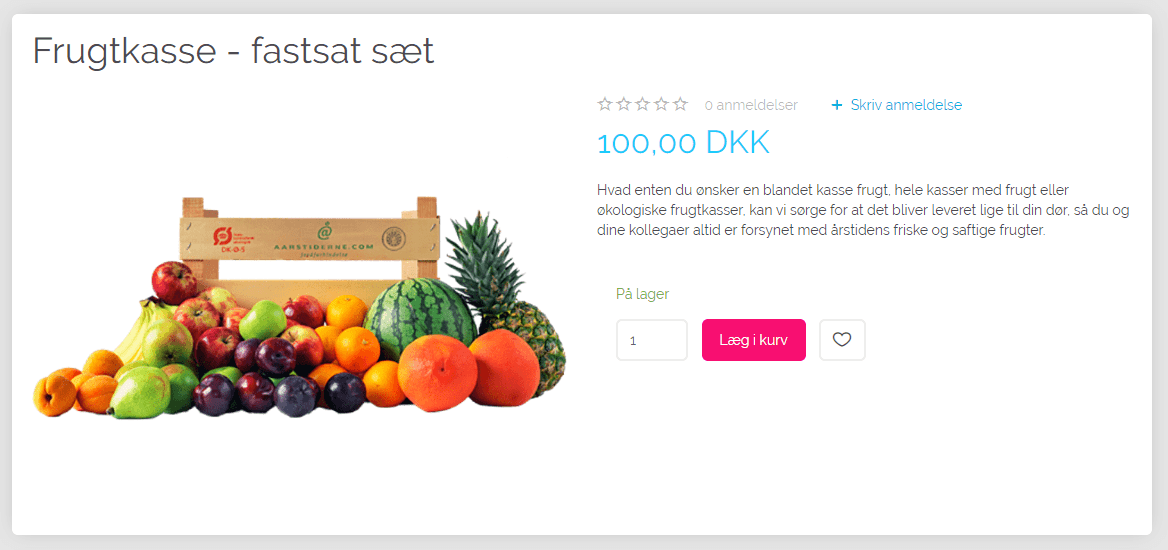
Here the customer cannot change the product set you have made.
Clicking “Add to basket” adds all the products in the fixed quantities, which cannot be changed.
See the guide: How to create a product set
Example of type 2: A set that can be changed freely
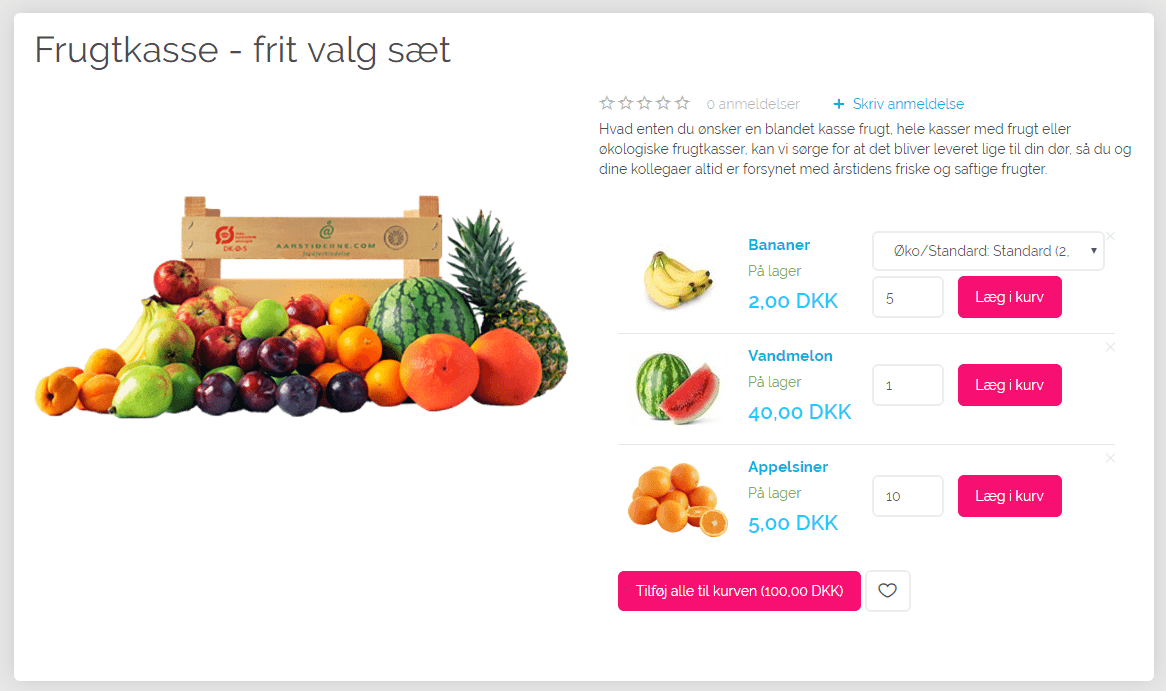
Here the customer can freely change the quantities and possibly also the variants.
In other words, the product set is a suggestion: the customer is free to buy all the products in the suggested quantities or to change it.
Clicking “Add to basket” next to a product adds that specific product.
Clicking “Add all to basket” puts all the products in the basket in the quantities given. The customer can still change each product in the basket or remove it completely.
See the guide: How to create a product set
Example of type 3: A set that can be changed freely + several suggestions
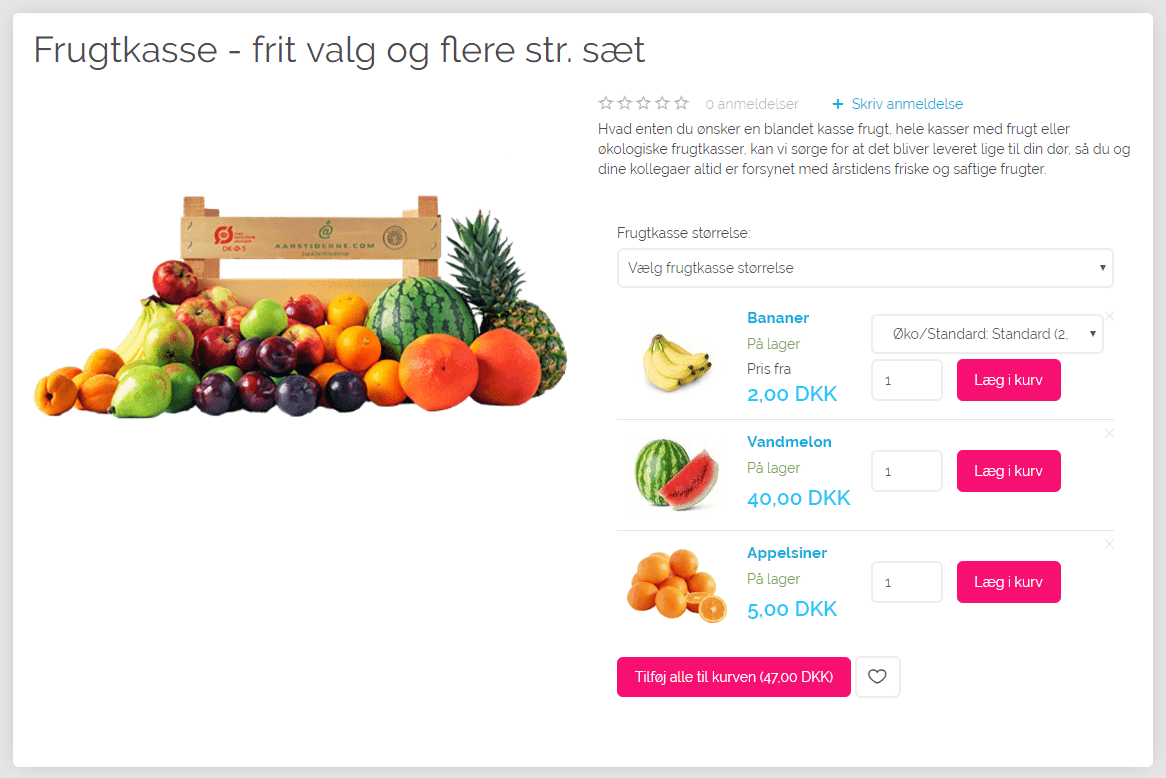
The same as type 2, but here there are also suggestions for several combinations of quantities of each product.
With the example of fruit boxes, it could be a small, medium or large box of fruit:
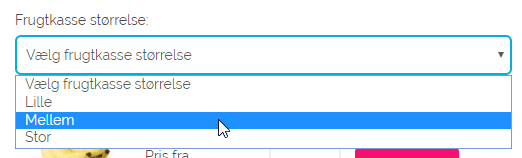
The small box has, for example, 3 bananas, the medium box 5 bananas and so on.
See the guide: How to create a product set
Video: How the 3 types of product set work in the shop
Watch this short video for an introduction:
 Play video: Product sets: introduction (opens Vimeo)