In this category Other topics
Other topicsImporting and exporting data
Importing data
On this page
Some important tips before you start:
- Delete the columns with data you do not want to import before you export from your spreadsheet
- It is especially important not to include stock and product descriptions if they have not changed
- Run an import with only one row (product, redirect etc.) first. Check that everything looks right before you run it with many/the rest.
- You must import with an empty ID to create a product
- You must import with a match on either the ID or the product number to update products (product numbers must of course be unique)
When your data is ready, you import it like this:
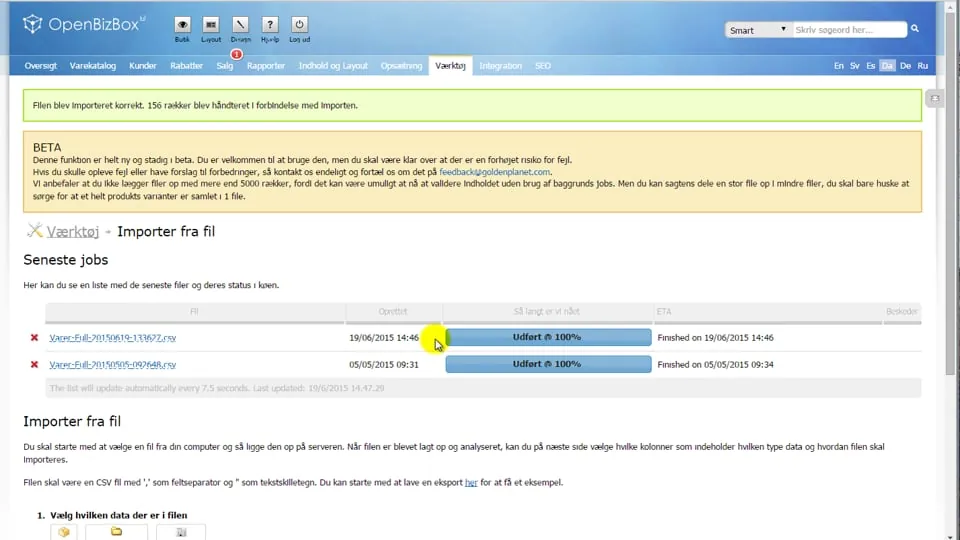 Play video: Importing data from a file (opens Vimeo)
Import with images (products)
You can add images to products by first entering the name of the image(s) in the Images column.
If there are several images for a product, they can be separated with semicolons – e.g.
image1.png;image2.png
When setting up your import, choose yes to the import including images here (after the file has been uploaded and the columns have been matched):

Upload the images to your import and click Validate and import the file at the bottom.
Import with variants (products)
Variants (colour, size etc.) are given in the Attributes column
If you have a variant with Size XL and Colour black, write it like this:
Size = XL ; Colour = Black
Each variant is given on its own row in the file.
Several are created by having the same product title in an import. It is therefore important that there are no other products with the same title in that import.
Create a new product with variants
When you want to create a completely new product with its variants via import, you basically need to make sure of these two things:
- Import on ID, with the ID field empty
- The title of the new product must be unique within that specific import (and of course identical in all rows)
If the variants should be active after the import, you need to include the Enabled column with the value Yes.
If your import includes images, simply repeat the image name(s) in each row.
Here is an example:

Add variants to an existing product
When you want to add variants to an existing product, you give the Product id of the product that should get each variant in the import.
Product id is the number shown first on the General tab next to ID:
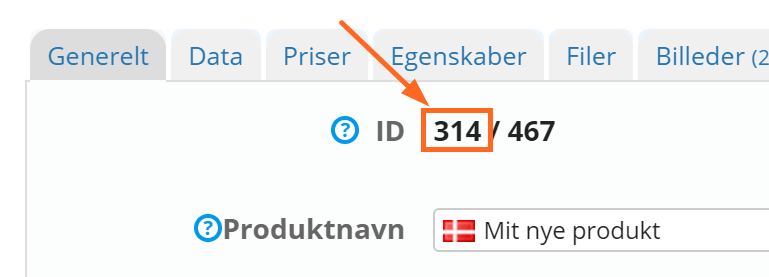
Here is an example of a product with ID 314

You can also find the values for Product id via an export that has this field – for example Basic:

It is also important that the product title you use in your CSV file is exactly as it is in the product you want to add variants to.
Update variants with prices, stock, barcode etc.
You can update data that is specific to variants by importing a file. For example these fields (in brackets, the field names from the file export):
- Active (Enabled)
- Model/product no. (Model)
- Weight (Weight)
- Price (Price)
- Quantity (Stock)
- Barcode (Barcode)
You can use these fields as the “connection/link” to the variant:
- ID
- Model/product no. (model)
- Barcode (barcode)
The last two of course assume that you already have unique numbers on the variants. By default, an import is on ID – remember to tell the import if you want to use the model/product number or the barcode

A file with an import to update via ID could look like this:
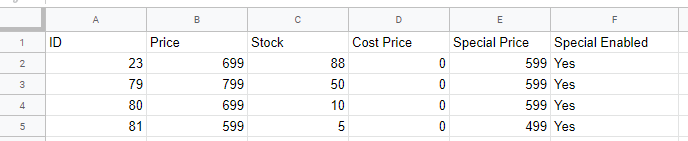
Update images, categories etc. on a product with variants
The fields that do not exist on each variant can be updated on the “main product” via the ID shown here on the General tab when you edit the product:
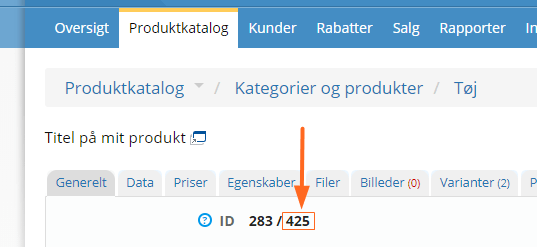
In import/export, this field is called Product id. In other words, it is not the same as ID, and it is used only for the parent product when there are variants.
Here is an example of an import that changes the title and sets the category for the product with ID 425:

If you use Excel: make sure you use commas

Excel installed on a Danish PC exports with semicolons by default – and Excel has no setting to change this.
On Windows, it follows the computer's general settings. This guide (in Danish) has some suggestions on how to get around it:
https://www.eid.dk/gemme-kommasepareret-i-excel/ (opens in a new tab)
Importing customer discount groups
When importing customer discount groups on products (to set a discount per product for customer groups): the discount/price for customer groups is set per main product – not per variant for products that have variants. You therefore need to use ProductID and not the product's ID.
Make one import file for each discount group you want to import into. Your file must have these 3 columns, as in this example:
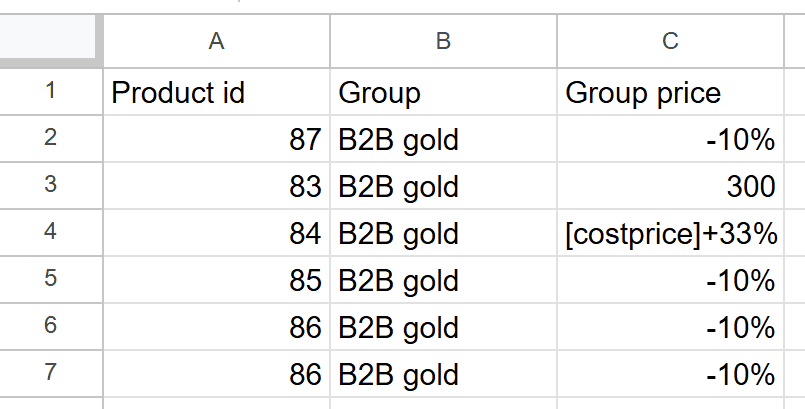
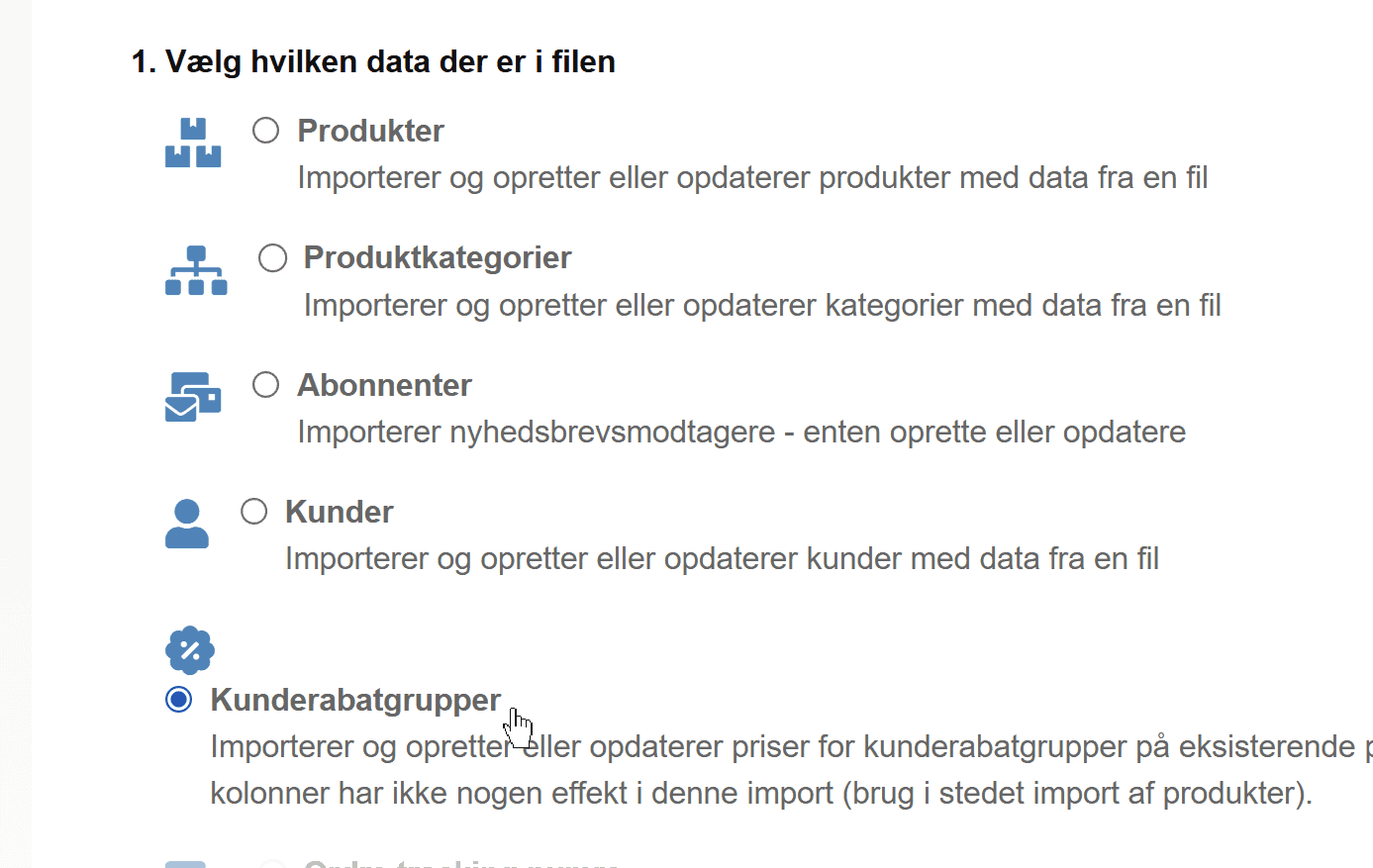
In your import, choose Customer discount groups
In your import, match the columns like this
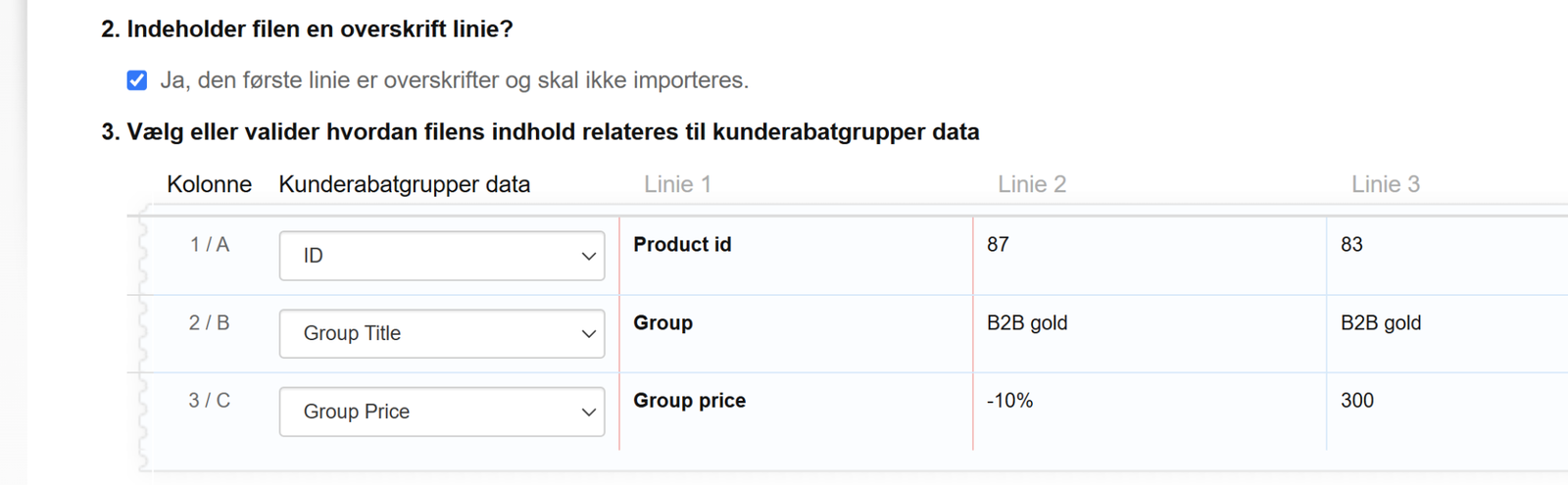
It does not matter what titles your columns have – as long as you match them correctly as shown above.
Create all combinations of variants with import
If you have variants where you need (almost) all combinations, we have made a spreadsheet in Google Sheets that can do this with 2 or 3 variant groups. For example, a combination of colours and sizes (2 variant groups) or colours, sizes and materials (3 variant groups).
You are of course free to choose which kinds of variants.
In this video you can see how, and below it there is a link to the spreadsheet.
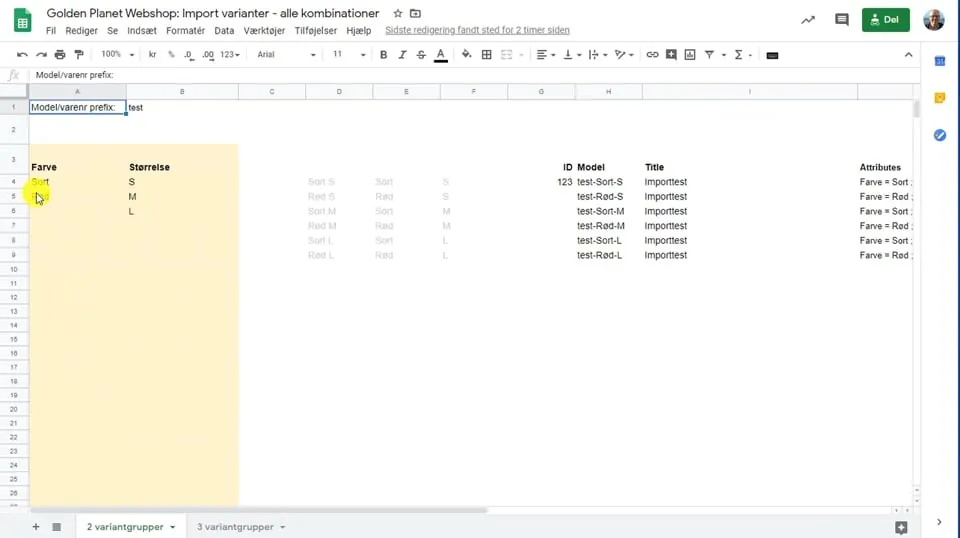 Play video: Variants: create every combination with a spreadsheet (opens Vimeo)
Open the spreadsheet by clicking here (opens in a new tab)
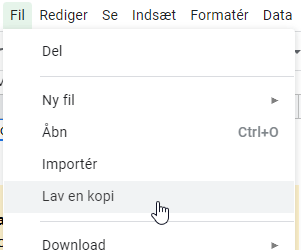
Then make a copy, as also shown in the video: