
In this category Other topics
Backup and restore
On this page
We back up your entire online shop. All files, such as images, are backed up daily. Data such as orders, customers, product descriptions, stock quantities etc. is backed up both daily and continuously around the clock as changes are made.
There are also backups that you can make or access yourself. That is mainly what we describe in this guide. If you need data restored beyond that, please contact us.
Restore deleted products and categories
Follow these steps to find and restore your deleted products or categories.
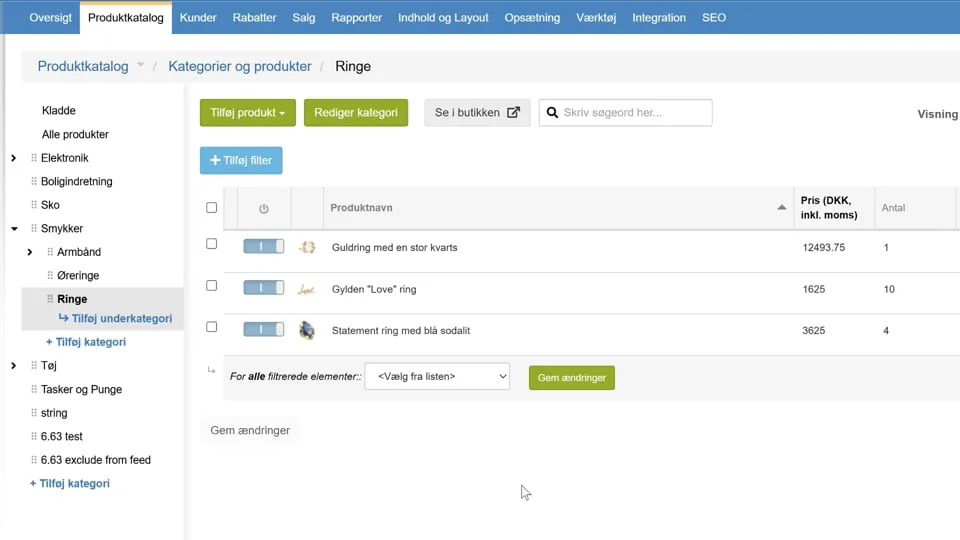
1. Find the deleted items
- Go to the Tools menu item in the top menu.
- Click Deleted products in the drop-down menu.
- You will now see a list of all recently deleted products and product categories, sorted by when they were deleted.
2. Restore a category and its products
If you have deleted an entire category, it is important to restore the category before you restore the products. Otherwise the products will be placed in Drafts, as their original category does not exist.
-
Restore the category:
- Find the deleted category in the list under Product categories.
- Click restore to the right of the category name.
-
Restore the products:
- Find the products you want in the list under Products.
- Click restore next to each product you want back.
3. Confirm the restore
- Go back to your Product catalogue by clicking the menu item.
- Go to the category you have just restored.
- You can now see that both the category and the restored products are visible and active in your shop again.
 Play video: Restore deleted products and categories (opens Vimeo)
Restoring from a backup in your shop's admin
The database backup feature in Golden Planet lets you create and restore backups of your online shop's data, such as products, orders and customers.
Important: Your online shop will be completely closed to customers while a backup or a restore is in progress. The process can take some time, depending on the amount of data.
Creating a backup
Follow these steps to make a new backup of your data.
-
Go to the menu item Tools > Database backup.
-
Make sure that Create backup is selected.
-
Choose which type of backup you want to make:
- Full backup: Contains customers, orders, products and other dynamic data. This is the most comprehensive backup.
- Products only: Creates a backup of your product data only.
-
(Optional) Give your backup a recognisable Title. By default, the system suggests the date and time.
-
Click the Backup button to start the process.
Restoring from a backup
Important: When you restore a backup, all current data is overwritten with the data from the time of the backup. All changes made after the time of the backup (e.g. new orders or changed stock quantities) will be lost.
Follow these steps to load a previously saved backup.
- Choose Restore from backup.
- Choose the backup you want from the list. The list shows the time, size and type (full or products only).
- Click the Restore button to start the restore.
Same version of the online shop
- System version: A backup can only be restored on the same version of Golden Planet as the one it was created on. If your shop has been updated in the meantime, an older backup cannot be used.
Restoring from the general system backup
If you need data restored from the backup we take continuously of all data, please contact our support. We need to know the date and time you want the data from. You will then usually get a separate installation where you can get the data in question out, or in some cases we can restore directly into your online shop – provided, for example, that other changes made afterwards do not conflict. A restore like this typically costs €135.