
In this category Other topics
Mandatory form for withdrawing from a contract
On this page
Since 19 June 2026, online shops that sell to consumers must offer a withdrawal function (section 20 a of the Danish Consumer Contracts Act, forbrugeraftaleloven). The customer must be able to enter their name, order and email address, confirm the withdrawal in a separate step and promptly receive an email receipt with the content and the date and time of the withdrawal. With the built-in withdrawal feature, you make it easy to comply with these rules.
- Adds a clear Withdraw from contract feature to your online shop
- The customer can submit their name, order number and email address
- Automatically sends a receipt when the withdrawal has been received
Enable the page with the form
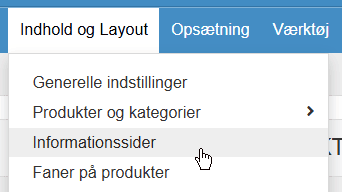
You enable the page with the form by going to the Content and layout menu item and then Information pages
Next to the page Withdraw from purchase, enable it and then click Save changes
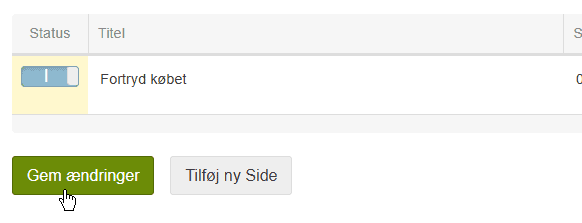
If you want to give the page a different title, this is also where you do it. If you need to check the title in several languages, click to edit it.
Show a link to the page (usually at the bottom of every page)
First, go to the page of your online shop where you usually have links to your information pages (often at the bottom of every page). If the link is already where you want it, you don't need to do anything more in this section.
If it is not shown, see the section “Placing information pages” on this page.
Get notified when a customer has filled in the form
It is important that you are notified when a customer has filled in the form, so you can respond to the request.
You do this by getting a copy of the email confirmation that is sent to the customer (which is mandatory to send, just like an order confirmation).
You find this option under the Content and layout menu item by going into Email templates
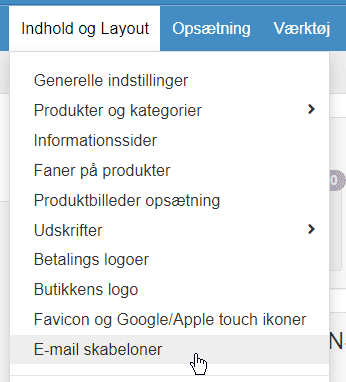
Click Edit next to this one

In this field, enter everyone who should be notified
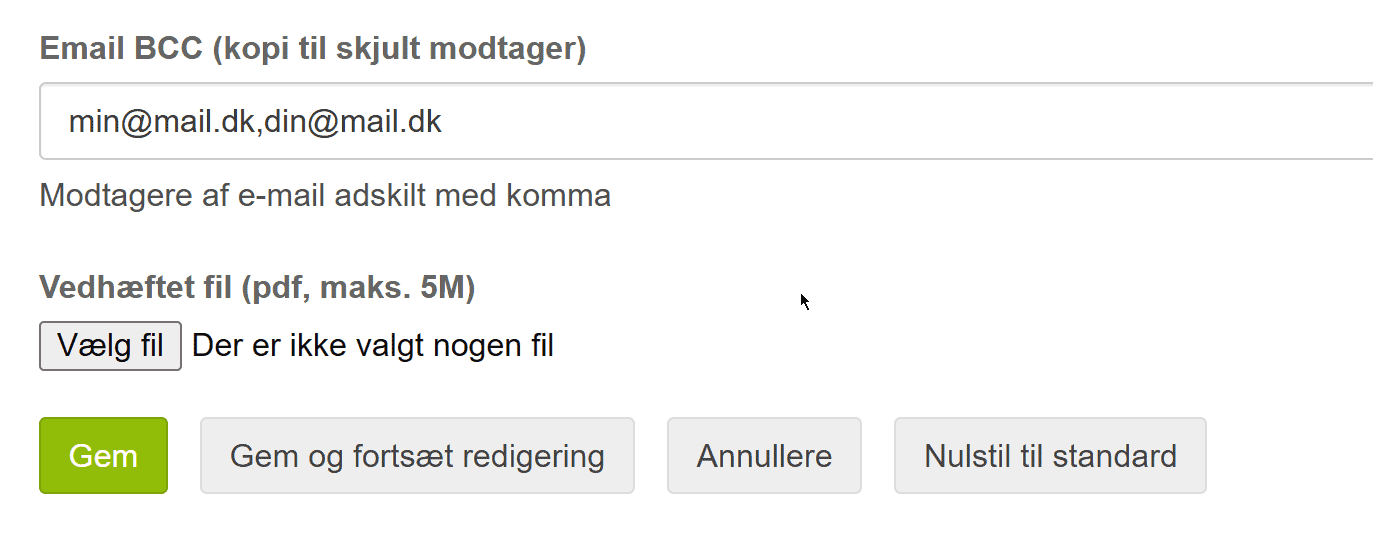
Then click Save.
Customise the texts in the email confirmation
You can customise the content of the email confirmation by going to the same place as described in the section above.
In the Email message field, you customise the content
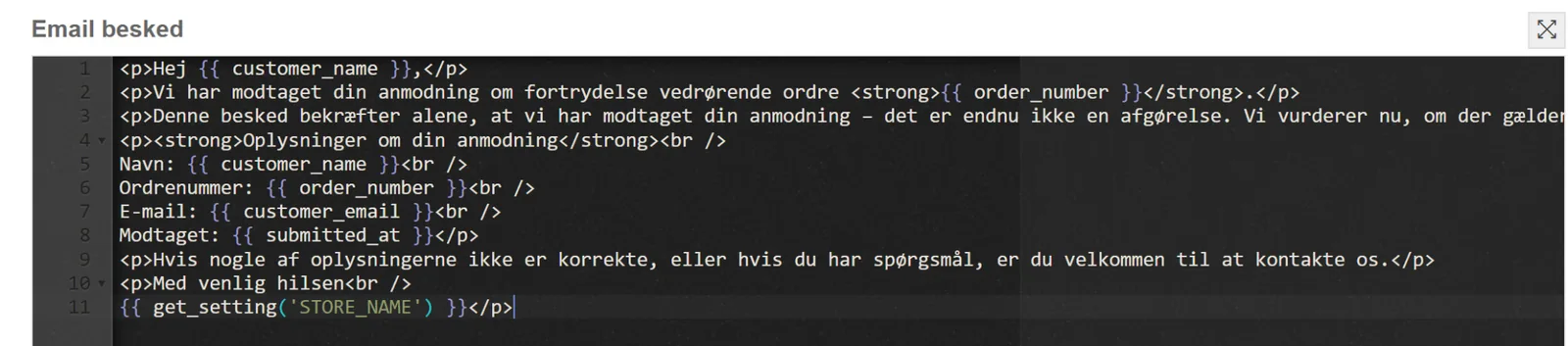
The easiest method is usually to copy the current text into an AI chat and tell it what the new text should be. You can ask the AI chat both to give you the new HTML code and to show a preview of how it will look.
If your shop is in several languages, remember to customise the text in all languages if relevant.
Customise the texts on the page with the form
You can customise the texts shown on the page with the form just like all other standard texts, by searching for them as shown in this guide.