
In this category Other topics
Disk usage (online shop)
On this page
Now and then, it is a good idea to check how much disk space you use, and whether you need to reduce your usage.
Customer login/PlanetController
The customer login/PlanetController is where you manage your services. You get access to it by going to the customer login here
You can also always find a link to the customer login at the very bottom of every page on our website.
When you are logged in, find the icon called Usage. This is where you go to see both your web disk space usage and your email disk space usage.

Check your usage
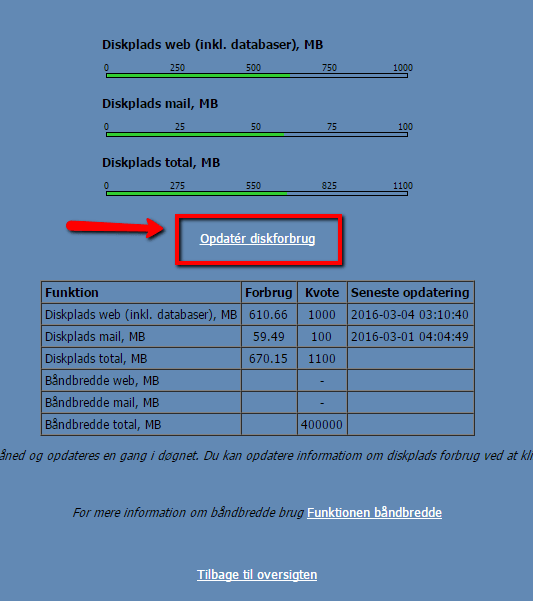
When you open your usage, you can see how much disk space you use.
To see the usage RIGHT NOW, it is important that you click the Update disk usage button, as we only update the displayed statistics once a day.
If, for example, you have deleted some files or images, you will not see the actual disk usage until you click the button.
How to reduce your usage
So how do you reduce your disk usage? Well, there are several things that “take up space” and are worth deleting.
Images and videos are most often the big culprits. So it is a good idea to remove images from products that are disabled, or to delete the products completely if they will not be back in your range. You may have images of variants that are no longer sold or have been discontinued – these can of course also be removed.
There may also be images on information pages, or images added via the text editor, that you no longer use.
Optimise images with the WebP format
WebP is a modern format that makes your image files smaller. This means that your online shop both uses less disk space and loads faster.
You can switch to the WebP format via the Product image settings menu item
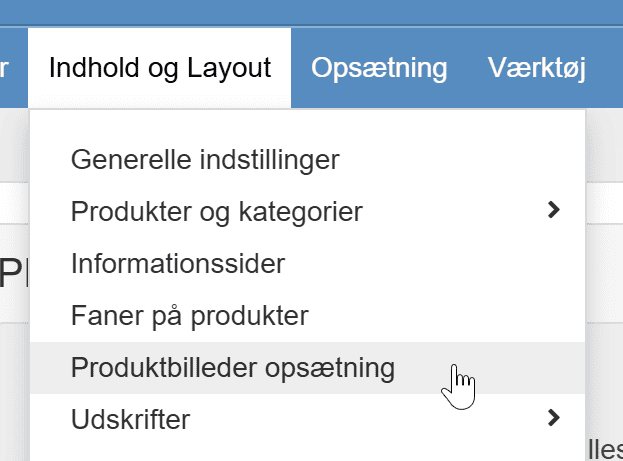
Before you enable the WebP format, you should set the compression of your images – you do that here

If you want to switch to WebP, it should typically be set to between 85 and 90. This is because WebP “grips extra hard” when compressing.
Then enable WebP (if it is not already). This setting must be turned on
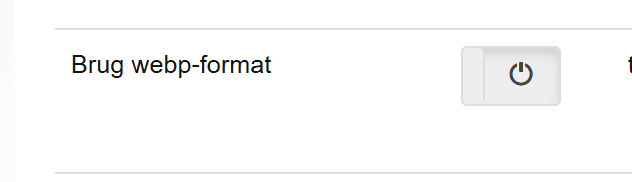
Remember to save at the bottom of the page.

If, after switching to WebP, you find that some images – for example in categories or elsewhere – are less sharp than before, you need to increase the other sizes in the product image settings. If you can't get it to behave, please contact us and we will guide you.
Note that when you switch to WebP, all the smaller versions of the images are created automatically when the pages are visited again. It may therefore take a few days before you can see the real new disk usage. We suggest that you wait a week before removing any disk space upgrades.
Delete images on products
If you have an online shop with many products, you probably also have some products that are disabled. They may be products that are out of stock at the moment, seasonal products or products you simply no longer sell.
These products may have images, and they will affect your disk usage. Even though they are not enabled, they are still stored on the server and therefore take up space.
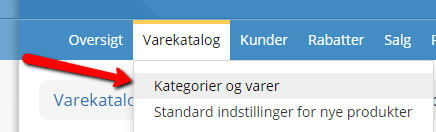
First, go to Product catalogue > Categories and products and find the products whose images you want to delete.
On the product, choose the tab at the top called Images. It also shows a number – that is the number of images linked to the product.

On the Images tab, you can see which images are linked to this product. You can delete them one by one by clicking the Delete button next to each image. If you delete the main image and there are still other images, it is a good idea to make one of them the main image shown in category and list views.

List of disabled products
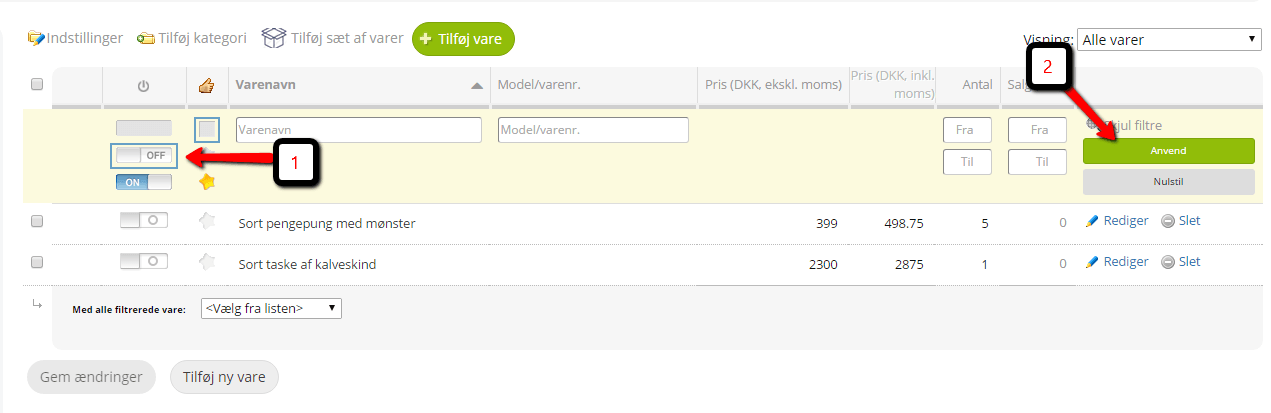
If you want to delete images on disabled products, it is a good idea to use the filter feature. That gives you a list of all the disabled products, and you can then choose whether to delete the whole product or only the images on the products.
Go to Product catalogue > Categories and products. In here, you have a list of all the products in your shop. If you click the grey off button and then choose Apply, you will see a list of the products that have the status disabled (off).
Delete files
You can delete files directly from your shop's admin.
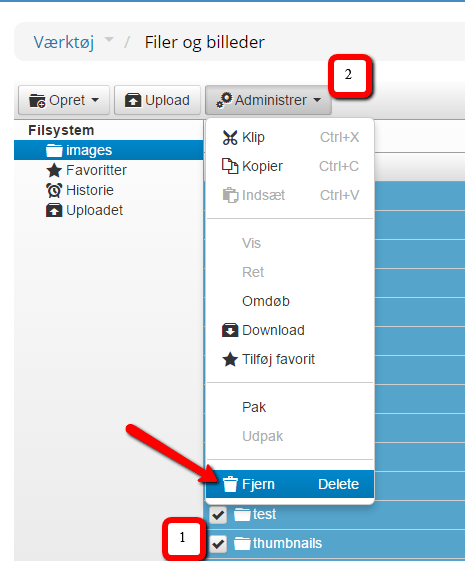
In the menu, choose Tools > Files and images.
In here, you can see the files used in your online shop.
Tick the file or files you want deleted. A button called Manage then appears, which you click.
And in the drop-down that appears, choose Remove.
Delete a folder
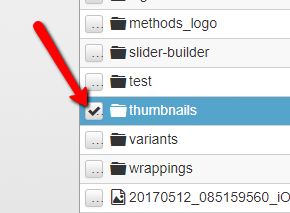
In Files and images, there is a folder called “Thumbnails”. This folder is left over from earlier versions. If it exists in your shop, it is worth deleting it. Any files in it are no longer used.
Delete images in the text editor
If you have inserted images here and there via the text editor, they are still stored on the server even if you delete the actual file the image is in. This can quickly take up quite a lot of space.
If you want these image files deleted, you also need to do it via the Tools > Files and images menu in your shop's admin.