In this category Other topics
The search function for customers in your online shop
On this page
- A better overview for your customers
- Keyword suggestions
- Voice search
- Boost for products in stock
- Boost for best-selling products
- Easily add synonyms
- See search statistics
- Options to customise
An overview of the search results
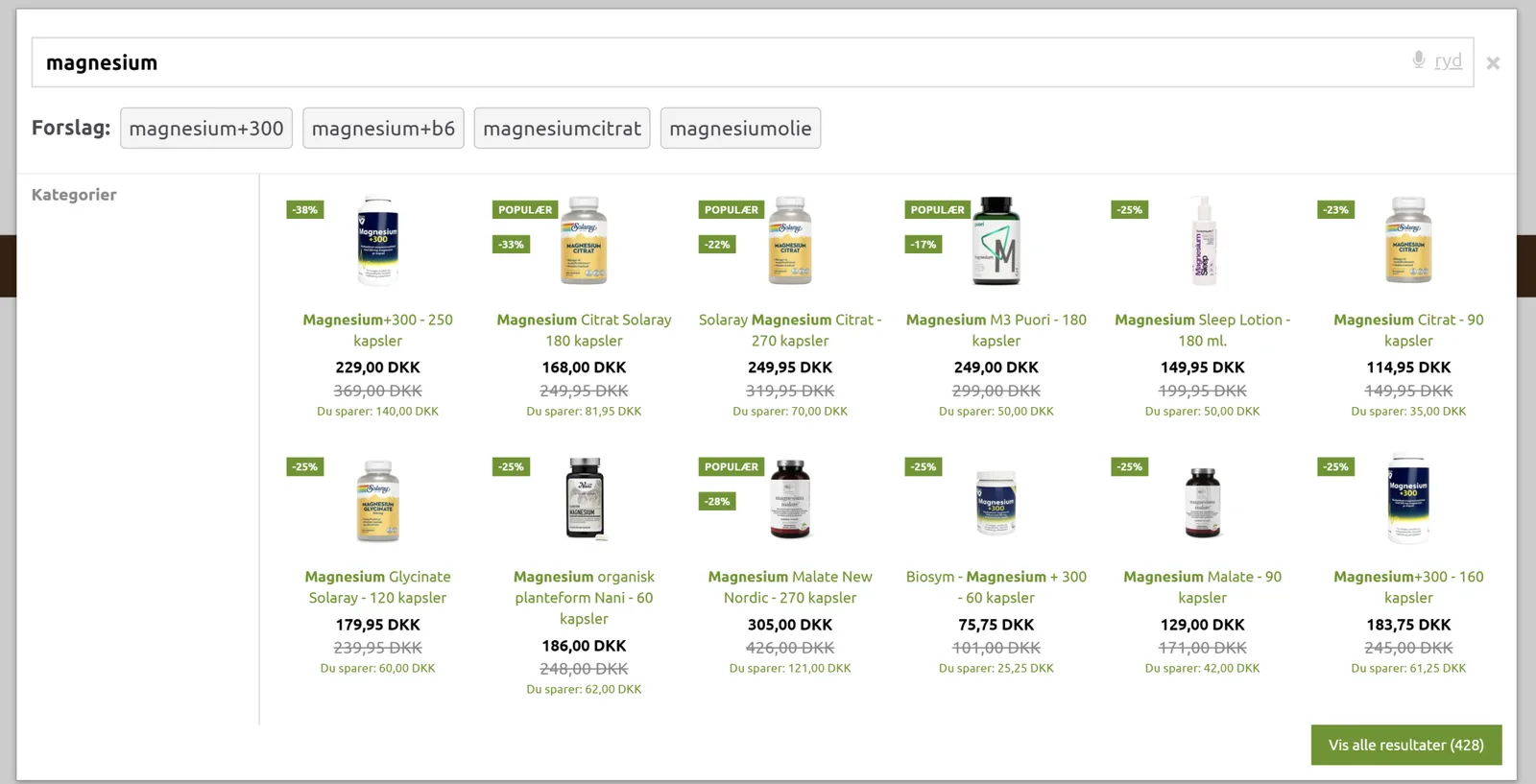
When your customers search for products or anything else in your online shop, they get a clear overview that makes the most of the space on the screen size the visitor is using.
You can customise the layout, for example how many products are shown at a time, via
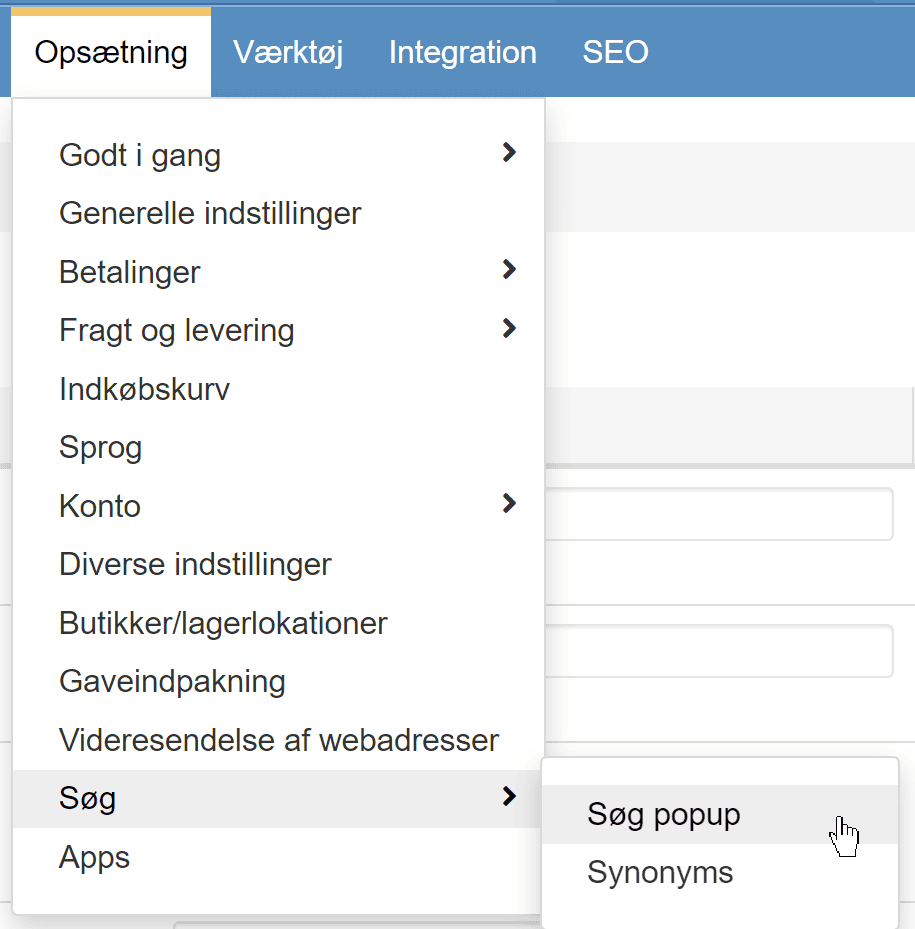
Here you can set how many products are shown for each screen size, as well as the total number of products
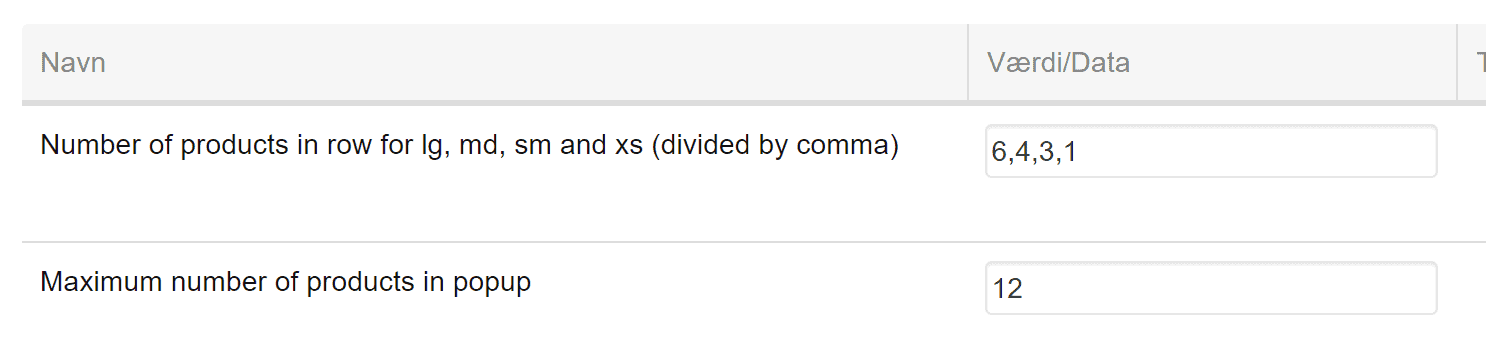
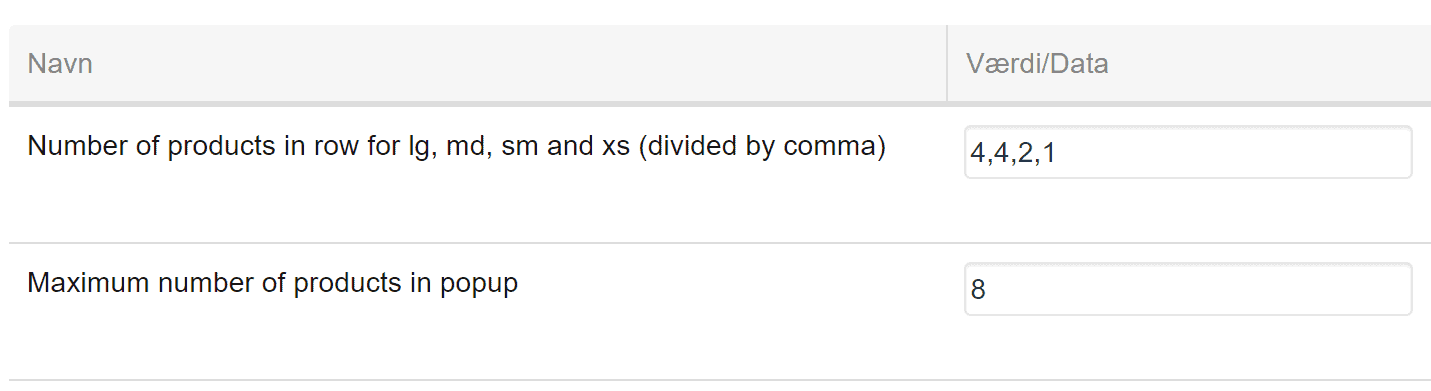
The number in each view should preferably divide evenly into the total number of products. As shown above, the default of 12 is divisible by 6, 4, 3 and 1. If you want to show fewer products and therefore larger images, the settings could look like this
And it would then be shown like this in the largest view (compare with the screenshot at the top of this page)
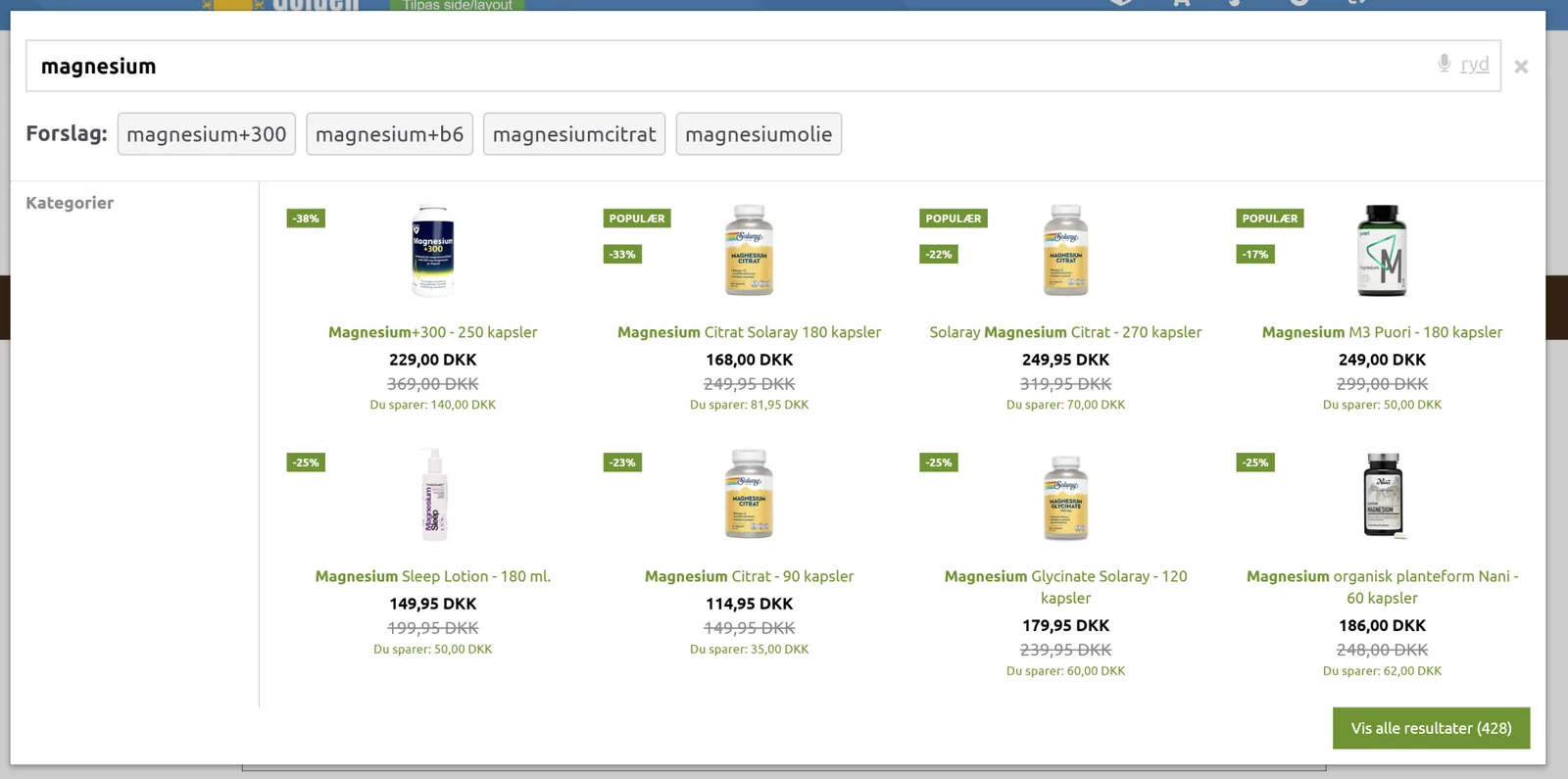
Boost for products in stock and best sellers
General searches can return many products.
To get the products most likely to help the customer searching to the top, products in stock (with the same match) come before those that are not. This assumes that you use stock management in general.
Best-selling products may also be more interesting than those with fewer sales. The sales figures used for prioritising cover the period set here in your shop's admin:
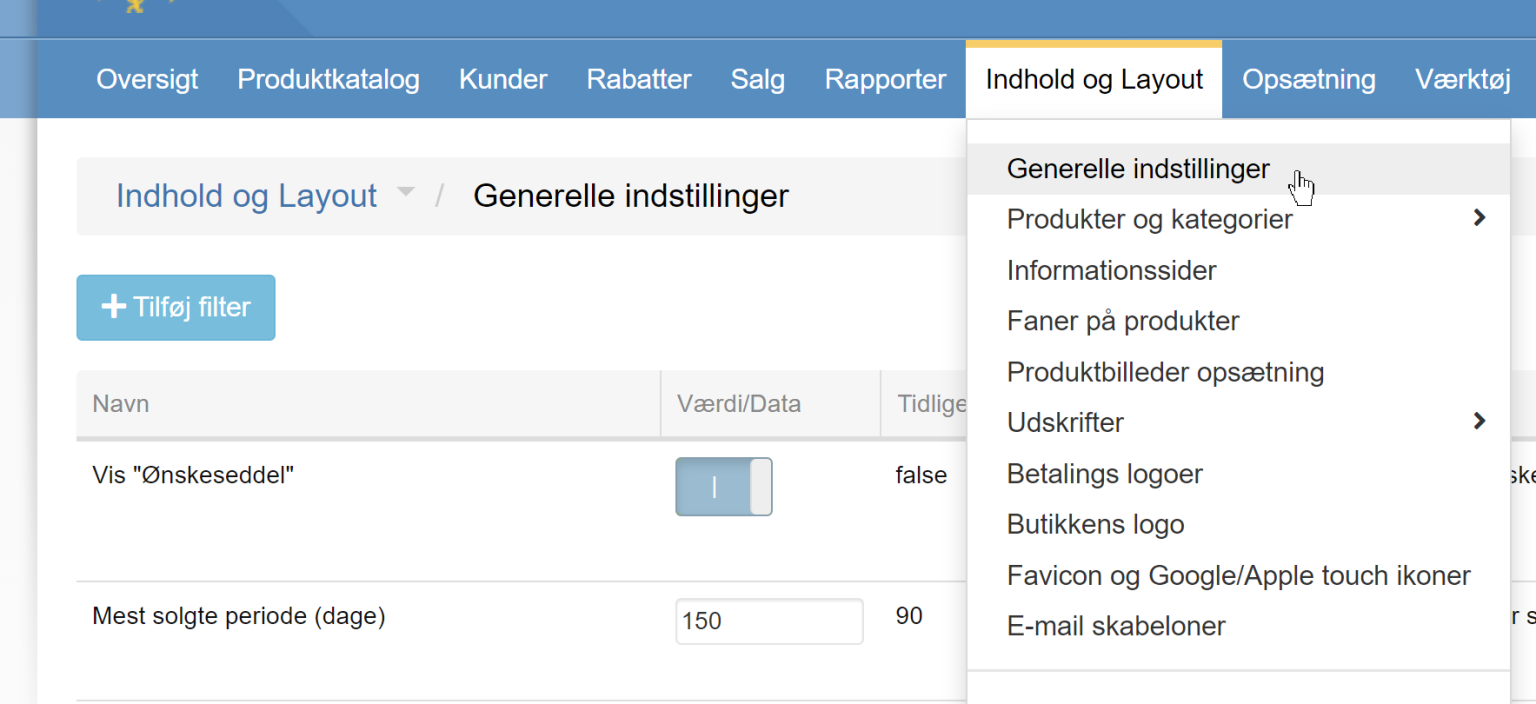
So it is worth setting a number of days that gives products the right boost. The default value is 90 days.
See search statistics
You can see the most frequent searches in this report
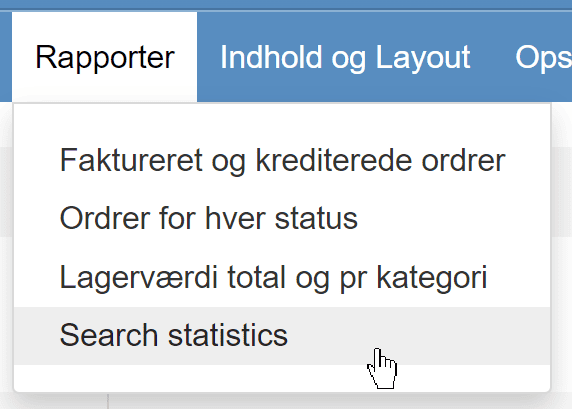
It can give you inspiration on what customers are searching for, and perhaps help you optimise the search results for your products.
Add your own synonyms
There may be keywords your customers use while the products are described with, for example, a more technical word.
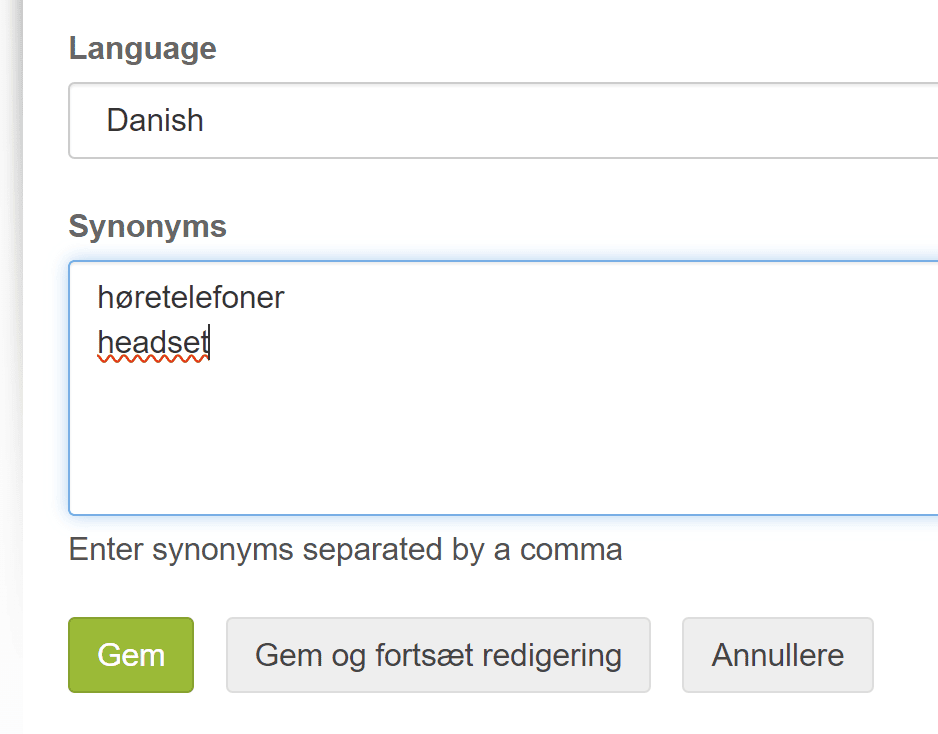
Customers might search for “headphones”, while the shop mostly uses the word “headset”. If you add it as a synonym, a search for “headphones” and for “headset” will include all products that use just one of these words.
You add synonyms here
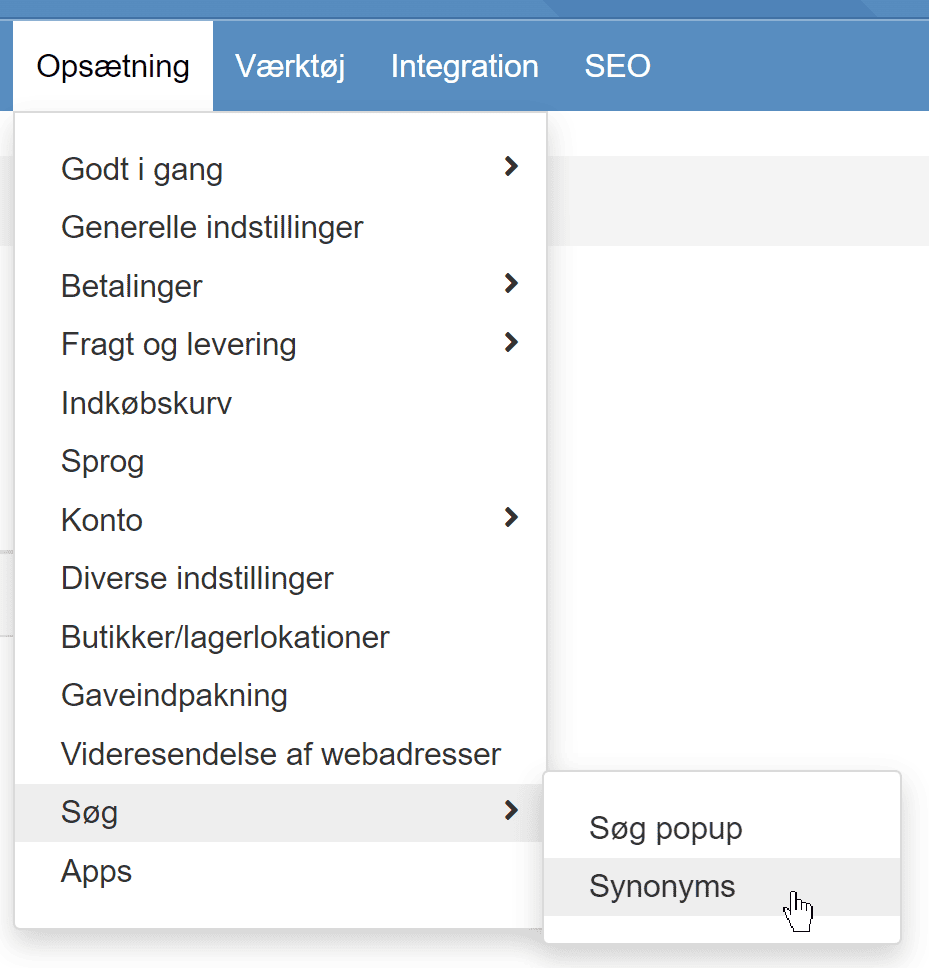
Click add new synonym set, choose the language if relevant, and write each synonym on its own line, for example
After you have adjusted synonyms (also if you have deleted some from before), you need to start an update of the search engine by clicking here
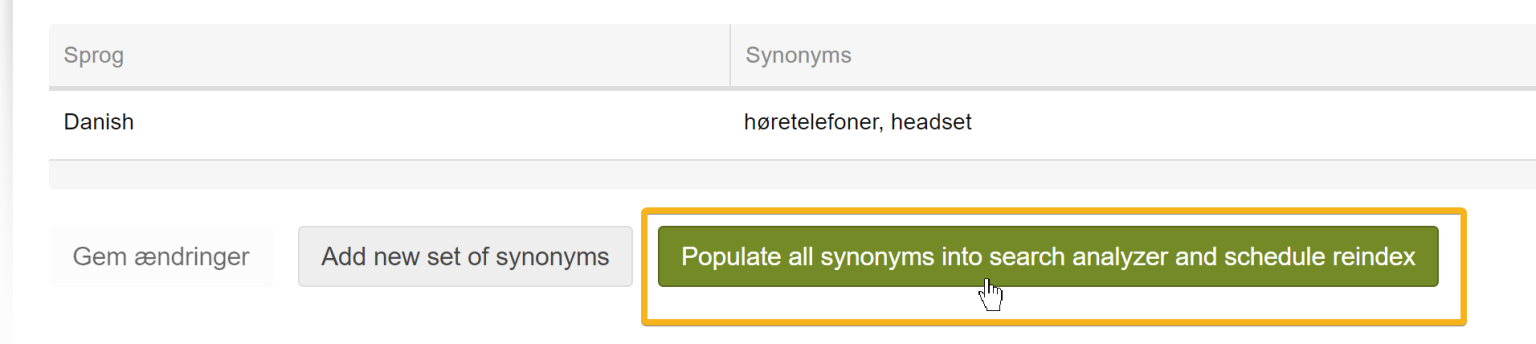
The process takes about 5 to 10 minutes. You can follow it via Tools > System tasks if you like.
Add keywords to a specific product
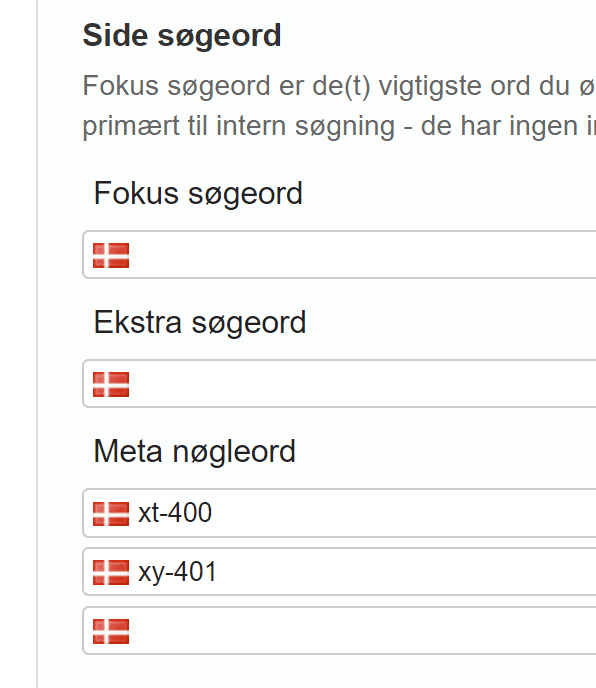
You can add searches that a product should appear in – without those words being part of the product's description.
You do this on the SEO tab when editing the product

Each keyword is added as a Meta keyword