
In this category Other topics
Clear your browser cache (delete temporary files)
On this page
Sometimes the browser stores a little too much and does not fetch the latest version of a page after it has been changed.
This can almost always be solved by deleting the cache files, so the browser is forced to fetch the latest version.
The guide below is organised by browser. If you are not sure which browser you use, you can start by clicking here:
Which browser am I using? (opens in a new tab)
Chrome
On Windows: Press Shift + CTRL + Delete at the same time
On Mac: Press Shift (⇧) + CMD + Backspace at the same time (Backspace is at the top right of the keyboard and has an arrow pointing left)
Set Clear the following items from to the beginning of time (or Time range: All time) and tick only Cached images and files as shown here:
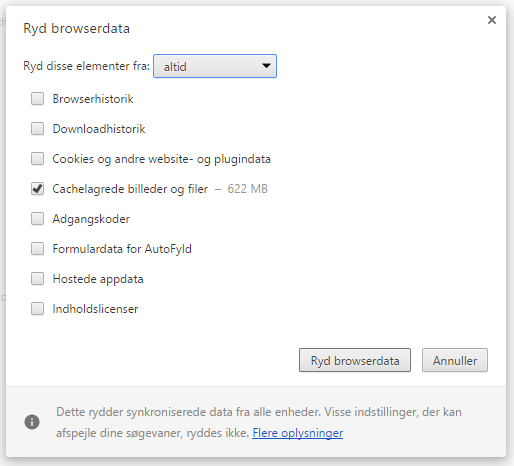
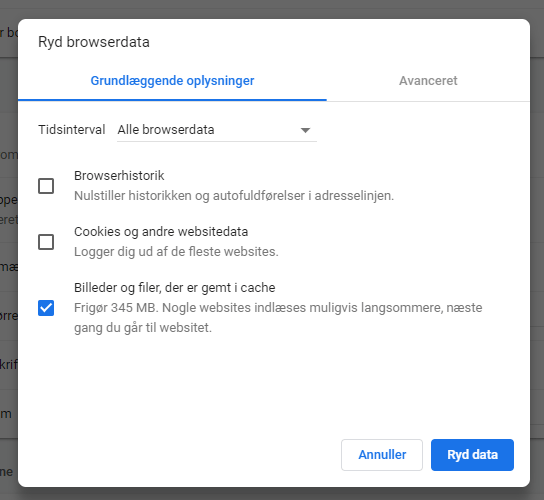
Click the Clear browsing data button (or Clear data).
Reload the page that was causing trouble, and you now have the latest version.
Firefox
On Windows: Press Shift + CTRL + Delete at the same time
On Mac: Press Shift (⇧) + CMD + Backspace at the same time (Backspace is at the top right of the keyboard and has an arrow pointing left)
Set Time range to clear to Everything and tick only Cache as shown here:

Click the Clear Now button
Reload the page that was causing trouble, and you now have the latest version.
Edge
On Windows: Press Shift + CTRL + Delete at the same time
Tick only Cached images and files as shown here:

Click the Clear now button
Reload the page that was causing trouble, and you now have the latest version.
Safari (Mac)
The easy way in Safari on a Mac can only clear all history – which means cookies, passwords etc. as well.
We therefore recommend that you follow this guide to clear only the cache (opens in a new tab)