In this category Other topics
Other topicsImporting and exporting data
Working with data in Excel

Excel installed on a Danish PC exports with semicolons by default – and Excel has no setting to change this.
On Windows, it follows the computer's general settings. This guide (in Danish) has some suggestions on how to get around it:
https://www.eid.dk/gemme-kommasepareret-i-excel/ (opens in a new tab)
Start with a blank sheet
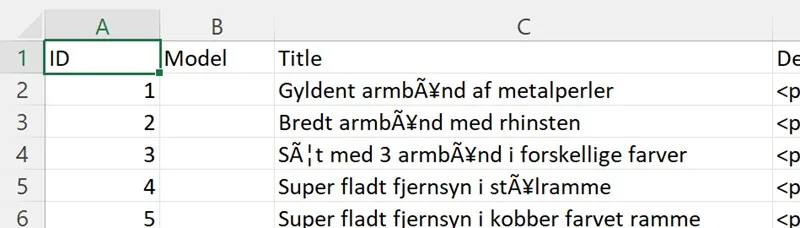
The obvious way to open a CSV file in Excel is simply to double-click it. But then it does not format the text correctly for Danish letters
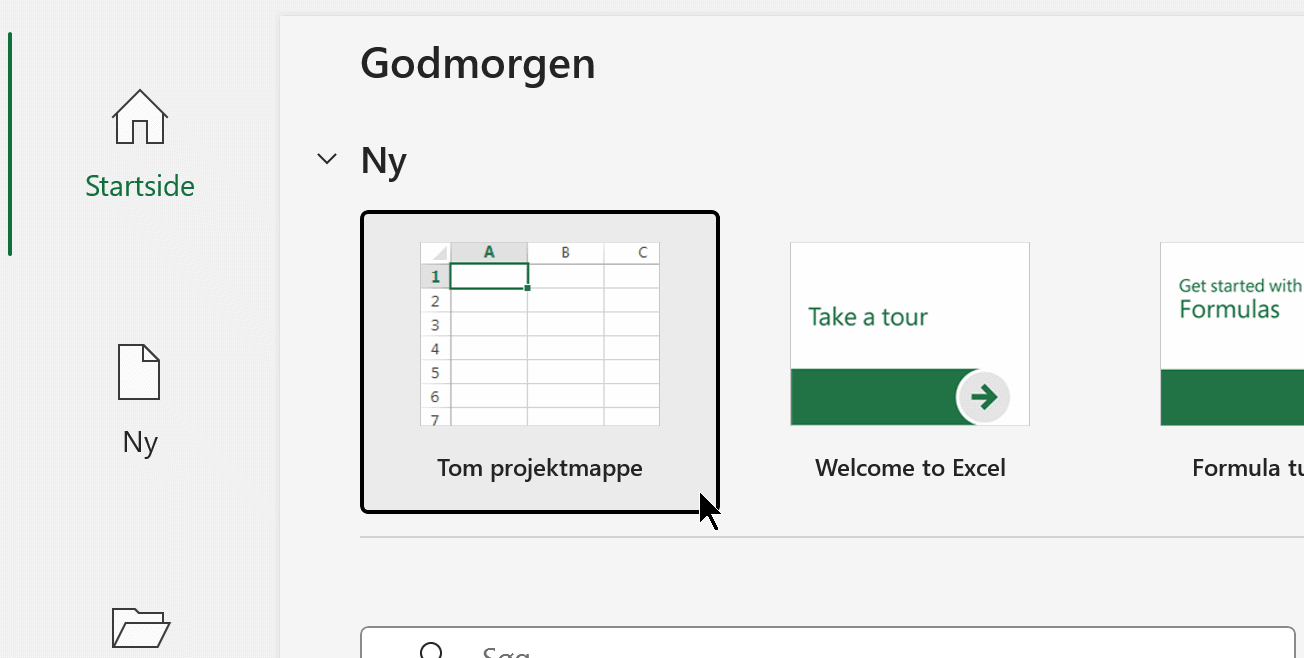
To get it right, start with a blank sheet
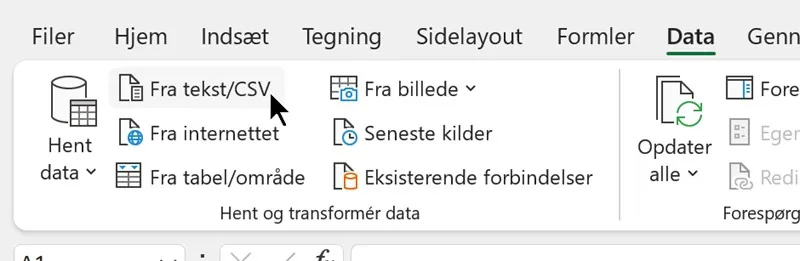
Then go to Data and choose From Text/CSV
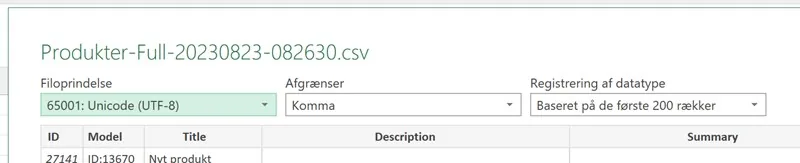
Choose the file from the downloads folder on your computer and click Import. You will now see a preview where the UTF-8 format should be selected – if not, select it
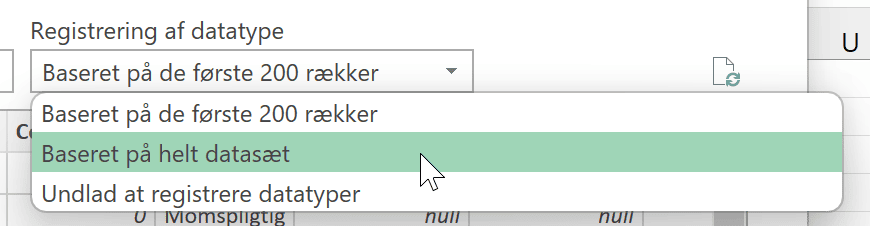
IMPORTANT for sale prices in per cent:
If you have sale prices given as a percentage discount, it is usually best to select the entire dataset when the data type is detected, so that Excel recognises that the column also contains percentages
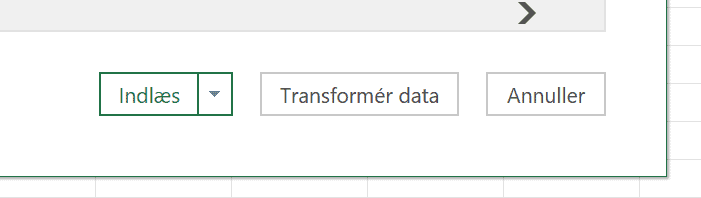
At the bottom of the pop-up window, click the Load button
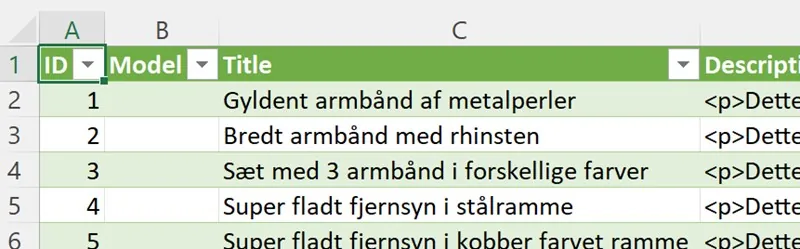
You now have an import with correctly formatted text, including the Danish letters æ, ø and å