In this category Other topics
Upload files and link to them for download from a page
On this page
The shop has a built-in file manager, where you can upload the PDF documents, images and other files you need.
This video shows how to upload a file and make a link to it, so that everyone who visits the page can download it:
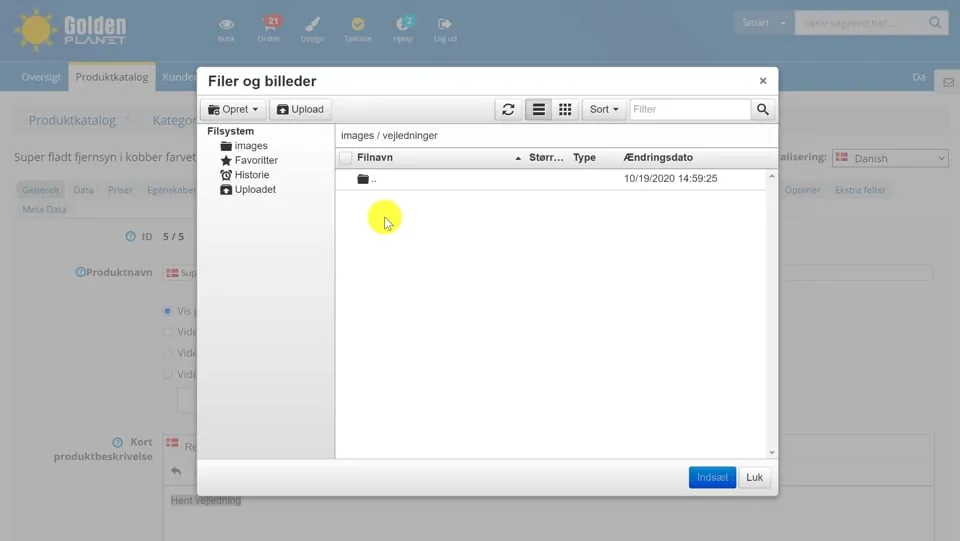 Play video: File manager (opens Vimeo)
Files and images
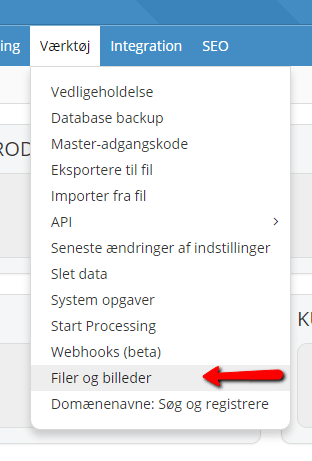
You find the file manager by going to Tools > Files and images.
In here, you get an overview of the images and files you have already uploaded to your shop, and you can upload more files.
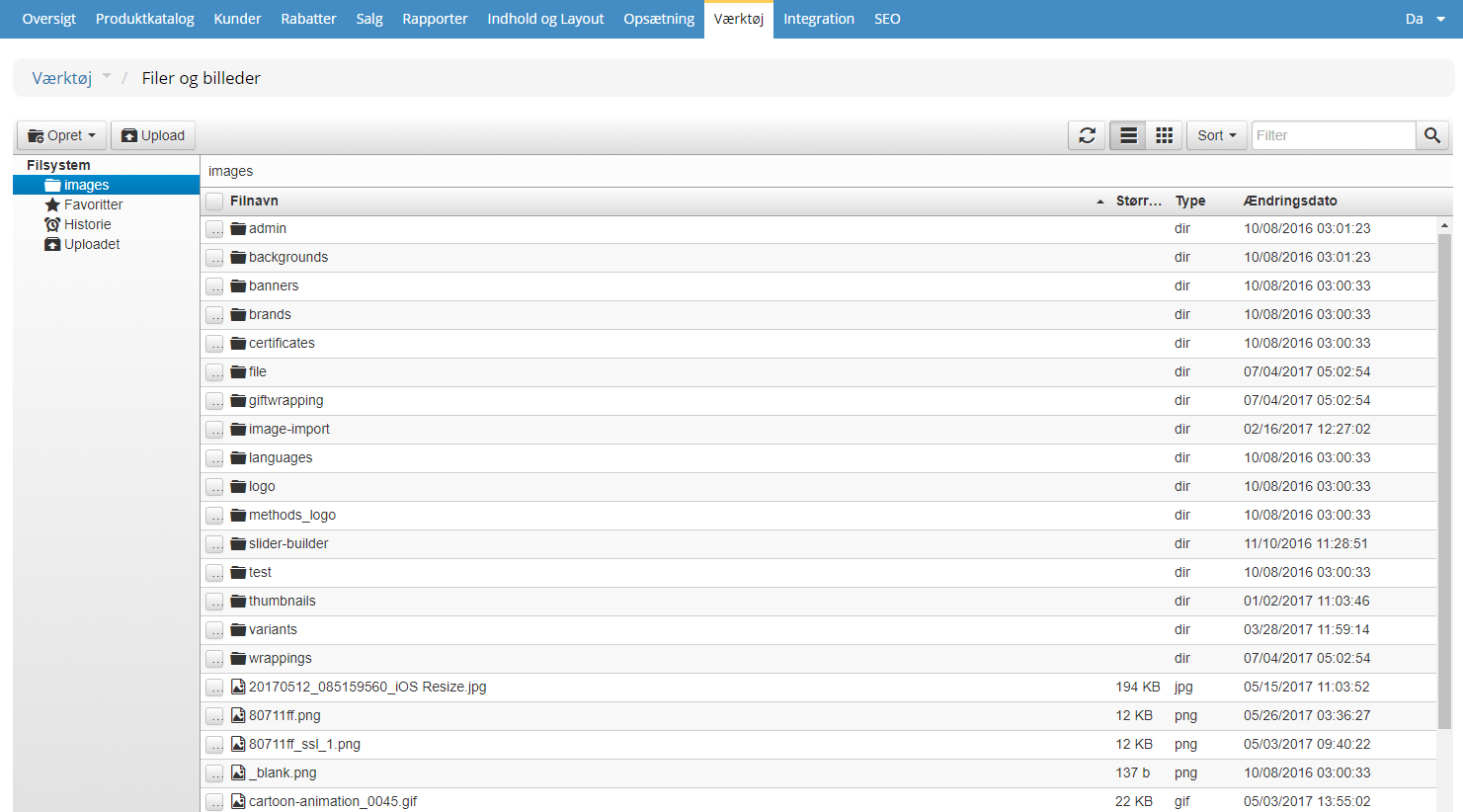
Uploading images/files
If you like, choose a folder to upload your images to, and choose Upload in the top left-hand corner.
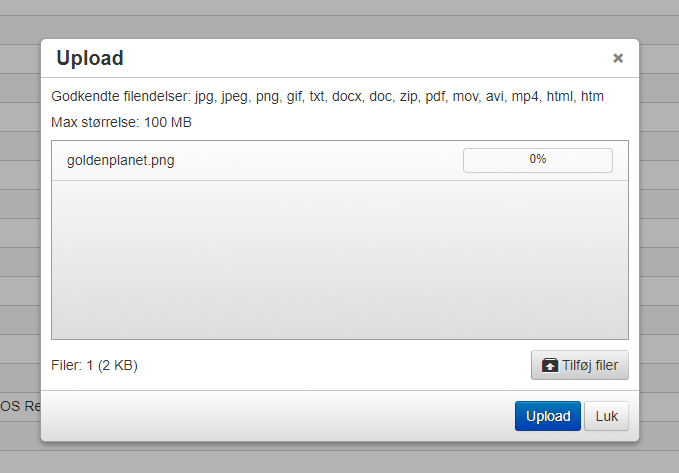
A box appears, into which you can drag your files or add files from a folder. When all your files are in, click the blue Upload button at the bottom. When they have all been uploaded, you can close the box again.
Note which kinds of files can be used: jpg, jpeg, png, gif, txt, docx, doc, zip, pdf, mov, avi, mp4, html, htm
Zip files
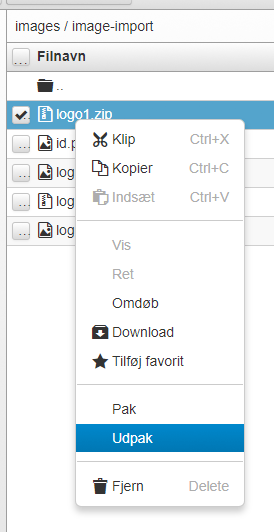
You can upload .zip files to a destination folder and then extract them.
You do this by right-clicking the uploaded .zip file and then choosing Extract.
Upload product images for an import
If you are importing a file into your shop – via the import feature – you can attach product images.
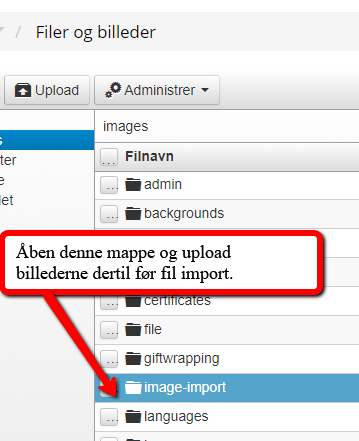
If you import products with images, upload the images to the “image-import” folder before you start the file import.
When the file with the products has been imported, the folder is emptied automatically.
You can also upload a .zip file here and extract it afterwards.
Downloading images/files
If you have files or images in your file manager that you would like to download to your computer, you can do that too.
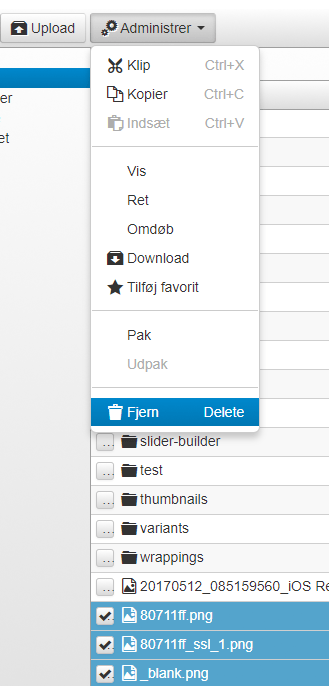
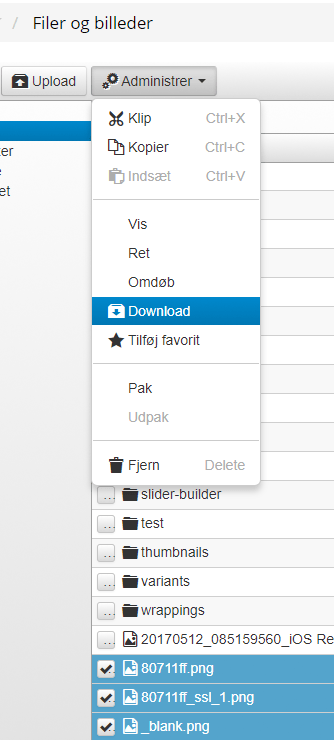
Tick the images and files in question, and then click Manage in the top left-hand corner.
Here you can choose Download, and the files will be downloaded to your computer. If there is more than one file, a .zip file will be created.
Deleting images/files
If there are images or files you no longer use, you can delete them.
You do this by first ticking the file or files in question, and then choosing Manage in the top left-hand corner.
Here you can choose Remove – which deletes the files from the file manager.