
In this category Other topics
Translate your online shop with an AI integration
On this page
With AI (artificial intelligence), you get translations of very high quality.
- Easy, with a direct integration
- The AI model gets all the content for a better overall understanding
- Bullet lists, tables etc. are kept as they are in all languages
Enable the languages you want to translate into
Go to the list of languages via
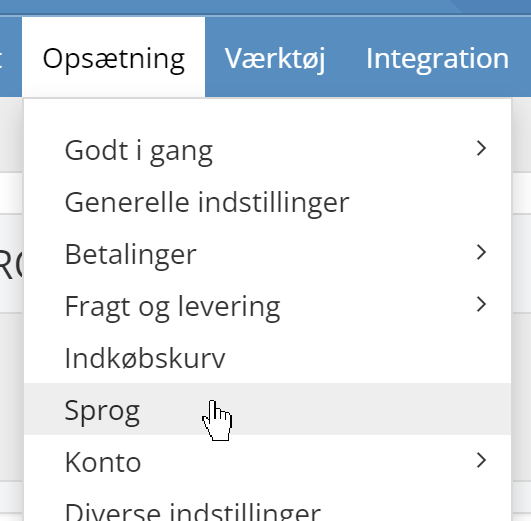
There are two columns with on/off switches in the list of languages.
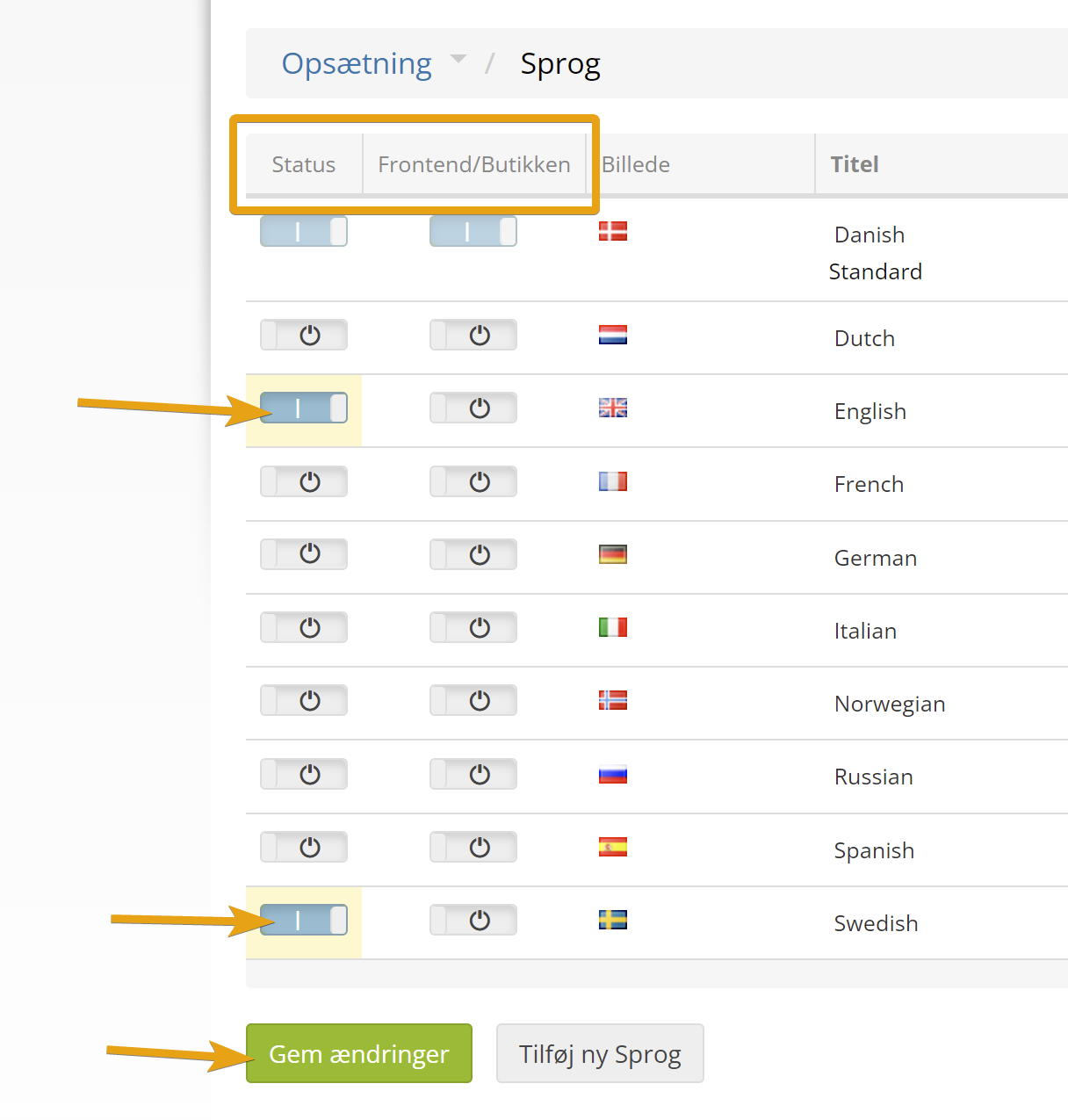
Status enables the language, so you can work with it when managing your content in the admin.
Frontend/Shop sets whether the language is shown to customers. If your online shop is already live, it is probably best to start by enabling the languages you want, and then enable them in the shop when you have finished the translations etc. – for example like this to enable English and Swedish:
The price of translations
Translations of variants/attributes and categories are free.
Translation of products is paid for with what we call “robot coins”. If you have used the “Robot fetches products” feature, you already know them. It costs 1 robot coin per product per language. So 10 products translated into 2 languages cost 20 robot coins.
You can currently buy robot coins at these prices:
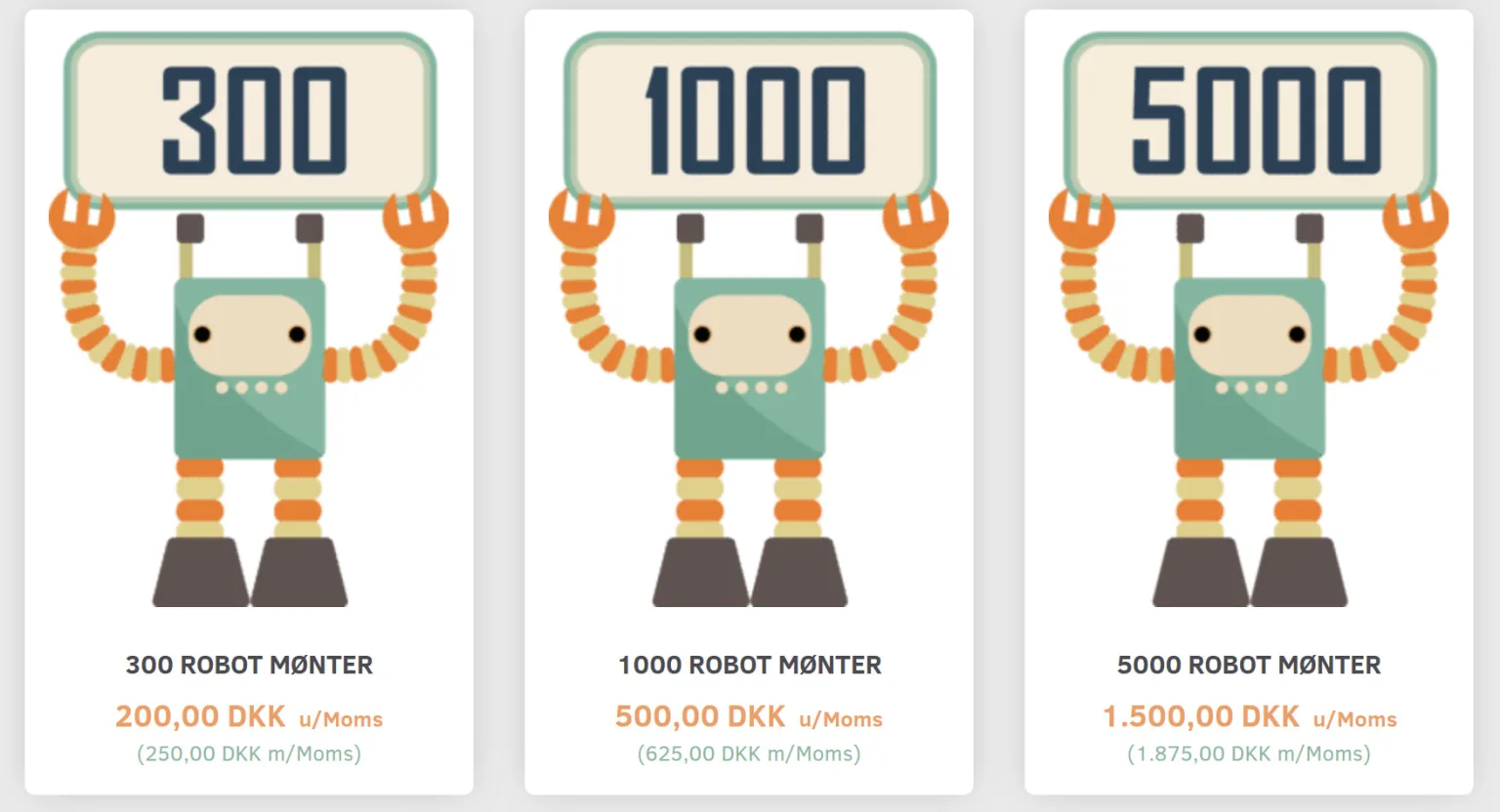
If you buy 5,000 robot coins, a translation costs about €0.05 per language.
You can buy robot coins via the chat in the admin. Write how many you need, and we will add them to your next invoice. Or buy them in our online shop here (opens in a new tab).
All shops have been given 100 free robot coins to get started with (unless you have used them to fetch products from other websites).
Translate categories
You translate categories by pointing with the mouse at the one you want to translate in the list of categories. There, click the cog icon:
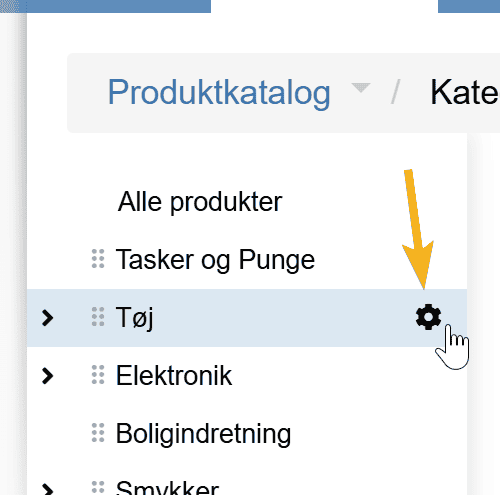
Here you click the Translate menu item
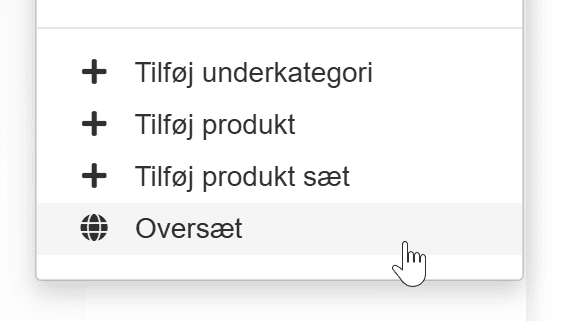
You now get options like these:
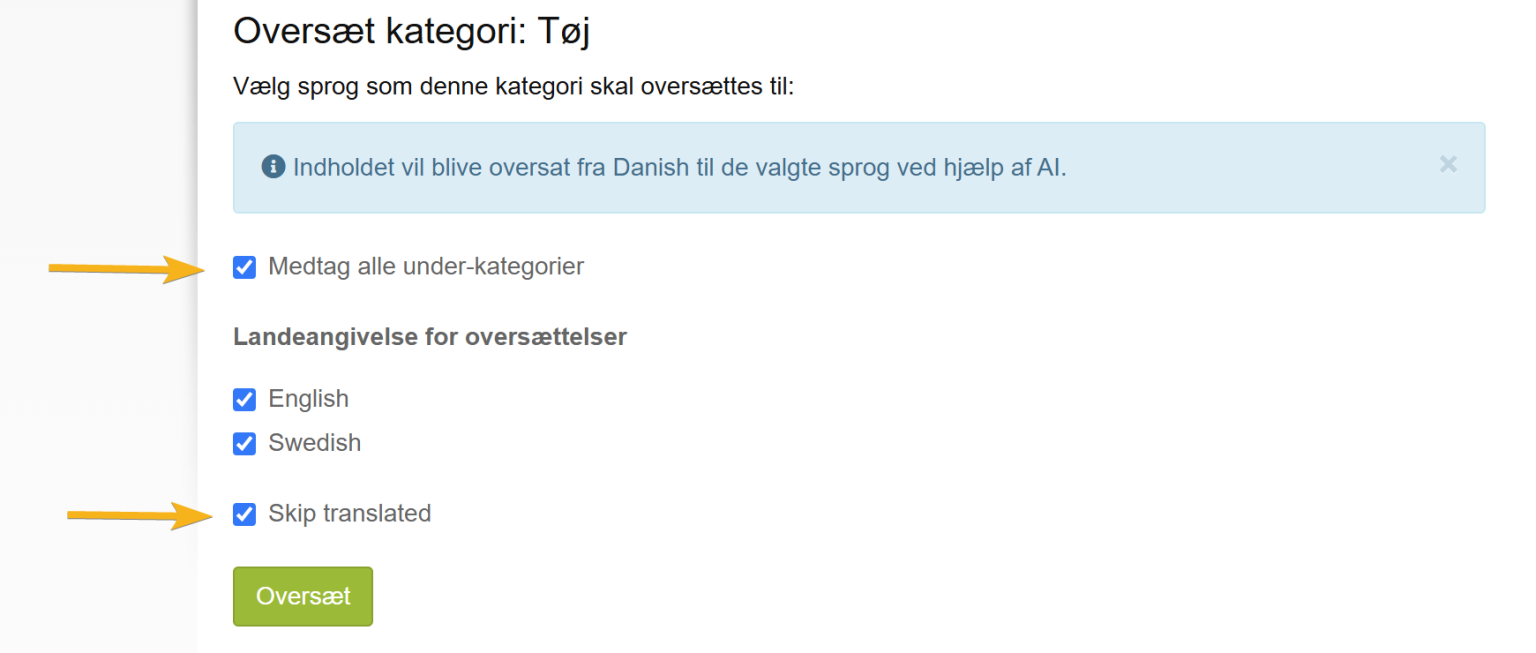
Tick Include all subcategories to include all the categories below the current one as well. In other words, you only need to choose each category at the top of your menu structure like this to translate all the categories in your online shop.
Deselect languages if relevant.
If you want to overwrite existing translations, remove the tick in Skip translated.
Follow the status of translations

When you translate a single category (without including subcategories), it is translated within a few seconds, perhaps a minute.
If you translate with subcategories, the AI cannot answer all of them quickly, so they are put in a job queue to be handled. The same applies to several products and several groups of variants/attributes.
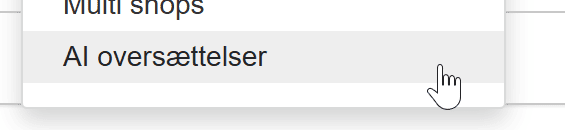
You can follow the status of how far a translation has got under the Integration menu item
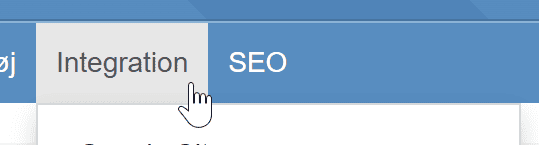
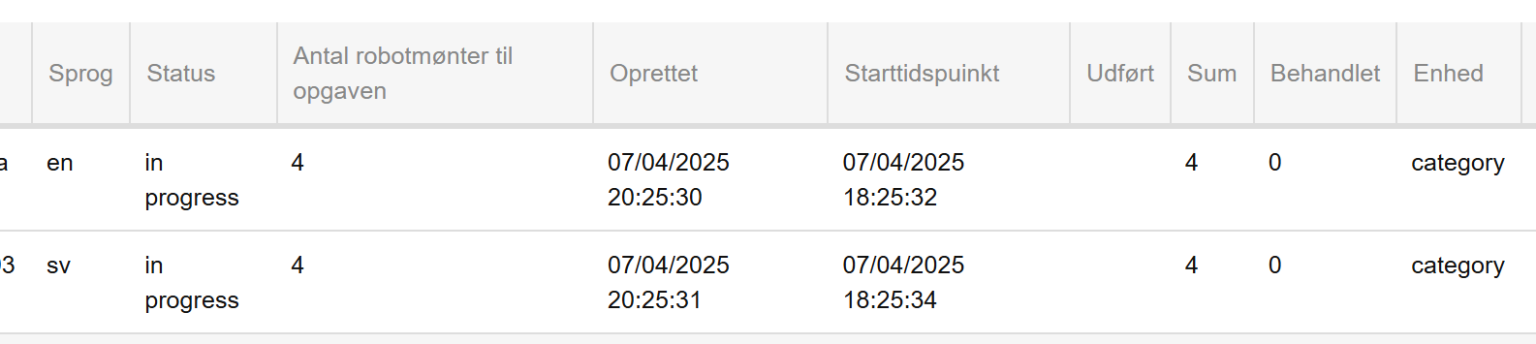
where at the bottom you will find
Here, two translations of categories are in progress
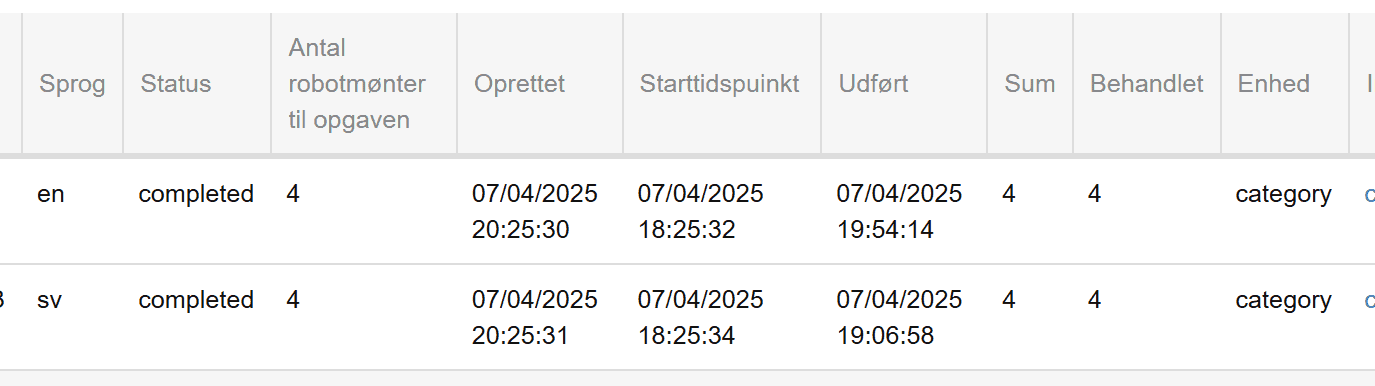
And here the two are finished:
Translate products
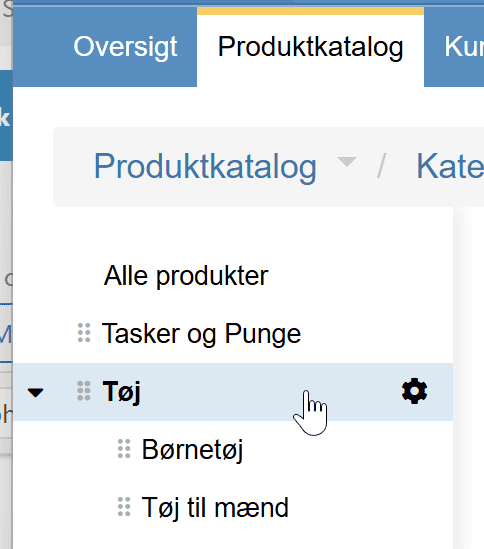
You translate products by going into the category in which you want to translate products – for example like here
You can either select specific products
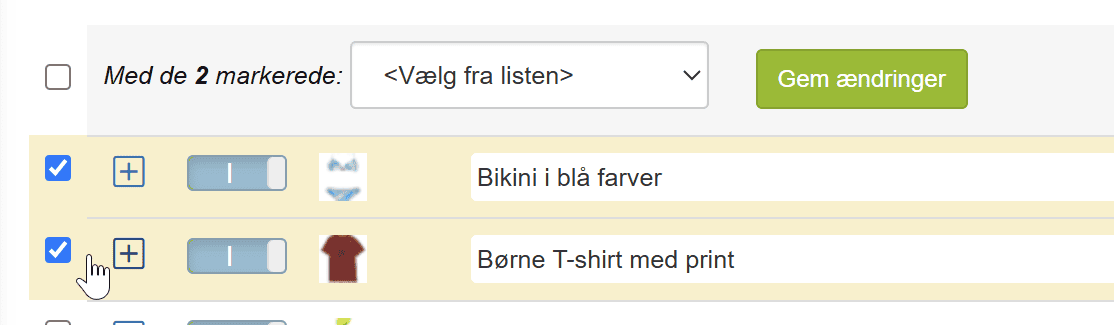
and then click Translate
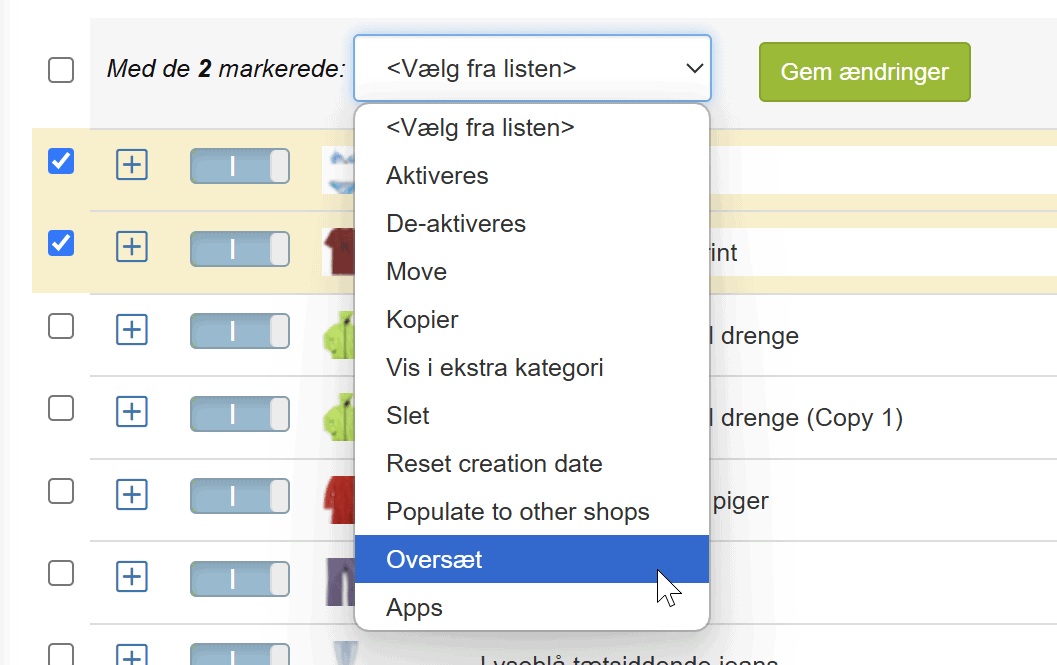
Or not select any products, to translate all the products in the category – and then choose Translate at the bottom of the list
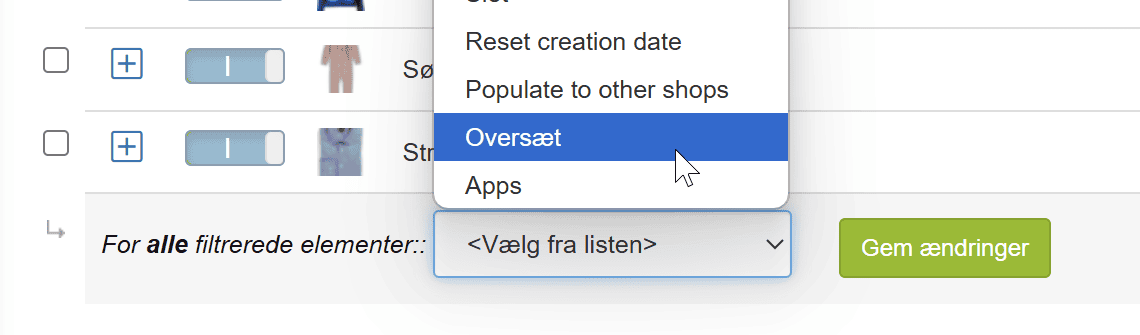
Deselect languages if relevant. And if you want to overwrite previous translations, deselect Skip translated. Click Save changes to start the translation.

If you start a translation of 5 products or fewer, they will be ready within about 1–2 minutes. With more than 5 products, they go into the translation queue as described in the section above.
Translate variants and attributes
Variants and attributes – such as colours, sizes, materials etc. – can be translated via the menu item
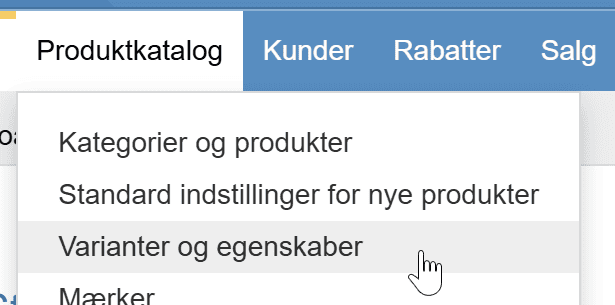
As with products, choose the groups of variants/attributes you want translated. Here all of them are selected:
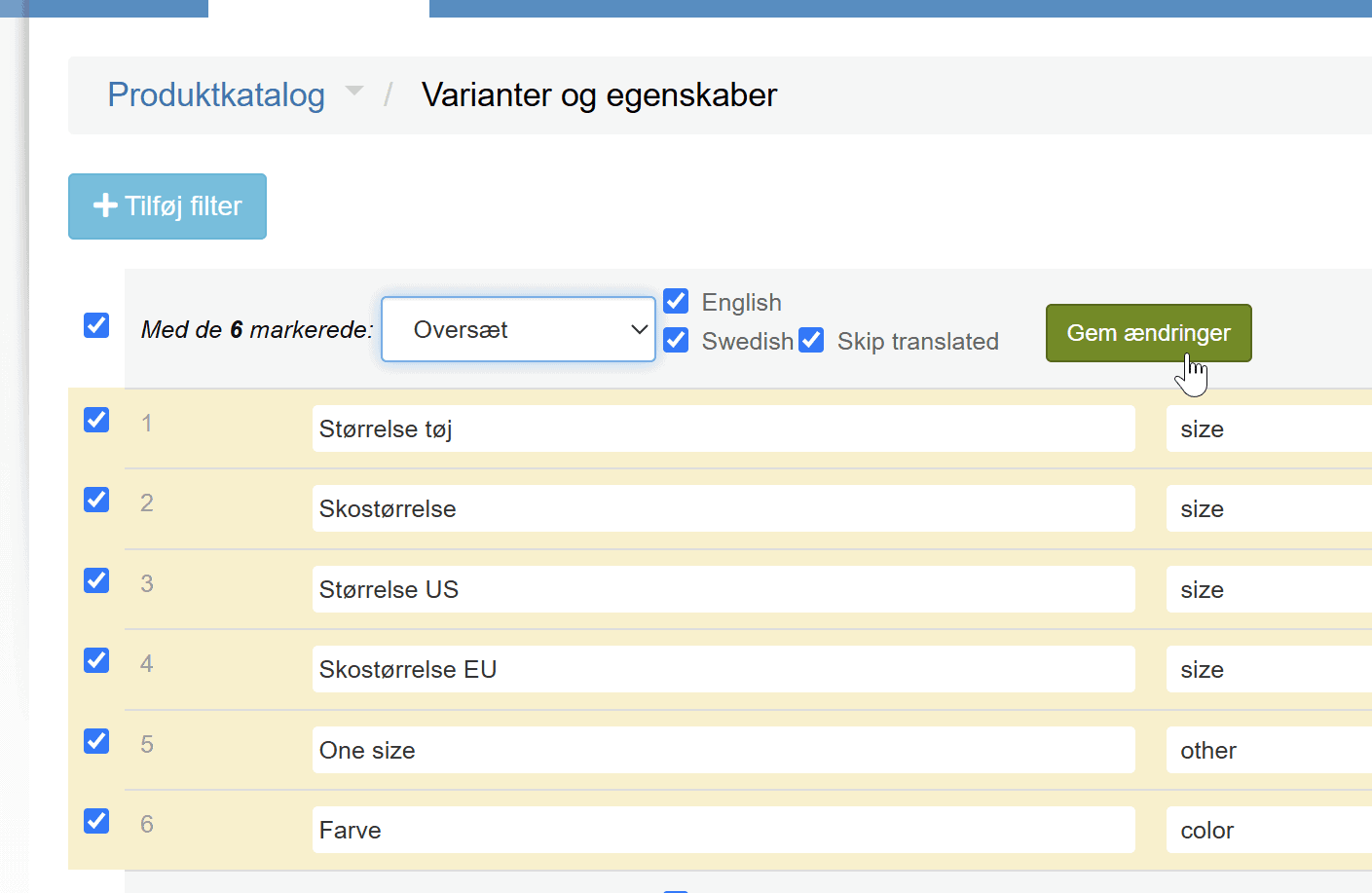
Then click Save changes
You can follow the status of the translation (when there are several at once) as described earlier.
How to work with texts in several languages
Now that your translations are in place, you can check them and make corrections if needed. We have made this guide on how to work with several languages in your online shop.