
In this category Other topics
Translate your online shop
On this page
Watch this video for an introduction to the options and how it works.
 Play video: Translating via an integration (opens Vimeo)
If you want to translate your online shop quickly and easily – e.g. if you want to start up in Germany, have had your shop and all your products copied over, and can't face translating all your 1,000+ product texts – it can be done quickly and easily with our Translation app.
The app translates the product title, the short and long product descriptions, variants and attributes, the category title, SEO, and the main and extra category descriptions.
With the app, you get an inexpensive and effective way to have your online shop set up in several languages. It costs €55 setup and €14 per month. On top of that comes a small amount to Google Cloud Services for the integration with them. However, Google gives you the first 500,000 characters per month free, and that covers a lot of translations. See Google's prices here. (opens in a new tab)
Create a project at Google Cloud Services
Go to https://cloud.google.com/translate/docs/quickstart (opens in a new tab) and follow the guide.
Start by clicking
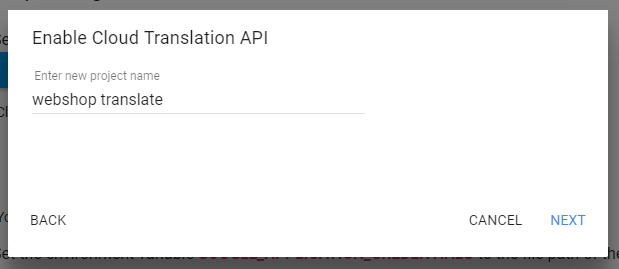
Then choose + Create a new project, give it a name (e.g. shop translate) and click Next.
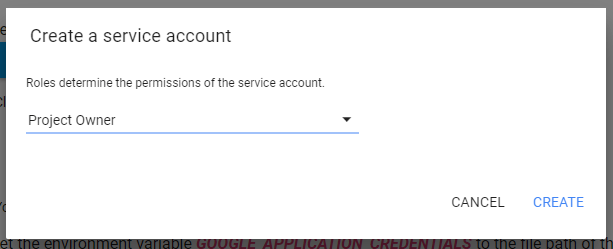
Then specify which role permission you want – here you choose Project Owner.
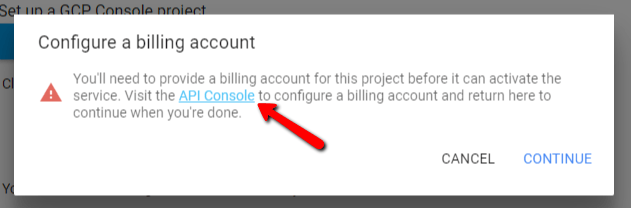
If you don't already have a Billing account set up with Google, you need to do it now. It is free, and you get $300 to start with.
If you have a Billing account, you can skip the next few steps and go straight on to “Download private key as Json”.
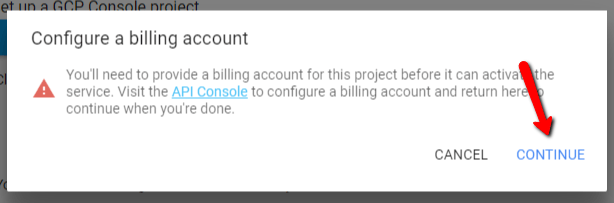
Click the API Console link in the text, and a new window will open.
Continue via Create Billing Account and fill in the first form, where you give your permissions.
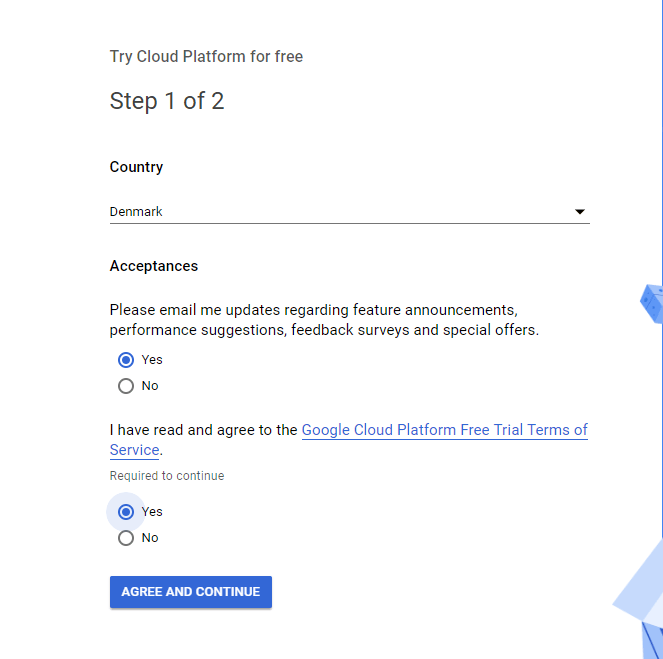
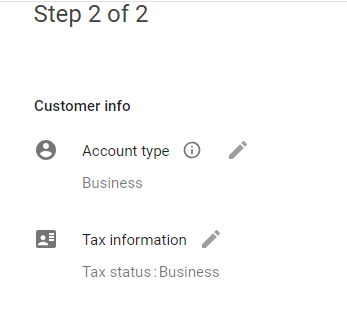
On the next form, you need to enter your details; Account type and Tax information are both Business. Fill in your details and your credit card details.
When everything has been filled in, click on until you see your account.
You can then go back to the other window and click Continue.
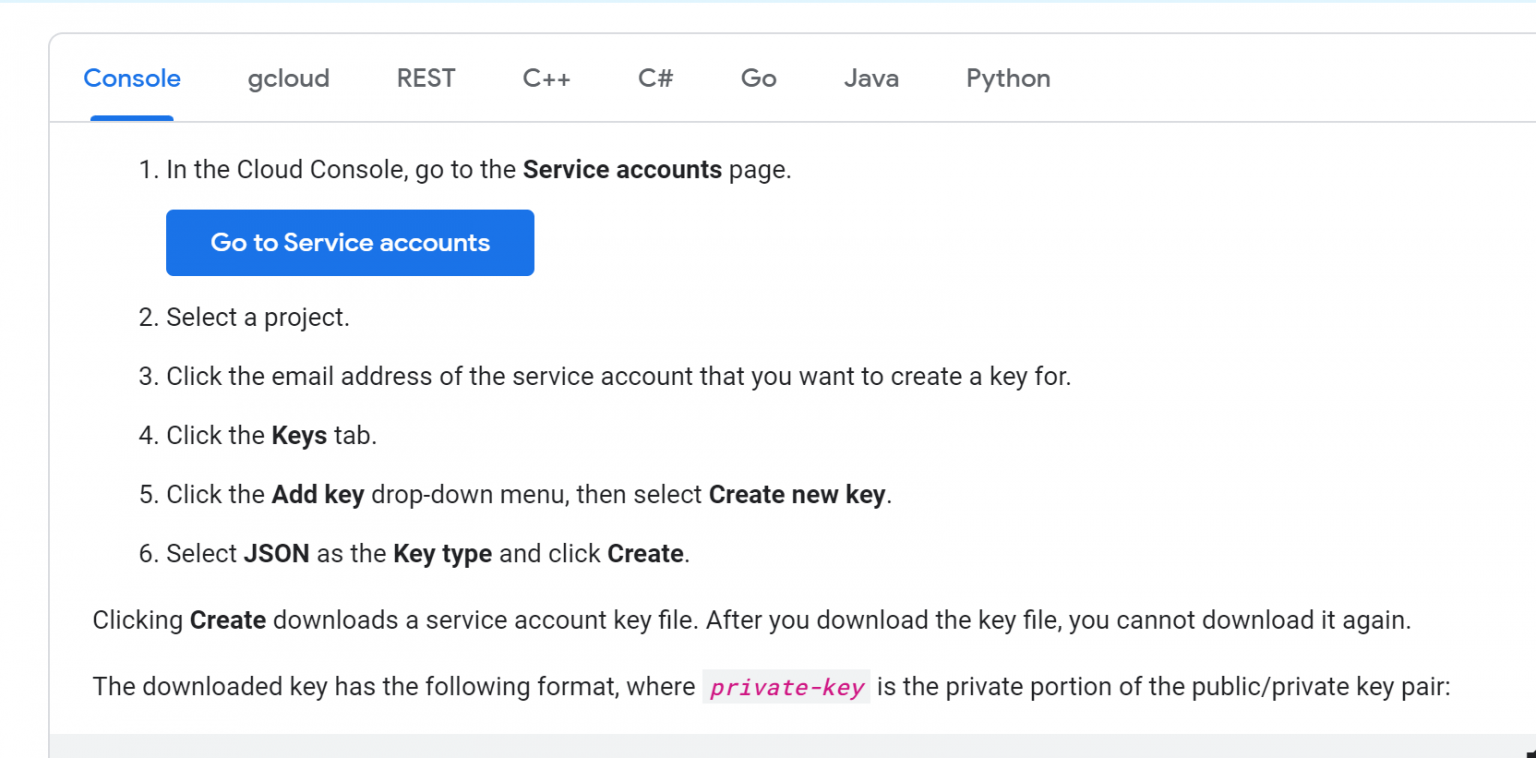
Now you need to create and download a JSON key as described here:
https://cloud.google.com/iam/docs/creating-managing-service-account-keys (opens in a new tab)
Check that the API is enabled, as mentioned in the guide at the top. Then scroll down the page a little and follow the guide on the Console tab:
Now open this file in Notepad on your computer and copy all the text.
You will need this text in your Translation app in your online shop.
Install the app
The first thing to do is to install the Translate app in your online shop.
You find it under Settings > Apps
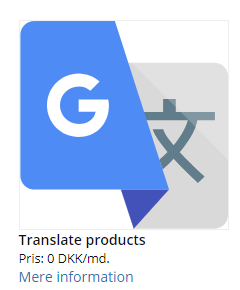
When it has been installed, you need to create a project.
Choose languages for translation
When you have copied your JSON key, go into your Translate products app via Settings > Apps
And click the name of the activated app.
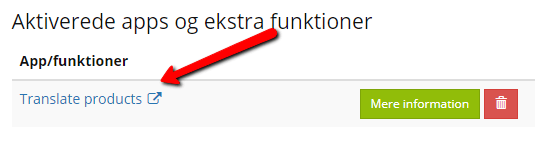
In here, click

, paste your JSON key text into the field and click Save.
Now you need to set the options for the translation; you do this by clicking
In here, you specify which language to translate from (the source language).
Which language it has been entered in, in the shop.
And which language it should be translated into.
In the example below, the translation is from Danish, stored in the Danish language section of the shop, into German.
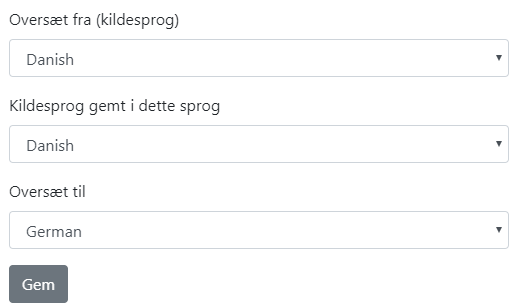
Adjust it and click Save. Note that you can easily translate into, e.g., German even if the language has not been enabled in the shop.
You then have to enable it afterwards to be able to see the texts.
You are now ready to translate your products, categories etc.
You do this by clicking

In here, you choose what you want translated: whether new or all products/categories/variants should be translated.
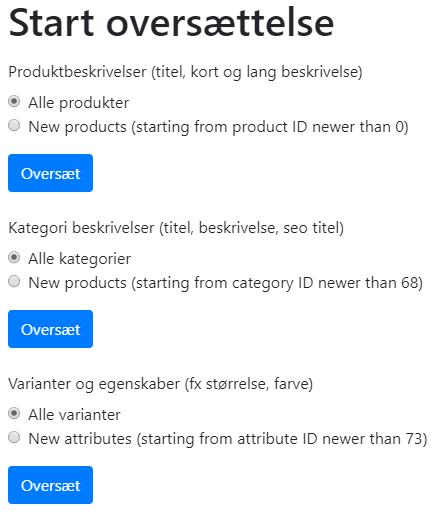
If you have translated something before, the number of products, categories and variants already translated will be shown there, and you can choose to translate only the new information. This way, you do not overwrite what you have already had translated.
Then click Translate under what you want translated. If you need everything translated, you have to click all 3 buttons – one at a time.
Once you have clicked, the translation starts – depending on how many texts need translating, it may take a while before everything is translated.
Translate via .po files
You can also translate via .po files.
First, the file must be downloaded via the shop's admin > Settings > Languages > “edit the language to be translated”.
Then the file must be uploaded to the app and translated there.
When the file has been translated, it must be downloaded again and uploaded to the correct language via Settings > Languages > “edit the language to be translated”.
Translate texts from other languages into Danish (e.g. from suppliers)
You can also make good use of the Google Translate integration when your online shop is in Danish but you get product descriptions from your suppliers in other languages.
If, for example, you get 1,000 new products with descriptions in a file from your German supplier, you can import them into your online shop and have them translated into Danish in no time!
This video shows an example of translating a product from German into Danish, where Danish is the only language in the shop:
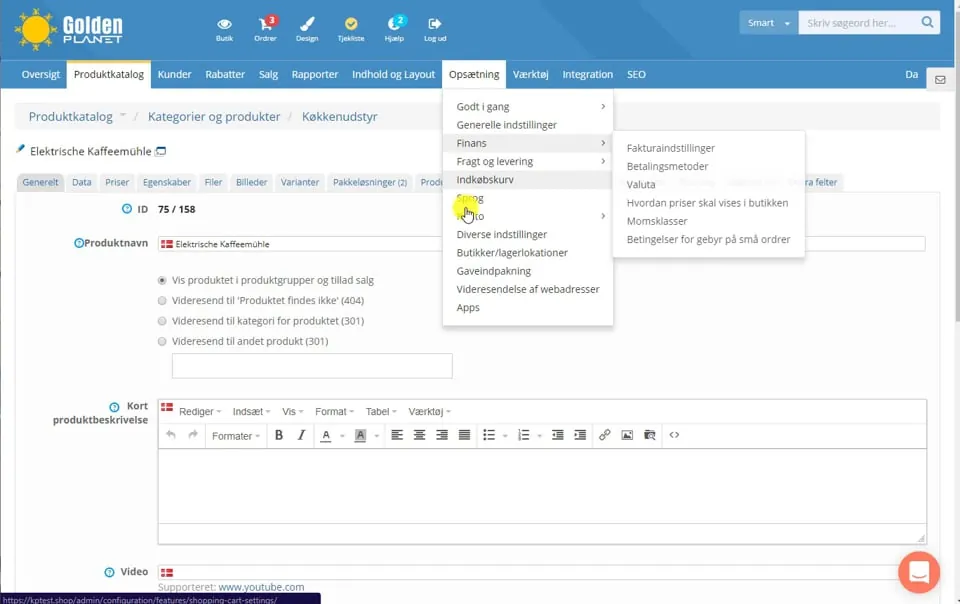 Play video: Translating a product into Danish (with only Danish as the active language) (opens Vimeo)
We can help
If you want to expand your online shop into new languages, have products from suppliers imported and translated, or anything else, you can also hire us to help you get there faster. Just contact us at info@goldenplanet.com or by phone on +45 70 20 95 94 for a chat about it.