
In this category Other topics
Setting up stock synchronisation
On this page
If you have several shops, e.g. a Danish and a Swedish one, but only one stock, this app lets you keep your stock fully synchronised at all times.
This app always makes sure that all shops have the correct/latest quantity of products in stock.
Note: This synchronisation only applies to products with unique model/product numbers in all shops. It does not work for products or variants without a model/product number, or for products or variants in the same shop with the same model/product number.
Before you start
Before you start, there are a few things you need to make sure of:
-
You must have at least 2 shops ready, with products already created.
If you want a copy of a shop you already have, get in touch with us and we will sort it out.
-
There must be products with the same unique model/product number in your shops.
Synchronisation is done by model/product number only, so these must exist in all shops.
-
You must not have duplicate model/product numbers in any of your shops.
You check this by going to your product list in the admin and choosing the view With duplicate model/product no. in the top right-hand corner. This list MUST be empty in all shops.
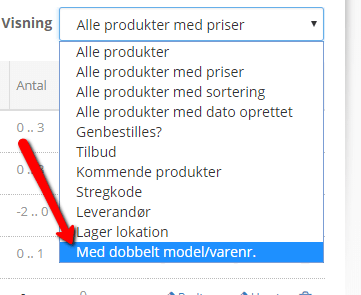
Note: Check this list often. If there are products on the list, the stock synchronisation may fail.
Install the app
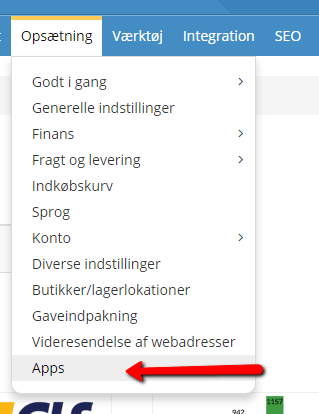
You find stock synchronisation under Settings > Apps
Next, choose which module to install. Here you choose the one called Stock synchronization.
When it has been installed, it will be listed under Activated apps.
Note: The app must be installed in all shops that stock information is to be sent to and from.
Import products and connect the shops
Note: Your master shop must be the shop that has the correct stock quantities. The quantity in stock for products with the same model/product number in your master shop at the time of synchronisation will be the quantity that is also shown in your extra shop after the synchronisation.
-
Open the shops to be stock-synchronised in different browsers – e.g. your master shop in Chrome and your extra shop in Firefox.
We recommend using different browsers to make sure the synchronisation is carried out correctly.
-
In your extra shop – enter the domain name of your master shop (e.g. mastershop.dk) in the input field and click Send join request to store to connect your shops.
-
In your master shop – click the Import button
The products in your master shop will now be connected with your extra shop. This may take a while.
-
Refresh the page (press F5) to see how far it has got.
– Wait until it is 100% imported AND Latest Logs is 5 minutes old.
-
There will now be a connection request from your extra shop.
-
Click Accept to approve this connection to your extra shop.
– Wait until it is 100% imported AND Latest Logs is 5 minutes old.
-
Check the stock quantity of a couple of products in both shops to make sure it has been synchronised correctly.



The 2 shops are now connected via their stock. When the app is opened, the same information will be shown in both shops from now on.
The product synchronisation is done by model/product number, so the products can easily have different names, descriptions etc., and these are not changed by the synchronisation. Only the stock quantity changes.
Changes to the stock quantity:
When a product is bought in one shop or the other, synchronisation happens immediately, so there is always the same quantity in stock in all shops.
If you change the stock quantity of a product manually, either directly on the product or via the product list, it will also change immediately in the other shops.
Example:
If a product is bought in your extra shop so that the stock quantity changes to 99, this will immediately show on the product in your master shop too.
Creating new products from now on:
Example:
Create a new product with a unique model/product number in your extra shop with 100 in stock. Then create a product with the same model/product number in your master shop. Once they are connected, they will be synchronised automatically. The product in your master shop will automatically get the stock quantity (100) that was set on the product in your extra shop.
If a different stock quantity is set in your master shop when the product is created, it will be synchronised to 100, as in your extra shop.
Note: The stock quantity will be set in both shops to the same quantity as in the shop where the product with the unique model/product number was created first.
See the log
Go to Settings > Apps > Stock synchronization
Click Stock synchronization in the list of installed apps.
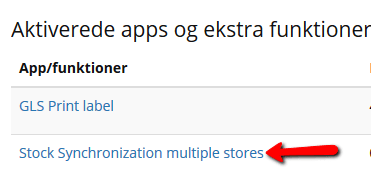
In here, you can see which shops are connected, which products were updated most recently, and a log of what happened when.
This is also where you can turn off synchronisation for the shop if you no longer want this shop to be stock-synchronised
Connecting 3 or more shops
- Install the Stock synchronization app in the shop to be connected.
- Open the app
- Enter the URL of one of the other shops that are already synchronised
- Send request
- In the shop the request was sent to – Accept
- Refresh the app (F5) in the newly connected shop and wait until it is 100% imported.
Another shop is now connected to the synchronisation.