
In this category Other topics
SSL/HTTPS: the padlock and secure encryption
Guide to both preparing and carrying out the switch from an HTTP website without encryption to an HTTPS site encrypted with SSL
On this page
Google in particular is pushing harder and harder for all websites to run over HTTPS. In this article on their blog (opens in a new tab), they announced in 2016 that Chrome would mark all pages without HTTPS as not secure – and today Chrome does, like this:
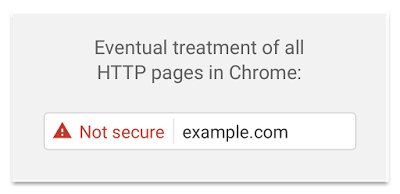
That hardly builds trust, of course, and it will definitely have a negative effect on sales in your online shop if you leave it like that.
With SSL, you get HTTPS on your domain name and with it a padlock in front of every page on your website.

How to get SSL/HTTPS on your online shop
For a small monthly amount, you can get SSL on your online shop.
Go to Settings > Apps and extra features in your online shop's admin.
Click SSL and press the button to enable it.
Our system administrators will then create an SSL certificate for your domain name and switch your website to run encrypted, with https:// in front of every page.
When it is ready, you will get an email from us, and you can then go on to the other points on this page.
What is SSL/HTTPS?
Hyper Text Transfer Protocol Secure (HTTPS) is the secure version of HTTP, the protocol over which data is sent between your browser and the website. The S at the end of HTTPS stands for “Secure”. It means that all communication between your browser and the website is encrypted. HTTPS is often used to protect highly confidential online transactions such as online banking and online shopping forms.
When you request an HTTPS connection to a website, the website sends its SSL certificate to your browser. This certificate contains the public key needed to start a secure session.
SSL (Secure Sockets Layer) is the security technology used to establish an encrypted connection between a web server and a browser.
Web browsers such as Chrome, Edge, Firefox and Safari also show an icon (usually a padlock) in the address bar to indicate visually that an HTTPS connection is in place.
Suggestions for extra things to do when you switch to SSL/HTTPS
After SSL/HTTPS has been enabled in your online shop, all visits to your pages with the old http:// will automatically be redirected to the same page with https:// in front.
Here are some extra things you can consider looking at to “polish” the switch.
Check for content added with http://
Update scripts and integrations to HTTPS
You also need to update custom scripts so that they point to your HTTPS version. This also includes third-party scripts; otherwise you will get the dreaded “mixed content” warning, which says that the connection to the website is not fully secure.
Most such scripts from chat (e.g. tawk.to), pop-ups (e.g. Sleeknote) etc. have been added via Other integrations. All the larger providers are already on HTTPS. If you are not sure whether a script will interfere with your SSL, contact the provider of the system/code or the developer who implemented it.
The easiest way to check it is after your website has switched to HTTPS. When you are on a page that uses the code in question (e.g. chat) and you have a padlock in front of your domain name, everything is OK – if not, something needs fixing.
Scan your website for “not secure” content
You can also scan your website for “not secure” content. With a tool such as Screaming Frog (opens in a new tab), you can scan your pages both before and after the switch to SSL. It is, however, a fairly advanced tool and it comes with a price tag.
After the switch to SSL/HTTPS, you can have a selection of your pages checked at JitBit, which has made a small “SSL Check” tool (opens in a new tab). Their tool is free.
If you choose to use tools such as Screaming Frog, it is very important that you set the speed so that you do not disrupt the running of your own and other people's online shops. That way you also avoid being blocked automatically.
Your own redirects from HTTP to HTTPS (301 redirect)
We make sure that all visits to your website that go to the old addresses with http:// in front are automatically sent on to the same page with https:// in front.
However, it is best for your SEO if there are no double redirects.
If you have made redirects yourself, you should therefore update them so that your destination URLs for your own shop are changed to start with https://…

See this guide: Redirecting pages/links (301 redirects)
Update all links to HTTPS
All links in your online shop that are created automatically will also switch to HTTPS automatically along with the general switch. That means links in the menu and the design to products and information pages, including the links to products on category pages.
The places where you may have links that were made manually with the full web address and http:// in front are usually in texts on products and categories that were made in the editor.
You can change a link like this:
-
Go to editing the page
-
Right-click the link
-
Choose link from the menu that appears
-
Change the link so that it starts with https:// instead of http://
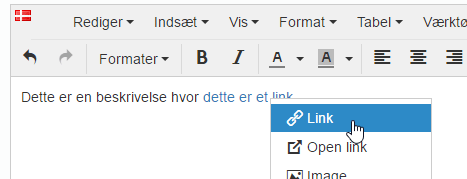
Of course, you only need to change internal links to your own site (and external ones if those sites have also switched to SSL/HTTPS).
Google Search Console
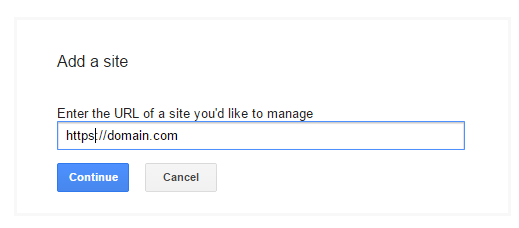
Now that your site runs on HTTPS, you need to add the HTTPS address as a new property in Google Search Console (opens in a new tab), unless you already have your domain as a domain property.
Sitemaps
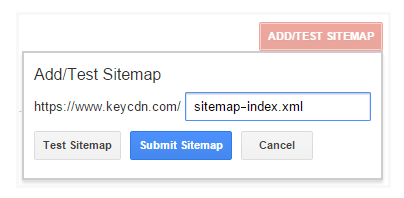
Sitemaps are not required for Google to crawl your site, but they can be useful if you are trying to debug an indexing issue or to check whether your images are indexed. If you use sitemaps, you need to resubmit the HTTPS version in your new Google Search Console property.
Enter the text sitemap-index.xml in the field under Sitemaps and submit it.
Request indexing
We then recommend that you ask Google to crawl your new HTTPS site, just to speed things up a little. In some migrations to HTTPS, it can take weeks before Google re-crawls everything correctly.
Use the URL Inspection tool in Search Console: enter the web address of your home page and click Request indexing.
If you have some very important pages that may not be linked from your home page, you can also request indexing of them one by one.
Update your Google Analytics
In Google Analytics 4, under Admin > Data streams, you can see the web address of your web data stream. If it starts with http://, change it to the HTTPS version. That way you don't lose anything and can carry on where you left off.
Update integrations
If you use integrations, e.g. from Shipmondo, you need to change their settings so that the web address of your online shop starts with https://
If you have other (own) integrations that use the API, they need to be updated with https:// in the same way.
Update links in Google Ads, Facebook and other campaigns
Here are some other places you also need to remember to update when you have moved from HTTP to HTTPS.
- Update third-party PPC URLs (Google Ads, Microsoft Advertising, Meta/Facebook ads)
- Update email marketing software URLs (Mailchimp, AWeber, GetResponse)
- Update links from social media to your site (Facebook, X, LinkedIn)
- Update all external links as far as possible (links from other websites to yours)
In Google Merchant Center (which is used for Google Shopping), the web address of your online shop must also be changed to HTTPS. After updating Google Merchant Center, you should go to the Google Shopping integration settings in your shop's admin and update all products to Google Merchant Center.