In this category Other topics
Add Google Maps to your shop
On this page
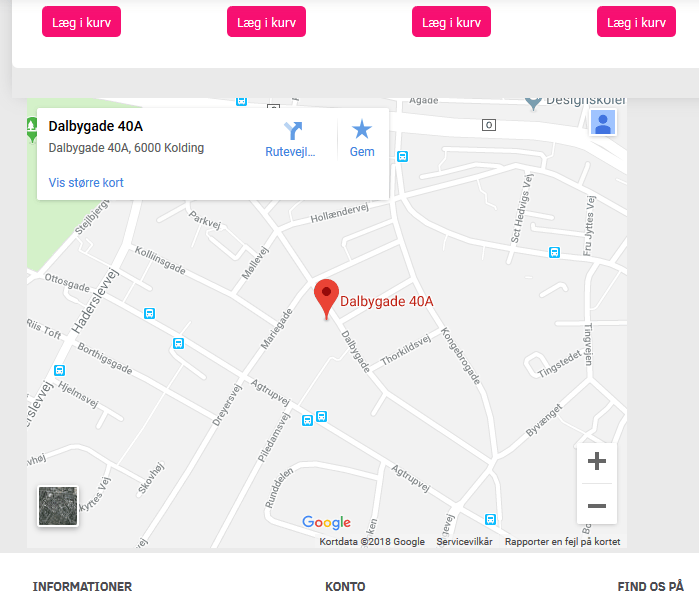
If you would like to show your customers the easiest way to find your physical shop, you can add a Google Maps map with directions.
Method for a map with one or more addresses
If you have several addresses of your own to show, or if it should be, for example, a map of retailers, you need to make a map with several addresses in Google.
Google's own help shows how to add a map from Google My Maps to a website (the map must be public): Add your map to a website (opens in a new tab)
For a more detailed walkthrough with several addresses and custom markers, see this guide (from 2022, so the menus may look a little different today):
Then add the map to your online shop with an embed code. The embed code is added as HTML code via the layout tool
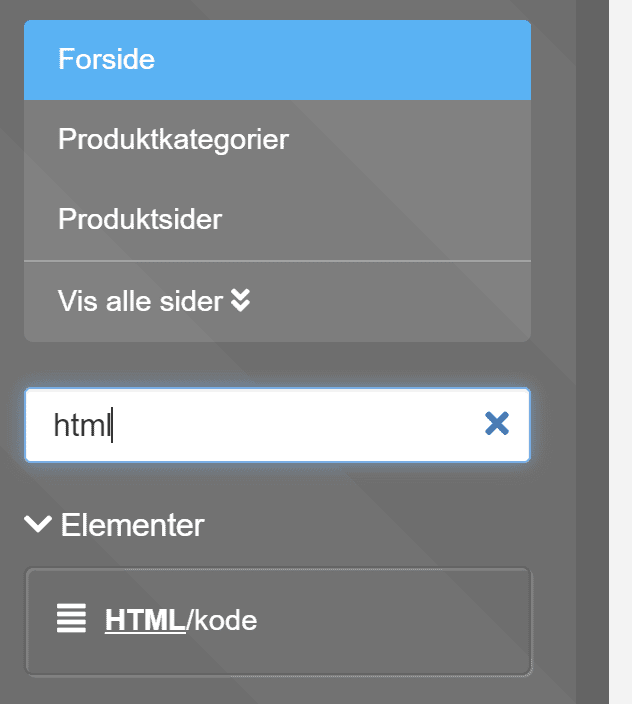
in the same way as shown here for a YouTube video.
The same method can of course be used for one address – but there is also another option for that, as shown in the next section.
Method for a map with one address
An alternative method for showing one address on a map is to create a Maps API key at Google and then use a standard element in your online shop's layout tool. It is shown below:
Find and enable your Google Maps API key
For the map to work, an API key has to be enabled and added. You do it like this:
-
Go to: https://console.developers.google.com (opens in a new tab) – log in with your Google account
-
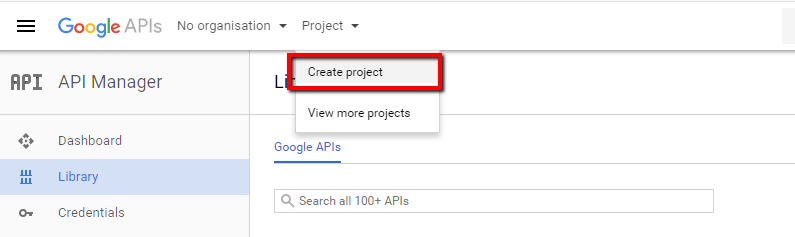
Go to Dashboard > Create project
(if you have already set up e.g. Google Shopping and have an existing project, you can use it and skip to step 4)
-
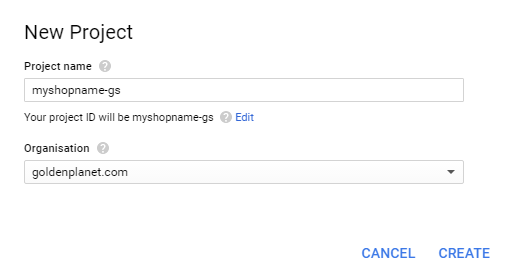
Name the project – e.g. mydomainname-gs – and click Create
-
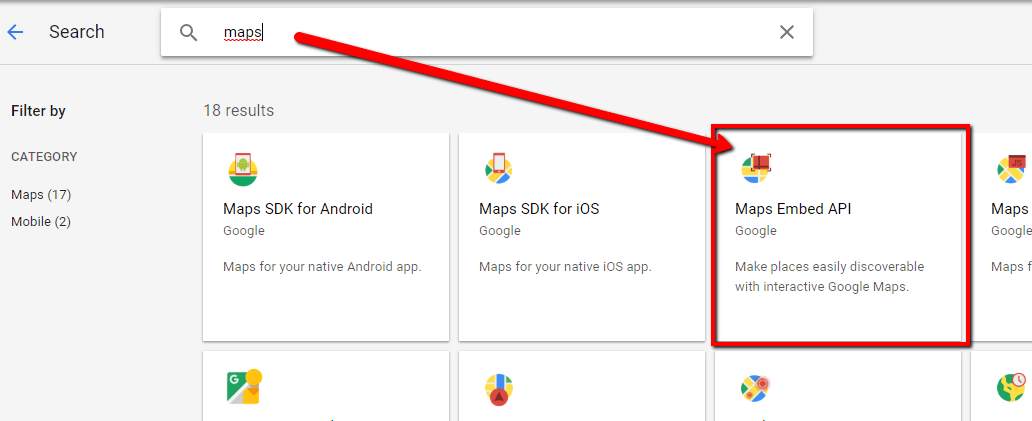
Go to Library, search for “Maps” and find the one called Maps Embed API
-
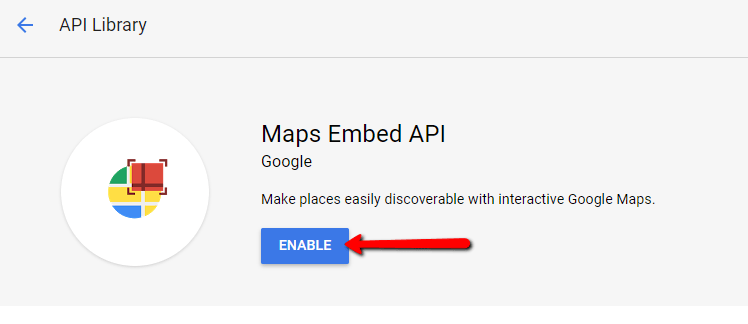
Click Maps Embed API – and click Enable
-
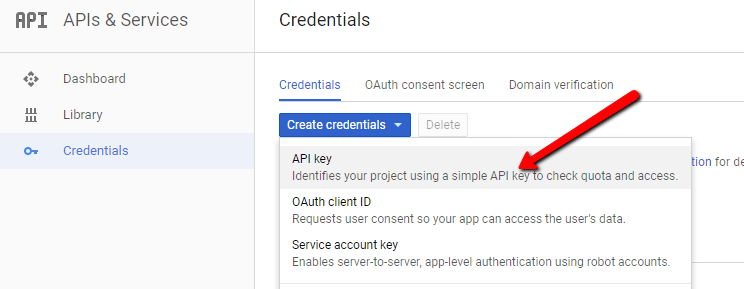
Then go to Credentials > Create credentials > API key
-
Here you copy the API key that is shown and close the box.
You can choose to restrict the key to prevent unauthorised use.
The key now has to be added to your shop.
Add your Google map to your shop
Log in to your shop's admin and go to Content and layout > Layout tool.
In here, drag the Google Map element into the design where you would like your Google map to be shown.
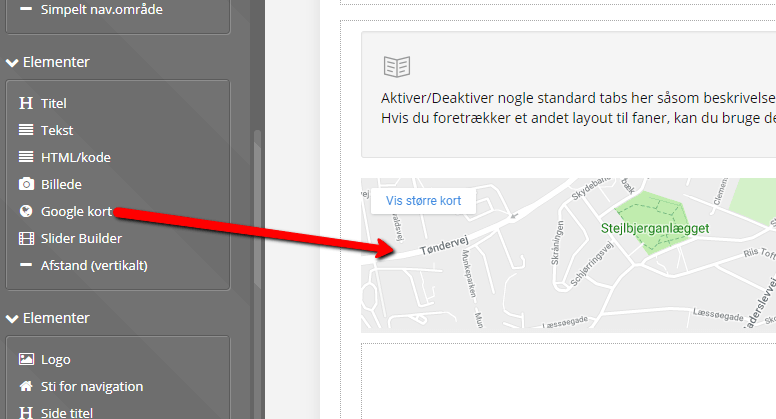
When you have dragged the element in, click it – and you will see the available settings.
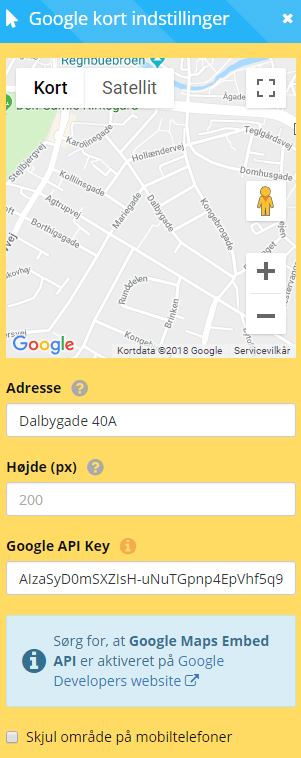
First, enter the address the map should point to, and set a height if you like.
Then add the Google API key you found earlier.
Choose whether the map should be hidden on mobile phones, and save.
You now have a Google map on your page.