
In this category Other topics
Your online shop in several languages
On this page
When you want to sell to customers outside Denmark, language is of course crucial.
Many languages are already ready for your online shop – and if you want to get started with other languages, you are free to add them.
Below, we show you how to get off to a good start with several languages, along with some suggestions on where to look when creating your content in the new languages.
Turn languages on and off
It all starts here
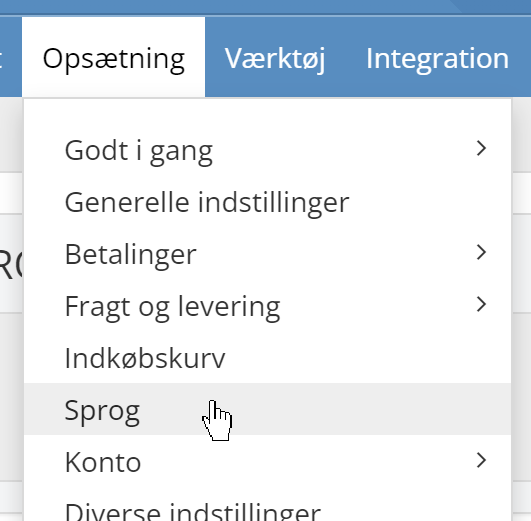
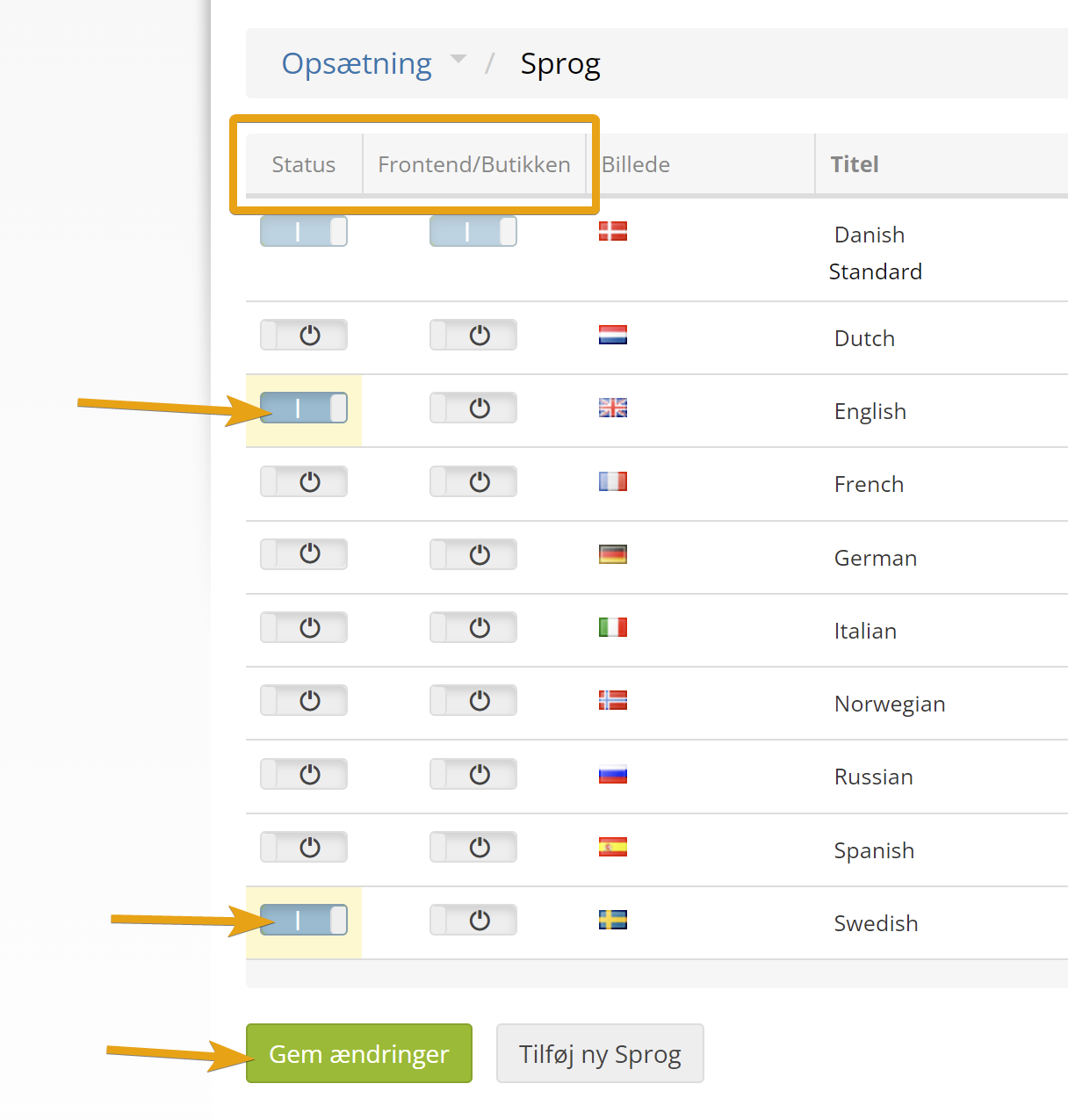
There are two columns with on/off switches in the list of languages.
Status enables the language, so you can work with it when managing your content in the admin.
Frontend/Shop sets whether the language is shown to customers. If your online shop is already live, it is probably best to start by enabling the languages you want, and then enable them in the shop when you have finished the translations etc. – for example like this to enable English and Swedish:
Translate with an AI integration

With AI (artificial intelligence), you get translations of very high quality.
- Easy, with a direct integration
- The AI model gets all the content for a better understanding
- Bullet lists, tables etc. are kept as they are in all languages
Read more about translating products, categories and variants/attributes here
Continue down this page to see how to translate the home page and other parts of your online shop, and how to work with several languages in general.
Editing products in several languages
You can work with products in one specific language or in all languages by choosing from the Localisation drop-down menu at the top right
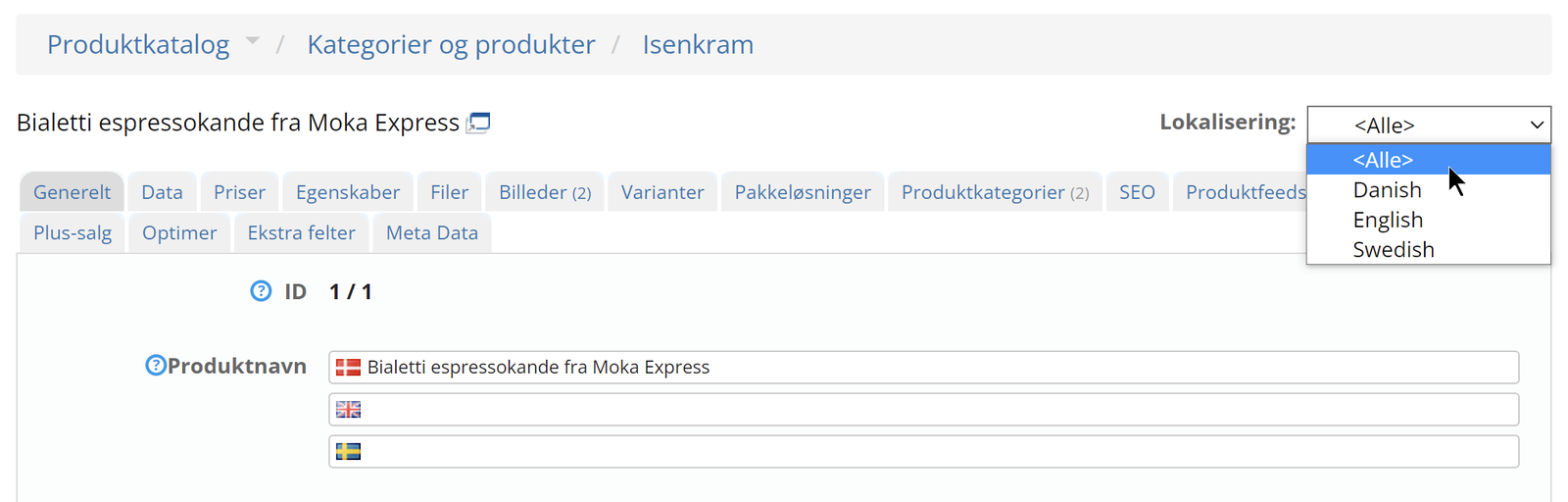
You then have a flag for each language in the fields where you can translate a text.
Editing categories in several languages
It works the same way for categories
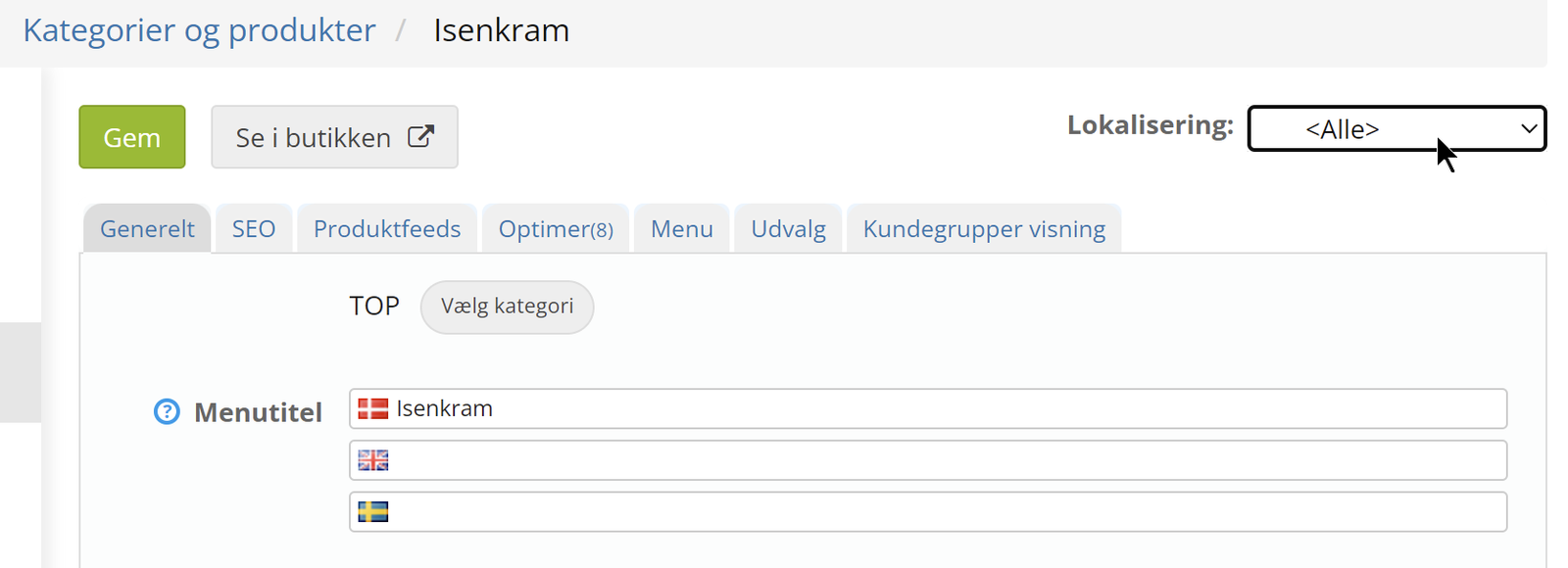
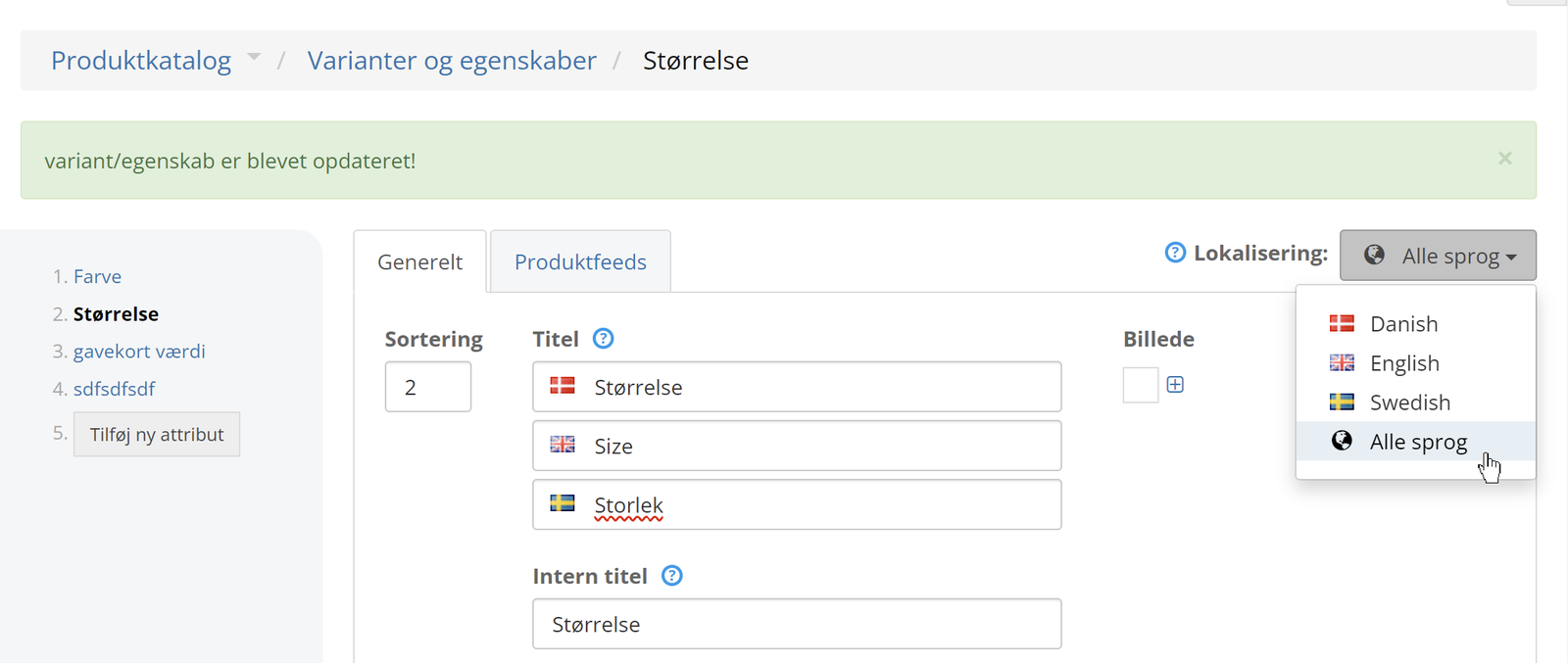
Editing variants/attributes in several languages
And for variants/attributes. The internal titles do not need to be translated:
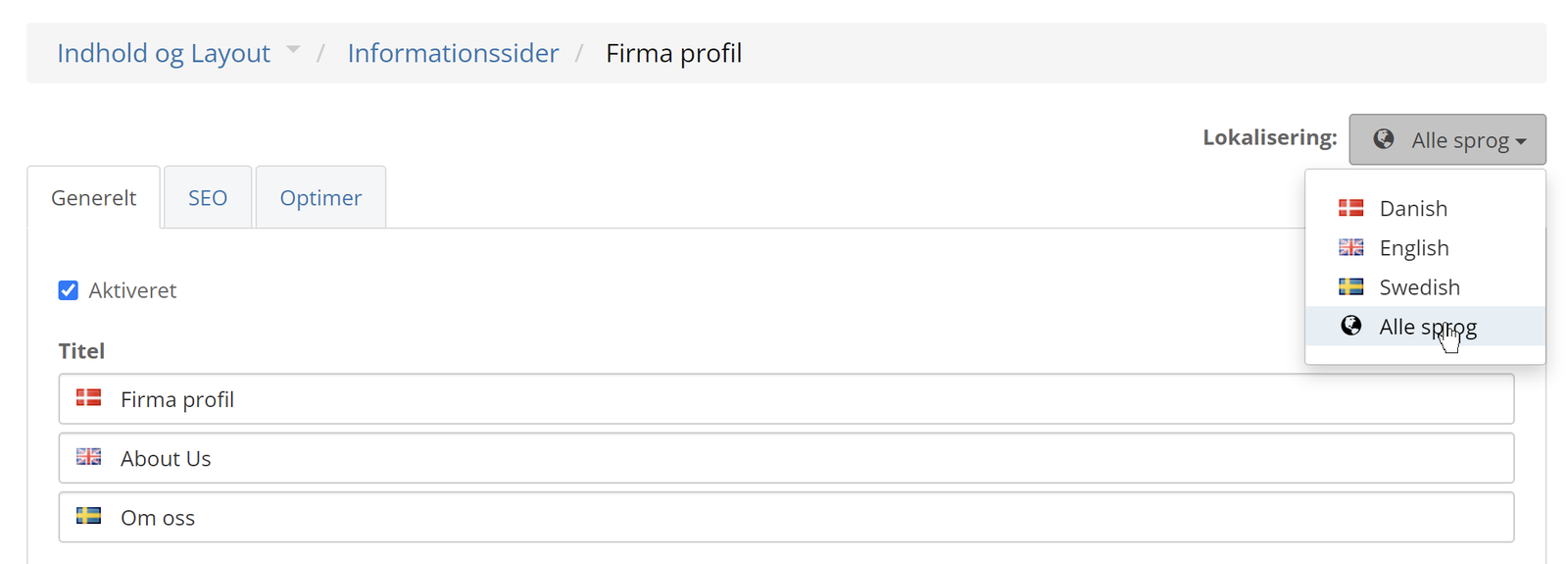
Editing information pages in several languages
Translate your online shop's home page
If you want to know about setting up the home page in general first, start on this page.
The content of the home page is set up in the layout tool
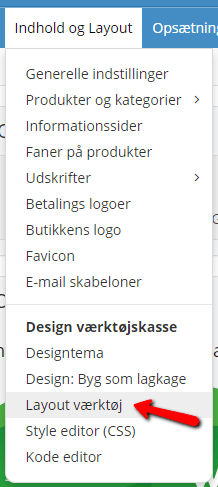
You can translate text elements by first clicking the element in question and then switching language at the top right:
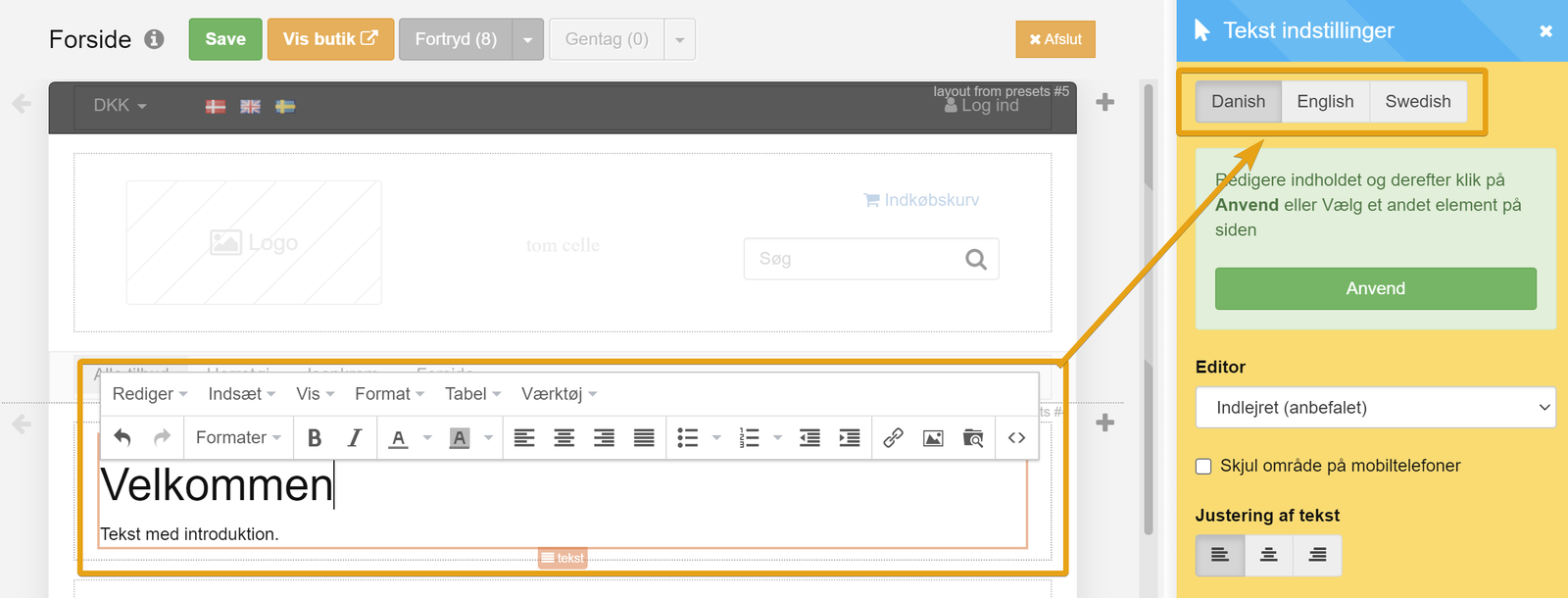
Image elements cannot be shown in different languages. If you want different images per language, you need to insert them in a text element (as shown above).
Translate formatted text/tables with AI such as ChatGPT
Texts formatted with different sizes, bullet lists etc. can be translated all in one go via, for example, ChatGPT, like this:
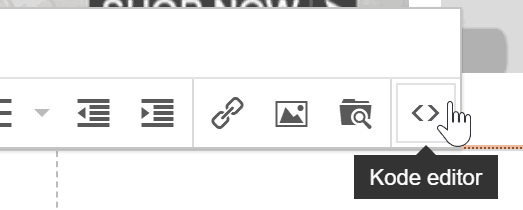
In the text/content area, click this icon for the code editor
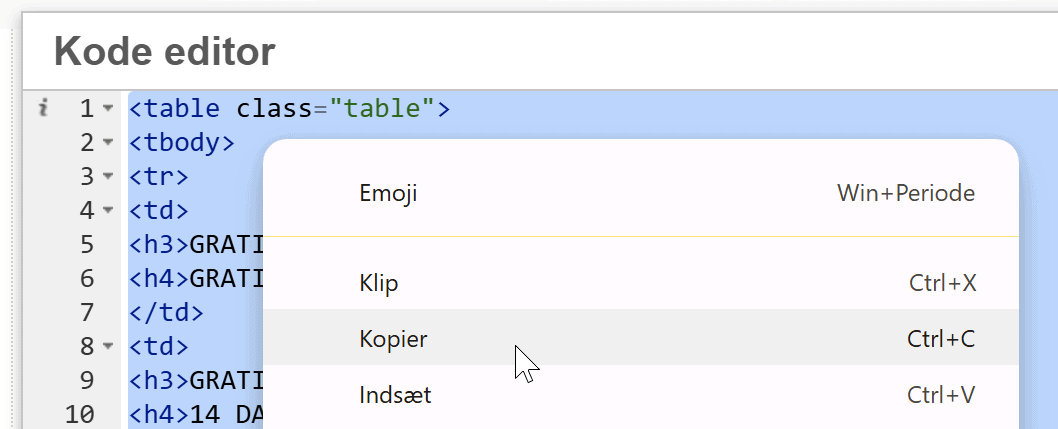
Select all the content, either with keyboard shortcuts (CTRL + A on Windows or Command + A on Mac) or by right-clicking with the mouse and using Select all. Then copy the content in the same way, with a keyboard shortcut or a right-click
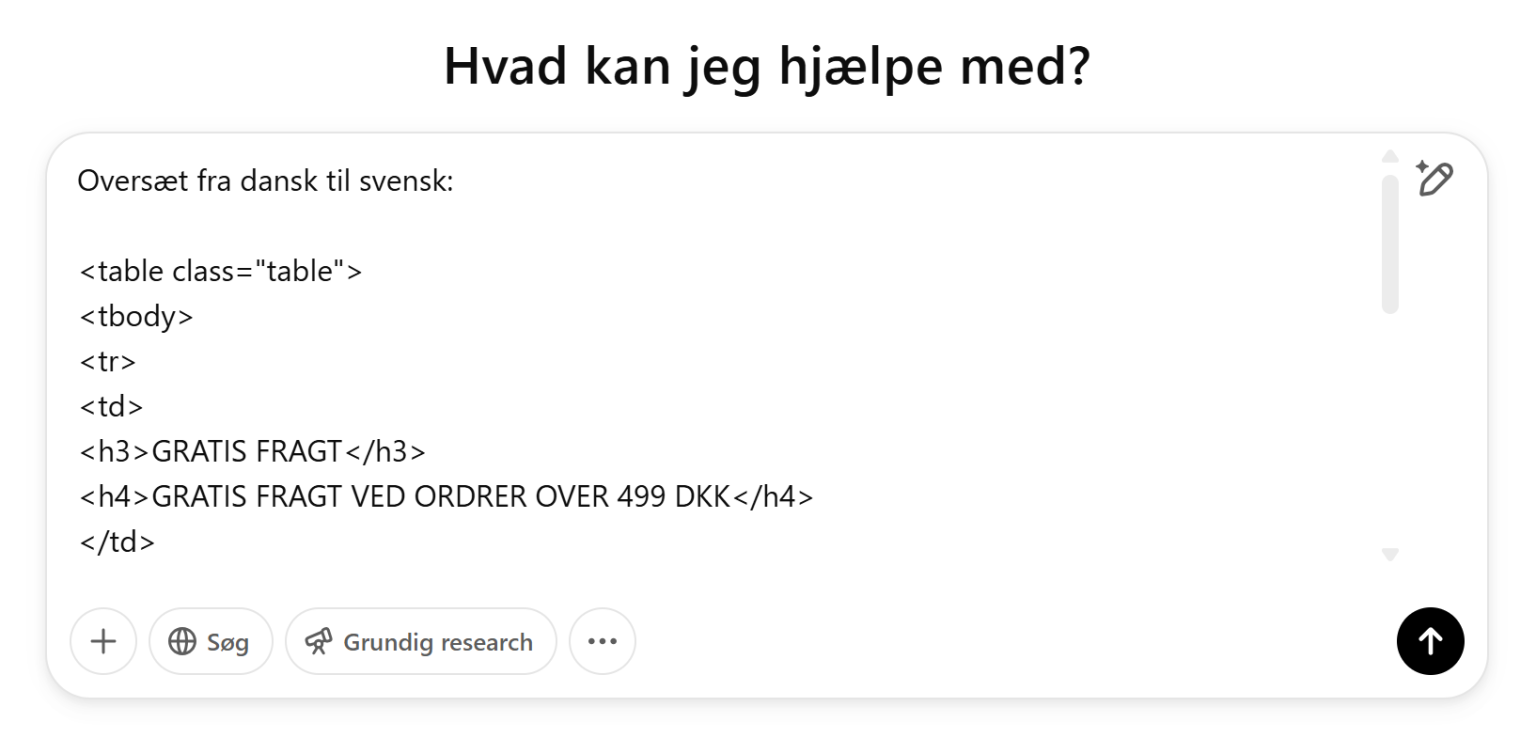
Then go to ChatGPT or your favourite AI and write, for example, “Translate this from Danish to Swedish:” and paste the complete HTML code
You then get translated HTML code, which you copy and paste into the corresponding language version in your online shop
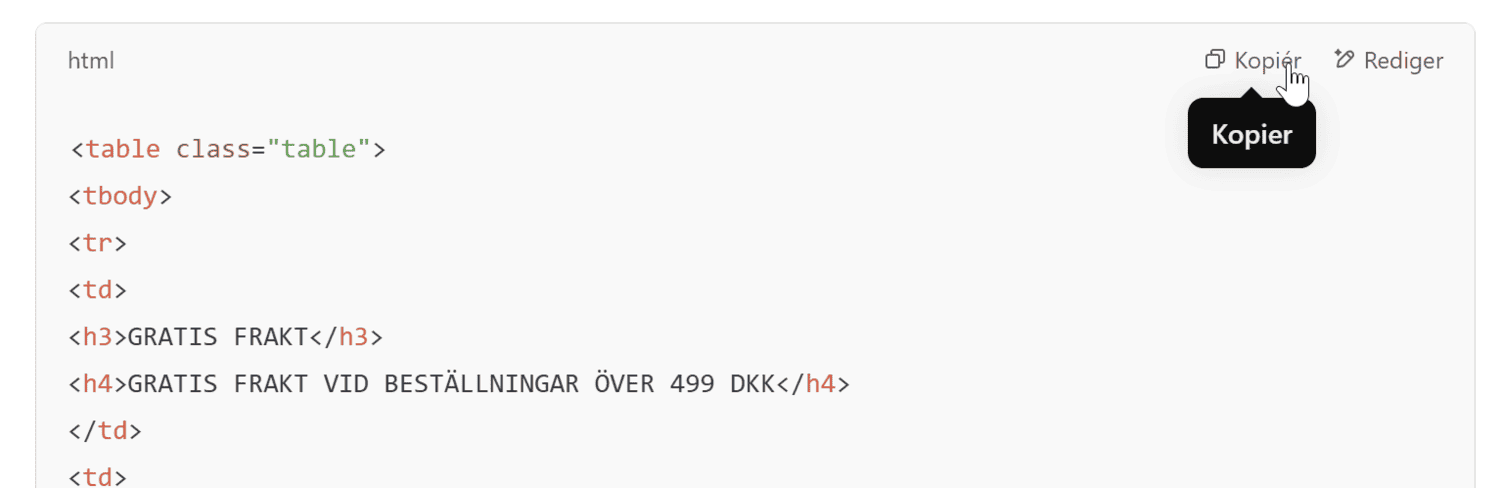
If you have several languages in your shop, in the next chat/prompt message you can simply write

Shipping and payment methods
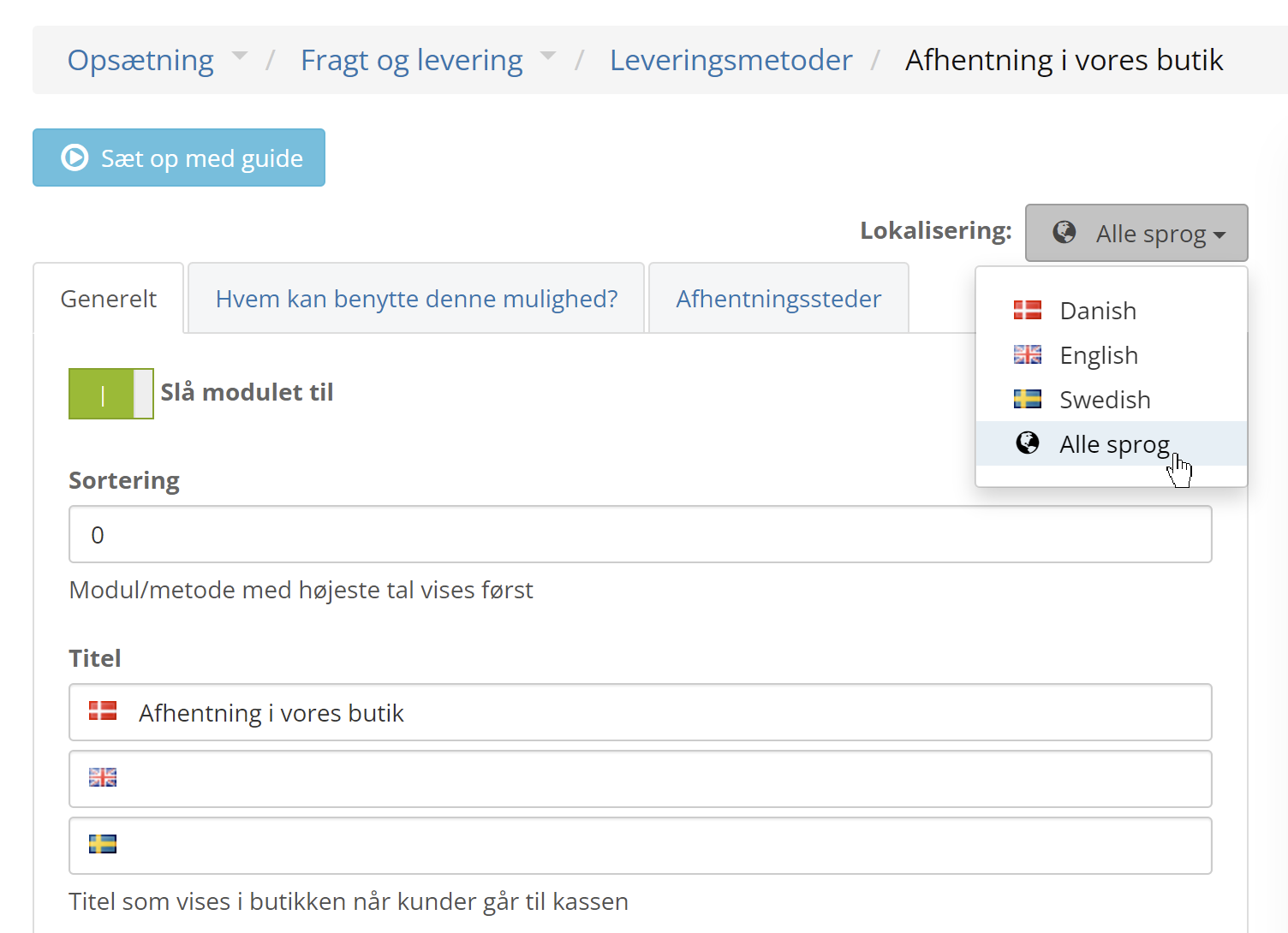
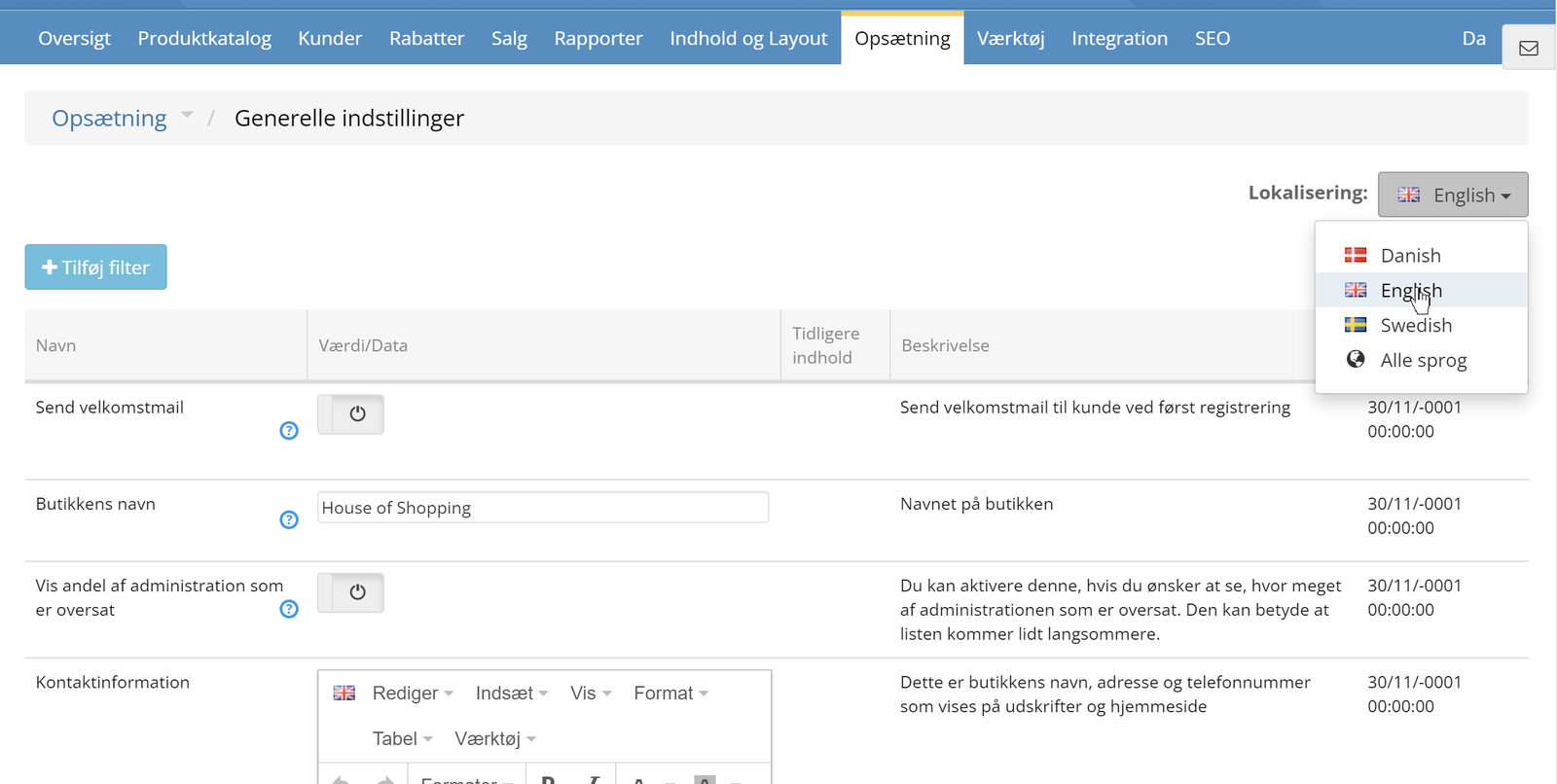
The shop's contact information
If you want to write the contact information differently per language. As with all other texts, the text from your default language (probably Danish) is used if you do not write anything for the other languages.
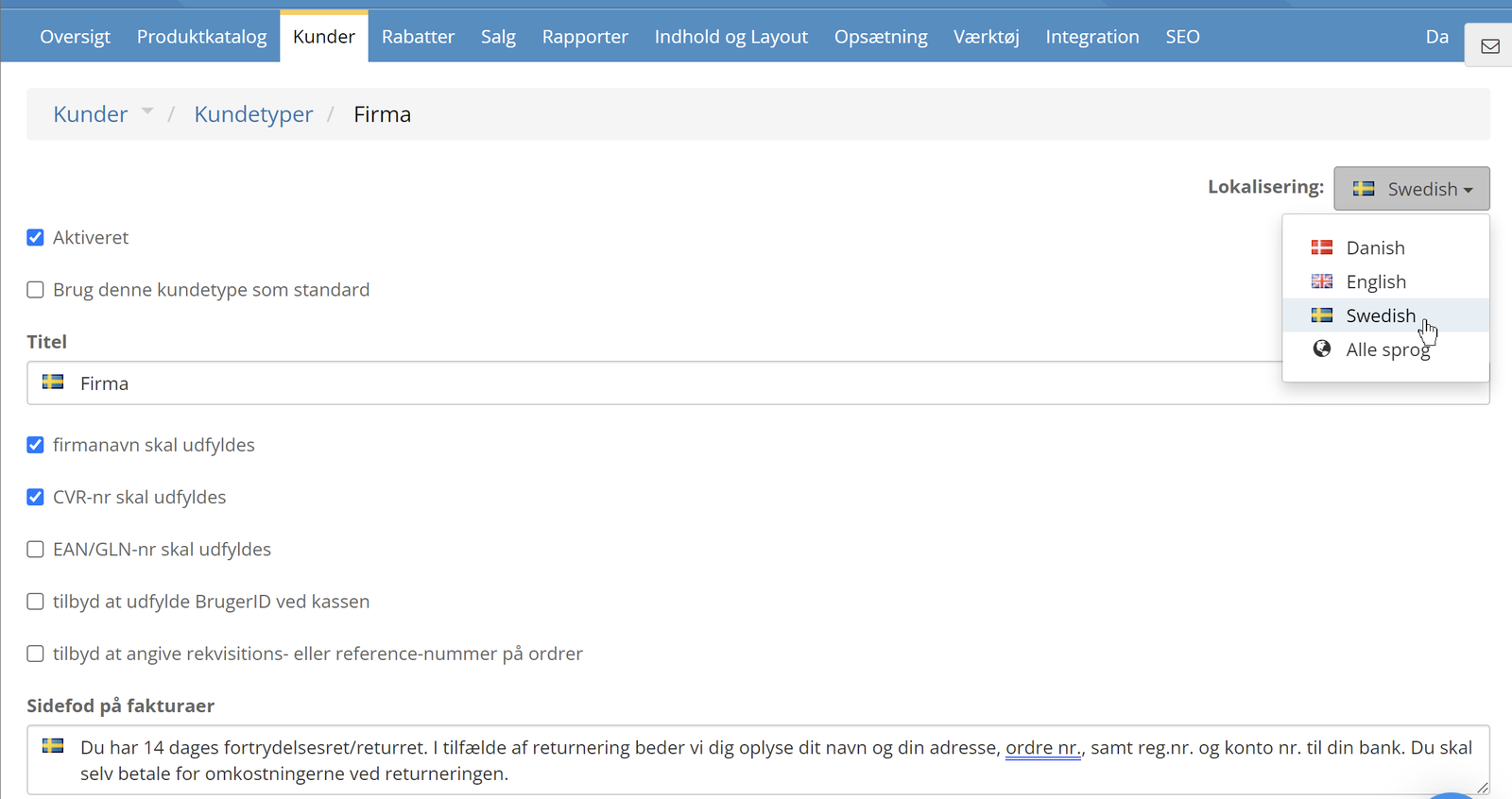
Customer types and the invoice footer
You can translate/change the titles of customer types and also write different texts for the invoice footer
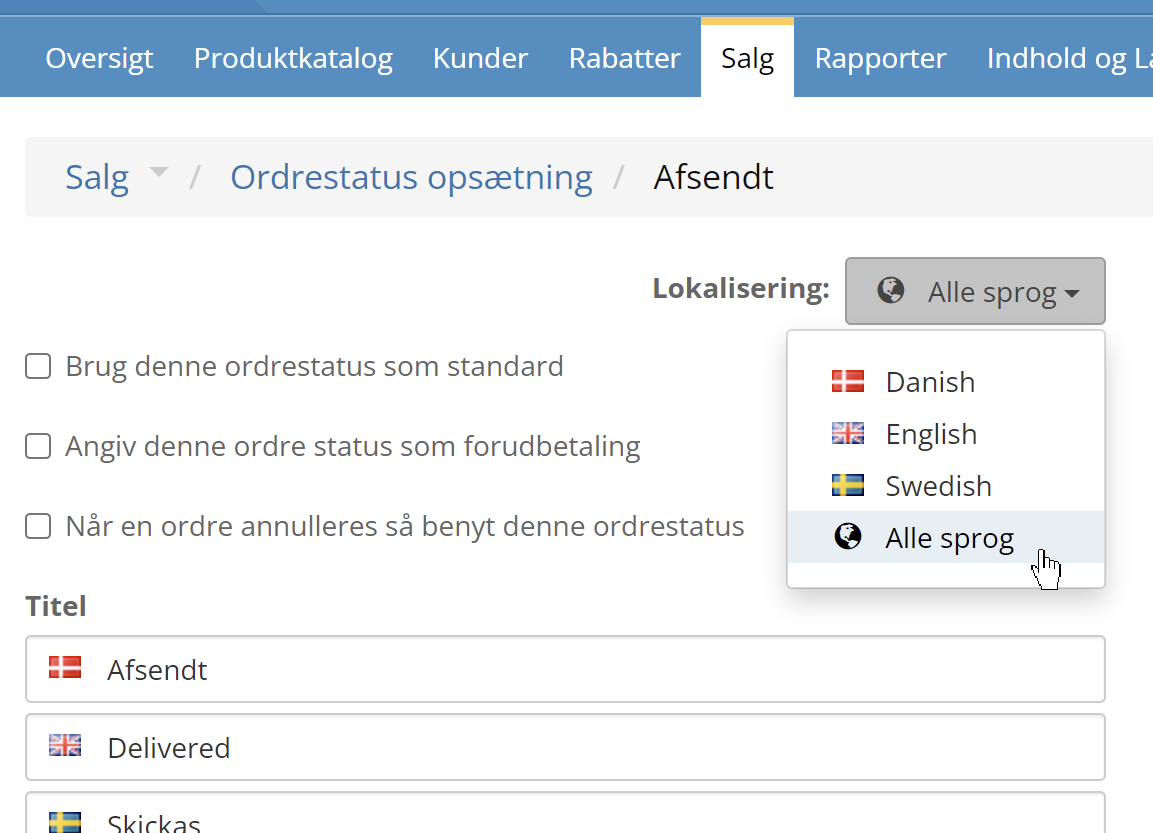
Order status
If you send customers messages about a changed order status, these should also be translated
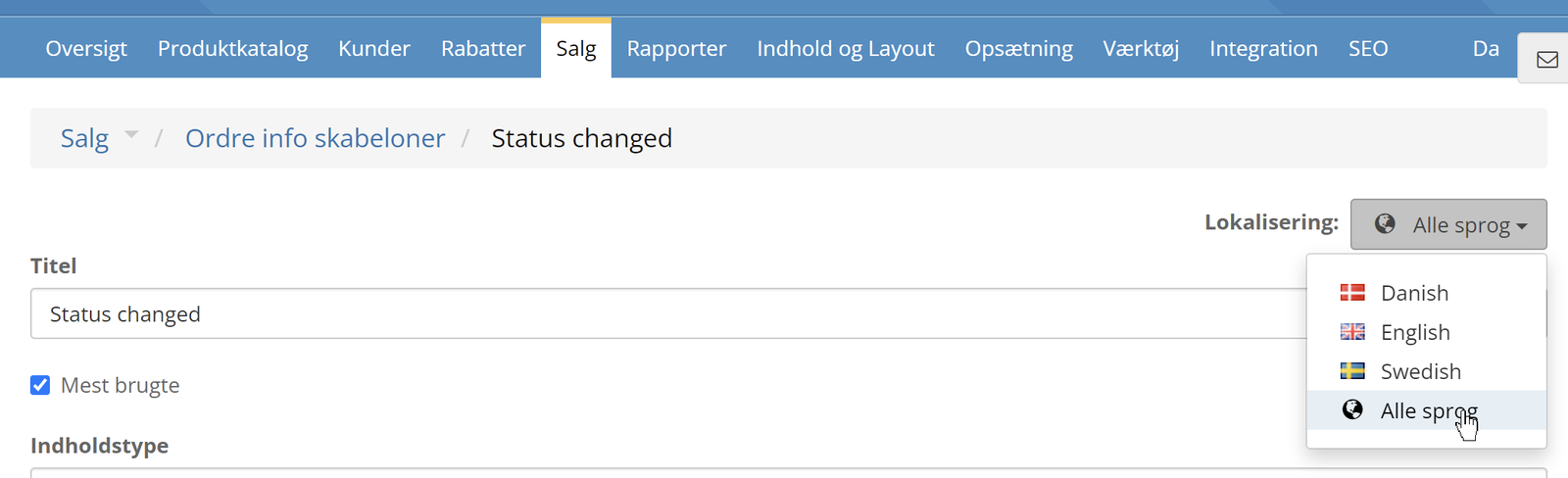
Order info templates
And the same if you send customers messages with order info templates
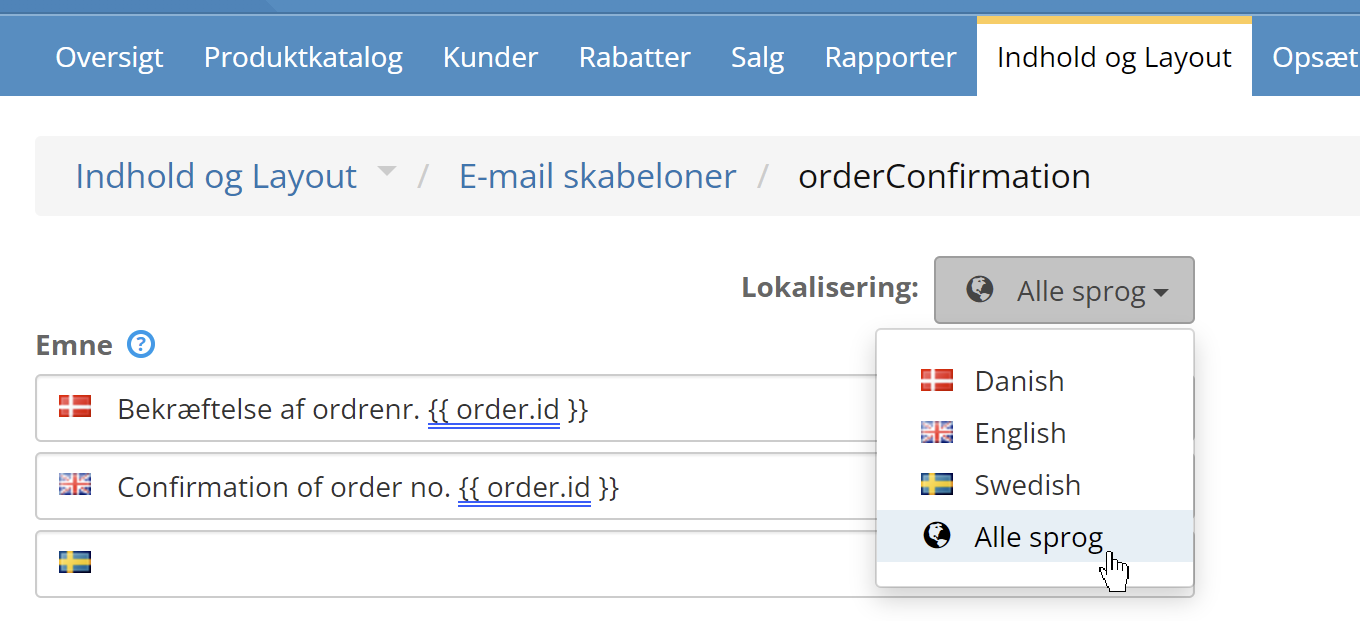
Email templates (order confirmation etc.)
You can also adjust the translations of the standard emails sent from your shop – first and foremost the order confirmation
Customise standard texts – in English or other languages
All the texts that are not your own content in general – everything from the Add to basket button to the title of the invoice etc. – can be changed via language files.