
In this category Other topics
Other topicsImporting and exporting data
Exporting orders that contain a specific product
How to export orders to a CSV file from your online shop, including only the orders that contain a specific product. With the difference between All order details and Totals with invoice, and which ID to use.
On this page
You can export your orders to a CSV file and open it in a spreadsheet, for example for your accounts.
You can also limit it to the orders that contain a specific product, for example if you need to contact everyone who bought a product your supplier has recalled.
The file has one row for each order. The order lines are not included, so the file does not show which products are on the order.
The amounts are always for the whole order, even when you have limited the export to one product.
How to export orders
- Go to Tools > Export to file, and choose the Orders tab.
- If you only want orders with a specific product, type the product's ID in the field Limit by product IDs (comma separated). Which ID that is, is explained further down. If you leave the field empty, all orders are included.
- Choose a preset under File Presets: All order details or Totals with invoice.
- Click Export to file.
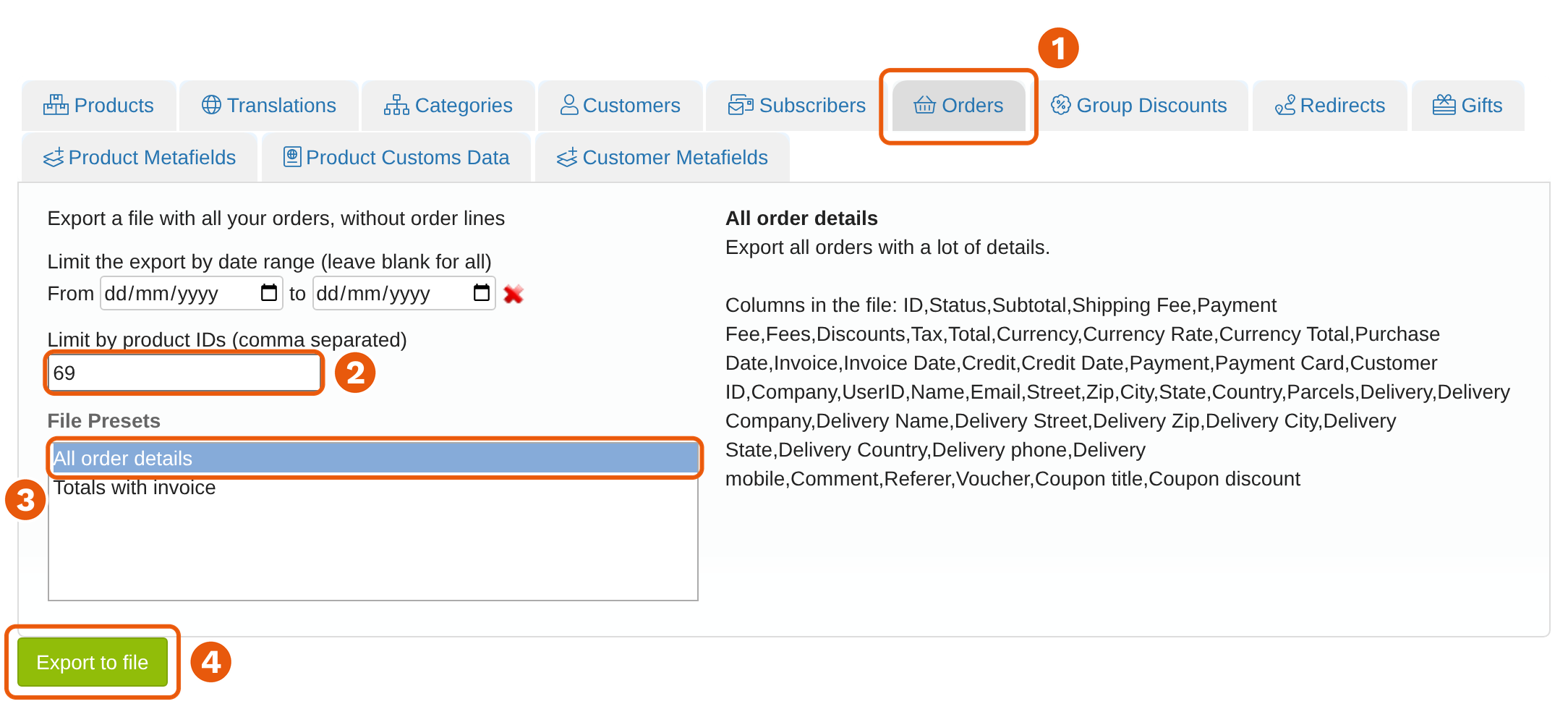
You can also limit the export to a period with the From and to fields. The dates and the product ID can be used together. Then you only get orders with the product from that period.
The difference between the two presets
All order details has everything about the order: amounts, payment, invoice and credit note, the customer's name, email and address, delivery address and phone, a comment and any coupon. This is the one to use when you want to contact the customers.
Totals with invoice only has the figures: subtotal, shipping, fees, discount, VAT, total, currency, purchase date, invoice and credit note with dates, payment method, the customer's ID and delivery method. There are no names or addresses in it. It is made for importing into an accounting program.
When you click a preset, all the file's columns are listed next to it.
Find the right ID on the product
The field uses the product's own ID. This is how you find it:
- Find the product under Catalog > Categories & Products, and open it.
- On the General tab (1), the field SKU at the top shows two numbers, for example 69 / 152.
- The first number is the product's ID (2). That is the number to type in the export. Here 69.
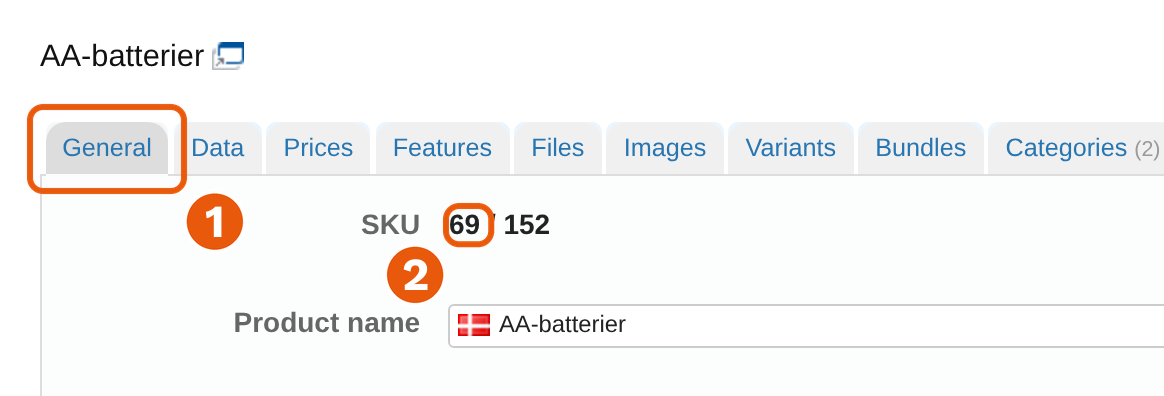
The second number is the ID of the product's standard variant. It does not work in the export. If you type it, you get no file, only the error "Der er ikke noget at eksportere." (There is nothing to export).
On many older products the two numbers are the same, for example 11 / 11. Then you cannot get it wrong.
Products with variants
A product with variants, for example trousers in several sizes, has an ID for each variant. You can see them on the Variants tab. But they do not work in the export either.
Here too, use the product's own ID from the General tab. Then you get all orders with the product, whichever size or colour the customer bought. Unfortunately it is not possible to export the orders for just one specific variant.
Be aware that the first variant often has the same ID as the product. Then it looks as if the variant ID works, but it is the product's own ID that is used. The other variants' IDs give no orders.
Several products at once
Type the products' IDs with commas between them, for example 69,48. Then you get every order that contains at least one of the products.
Download the file
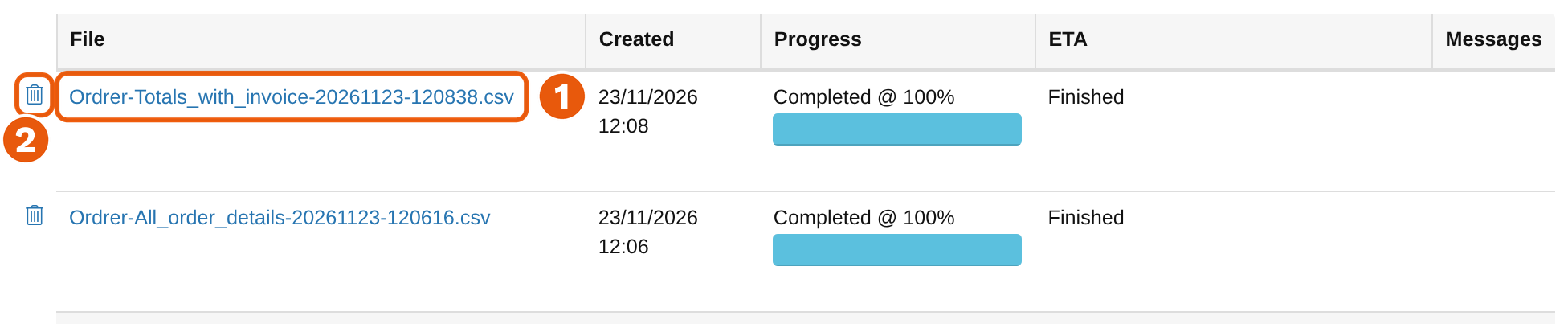
The export runs in the background. When you have clicked Export to file, the page shows the list Recent jobs. Here you can follow how far the export has got. When it says Completed @ 100%, click the file name to download the file (1).
You can also follow the export under Tools > Background jobs.
If something has gone wrong, it says Failed and there is a number under Messages. Click the number to see the error.
The file is a CSV file with commas between the columns, and the amounts are written in the Danish format with a decimal comma, for example 1.538,75. See how to open it in Excel or in Google Sheets.
Delete the file when you are done
Click the bin next to the file (2). The file is deleted straight away, without asking you first. It is a good idea to delete it, because a file with All order details contains your customers' names, addresses and email addresses.
If you only want to know how many of a product you have sold, it is easier to export the products with the preset Sales. See Sales per product.