
In this category Release notes
What’s new in version 6.17
On this page
We have developed another update for your online shop. Here are the most important new features in this version:
- Add to an order after it has been received
- Easier to put products on sale
- Filters remember whether you want to see them or not
- Post Danmark flex message can be changed
- Minimum price for products in a slider
- Activate all products for the Kelkoo feed
- Country set automatically at checkout
Add to an order after it has been received
For a long time you have been able to remove a product from an order after it has been received from the customer.
Now you can also add a product to an order – for example if a customer changes their mind and would rather have a shirt in a different size.
It has also become possible to add an extra line to the totals. For example, if you give an extra discount on an order.
Remember that on orders paid by card you can’t capture more than the original order total.
This is how you add a product to an order:
1: Open the order for editing
2: In the order details, below the last product on the order, click the Add product button
3: Enter the quantity and search for the product to be added. Here, for example, we search for “bat” to add a pack of batteries:
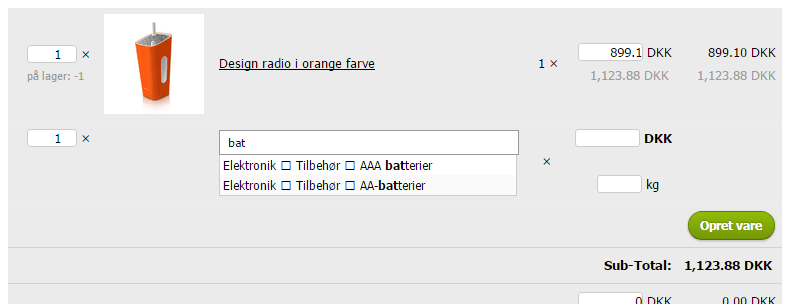
4: Click the product you want in the list
5: Enter the price (excl. VAT) and, if needed, the weight
6: Click the Save changes button below the order details area.
If you want to add an extra total line, do this on the order:
1: Click the Add extra line button
2: Enter a title and an amount (put a minus in front of anything to be deducted). Here, for example, an extra discount of €3.50 is given:
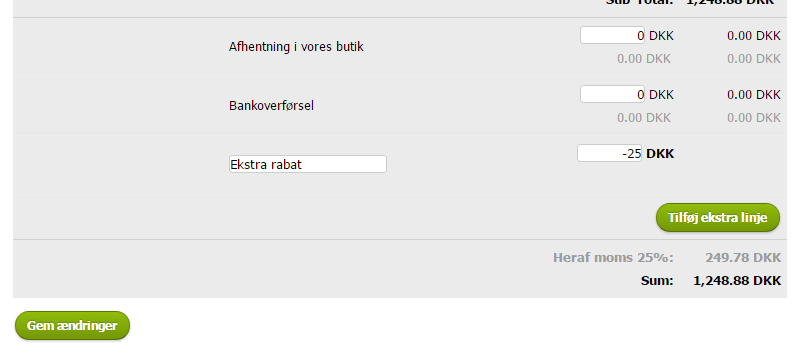
3: Click the Save changes button below the order details area.
Easier to put products on sale
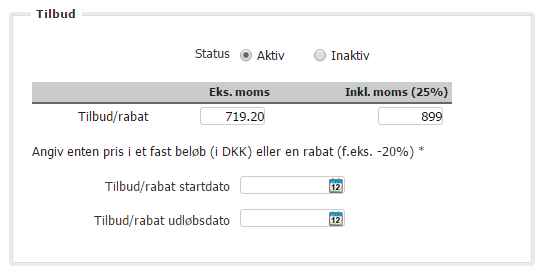
Until now, prices had to be entered excl. VAT when you wanted to put a product on sale.
Now you can also enter the price incl. VAT, and the price without VAT is calculated automatically:
Filters remember whether you want to see them or not
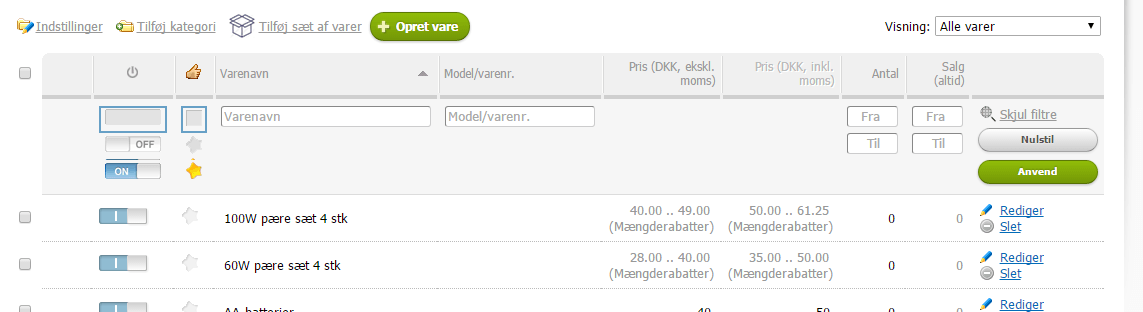
With filters in the product list, the order list etc. you can quickly and easily show a particular selection.
Many people use this option so often that your online shop now remembers whether you show or hide it:
Post Danmark flex message can be changed
Sometimes a customer changes their mind, for example, about where a parcel may be left with flex delivery.
Now you can freely change the message to Post Danmark about flex delivery.
Exclude products from top sellers
Is your best-selling product free samples? Or products with a low price that customers often buy in large quantities?
Now you can prevent such products from being shown as top sellers or anywhere else you have a product slider.
You can set a minimum price for a product to be shown in a slider like this:
1: Open the layout tool by choosing it at the top of the admin:

2: Go to the settings for the slider where you want to limit the selection of products (double-click, or click the cog icon when the mouse points at the slider):
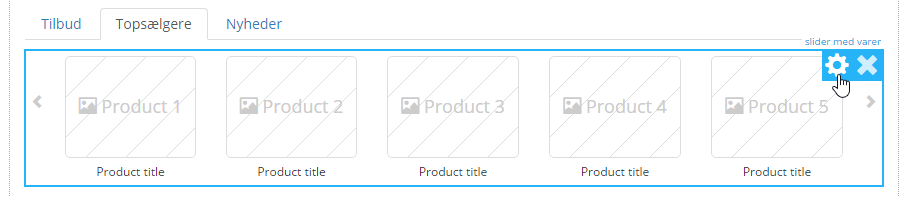
3: In this field, enter the lowest price for products to be included:

4: Click Save changes for the slider:

5: And finally click Save at the top to save all your layout changes this time:

Activate all products for the Kelkoo feed
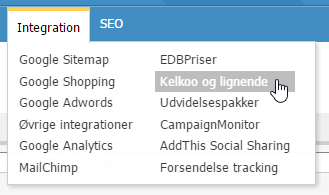
If you use the Kelkoo feed to get your products shown on Kelkoo or other places that support the same format, you can go to the settings and choose to include all products, instead of having to go into each product and select it.
Country set automatically at checkout
When a customer goes to checkout in your shop, the country will automatically be set to the country the customer is in.
This means that shipping and payment options will by default also be set to the ones that apply to the customer, if you have set up your shop that way.
The customer can of course still change the country, for example if they are in Spain ordering products for when they get home from holiday.
If you would rather have a specific country per language, you can set it when editing each language (under Settings > Localisation).
What else is coming?
Some of what we are currently working on for coming updates of your online shop:
- Built-in tool for designing banners/sliders: easier and faster to set up a slider, for example on the home page of your online shop.
- Extra tabs on products (unique per product): a clear way to divide up extra content on products.
- SSL encryption of checkout: so far the payment process itself has been encrypted, but now it will also be possible to enable encryption when name and address are entered (and to be honest, it’s mostly so you can make Google happy).