In this category Release notes
Version 6.41
On this page
Here are the main points of this update for your online shop:
- Anonymise customer data – automatically or individually
- Product sets and product bundles with variants
- Blocking robots from creating customer accounts
- Delete products from “Notify me when in stock”
- Minimum and pack quantities when buying products
- All delivery methods can be marked as default for file export
- Date the customer was created on packing slips
Anonymise customer data – automatically or individually
To make it easy to comply with the GDPR on anonymising customer data – that is, the right to be forgotten – we have made it possible for customer data to be anonymised automatically when a customer hasn’t placed an order for a number of years.
It is also possible to anonymise customers’ data individually.
More about anonymising customer data at the bottom of this page about the GDPR.
Product sets and product bundles with variants
After many hours of development, there are lots of new ways of offering customers a ready-made combination of products.
Here is a short introduction to the 3 types of product set you can now create in your online shop:
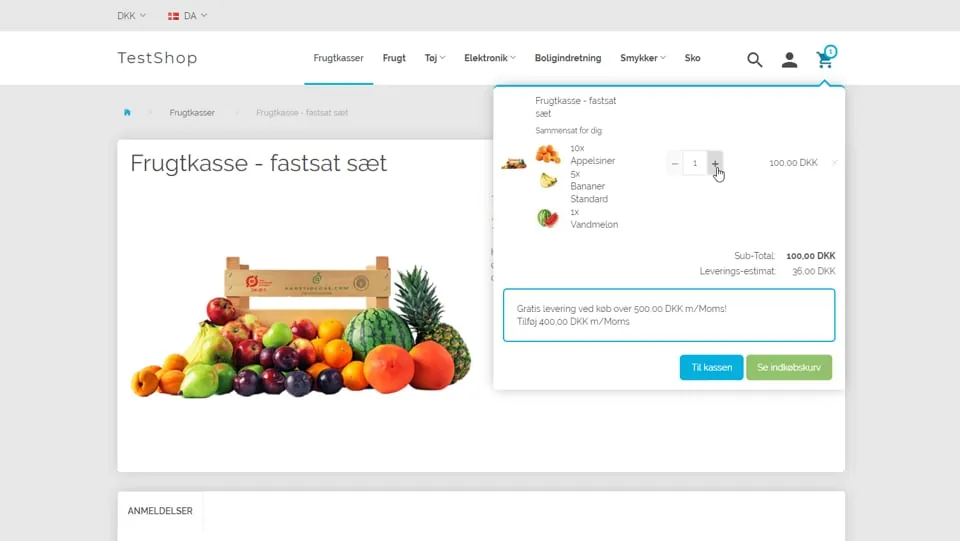 Play video: Product sets: introduction (opens Vimeo)
Click to see the guide to creating product sets
Blocking robots from creating customer accounts
To prevent robots from creating customer accounts, a simple sum now has to be answered to create an account:

Delete products from “Notify me when in stock”
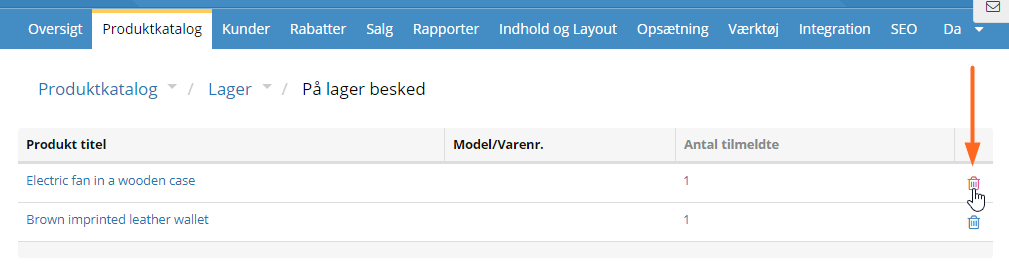
If you let customers get a notification when a product is back in stock, you can now remove a product from the list if it is no longer relevant.
Minimum and pack quantities when buying products
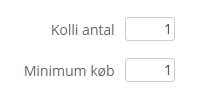
Do you sell wine, for example, and show prices per bottle, but only want to sell it in whole cases of 6?
That is now possible with a so-called pack condition on each product where it applies.
You can also set a minimum quantity that must be bought of a product.
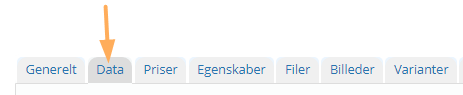
You’ll find the new fields when creating/editing the product, on the Data tab
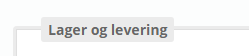
in the Stock and delivery section
and, at the bottom, the two new fields
All delivery methods can be marked as default for file export
It has now become easier to prepare your file with an export of orders to, for example, GLS Interline or Pacsoft.
If you use the general delivery modules such as Flat rate or By weight/price, you can now choose to include them in the export of orders to a file by default.
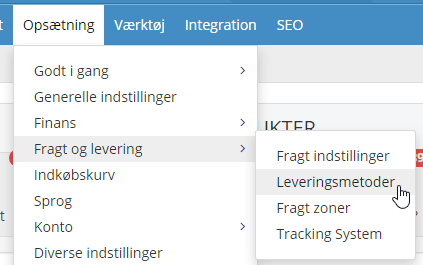
You do this by going to the list of delivery methods
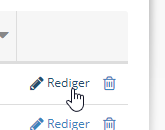
opening the delivery method for editing
and on the General tab you’ll find this setting:

New orders will then automatically be marked for export to file.
Note that when you click, for example, the GLS export button, it will include the delivery method GLS parcel shop by default. You can simply remove it if you wish (and perhaps add it in the filtering, if not all should be included):

Date the customer was created on packing slips
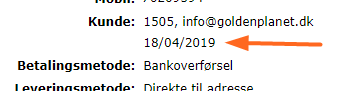
Finally, a small addition – but perhaps a detail you can use, for example, to welcome new customers with something special in the parcel.
On packing slips, below the customer’s number and email address, you can now see the date the customer was created. This lets you see whether it is the first order from a new customer.