
In this category Release notes
Update: version 6.31
On this page
Before the summer holidays really get going here, we have an update for your online shop with the latest improvements:
- Mobile layout of the basket optimised
- Mailchimp sign-up transferred immediately
- Calculate B2B prices automatically from the cost price
- Expected-from date in the order confirmation
- Style and scripts via the editor
- Buttons aligned in categories
- QuickPay check before orders are cancelled automatically
- Google Shopping and shipping by weight
Mobile layout of the basket optimised
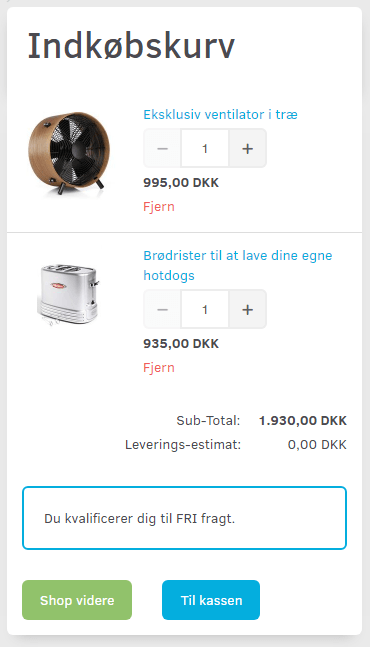
The basket page has been optimised for mobile, so it is clearer and more “finger-friendly”.
Among other things, plus/minus buttons have been added by the quantity to make it easier and faster to adjust how many you want to buy.
Mailchimp sign-up transferred immediately
Previously, when someone signed up for a newsletter in the online shop, they were only transferred to the list in Mailchimp after about 24 hours.
That was to make sure the email address was valid.
This has now been changed so that a sign-up goes over to Mailchimp immediately. The email address is not checked – we leave that to Mailchimp, which always does its own check anyway.
This means you can, for example, use the “welcome to our newsletter” feature in Mailchimp. It could also be useful if you offer a discount coupon or something similar for signing up.
Calculate prices automatically from the cost price for customer groups
If you have resellers, B2B or other customer groups where the price has to be adjusted keenly to the market price all the time, you can now set the price to be recalculated automatically as your cost price changes.
You do this by filling in the price for a customer group using this model:
[costprice]+X%
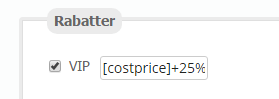
Where X is what should be added on top of the cost price. If you want prices that are 25% higher than the cost price, it will look like this:
Expected-from date in the order confirmation
If you sell products that have an Expected from date entered under information on the Data tab, this date is now shown in the order confirmation that is emailed to the customer.
Style and scripts via the editor
It is now possible, via the editor, to insert code that contains these:

This can be used, among other things, to insert code that generates content from other systems.
Buttons aligned in categories
All neatly lined up!
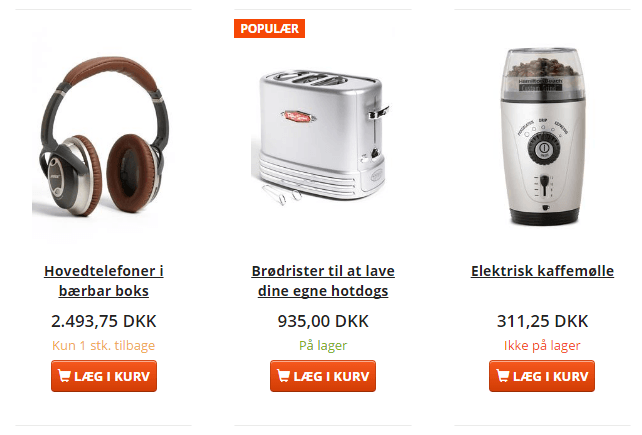
Until now, product categories with products in a column view have been laid out according to, among other things, the length of the title.
Some code has now been added so that information of the same kind is on the same line.
This makes the page look nicer and clearer. Here is an example with the new update:
QuickPay check before orders are cancelled automatically
When a customer clicks the button to complete an order but doesn’t finish with payment after all, the order is automatically cancelled and the products are put back in stock.
There have been a few cases where the information from QuickPay about a completed payment didn’t get through. A check has therefore been added so that QuickPay’s system is asked once more about the status of an order before it is decided whether the order should stay or be cancelled automatically.
Google Shopping and shipping by weight
If the price of your shipping is calculated from the weight of the product, Google Shopping needs to know the weight to be able to show the correct shipping price.
With this update, Google is told the weight of each product.
To get the new information onto all current products straight away, you can go in the admin to the Google Shopping setup (under Integration) and run a Force update:
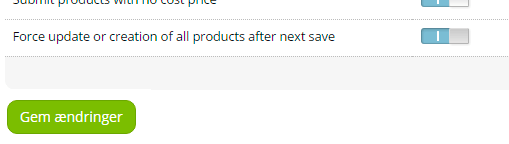
If Force update is already enabled, switch it off and click Save changes – then enable it again and click Save changes once more. Depending on how many products you have, it may take a while before all your products have been updated with their weight.