
In this category Release notes
Update: version 6.33
On this page
Among other things, this update brings some new options that weren’t quite ready in time for the update that came a few weeks ago:
- Integration with YourGLS (printing labels)
- Quickly add a new product with basic info
- Edit robots.txt directly in the admin
Note that the columns of the default view for products have changed in this version. See a tip at the bottom on how to create a shortcut to the view you prefer day to day.
Print GLS labels
It is now possible to use YourGLS and print labels directly from the shop.

You install the GLS Print Label app via Settings > Apps and fill in your YourGLS details.
After that you can print a .pdf label directly from the order.
Read more here about how to use GLS Print Label
Add a new product – quickly
There is now an option to add a new product very quickly.
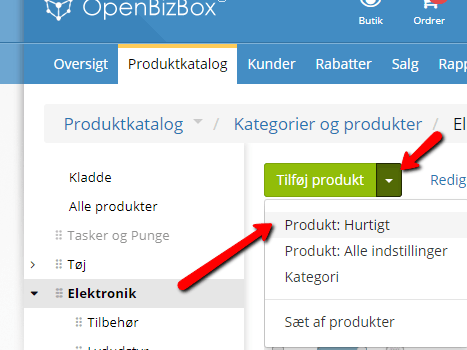
So by entering only the most basic information, you can quickly get your product into the shop.
You’ll find the feature by going to Product catalogue > Categories and products, or right into a category.
If you are inside a category when the editing page opens, the product is placed in that category in advance.
Here, choose the arrow to the right of Add. Clicking it lets you choose Product: Quick.
A product creation page then slides in from the side.
Here you can enter images, title, price, sale price, stock quantity, category/categories and description.
When you then click Save, your product is created and ready for sale.
You can fine-tune it later so it is just perfect, with SEO etc.
Edit robots.txt
Robots.txt is a text file that tells web robots (most often search engines) which pages on your website they should/may crawl.
It also tells web robots which pages should not be crawled.
Let’s say a search engine is about to visit a website. Before it visits the page, it checks robots.txt for instructions about what it may look at.
If you need to make a change to your robots.txt file, e.g. if there are some pages that search engines shouldn’t visit, you now have access to it directly from the shop.
You’ll find the file under SEO > Robots.txt
Default columns of the product list changed – tip for a shortcut
See here how to save time and clicks day to day with the pages you use often – for example in your online shop:
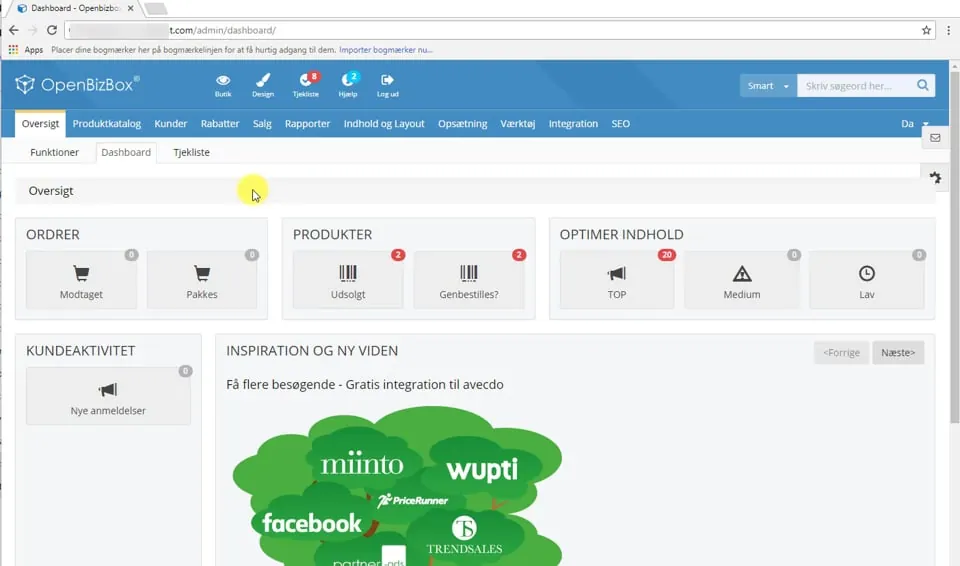 Play video: Save clicks and time with your browser's bookmarks bar (opens Vimeo)