
In this category Release notes
Version 6.43
On this page
We have made another update for your online shop, to give you and your business new options:
- Robots ready to create your products
- Create a copy of an order
- Send a payment link to a customer after new products have been added
- Go to a product directly from the product list in the admin
- Exclude products from loyalty discounts
- Your own fields on products and customers (meta data)
- Update of the integration with Campaign Monitor
Robots ready to create your products
Now you can save lots of time when you create new products in your online shop. At least if you have a manufacturer or supplier with a presentation of the product. Take a look at what we have made for your online shop:
 Play video: Robots create your products (opens Vimeo)
Create a copy of an order
If a customer has paid via QuickPay (typically card payment incl. MobilePay) and then wants something added to the order, it is not possible to send a payment link, because the order number has already been created in QuickPay’s system.
For that situation you can now copy an order via this new option at the far right of the order page:
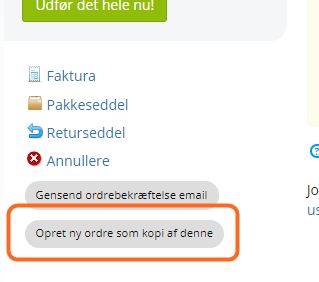
The copy then gets a new order number. You can now change the order as needed. You will probably need to cancel the old order if it isn’t to be processed. You can of course also use this to create a reorder for a customer, or in other situations.
Send a payment link to a customer after new products have been added
A payment link can be sent at the top right via the shortcuts on the order:
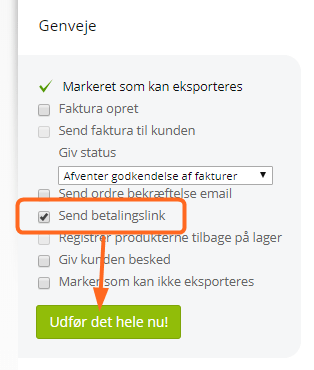
It is possible to send a payment link for orders that have not already been created via QuickPay (e.g. if the customer chose to pay by invoice, but you want greater security for the payment via card payment).
Go to a product directly from the product list in the admin
A detail that can save you a few clicks (and some time) in everyday work. Every little helps.
When you have a list of products in the admin, you may just want to see a product in the shop and not edit it (first).
You can now do this by clicking the icon

at the far right of the product in the list. Here is an example:
As always, you can also go directly from a product page to editing via the top bar – as long as you are logged in to the admin:

Exclude products from loyalty discounts
Loyalty discount on the whole shop or only on selected products? Now the latter is also an option.
See more about loyalty discounts here.
Your own fields on products and customers (meta data)

This one is a bit “techie”. But it is also something that opens up lots of new possibilities.
In short, you can now decide on extra fields for your products and customers yourself. These are called meta data.
If, for example, you need a number for customs clearance on all your products, you can create “Customs tariff code” yourself and enter it on the products when editing them. It could also be packaging weight, notes for ordering, price group etc.
Here you’ll find the guide to meta data for products
Update of the integration with Campaign Monitor
The integration with Campaign Monitor for newsletters has been updated to their latest version (API version 3).